
Embeds — your event on other websites
Sponsors, partners and your own company site often want to show your programme or speakers. A copied list goes out of date as soon as a session moves. A widget shows the list straight from Moostoo, so the other website always shows your latest information.
How it works
What a widget is
A widget shows part of your event on another website. There are four types:
- Program — your sessions.
- Speakers — your speakers and their sessions.
- Exhibitors & sponsors — your companies, with booths and links.
- Attendees — a public list of the attendees you choose.
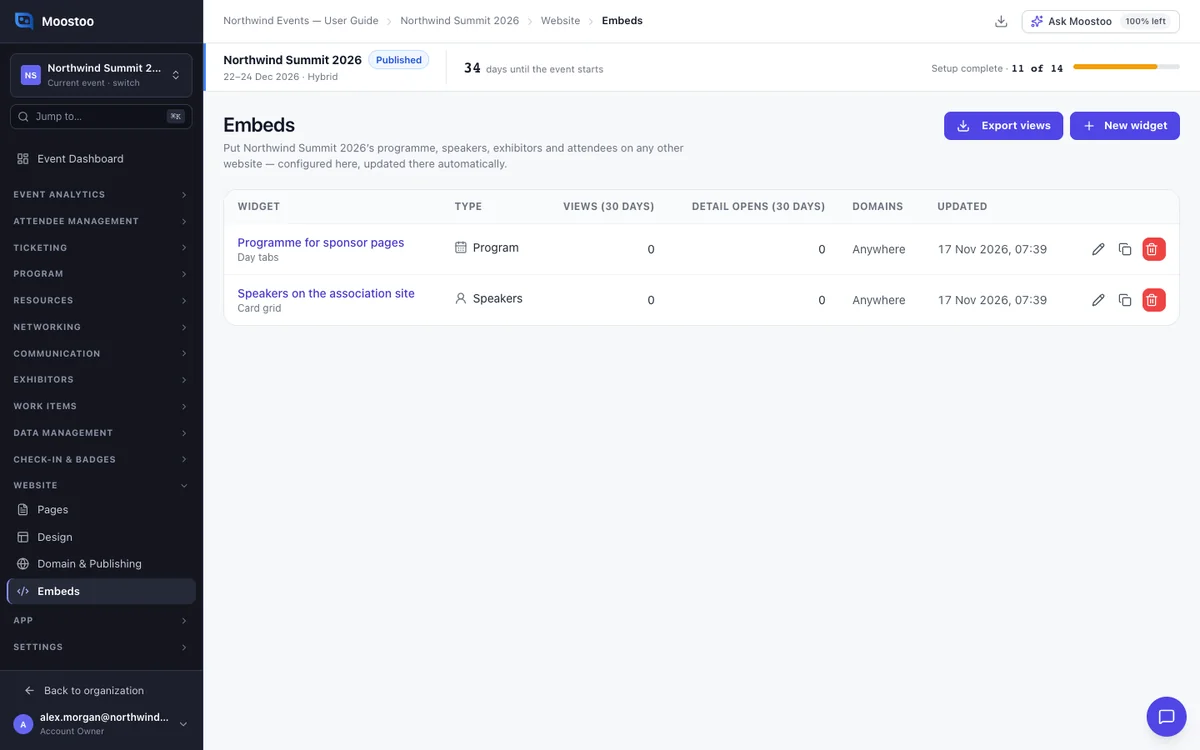
You build the widget in Moostoo, then paste its code into the other website once. After that, every change appears there within about a minute. That includes changes to the widget and to your sessions, speakers and companies.
Templates and content
Each widget starts from a template. For example, the programme can be an Agenda with day tabs and full session cards, Day tabs, or a Room × time grid. Sponsors can be a Logo wall or Grouped by tier. You can change every option afterwards.
You choose the records by filter, such as days, tracks, rooms, company types or tiers. Or you pick them by hand in your own order. You also set the sort and a maximum. A record you delete disappears from the widget.
What visitors can do
Visitors can search, use the filters you allow, and open a details window. For example, a session shows its speakers, and an exhibitor shows its booth and links.
Widgets are for browsing only. The one action is an optional link button, which leads to your registration page by default.
Look, language and time
- The widget can match your event website's colours, fonts and corners, or use its own colours.
- It can be light, dark or follow the visitor's setting.
- Custom CSS changes this widget only.
- It uses the visitor's browser language, or a language you fix. Your content is translated as in the attendee app.
- Times can follow the event's clock or the visitor's own.
Before the event is published
While the event is still a draft, a widget shows nothing. You can write a placeholder instead, with a title, text, an image and an optional button. A widget never shows your content before you publish the event.
Good to know
- You can list the websites allowed to show a widget, for example
example.comor*.example.com. Leave the list empty to allow any site. - Widgets store nothing on the visitor's device, so the other website needs no cookie banner for them.
- Views are counted per day, without recording anything about the visitor. You can download them with Export views.
- The Attendees widget lists only the attendee types you choose. It shows name, photo, job title, company, attendee type, country and city. It never lists people who hid their profile or turned off Show me in the event's public attendee lists.
Step by step
Create a widget
Open Website → Embeds and click New widget.
Choose the type and a template, and give the widget a name.
The name is only for you. The thumbnails show sample data, so you can compare layouts before your event has records. Switch to Real data to see your own.
Go through the tabs and adjust what you need, while watching the preview.
The tabs are Content, Fields, Features, Layout, Style, Custom CSS, Not published, Domains and Language & clock. Check your content choices with Real data.
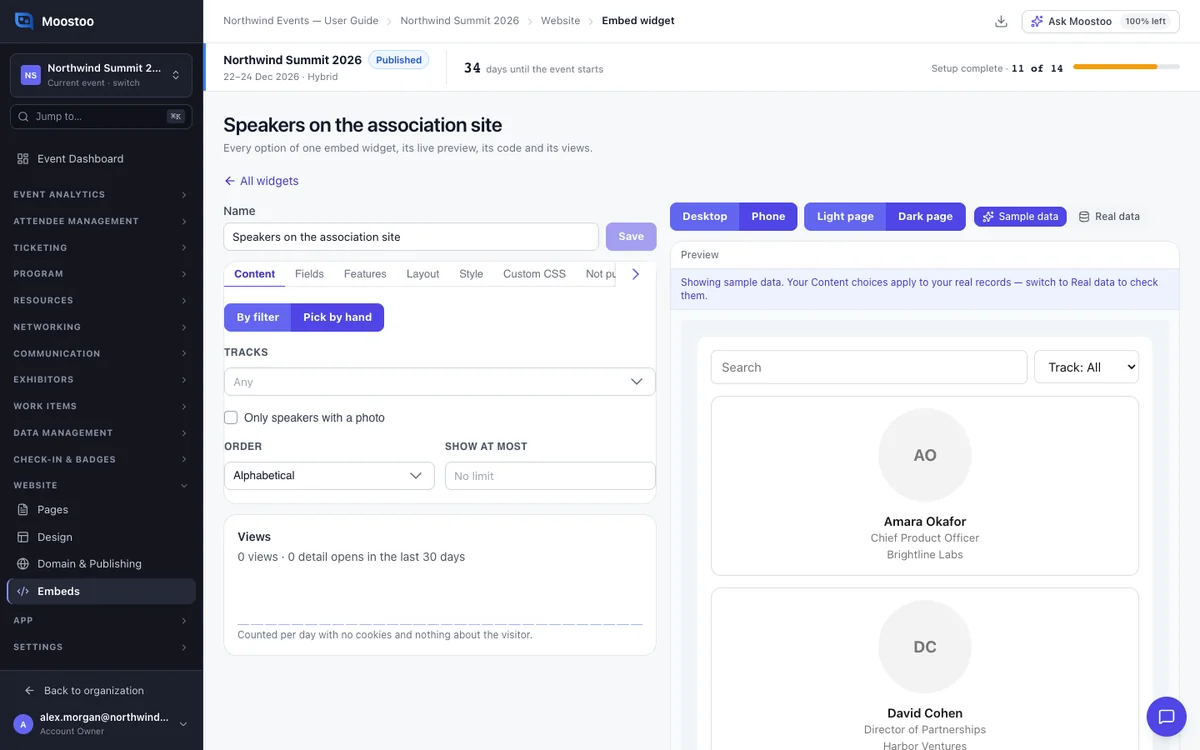
Switch the preview between desktop and phone width, and between a light and a dark page.
Click Save.
Put it on another website
Open the widget's Get code tab.
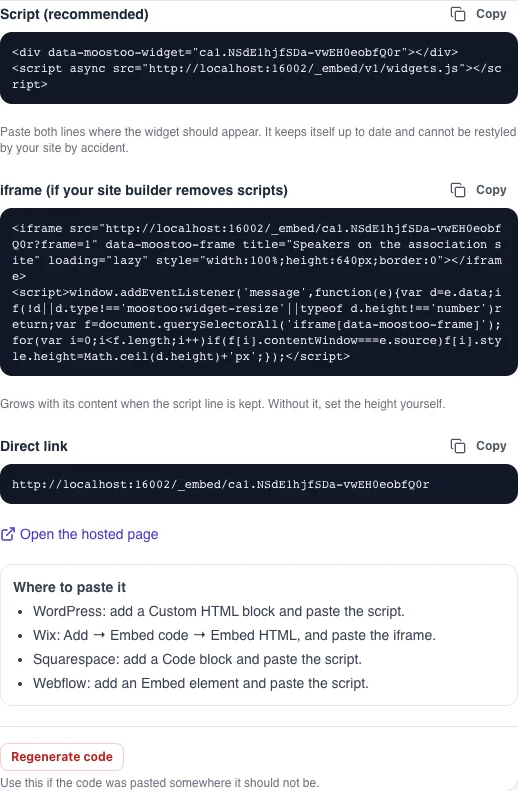
Copy the script code and paste it into an HTML block on the other website.
If that website removes scripts, use the iframe code. The direct link opens the widget as a full page, for a social post or a QR code.
Open the page and check that the widget appears.
Stop all copies of a widget
Click Regenerate code and type regenerate.
Every copy of the old code stops showing anything.
Paste the new code where you still want the widget.
What attendees see
On the event website
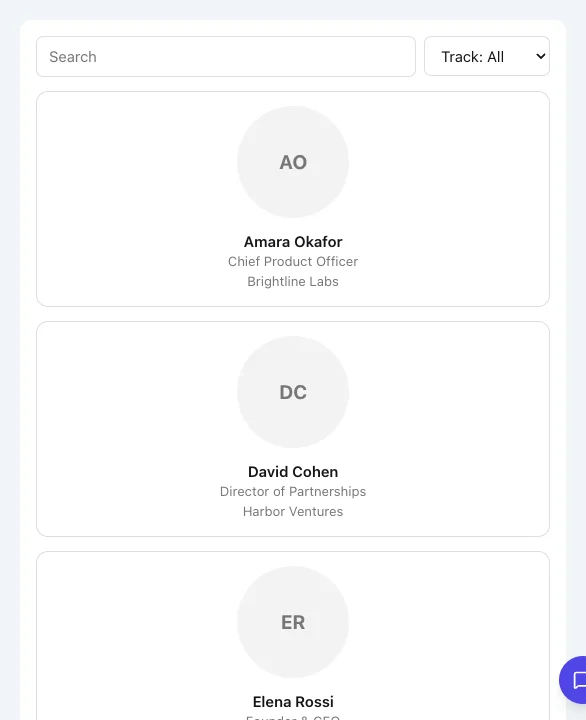
Visitors to the other website see your programme, speakers, exhibitors or attendees in the widget's layout. They can search, filter and open details. Attendees choose for themselves whether they appear in public lists, under Settings → Visibility in the attendee app.
Tips
- Make one widget for each place it appears. Each then has its own look and its own view count.
- Write a placeholder before you share codes for a draft event, so partners' pages say something like Programme coming soon.
- Before you create an Attendees widget, make sure your privacy policy mentions public attendee lists.
- Use Duplicate to try another template without changing a widget that is already live.