
The home screen and the menu
Every attendee starts on the home screen and the menu. What you put there, and in what order, decides what people find without being told. Seeing these screens as attendees do makes your App Designer choices concrete.
The event's home screen
Opening your event lands on Home. It is built from the sections you switch on and order in the App Designer's home screen settings. So two events can look quite different.
On a computer, the attendee's own plans are on the left. A rail on the right holds their profile and From the organizers. On a phone, everything is one column, with the rail last.
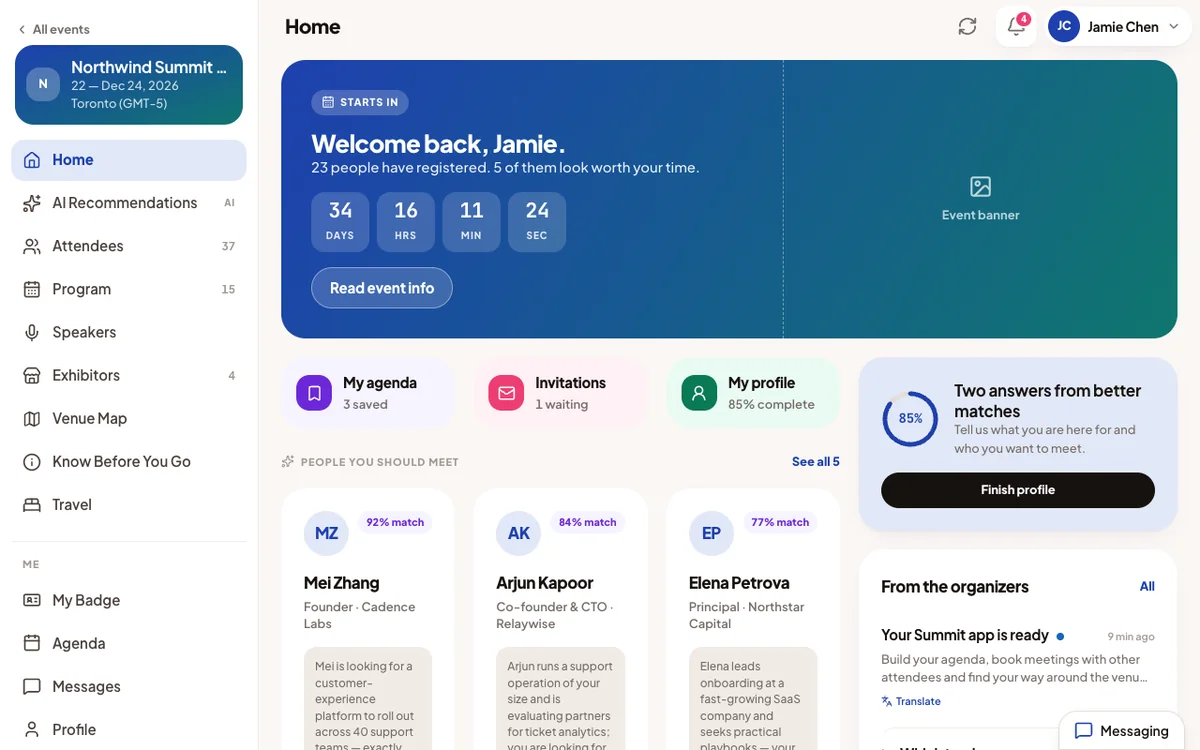
| Section | What the attendee sees |
|---|---|
| Welcome Banner | Your banner, the event's name and a welcome with their first name. A chip counts down to the start, then shows the day of the event. Read event info opens your description. |
| Stats Row | Small tiles that open a screen. By default: My agenda, Invitations and My profile. You can also offer Messages, Meetings today and For you. |
| People You Should Meet | Their best AI recommendations, with a match score and reason. Connect offers chat, a meeting request or the profile. |
| Up Next | The next session or meeting on their agenda, with a countdown. |
| Recommended Sessions | Sessions picked for them, each with Add to Agenda. |
| Today's Agenda | What they have planned today. |
| Happening Now | Sessions running right now. Off by default. |
| Announcements & Polls | From the organizers: your announcements and polls, with Vote on an open poll. |
| Featured Content | Off by default. It has nothing to show yet, so attendees see nothing even when it is on. |
Good to know
- Until the profile is complete, a profile card heads the rail. Finish profile lists what is still empty, and each item opens that field.
- When an online meeting's room is open, a banner with Join appears at the top of Home.
- The number of registered people shows only if you publish the attendee count. That switch is in the Attendees module of the App Designer.
- Home updates by itself when you post an announcement or a poll.
The My badge button
The Welcome Banner can show a My badge button that opens the attendee's badge. You choose when it appears:
- Automatically, the default: from the day before the event until it ends.
- Always, including the run-up.
- Never.
An online event never shows it, because there is no door to scan at.
The menu on a computer and on a phone
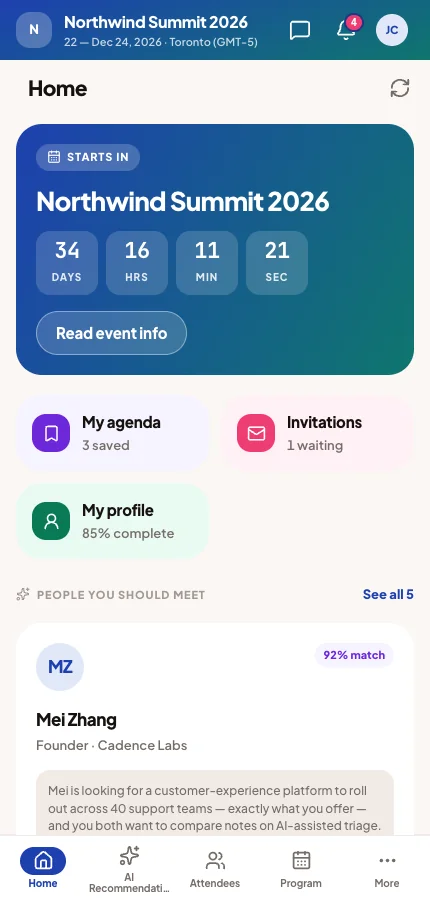
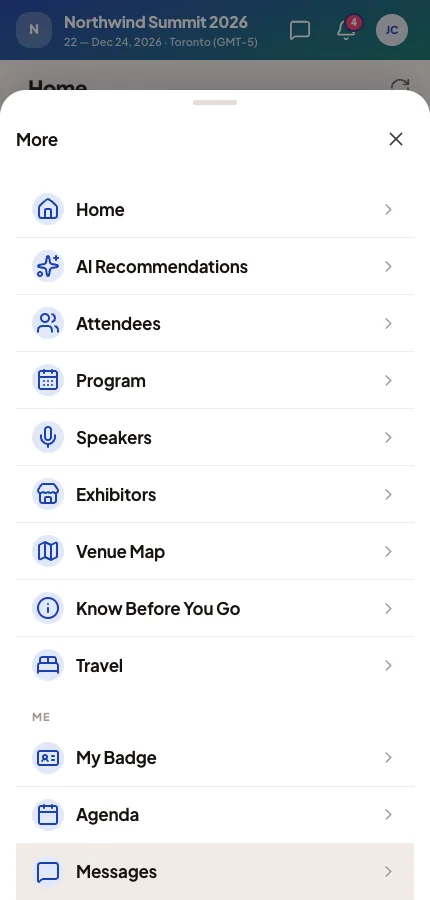
On a computer, the menu is a sidebar. On a phone, it is a bar of up to four items at the bottom, plus More, which opens the whole menu.
Both follow the navigation you arrange in the App Designer. By default there is a main section, Staff Tools and Me. Each screen's title is the name you gave it in the menu. Home is always first, and items in Not added appear nowhere.
- Staff Tools holds the entrance and session scanners. Only staff of this event see it: the Account Owner, Super Users, and event-team members with the Admin, Member or Volunteer role.
- Booth representatives also get a My Booth group. See Booth teams.
- Contact organiser opens a conversation with your team, wherever you place it.
- Changes you save in the App Designer reach attendees without a reload.
The bell
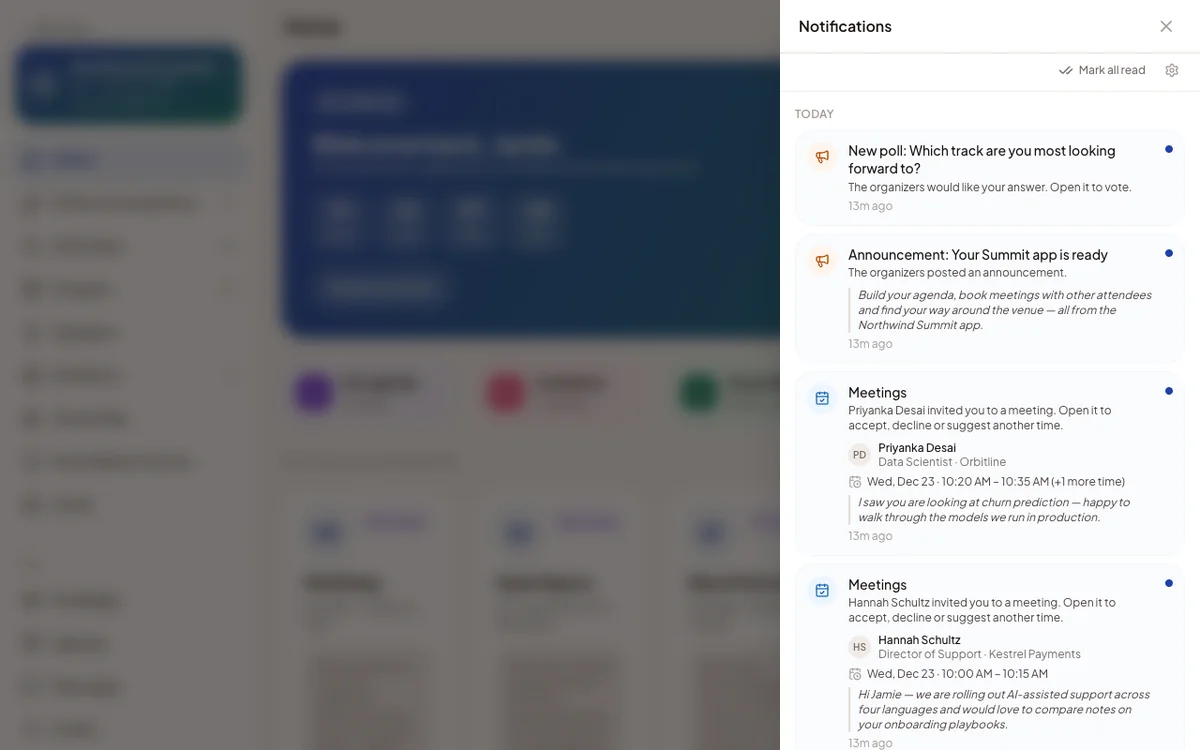
The bell opens Notifications: meeting invitations and answers, reminders, announcements, polls and more. Tapping one opens what it is about.
Opening the panel clears the number on the bell. Each notification stays unread until it is opened, or until Mark all read. The settings button in the panel turns push notifications and notification emails on or off for this event.
Home may also offer to turn on notifications for the browser or the phone. The device asks for permission only after the attendee chooses this. It never asks on its own when the app opens.
All events and switching events
One account holds every event a person attends, from any organizer. All events in the account menu leads to My Events. It lists a card per event, with a search box and the filters All, Live now, Upcoming and Past.
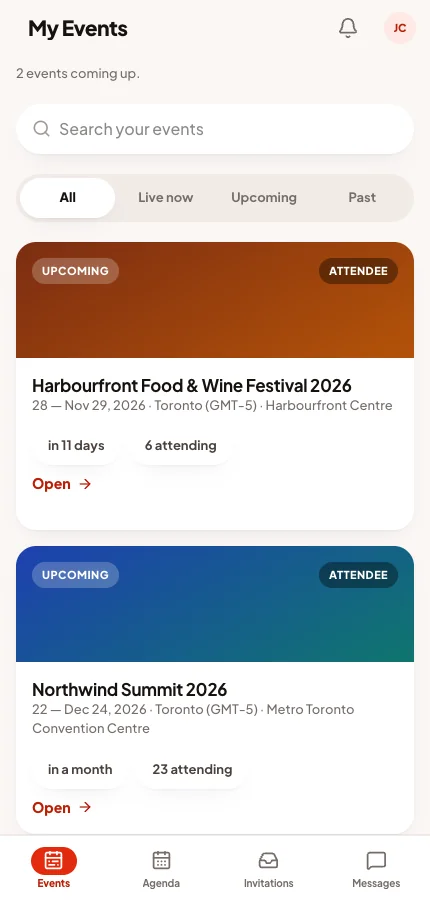
Outside an event, the menu has Events, Agenda, Invitations and Messages. Each gathers what is waiting across all their events. The bell there groups notifications by event.
The account menu
The attendee's photo or initials in the corner open the account menu. It holds My profile, Event settings, Account settings, All events, the language, the Light / Dark / System mode and Sign out.
What you control
| What | Where |
|---|---|
| Home's sections, order, stats tiles and the My badge button | Home screen |
| Menu sections, names, icons and the phone's bottom bar | Navigation |
| Announcements and polls | Announcements and polls |
| Banner, logo and brand colour | Event settings |
| Who sees Staff Tools | Event team |
| Checking it all before attendees do | Preview |
Common questions
An attendee can't find the venue map or another screen.
It is probably in Not added, or in a section you switched off. Place it in an enabled section in Navigation. On a phone, everything not on the bottom bar is under More.
Why don't attendees see the My badge button yet?
With the automatic setting it appears the day before the event. Choose always if you want it visible earlier.
A colleague sees Staff Tools. Will attendees see them too?
No. Only staff of this event see them. Check that the colleague's event-team role is the one you intended.
People say they get too many notifications.
They can switch push and email off for your event from the bell's settings. In-app notifications stay in the panel.