
Meeting requests and invitations
Attendees book one-to-one meetings themselves, inside the meeting sessions, tables and rules you set. When someone says "I can't find a time" or "why can't I invite her again?", the answer is in this flow. Knowing it also helps you size meeting sessions and decide when to pre-arrange meetings.
Sending a meeting request
Request Meeting opens Request a Meeting. It appears on directory cards, profiles, AI Recommendations and speakers. The sender adds an optional message and guests, then chooses how the other person should reply.
| Mode | The sender | The recipient |
|---|---|---|
| Let the recipient choose | Proposes no time. | Picks any slot both are free for. |
| Propose preferred slots | Picks up to five times. | Picks one of those, or any other free slot. |
| Propose specific slots | Picks up to five times. | Must pick one of those, or suggest another time. |
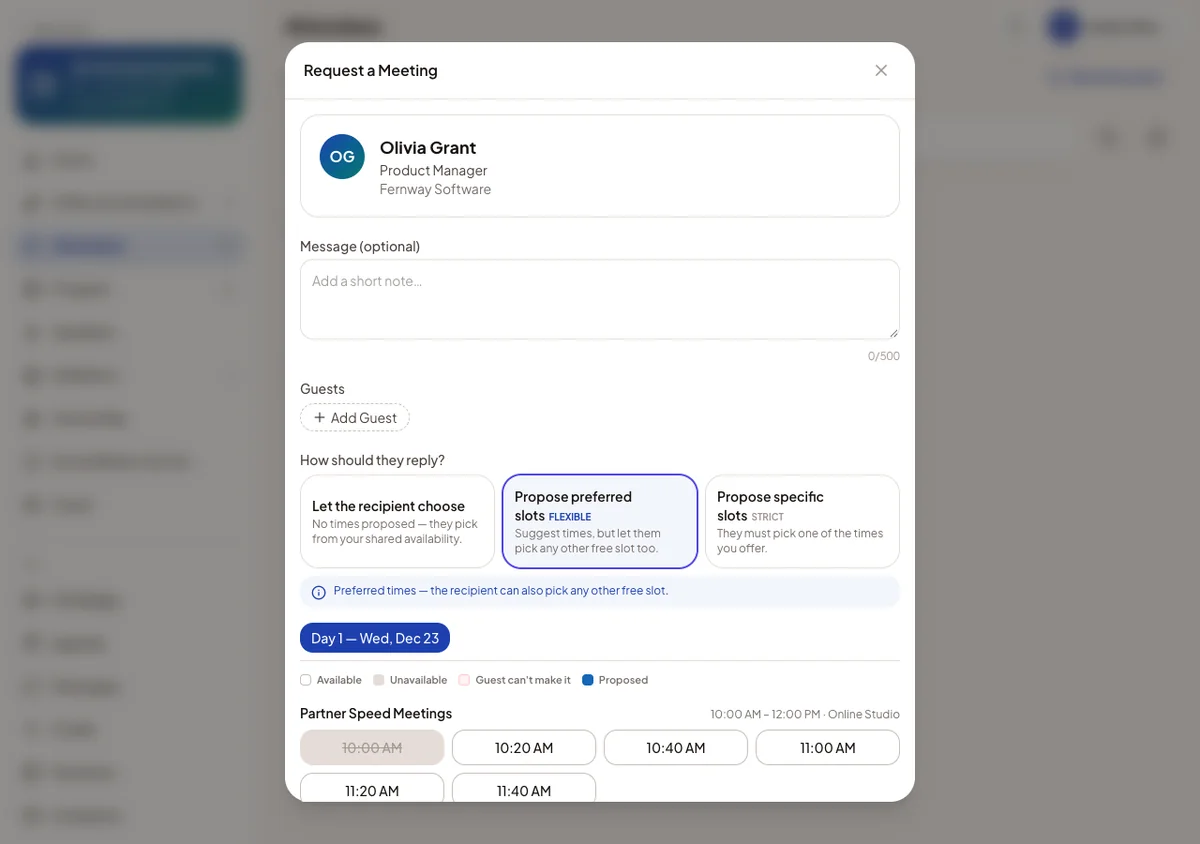
The time grid
The grid lists the slots of your meeting sessions that are open to both people's attendee types.
Available Free and bookable.
Unavailable Already booked, no table free, or blocked by something on the agenda. The reason shows on the slot.
Guest can't make it A guest is busy. The slot can still be booked, because a guest never blocks a meeting.
Proposed A time picked for this invitation.
Current time When rescheduling, the meeting's present time.
A new request shows only the sender's calendar
When sending a request, the grid greys out only times the sender is busy. Otherwise anyone could read someone else's day by pretending to invite them. If a proposed time clashes for the recipient, it shows struck through on their screen. Once the recipient replies, both calendars count.
Message and guests
- The message is optional. Suggest a message drafts one from both profiles. For a strongly recommended person, a draft is written into an empty box automatically.
- The sender can add up to three guests. Guests answer for themselves but never decide the meeting.
- Send Request sends it. Nothing is booked until the recipient accepts.
The Invitations inbox
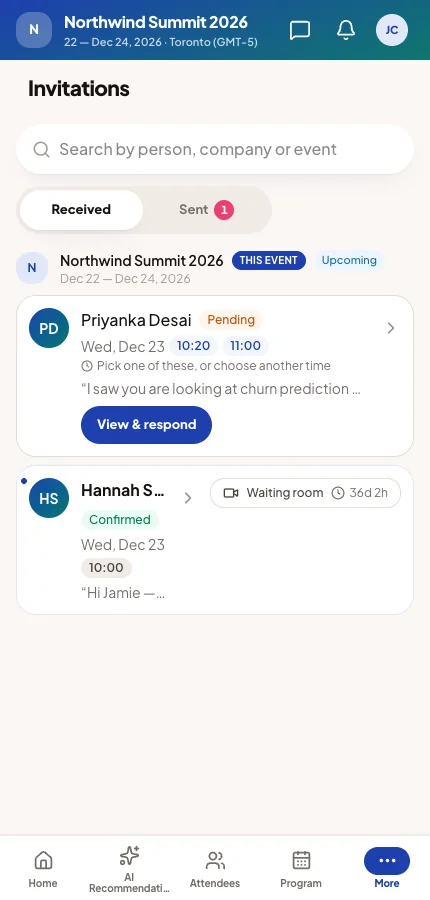
Invitations lists every thread under Received and Sent. A thread is filed by who proposed last, so after a counter-proposal it moves to the other side.
Each row shows the person, the status and the proposed times. A row waiting for the viewer's answer shows View & respond. Finished threads move under Past.
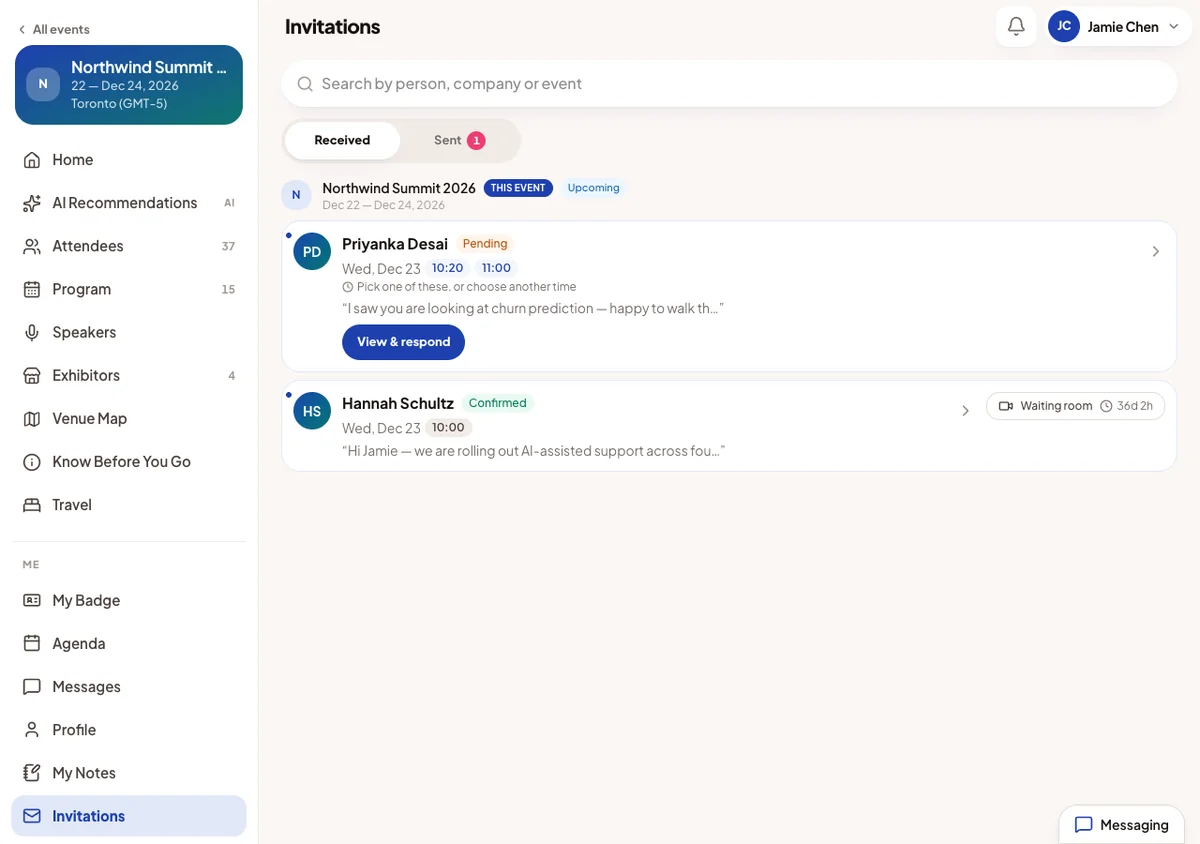
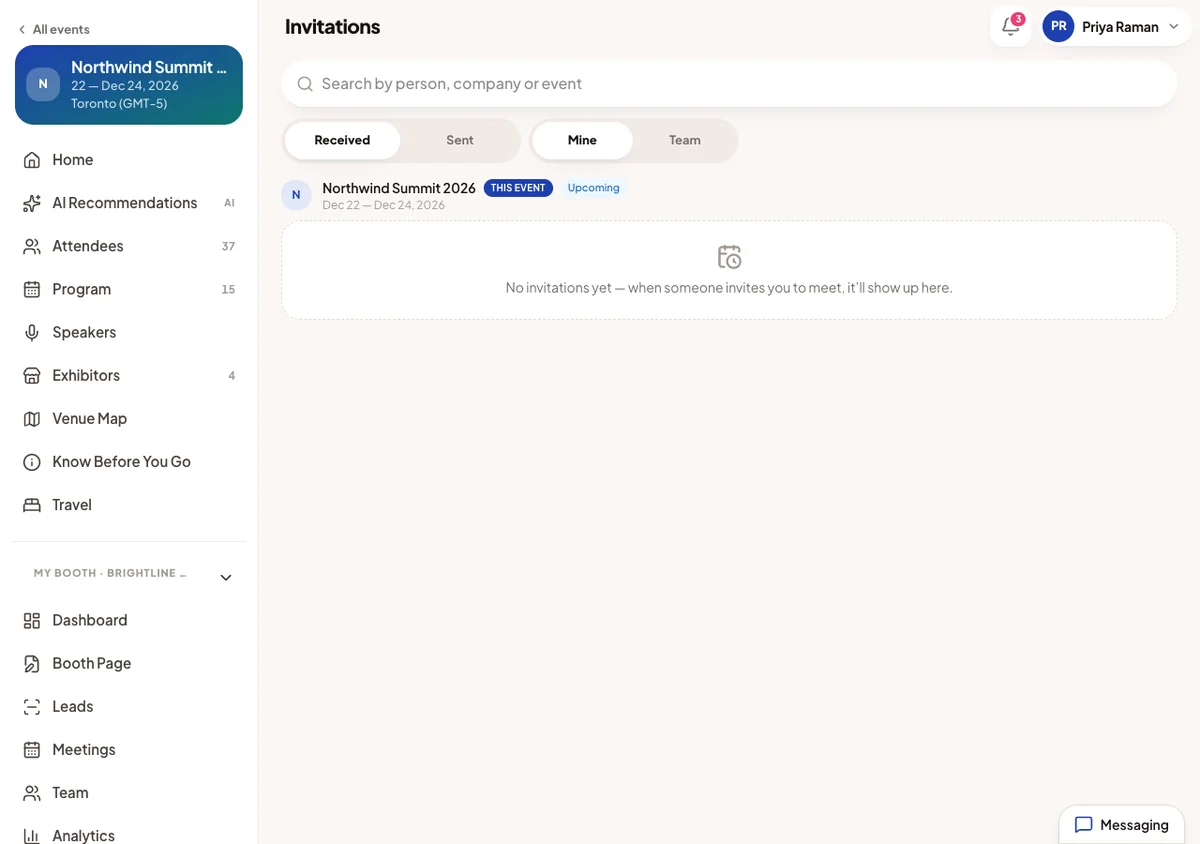
Booth team members also see Mine and Team. Team holds the whole booth team's invitations and meetings, so any member can answer for the company. See Booth meeting sessions.
Answering an invitation
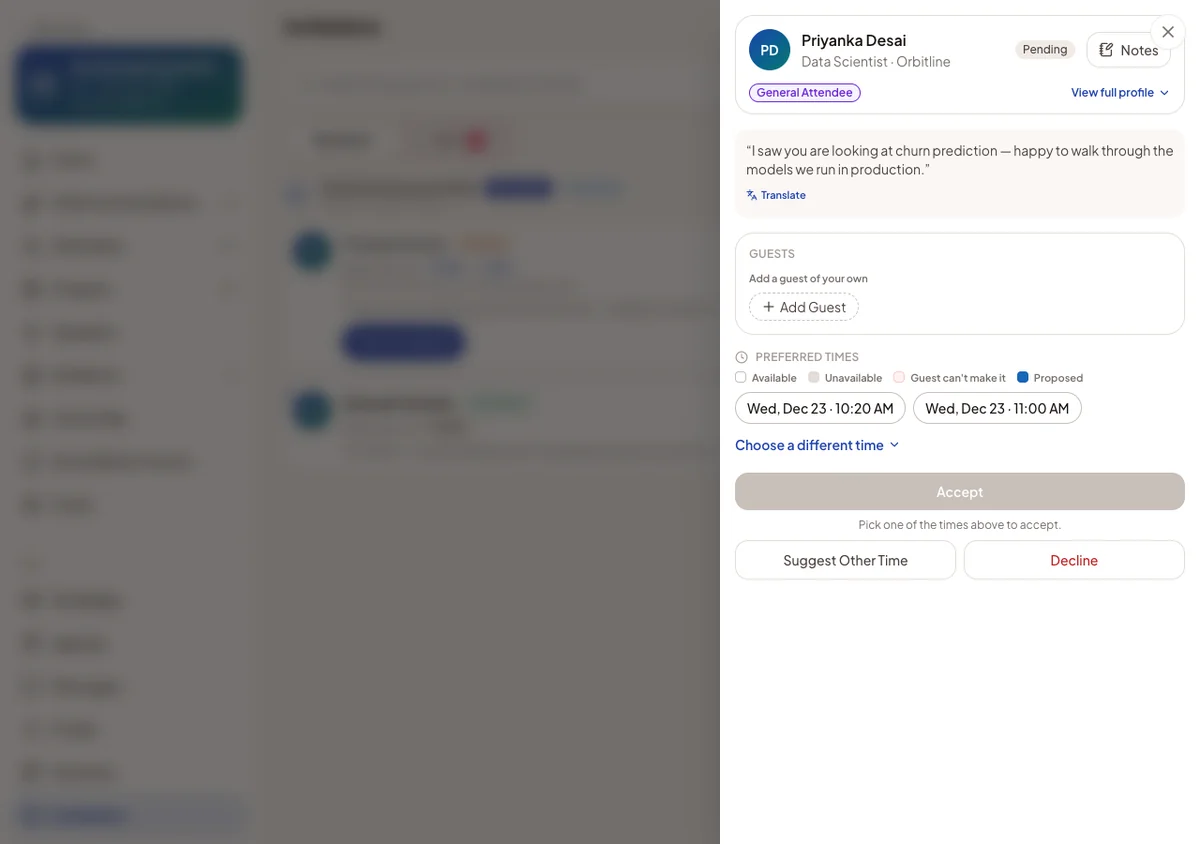
Opening a thread shows the other person, the message, the guests and the proposed times. A time that no longer works for either person is greyed out, with the reason below.
- The attendee taps a proposed time. In the flexible and open modes, they can also open the full grid to choose another.
- Accept confirms that time. The meeting gets a free table, or a video room at an online event, and appears on both agendas.
- Or Suggest Other Time proposes new times. The other person now owes the answer.
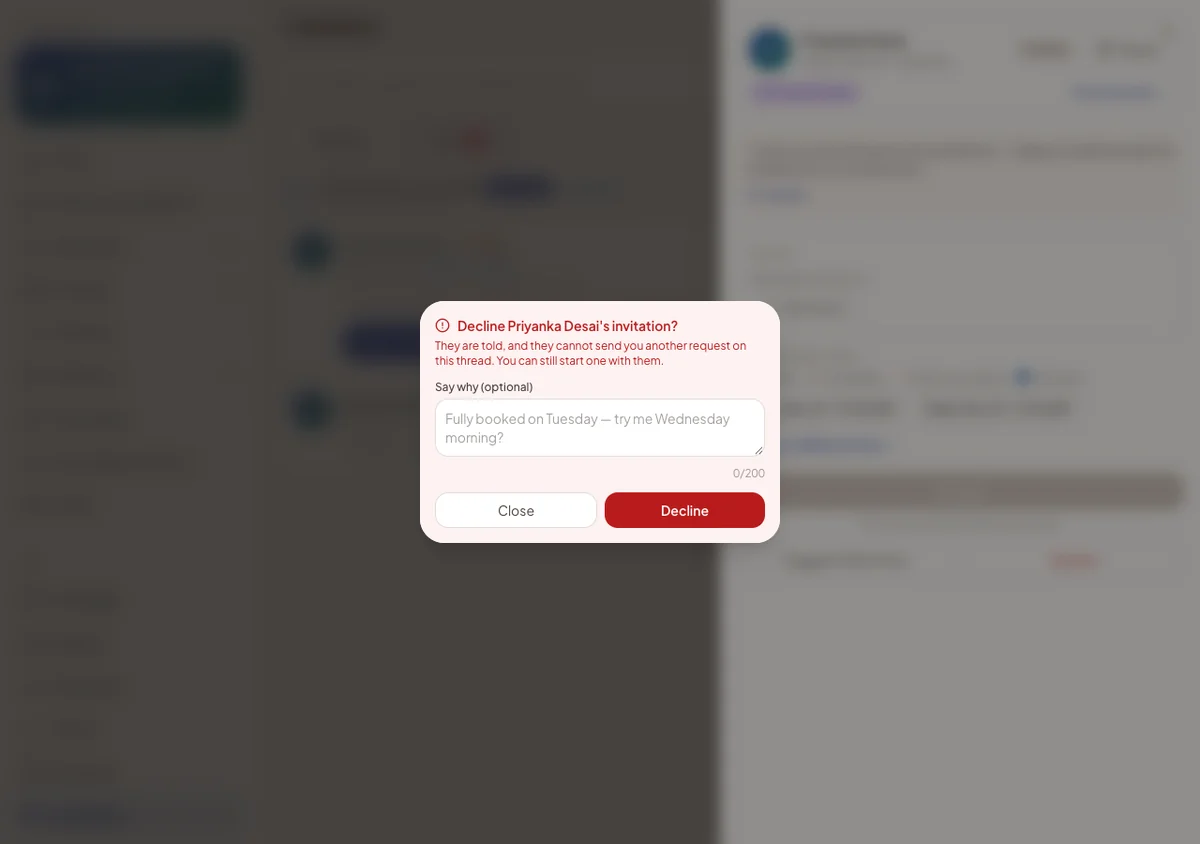
- Or Decline, with an optional reason.
After a decline
A decline stops the person who was declined from inviting again. Their Request Meeting is greyed out with an explanation. The person who declined can still invite them, and doing so lifts the block.
Withdrawing your own proposal, or cancelling a confirmed meeting, blocks nobody.
Changing your own invitation
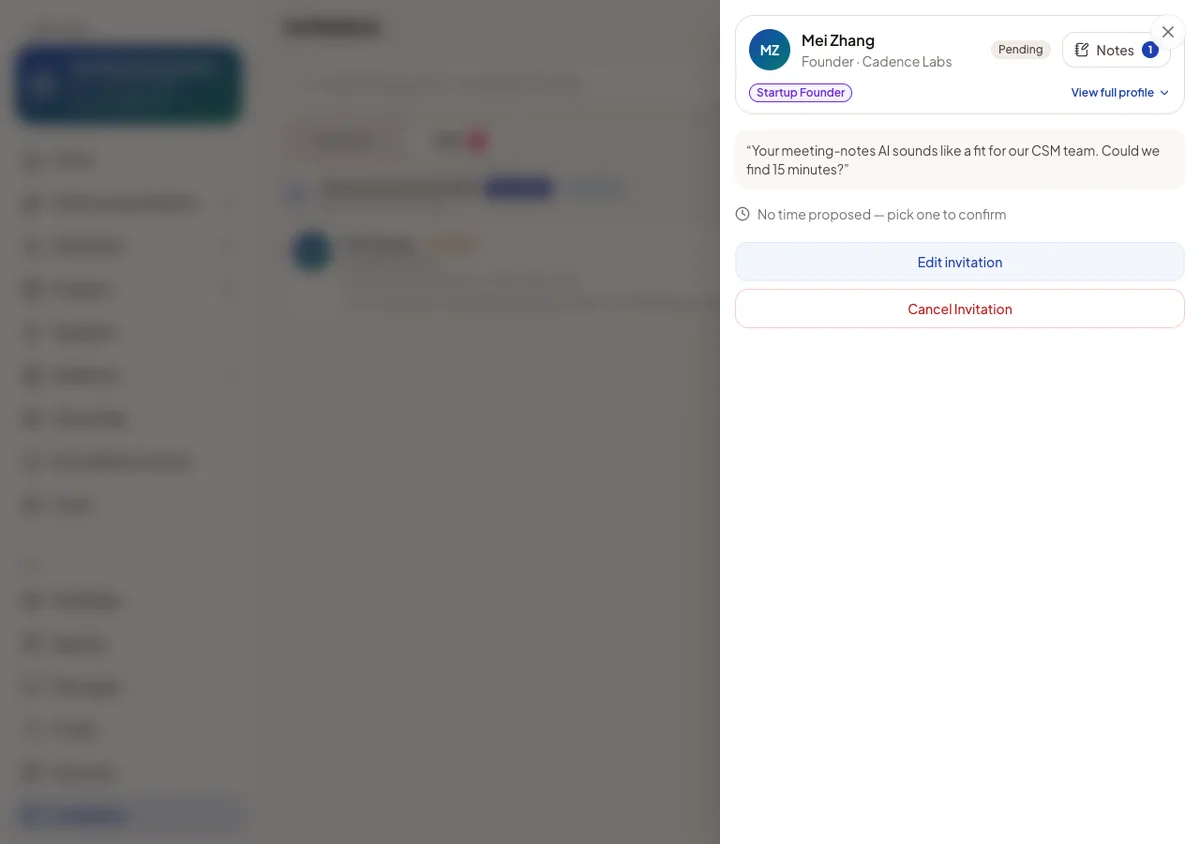
Until the other person answers, the sender can use Edit invitation to change the mode, times or message. The thread stays the same and the other person is told. Cancel Invitation withdraws it.
A confirmed meeting
A confirmed meeting opens from the inbox, the agenda or the directory card. It shows the time, place, guests and their answers. An online meeting shows Join Meeting shortly before it starts.
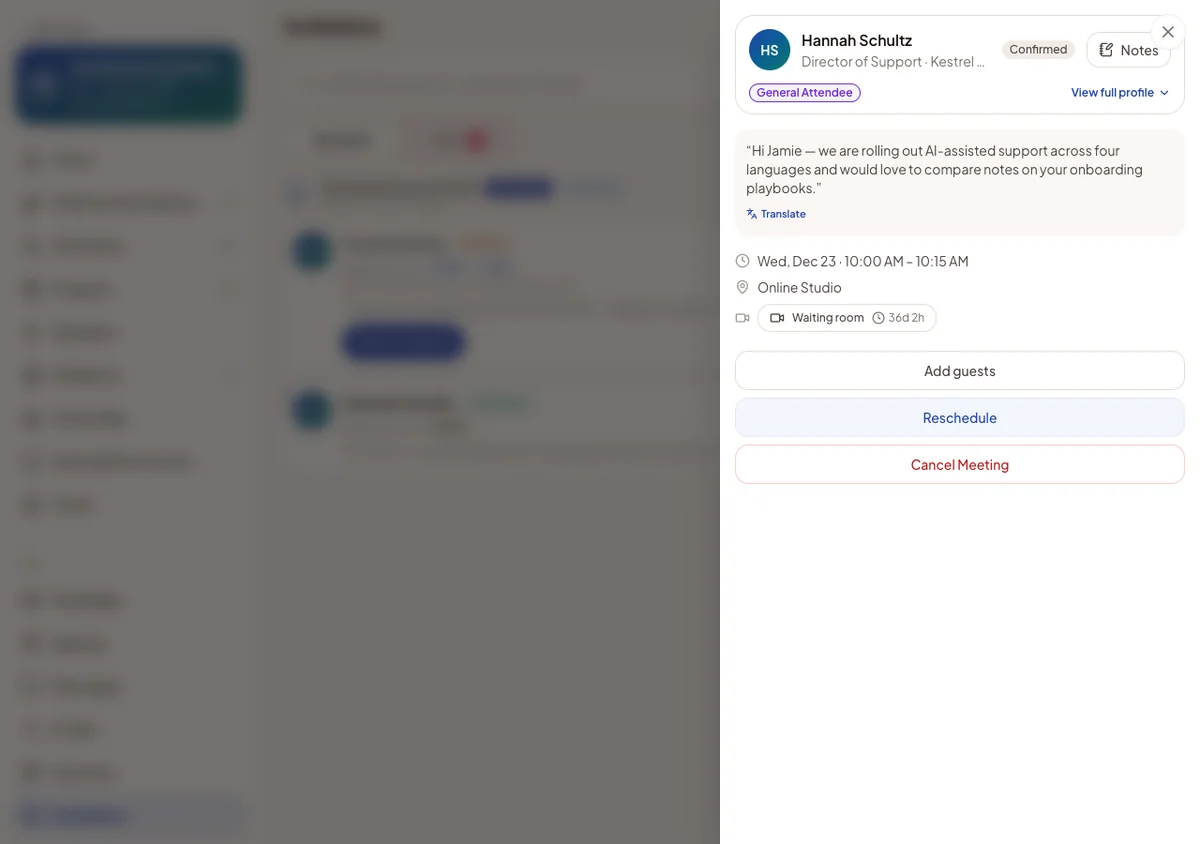
Reschedule Proposes new times. The meeting keeps its time until the other person accepts a new one or keeps the current time.
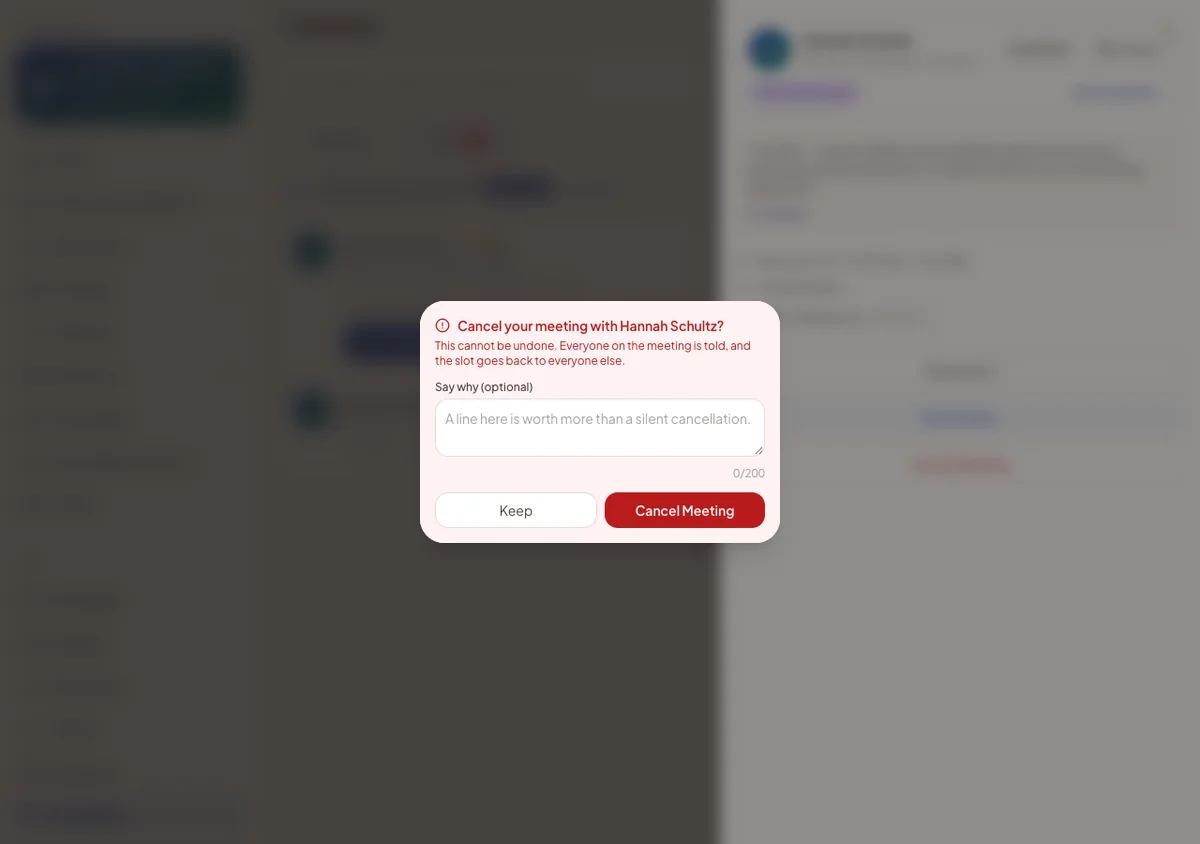
Cancel Meeting Asks first and allows a short message to both people and every guest. The slot and table are freed. A meeting that has ended cannot be changed.
Add guests Either person can add guests. Whoever invited a guest can remove them.
Being a guest
A guest sees the meeting marked Guest, with who invited them and who else is in it. They do not see the private message or the meeting's buttons.
They answer Going, Maybe or Not going. Only Going holds the time on their agenda. Not going removes it. The meeting goes ahead whatever they answer.
Who may ask
- Blocked people, in Settings: a blocked person can no longer send requests or messages, and is never told. Unblock undoes it.
- Meeting requests, in Settings: attendees can accept requests only from chosen attendee types. This can only narrow what your rules allow. Other requests are dropped silently.
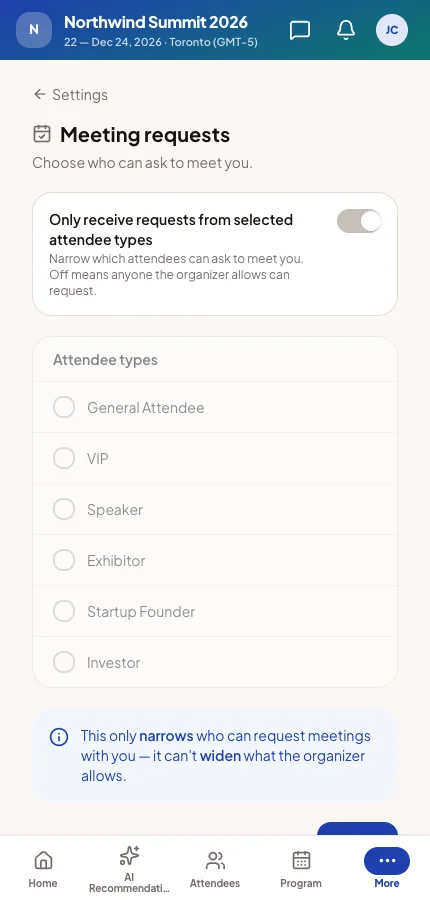
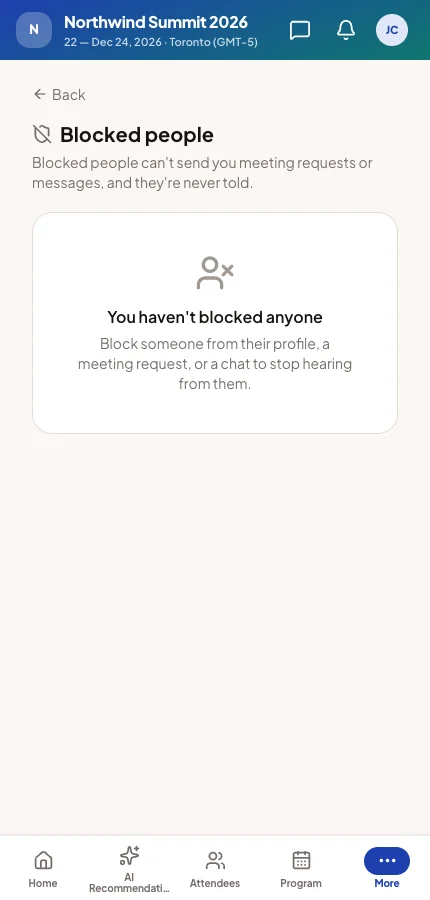
In the attendee app
Every request, answer, change and cancellation reaches the other person as a notification. Depending on your automated emails, it also arrives by email and push. Meetings you arranged are marked, for example At organizer's request.
Questions you may be asked
"There are no times to choose."
The grid says why: no meeting session, sessions already over, or every slot taken. Add slots or tables in Meeting sessions, or ask the attendee to free some off-time.
"My request vanished. They never got it."
The recipient may have blocked the sender or limited who can ask them. The sender is never told. You can pre-arrange a meeting, which follows the same rules.
"Can I see every meeting attendees booked?"
Yes. All meetings lists them with status, table and attendance.