
Sender addresses
An email that says it comes from your company is trusted and opened; one that comes from an unknown platform address is not. Before Moostoo may send in your name, you prove that the address is yours by clicking a link sent to it. Confirmed once for the organization, the address is then available to every event.
How it works
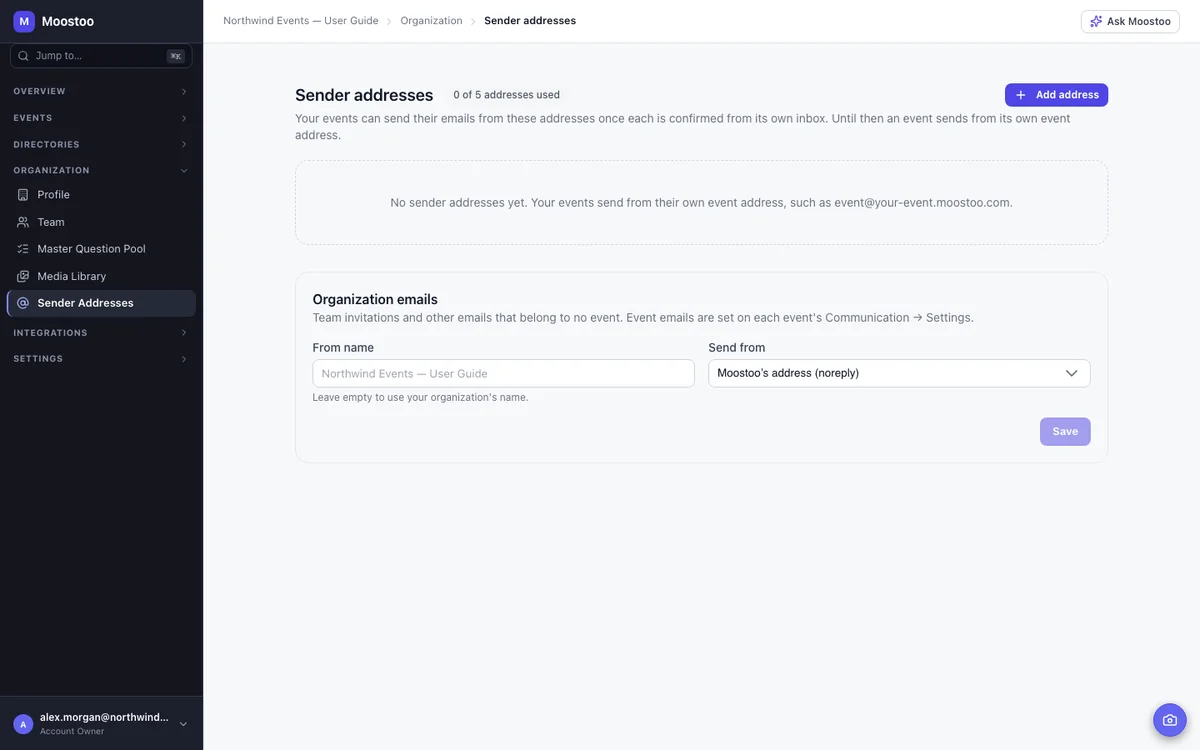
Open Organization → Sender Addresses. It lists your organization's addresses with their status and the events that send from each.
| Status | What it means |
|---|---|
| Verified | Confirmed. Events can send from it. |
| Waiting for confirmation | The confirmation email was sent; the link works for 24 hours, and the time left is shown. |
| Expired | Nobody clicked the link in time. Use Try again to send a new one. |
| Needs attention | Amazon SES no longer reports the address as confirmed, so nothing is sent from it. Use Resend verification. |
- Statuses come from Amazon SES. Every time the list opens, Moostoo asks Amazon SES (the email service it sends through) about each address, and the line under the address says what SES answered — confirmed, waiting for the link to be clicked, failed, or not registered — with the time it asked. Check status asks again.
- Resend verification sends a new confirmation to any address that is not confirmed. If SES already confirmed it, nothing is sent and the address turns Verified; if SES's confirmation failed, Moostoo starts it over.
- Up to 5 addresses per organization, counting those still waiting for confirmation.
- Use your organization's own domain. Addresses at gmail.com, outlook.com, yahoo.com and other common providers are refused: their policies make mail sent in their name by another service land in spam or be refused outright.
- Who sends the confirmation. The first time an address is ever registered, the confirmation email comes from Amazon Web Services (the email service Moostoo uses); otherwise it comes from Moostoo. Tell the owner of that mailbox to expect it.
- Delivery at risk is also what publishing your domain's records (below) fixes: mail signed by your own domain passes those policies.
- Delivery at risk appears on an address whose domain tells mail servers to filter or refuse mail that other services send in its name. Emails may still be sent, but many will be filtered; ask whoever manages your domain's email settings to allow Moostoo, or use another address.
- Delete removes a confirmed address, and Cancel withdraws one still waiting for confirmation. Both ask first, and deleting names the events that send from the address; those events switch to their own event address.
- Who can manage them. Account Owners, Super Users and Users can add, resend and delete addresses here or on any event's Communication → Settings. An event admin can add an address from inside an event, resend it and cancel it while it waits, but cannot delete a confirmed one.
- Organization emails. The Organization emails card at the bottom sets the From name for mail sent on behalf of the organization rather than an event, such as team invitations (empty = your organization's name), and which confirmed address it comes from.
Your domains. Until your domain is set up, recipients see your emails as sent via amazonses.com. When an address is confirmed, Moostoo adds its domain under Your domains by itself, with the three DNS records (type CNAME) that let your emails be signed by your own domain. Account Owners and Super Users see this section; ask whoever manages your domain's DNS to add the records, copying each name and value exactly. Once Amazon SES finds them, every confirmed address at that domain reads Signed as yourdomain.com and the "via" label disappears. Each address still needs its own confirmation — the domain only changes how the emails are signed.
| Status | What it means |
|---|---|
| Waiting for DNS records | The records are not in your domain's DNS yet. Emails still go out, shown as via amazonses.com. It can take from minutes to a few hours after they are added. |
| Signed as your domain | Emails from every confirmed address at the domain are signed by it. Keep the records in place; Show DNS records lists them again. |
| Records not found any more | The records were removed. Emails are no longer signed by your domain, and each address there needs attention: its mailbox was sent a new confirmation. Adding the records back fixes it. |
| Check failed | Amazon SES looked for 72 hours and did not find the records. Click Start the check again for new records, then add those. |
An SPF record on its own does not remove via amazonses.com — only the three DKIM records do. A domain is removed from the list when its last confirmed address is deleted.
Step by step
Open Organization → Sender Addresses and click Add sender address.
Type an address at your organization's domain and send the confirmation.
In that mailbox, open the confirmation email and click its link within 24 hours.
The address turns Verified. If the link expired, click Try again.
If you are an Account Owner or Super User, open Your domains, send the three DNS records to whoever manages your domain, and wait for Signed as your domain.
Optional, but recommended: it removes "via amazonses.com" and keeps your emails out of spam.
In each event, choose it as the From address on Communication → Settings.
Optionally, set the Organization emails From name and address, and save.
What attendees see
This screen does not change anything for attendees by itself. They see an address from here only once an event chooses it as its From address on its email settings.
Tips
- Set up a shared mailbox such as events@yourcompany.com rather than a person's own address — it outlives staff changes and keeps replies out of one person's inbox.
- If an address shows Delivery at risk, fix it before a big send; a campaign from a filtered address reaches far fewer people.
- Before removing an address, check the events it names; they will start sending from their own event address.
- Publish your domain's DNS records before a big campaign; signed mail is trusted more by recipients and their mail providers.