
Ticket types & pricing
A ticket type is a product: what it costs, how many exist, when it is on sale and who it is for. Each one is tied to an attendee type, so buying a VIP pass does not just charge the right price — it makes the buyer a VIP, with everything that attendee type unlocks in the app. Getting capacity, sale windows and pools right is what stops you overselling a room.
How it works
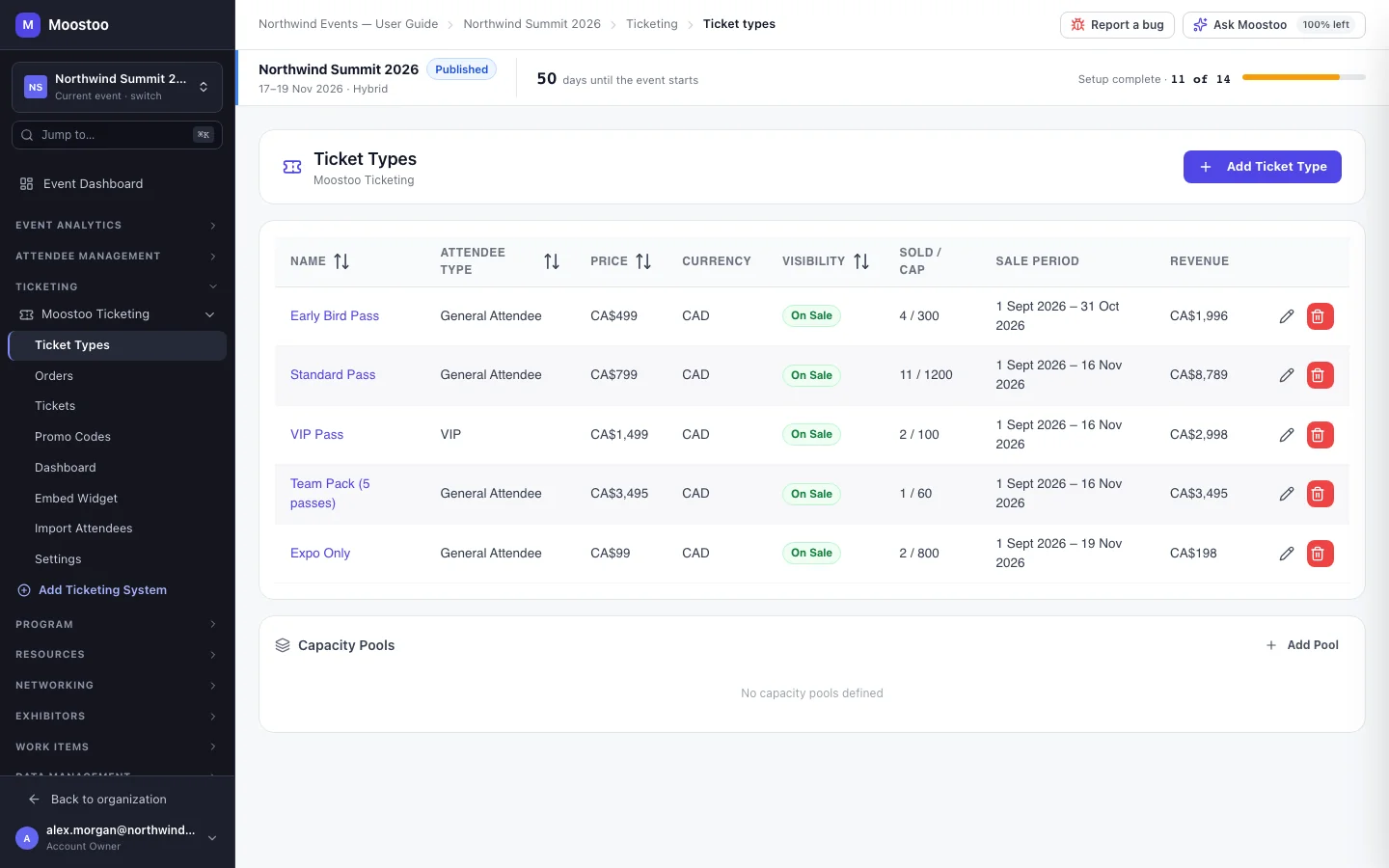
The Ticket Types screen lists every ticket type of the event with its attendee type, price, currency, visibility, sold count against capacity, sale period and revenue. Below it, Capacity Pools let several ticket types share one limit. Click a name to edit it in a side panel.
Pricing model Free, Paid (a price and currency, typed in the currency's normal units such as 199.00), Invoice (the buyer is invoiced; you add Invoice Instructions) or Donation (minimum, maximum and suggested amounts).
Attendee type Required (Linked Attendee Type). Whoever holds this ticket gets this attendee type — its experience rules, meeting eligibility and profile form.
Tax Pick one of the tax types defined in Settings, and the Tax mode: Added to price (exclusive) or Included in price (inclusive). An inclusive tax is shown in the breakdown but not added on top.
Visibility On Sale, Paused, Unlisted or Inactive. A paused or inactive ticket is refused at purchase. Unlisted is for tickets you do not advertise: the panel shows a secret address for it, and a promo code can be set to reveal it.
Capacity & per order Capacity counts units sold (leave empty for unlimited) — a bundle of five sells one unit. Min and max per order limit one purchase.
Sale window Sale Start is required; Sale End is optional. Outside the window the ticket cannot be bought.
Capacity pool A shared limit — for example one room of 300 seats sold as Early Bird, Standard and Student. A sale counts against both the ticket's own capacity and the pool.
Bundle ticket One purchase that holds several seats (Seats per Bundle), such as a team pack of five. Allow Deferred Assignment lets the buyer name the people later in the purchaser console.
- Early Bird Pricing adds price tiers that start on a date — the price automatically steps up as each tier begins.
- Group Discounts give a percentage or fixed discount for larger quantities in one order.
- Inclusions (Sessions, Networking, Expo, Recordings) describe what the ticket gives access to.
- Waiting List marks the ticket to offer Join Waiting List instead of Buy once it sells out.
- A ticket type that has sold cannot be deleted — set it to Inactive instead. One that has never sold can be deleted from its row.
- Every purchase creates one order and one ticket per seat, whatever the quantity and whether or not it is a bundle — see Tickets & assignment.
Step by step
Open Ticketing → (your Moostoo system) → Ticket Types and click Add Ticket Type.
Under Basic Info, enter a name and description and choose the attendee type this ticket grants.
Missing the right type? Create one from the dropdown without leaving the panel.
Under Pricing, choose the pricing model, the price and currency, and a tax type if one applies.
Under Availability, set the sale start (and end), the capacity and the per-order limits.
Choose the visibility, and optionally inclusions, waiting list, a shared capacity pool, bundle settings, early-bird tiers and group discounts.
Click Create Ticket Type. Edit it later by clicking its name; Save Changes applies the edit.
Registration needs at least one ticket type
If the event has no ticket types, the registration form builder shows a warning that registrants cannot complete registration.
How a paid ticket is paid for
The registration form does not take card payment. When a registrant chooses a paid ticket there, Moostoo creates the order with the payment method Invoice and payment Pending — the registrant is registered, but their ticket is refused at the door until you record the payment. A free ticket needs no payment and is admitted straight away. The ticket panel also warns that Stripe must be connected before paid tickets can be sold by card.
What attendees see
In the attendee app
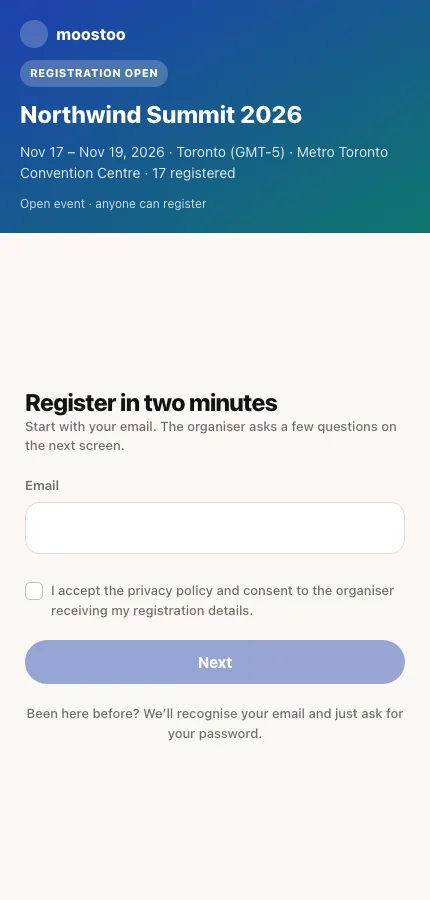
On the registration form, registrants choose a ticket from the types linked to the attendee type they picked (or from the list you set on the form's Ticket Type field). The form shows ticket names, not prices. When they submit, Moostoo checks the sale: a ticket that is paused, inactive, outside its sale window or sold out is refused, and the person is registered without an order. The price charged is the one in force that day, including the current early-bird tier.
Tips
- Model price changes as early-bird tiers on one ticket type rather than separate types; reports then show one product.
- For sponsor comps, give each guest a pass with Add Complimentary Pass on Orders rather than leaving a free ticket type on the public form.
- Set a pool whenever several types share a physical limit — capacity on each type alone cannot stop the room overselling.
- The form lists every ticket type linked to the chosen attendee type, whatever its visibility — so limit the Ticket Type field on the registration form to the tickets you actually want offered there.
- Revenue in the table is price × sold. For what was actually collected, see Orders and the ticketing dashboard.
Ask Moostoo
Create a VIP Pass for the VIP attendee type at 899 CAD, 50 available, on sale until October 31.
Add a free Speaker ticket for the Speaker attendee type, limited to one per order.
A free ticket needs no price or currency.
What ticket types does this event have, and how many of each have sold?