
Booth meeting sessions
Exhibitors come to your event to talk to the right people. A booth meeting session turns a booth into a bookable meeting point: attendees pick a slot at the booth, the booth's team accepts and assigns a representative and a table, and the meeting lands on everyone's agenda. You define these sessions — not the exhibitor — so you stay in control of when booths take meetings and who may book them.
How it works
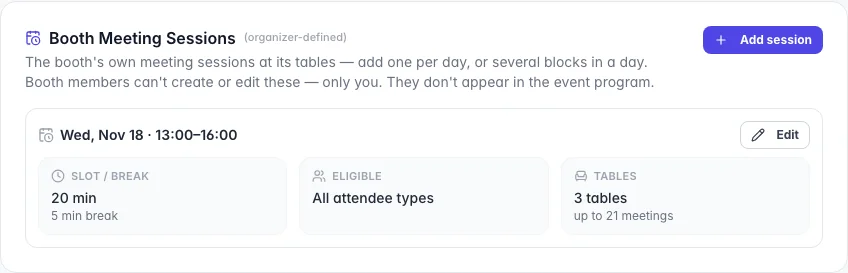
A booth meeting session works like a meeting session in Networking, but belongs to one booth: its own day and hours, slot length, break between slots, eligible attendee types and tables at the booth. A booth can hold several sessions — one per day, or several blocks in one day — and they never appear in the event programme.
- Sessions at one booth cannot overlap. Back-to-back is fine; an overlapping window is refused and the editor names the session it clashes with.
- A slot needs a free table and free people. A time is bookable only when one of the session's tables is free and the attendee and the representative are both free then.
- Eligibility is per session. Leave Eligible attendee types empty to open it to every type, or pick types (for example only VIP and Investor). Your experience rules still decide who may book meetings at all.
- No tables, no meetings. A session without tables is saved but nothing can be booked in it until you add some.
- A booth needs people. A booth with no representatives — or with no active session that has a table — does not offer Schedule Meeting to attendees. See Booth teams.
Accepting meetings A switch on each session. Off stops new requests for that session; the window, the tables and everything already booked are kept.
Event meeting participation The same Meetings tab also decides whether the booth's people take part in the event's general meeting sessions. By default they Join all sessions; turn it off to pick particular sessions and a maximum number of meetings per session.
Where a meeting takes place A meeting with a booth representative is held at the representative's own booth first. If that booth is full and the person asking is also at a booth, it goes to theirs; otherwise it falls back to the general meeting areas of your event's meeting sessions.
Booth slots come first for representatives
When an attendee invites a booth representative directly from the People directory — or a representative invites an attendee — the picker offers the booth's slots first. General meeting-area slots open up only once the booth has no free slot left at that time, so conversations happen at the booth wherever possible.
Step by step
Define a booth meeting session
Open Exhibitors → Companies, click the company, and open the Meetings tab.
Under Booth Meeting Sessions, click Define session (or Add session when the booth already has one).
Choose the Day, Start and End on the event's clock, the Slot duration and the Break between slots.
Pick the Eligible attendee types, or leave it empty for everyone.
Under Meeting tables, type a table name and add it — or set a count to create a numbered series such as Table 1, Table 2.
The tables are created together with the session; you don't need to save first and come back.
For an online or hybrid event, set the meeting room timing and, if you like, a Meeting area frame for this booth — see Meeting room branding.
Click Create session. Repeat for other days or blocks.
Pause or delete a session
Click Edit on the session.
Turn Accepting meetings off to stop new requests while keeping everything booked.
Or click Delete session. Its tables are removed and any meeting already booked in it loses its table. The confirmation spells this out before anything is deleted; the booth's other sessions are unaffected.
What attendees see
In the attendee app
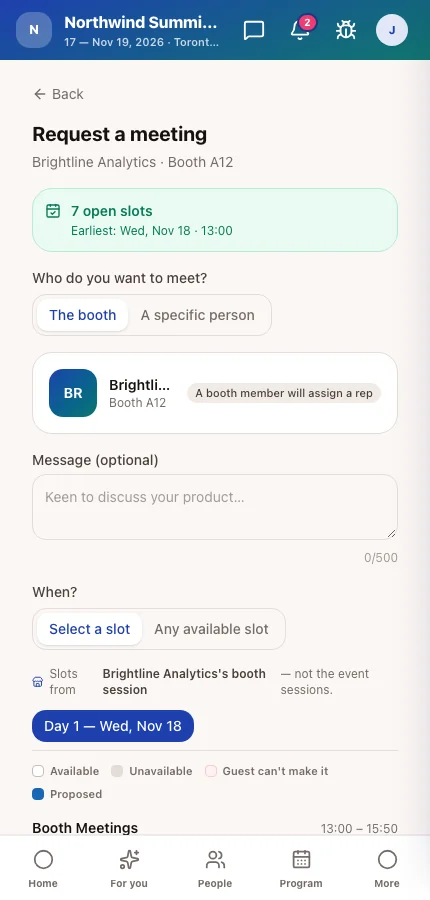
On the Exhibitors page, Schedule Meeting opens the booth's request flow: the attendee asks for the booth as a whole or a specific person, then picks from the booth's free slots. The request appears on the booth's meeting calendar, where a representative accepts it and assigns a representative and a free table.
In the attendee app
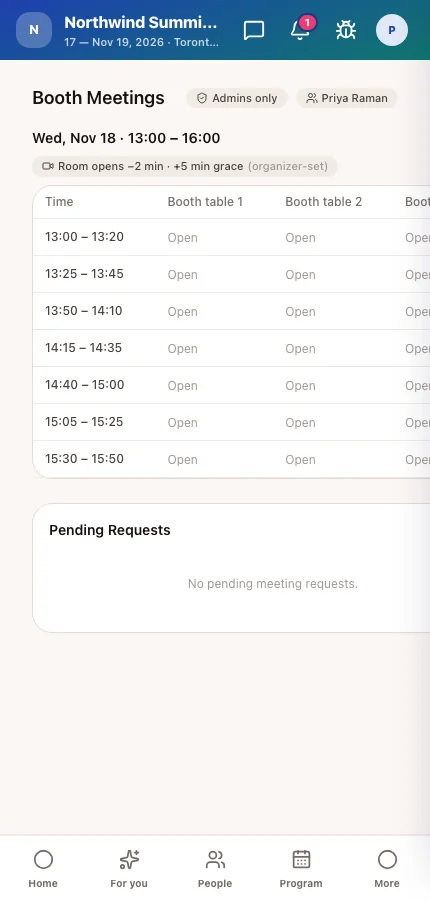
Booth representatives manage requests on My Booth → Meetings, a calendar of every session with its tables and bookings.
Tips
- Give a busy booth one session per day rather than one long one — you can then pause a single day without touching the others.
- Plan tables against staff: two tables with one representative still means one meeting at a time, because the representative's calendar must be free too.
- Check the booth's team before opening sessions. Representatives who have not registered or signed in cannot be assigned meetings.