
Work items
Requests made in a corridor or a chat are easily forgotten, and charged extras are easily never billed. A work item records each request: what was asked, for whom, by which provider, what it costs, whether the attendee approved it, whether it was paid or invoiced, and when it was delivered. The admin list gives you the whole picture of service at your event, and every paid extra lands in the same payment and invoicing flow as your tickets.
How it works
A work item is created in the attendee app by a service provider or an event admin: either with New Work Item — choosing an active type, the attendee it is for and a title — or with Convert to work item on an attendee's message in a one-to-one or event team conversation (group chats do not offer it), which uses the message as the title. The type's name and fee are copied onto the item at that moment.
Status Where the work stands: Draft, Pending approval, Approved, Delivered, or Declined / Cancelled.
Payment Where the money stands, tracked separately: No charge, Payment pending, Paid, Invoiced or Refunded. An item can be Approved and Invoiced at once — the work is agreed and the bill is on its way.
Pay now The attendee pays by card immediately, through the same payment account as your tickets.
Invoice later No card is charged; the amount goes on an invoice to the party named in the billing details, and the item becomes Paid when that invoice is settled.
Billing details Collected from the attendee when they approve: the name and billing email of whoever is charged (required), and optionally company, tax or VAT number and address. It may be their employer rather than themselves.
| Free service | Charged service |
|---|---|
| Created as Draft, no approval | Created as Pending approval; the attendee is asked to review it |
| Provider marks it delivered at once | Attendee enters billing details and chooses Approve & pay now or Approve & invoice later — or Decline |
| Payment: No charge | Provider marks it delivered once approved; a charged item cannot be delivered before approval |
- Anything not yet delivered can be cancelled — by the provider in the app, or by you from the admin list. A paid item offers Cancel & refund. Delivered items cannot be cancelled.
- Nothing is deleted. Declined and cancelled items stay on the list, so the record is complete.
- From chat to oversight. An item created from a chat links to its conversation in Communication oversight, and the conversation links back.
Step by step
Follow work items as an organizer
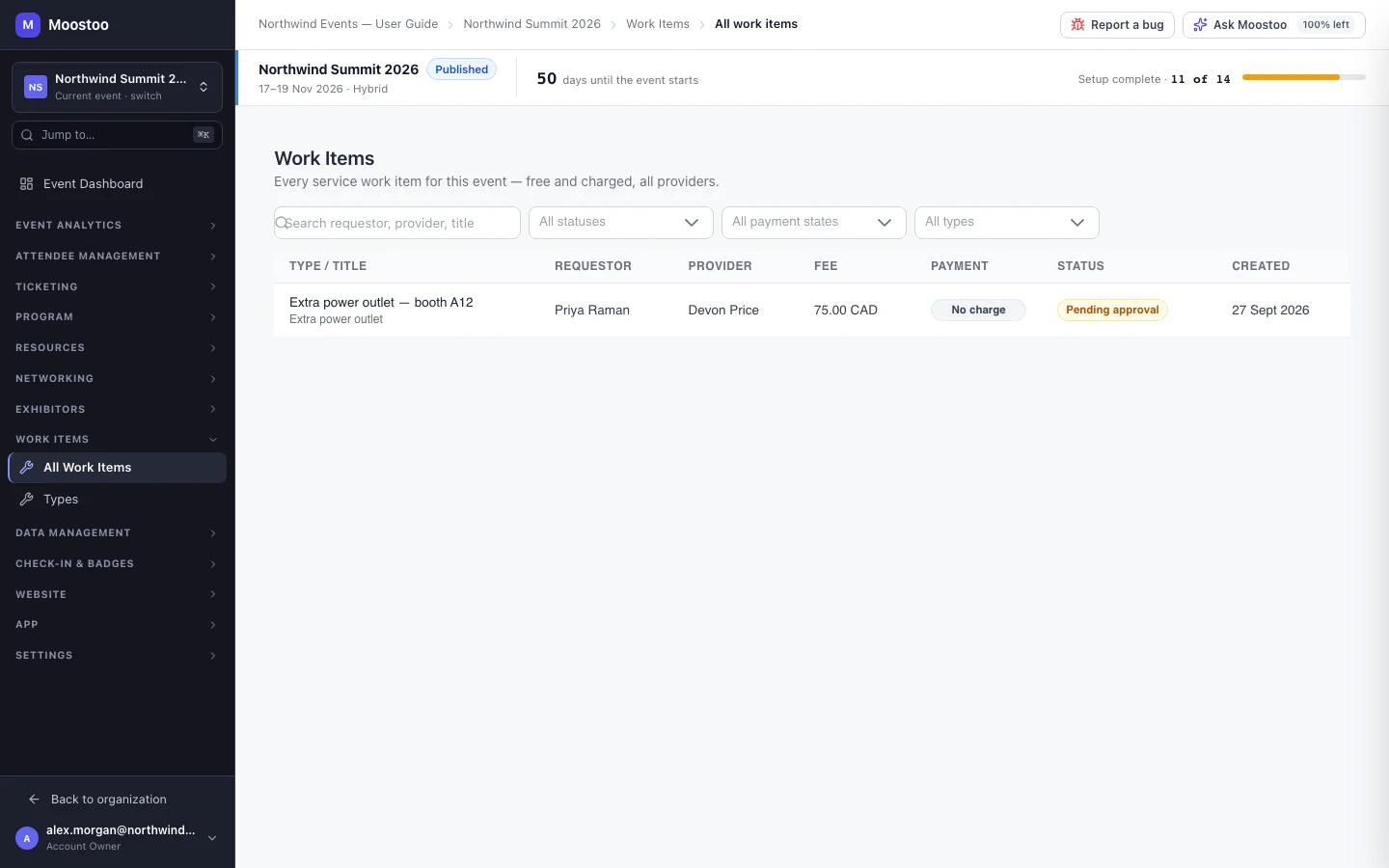
Open Work Items → All Work Items.
Search by requestor, provider or title, and filter by status, payment state and type.
Click a row to see its details: type, fee, requestor, provider, payment method, when it was created, approved and delivered, and the billing details.
If it came from a chat, use Open the originating conversation in Communication Oversight to read the request.
To stop an item that is no longer needed, click Cancel work item (or Cancel & refund for a paid one).
What a service provider does in the app
In a one-to-one or event team conversation, click Convert to work item under the attendee's request and pick the type — or open Work Items and click New Work Item, then choose the type, the attendee and a title.
For a charged item, wait for the attendee's approval; the item shows its status and payment state.
Click Mark delivered when the job is done, or Cancel if it will not be.
What attendees see
In the attendee app
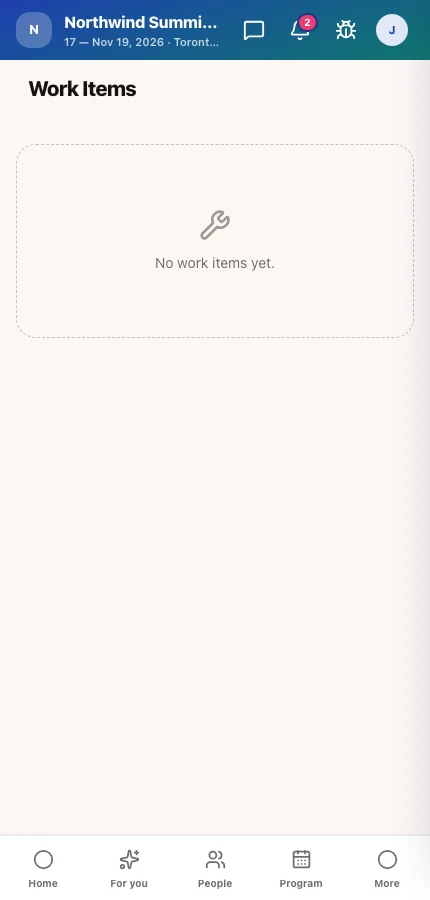
Attendees see their work items under Work Items at /events/{eventId}/work-items, each with the service, the fee and the provider, its status and payment state. A charged item shows Review & approve, where they enter billing details and choose to pay now by card, be invoiced later, or decline; an approved item still unpaid shows Complete payment.
Tips
- Filter by Payment pending on the last day to chase unpaid extras before attendees leave.
- Encourage providers to convert requests rather than type them again — the link to the original conversation settles any later dispute about what was asked.
- Invoiced items appear in your invoicing like other charges; see Invoices & settings.