
The purchaser console
The person who buys ten passes is usually not the person who knows who all ten are for, and often not attending at all. The purchaser console gives them one private page to finish the job: name each attendee, answer the registration questions for them, and see payment status — without creating an account and without asking you. Every ticket they name is one fewer email for your team.
How it works
Every order has its own private link, sent to the purchaser in their order confirmation email together with the total and anything still outstanding. The link is the key: whoever has it can manage that one order, and nothing else. It needs no sign-in.
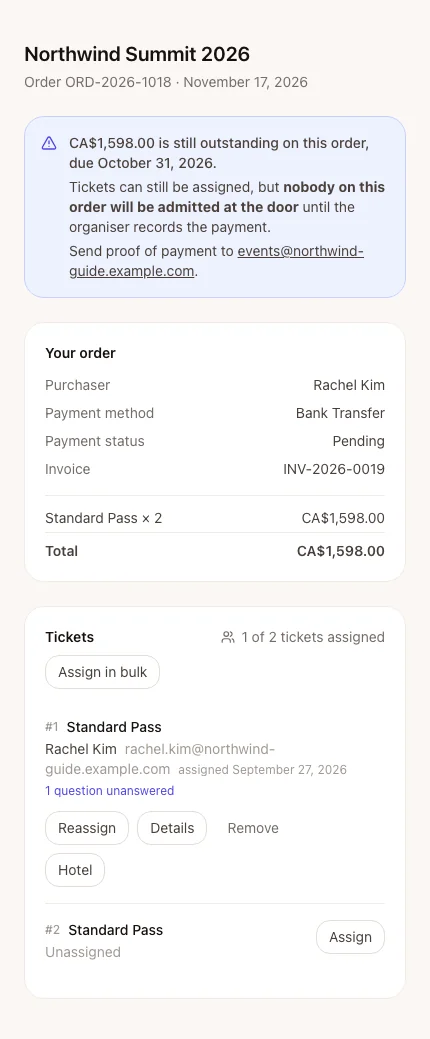
- Your order shows the purchaser, payment method and status, the invoice number, the line items, any discount and the total.
- Tickets lists every ticket with its holder. The purchaser can Assign, Reassign or Remove a holder. On an order with more than one ticket, Assign in bulk takes a pasted or uploaded CSV of first names, last names and emails — they Check the list first, then assign.
- Details (on an assigned ticket) opens the registration questions for that holder's attendee type. A missing required answer still saves (the purchaser is answering for someone else and may not know); a malformed one, like an invalid email, is refused.
- Where the event offers hotel room blocks, the purchaser can request a room for a holder from the console too.
- The purchaser can never change payment. When money is outstanding the console says how much, that nobody on the order will be admitted until you record it, and where to send proof of payment.
Changes closed After the ticket's changes deadline the console becomes read-only and says when changes closed. You can still make changes for them.
Checked in A ticket that has been scanned in shows as used and can no longer be changed by the purchaser.
Cancelled or ended A cancelled order, or an event that has finished, turns the console into a read-only record.
Lost links
A purchaser who lost their email can go to Find your order, enter their email address and order reference, and click Email me the link. They always get the same answer — check your inbox — whether or not an order matches, so nobody can use the page to discover who bought what. The link is only ever sent to the address the order was placed under.
Step by step
Help a purchaser reach their order
Open Tickets (or an order's ticket list) and click one of their tickets.
Click Send the purchaser their link to email it again, or Copy their link to send it yourself.
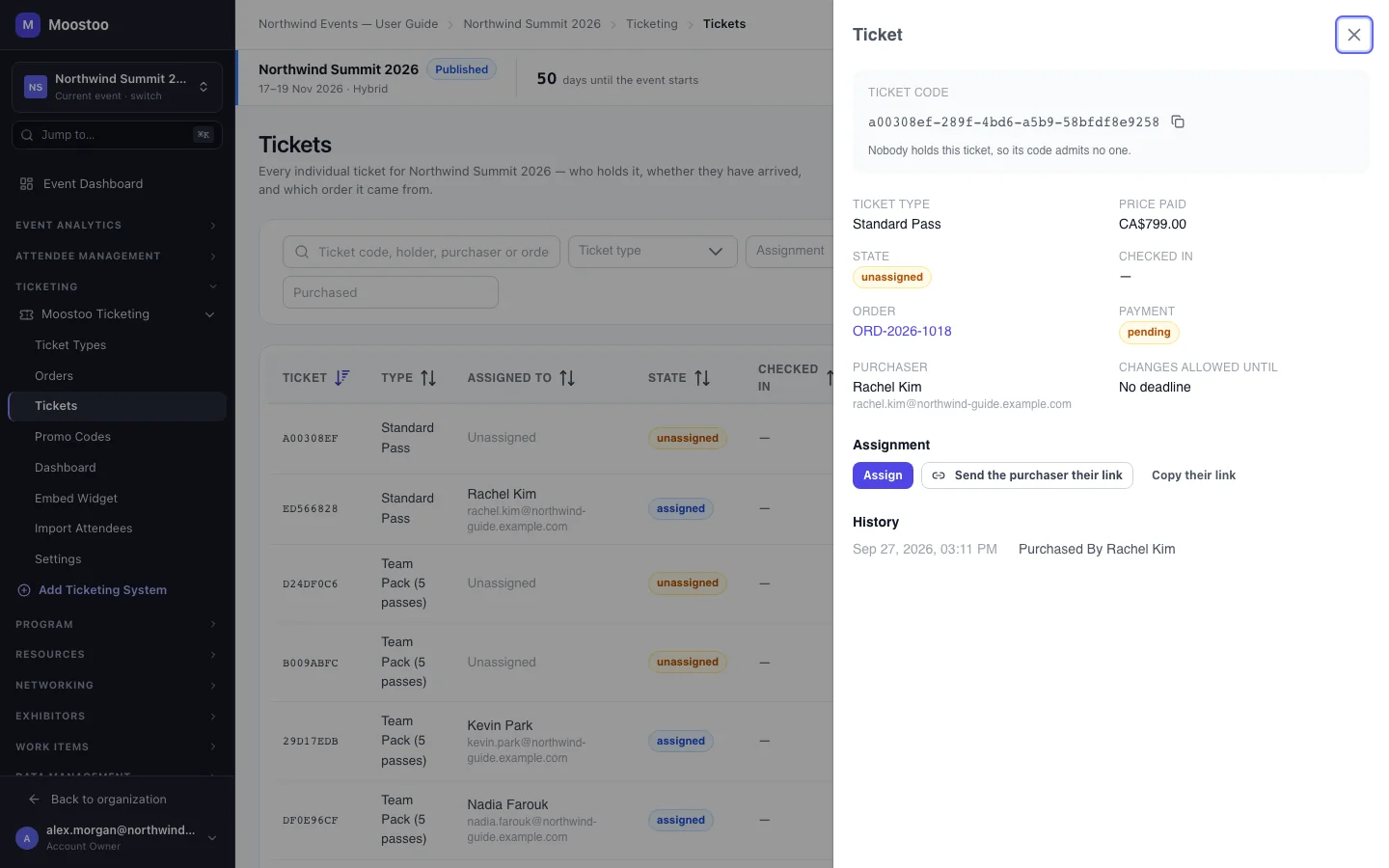
For anything they cannot do themselves — a change after the deadline, a checked-in ticket — make the change for them on the ticket drawer.
See Tickets & assignment.
What attendees see
In the attendee app
The purchaser opens their order from the link, sees what they bought and what is owed, and names the people their tickets are for. Each holder then becomes an attendee and can sign in to the app.
Tips
- Tell group buyers in your confirmation copy that they will name attendees later — it stops them emailing you a spreadsheet.
- Bulk assignment skips rows it cannot use and lists them, so the purchaser can copy them out, fix them and try again.
- Treat the link like a password: anyone who holds it can change who the tickets are for.