
Website pages & the section builder
Your event website is usually the first thing a prospective attendee, sponsor or journalist sees. Moostoo builds it from sections that already know your event — speakers, programme, sponsors, exhibitors, hotels and ticket prices come straight from the records you keep elsewhere — so the site never goes stale and you never have to retype a price. You change words, pick layouts and choose what each list shows; Moostoo keeps the design consistent, readable on a phone and friendly to search engines.
How it works
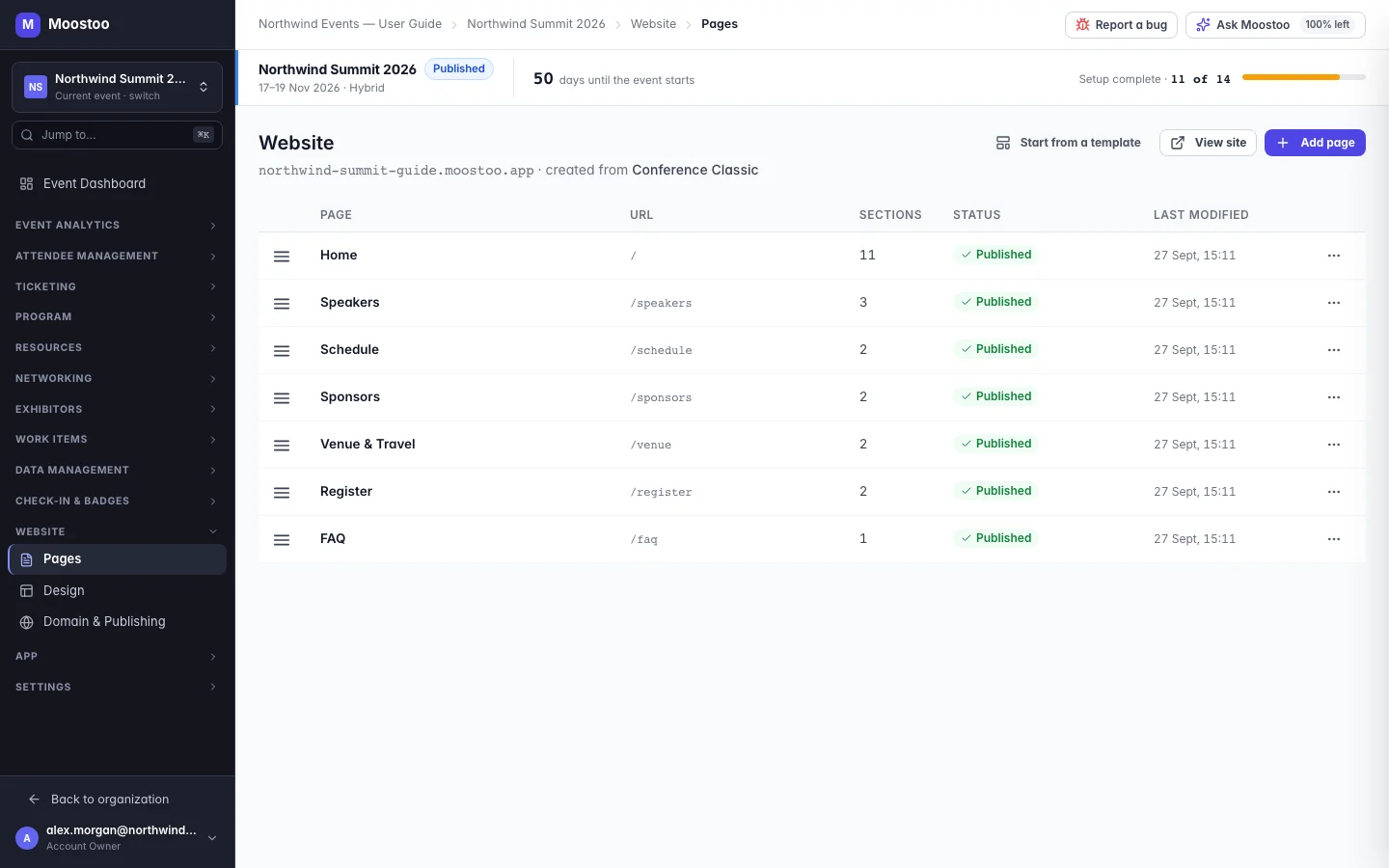
Open Website → Pages. An event without a website opens on the template gallery (see Website templates); once a site exists you land on the list of its pages. Each page has a title, a URL slug, a number of sections, a status and when it was last modified. Drag rows to reorder the pages — the website's navigation menu follows that order — and use View site to open the live site. Click a page, or choose Edit sections from its menu, to open the section builder — it covers the whole screen, and its page is part of the browser address, so the browser's Back button returns you to Pages.
Section One block of a page — a Hero banner, a block of Rich Text, a Speakers grid, a Schedule, a Registration box, and so on. The catalog is closed: twenty types, grouped into content sections, event-data sections and one advanced section. There is no free-form canvas and no colour or font on a section — the look comes from the site-wide design.
Layout variant Each section offers a few named layouts — for example Speakers as a grid, a list or a carousel, or the Hero as centred, split, full-bleed or gradient. Switching one re-renders just that section.
Draft and published Every page keeps two versions. Save changes the draft only; visitors keep seeing the published version until you click Publish. The toolbar shows the page's state: Draft — never published, Unpublished changes or Published.
List section Speakers, Schedule, Sponsors, Exhibitors and Travel & Accommodation show your real records. Each offers By filter (for example a track or a sponsor tier, with a sort and an optional maximum) or Pick individually (you choose and order the records yourself).
- Event data stays live. A speaker added next week appears in a Speakers section chosen by filter without you touching the page. A record you delete disappears from every section — no broken placeholder is left behind.
- Empty lists hide themselves. In the builder an empty list section shows a hint naming where its records come from; on the published site the whole section is left out.
- Meeting sessions never reach the website. The Schedule section and speaker pages show programme sessions only.
- The Registration section shows your real ticket types and prices from Ticketing — there is no price to type into the website. Once registration has closed it says Registration is closed with the date.
- The builder auto-saves your draft 30 seconds after your last change and shows Auto-saved in the toolbar. Leaving by the browser's Back button or the sidebar also saves the draft on the way out. Auto-save never publishes.
Publishing rules
Publish checks the page before anything goes live. A page with no sections is refused (This page has no sections. Add at least one before publishing.), and so is a section missing a required option — for example a Hero with no heading. The refusal names what is missing; fix it and publish again. A published page is live within about a minute.
Custom HTML is outside Moostoo's guarantees
The Custom HTML / Embed section is meant for tracking pixels and third-party widgets, not for building the page. What you paste is not covered by the site's SEO, heading-structure, image and mobile-layout guarantees, and it runs in a sealed-off frame so it cannot interfere with the rest of the page. A page can hold only one Custom HTML section.
Step by step
Add a page and publish it
Open Website → Pages and click Add page.
Give it a Page title and a URL slug (suggested from the title). Under Start from, choose a blank page or one of your template's page layouts. A slug already used by another page is refused.
Click Create page. The page is added to the end of the navigation menu and the section builder opens on it.
Left: the section catalog. Middle: a live preview drawn exactly as the published site draws it. Right: the options of the selected section.
Drag a section from the catalog onto the preview, or click it to add it at the end.
Select the section and fill in its options on the right — text, images from the Media Library, a layout variant, or for a list section the filter or the records to show.
Use the always-visible controls on each section to move it up or down, duplicate it or delete it. Undo and Redo are in the toolbar.
Switch the width toggle between desktop, tablet and phone to check the page on each size.
There is no separate mobile version to maintain — the same sections adapt on their own.
Click SEO to set the page's meta title, meta description, social image, canonical address and whether search engines may index it.
A live preview of the search result and the social card is shown beside the fields. The meta title holds up to 70 characters and the description up to 200. SEO settings are saved on their own and are not part of the draft: on a published page they apply without publishing again.
Click Preview to walk through the draft as a visitor would.
The whole site opens full screen with working navigation, so you can follow links between your draft pages.
Click Save to keep the draft, then Publish when it is ready to go live.
Two people editing one page
If a colleague saved the same page after you opened it, your Save stops and asks: Somebody else changed this page, naming who. Choose Cancel to keep their version and reload, or Save anyway to replace their changes with yours.
What attendees see
On the event website
Visitors see only published pages, at your event address. The header menu lists your pages in the order set on the Pages list, and every list section shows the records it selects — featured hotels first, meeting sessions never.
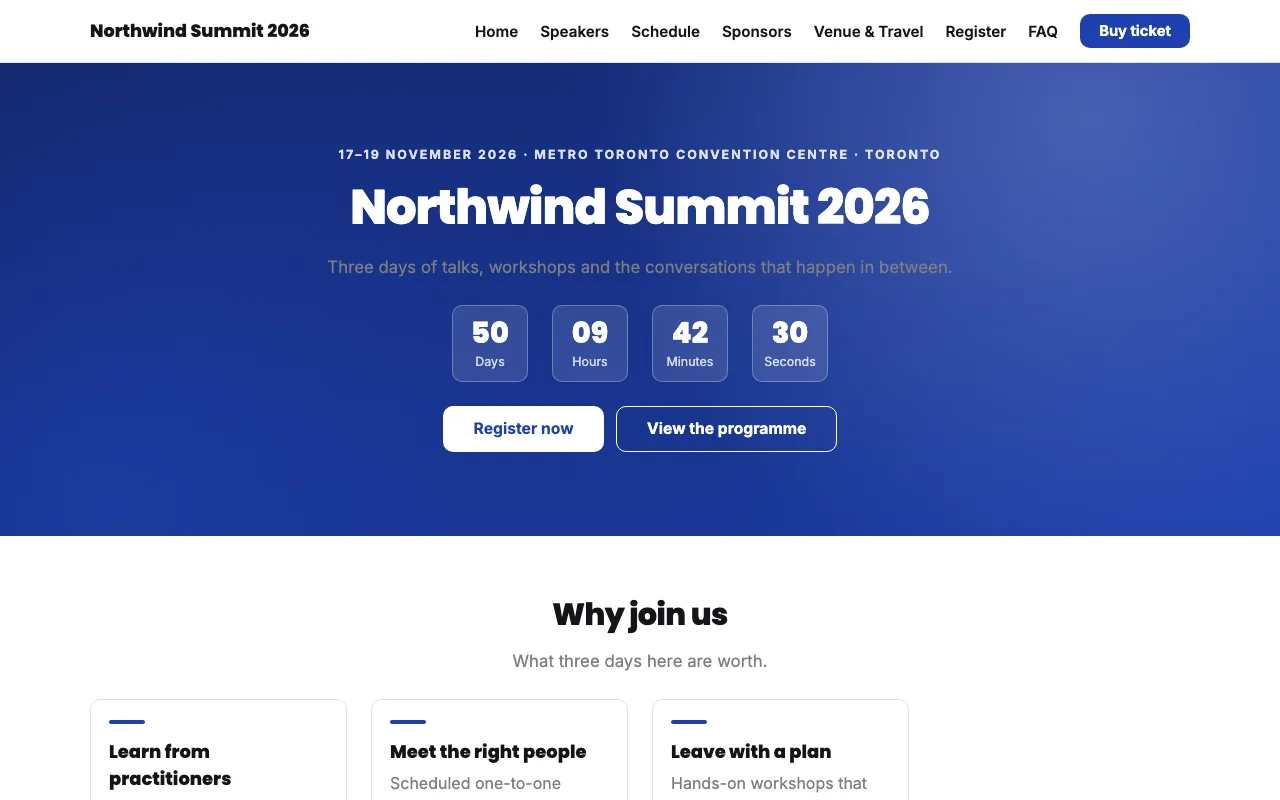
Until at least one page is published, anyone who opens your event address goes straight into the attendee app instead — see Domain & publishing.
Tips
- Prefer By filter for lists that grow — a Speakers section filtered by track keeps itself up to date. Use Pick individually for a hand-curated keynote line-up.
- Save often but publish deliberately: Unpublished changes on the Pages list is your checklist before a launch.
- There is no unpublish: to take a page off the live site, delete it. Deleting a page also removes it from the header menu. Hide a page from the menu on the Design screen instead if you only want it out of the navigation.
- Image options open the Media Library. A social share image must be under 5 MB.
- Leaving with the builder's own Pages button while changes are unsaved asks Leave without saving? — Stay keeps you in the builder, Leave discards them on purpose.