
Speakers
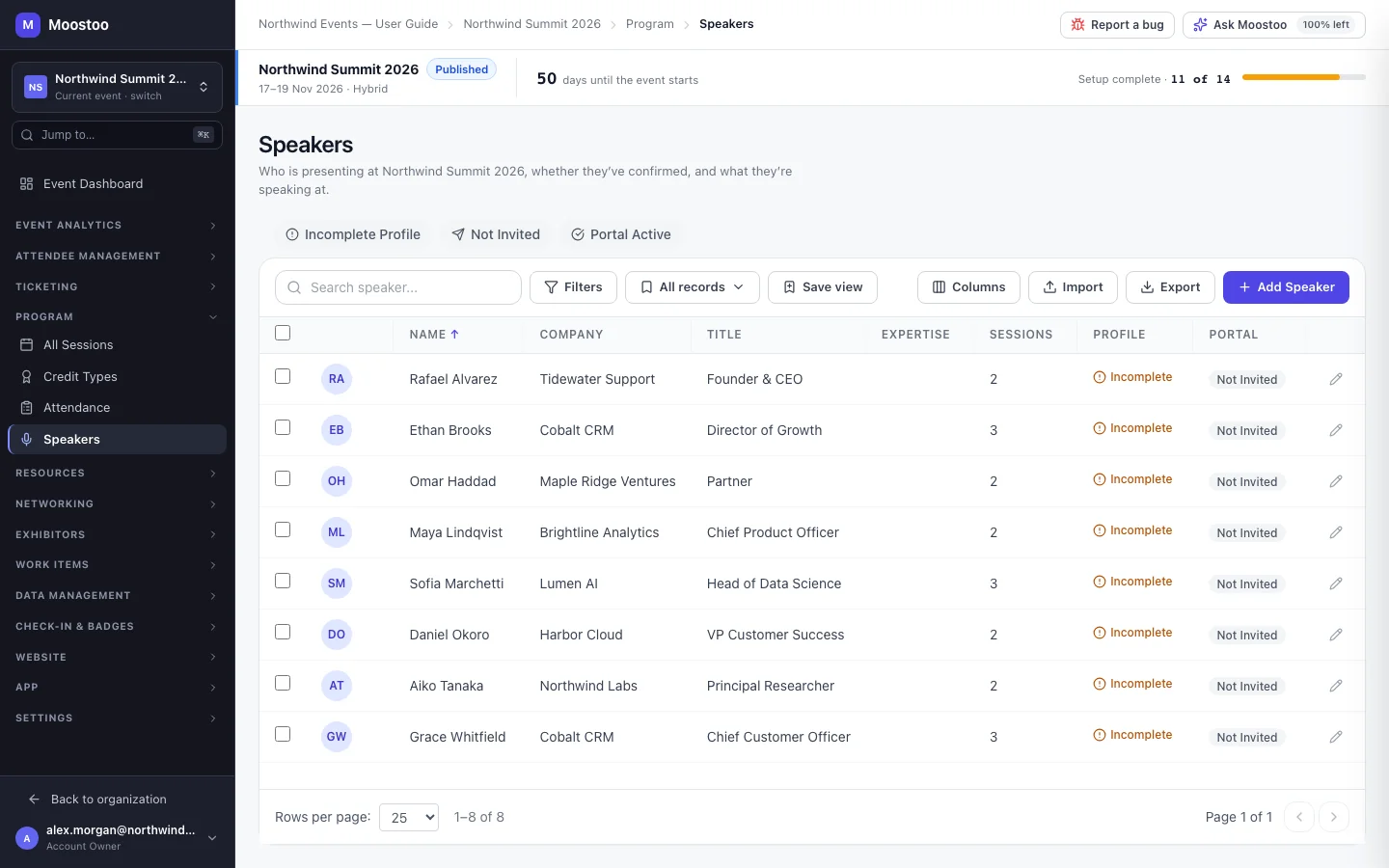
Speakers are a big part of why people come, and a big part of the organizing work: bios, headshots, slides, agreements, travel. The speaker roster puts all of it in one place per event. A speaker you add here is a real participant of the event, is shown on every session they present, gets a Speakers card in the attendee app, and can maintain their own profile and upload their slides through the speaker portal — so you stop chasing bios by email.
How it works
A speaker is not a separate kind of person. It is someone from your organization's contacts, flagged as a speaker and added to this event's roster — which also makes them a participant of the event with a badge and an agenda, like any attendee. Their profile (headshot, bios, expertise, social links) is kept on the contact, so it follows them from event to event.
Program → Speakers This event's roster: name, company, title, expertise, sessions assigned, whether the profile is complete, and the portal status.
Speaker Directory Under Directories in the organization menu: everyone who has spoken at any of your events, with the events they were at and their speaking history. Use it to find a returning speaker.
Profile status Complete once the speaker has a headshot, a short bio, a company and a title — what attendees need to see on the session.
Portal status Not Invited, Invited, Invitation Failed (the email could not be sent — send it again) or Active (they opened their portal). The portal lets a speaker edit their own profile, see their sessions, upload slides and handouts, sign your speaker agreement and give their travel and AV details. The quick filters above the table find incomplete profiles, speakers not yet invited and active portals.
- A speaker's profile is shared. Editing a speaker here, or the speaker editing themselves in the portal, updates their contact — every event that uses that person shows the change.
- Assigning a speaker checks their calendar. From the speaker's panel, a session overlapping one they already present shows a Time Conflict Detected warning, and you can Assign Anyway for a deliberate back-to-back. The session form itself refuses a speaker in two overlapping sessions.
- Remove from Event takes someone off this event's roster only, never out of your contacts — and only once they are unassigned from all their sessions.
- Speakers can also be imported from a spreadsheet; rows are matched to existing contacts by email, so a returning speaker is reused, not duplicated.
Step by step
Add speakers and put them on sessions
Open Program → Speakers and click Add Speaker.
On From Contacts, search your contacts and tick one or more speakers, then click Add to Event.
Tick Show all contacts (include non-speakers) to add someone who has never spoken before — they are flagged as a speaker when added.
Or open Create New, fill in the name, email and profile, and click Create & Add to Event. The person is also added to your contacts.
Click a speaker's row to open their panel. Under Session Assignments, click Assign to Session, search the session and pick it.
You can equally pick speakers inside the session form on Sessions.
Click Edit to complete the headshot, bios, expertise tags and links, then Save Changes.
Click Send Portal Invitation so the speaker can look after their own profile and upload slides.
Select several speakers in the table to invite them in one go, export them, or remove them from the event.
What attendees see
In the attendee app
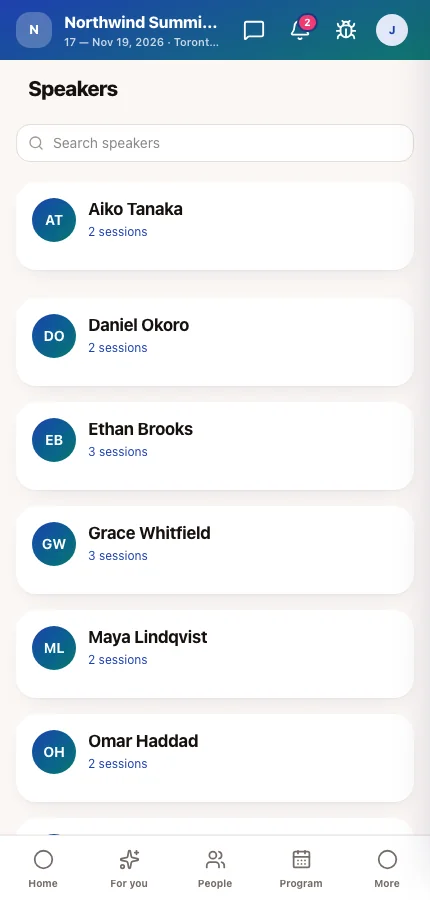
Each session shows its speakers, and tapping one opens a speaker card with their photo, title, bio and every session they present. Once a speaker is on at least one programme session, a Speakers screen joins the app's menu with the whole line-up, searchable.
On the event website
The published website's Speakers section and each speaker's own page show the same profiles and the sessions they present.
A speaker who is only assigned to meeting sessions is not listed: meeting sessions are not programme content.
Tips
- Invite speakers to the portal early. A complete profile — headshot and short bio especially — is what makes the programme look finished.
- Keep the short bio short: it is what shows on session cards and on the website; the long bio is for the speaker's own page.
- Look up a returning speaker in the Speaker Directory before creating a new one, so their history stays on one record.
- Moving the Speakers screen in the app's menu, or hiding it, is done in the App Designer's navigation.
Ask Moostoo
Add Maria Lopez (maria.lopez@cobaltcrm.com), VP Customer Success, as a speaker — short bio: leads a 40-person success team at Cobalt CRM.
The assistant takes the name, email, job title, short bio and expertise tags. Add the headshot and company on the speaker's profile afterwards.
Put maria.lopez@cobaltcrm.com on the session 'Scaling Customer Success'.
Who is speaking at Northwind Summit?