
Previewing the app
An app is easy to get subtly wrong: a tab that pushes Home off the bar, a home section that is empty for most attendees, a card that is too tall. The preview lets you see the consequence of every change before anyone else does, so you only click Save on a design you have actually looked at.
How it works
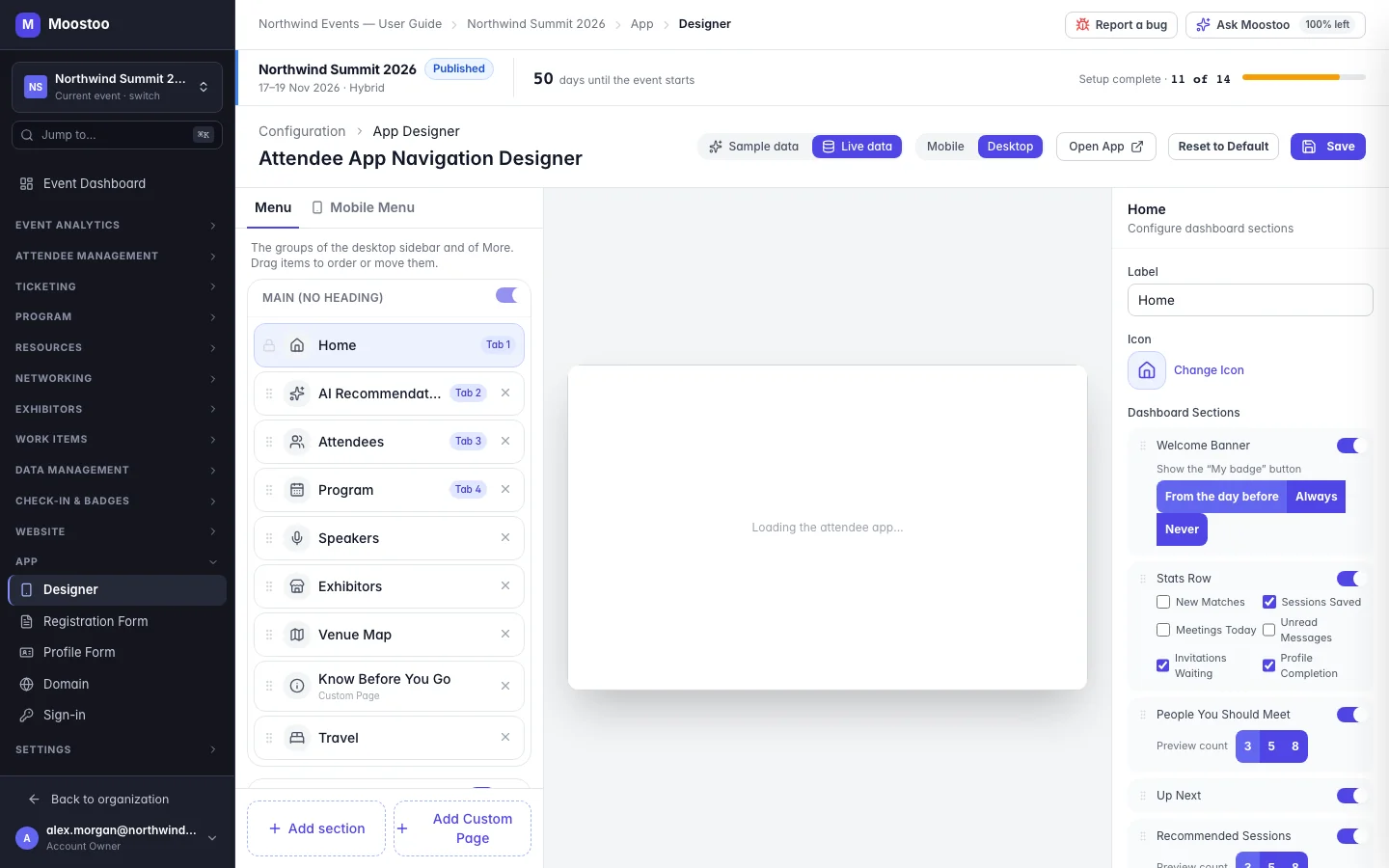
The middle column of App → Designer is not a picture of the app — it is the attendee app, running inside your event, with your unsaved design laid over it. Everything you change in the menu or the page settings shows there straight away.
Mobile / Desktop Shows the app as a phone (with the bottom bar and More) or as a computer screen (with the sidebar), scaled to fit.
Sample data Placeholder attendees, sessions, exhibitors and meetings, so you can judge a design before your event has any content. Nothing about your real attendees is shown.
Live data Your event's real data, as you would see it in the attendee app yourself. If you are not on the event's attendee list, screens about your agenda or meetings have nobody to show — add yourself to the event team, or switch back to sample data.
- The preview is read-only. You can click around and open pages, but nothing you do there saves, sends or books anything — in either data mode.
- Selecting a page in the menu opens it in the preview. A page in Not added cannot be opened, and the Designer says so.
- Custom pages always show their saved content, and in Live data the attendee card and exhibitor groups show their saved versions — use the previews inside their own dialogs to judge unsaved changes.
- If the app does not answer, the preview says so after a few seconds instead of loading forever.
Step by step
Open App → Designer. The preview loads in the middle column.
Choose Mobile or Desktop in the header.
Choose Sample data to judge the layout, or Live data to check it against your real programme, exhibitors and people.
Click pages in the menu, or tap around in the preview, to walk through the app as an attendee would.
When it looks right, click Save — or Open App to try the live app at your event's address in a new tab.
What attendees see
Attendees are not affected by the preview. It shows your draft only to you, and nothing done inside it reaches the event. Attendees see your design once you click Save.
Tips
- Check both widths: a menu that works as a sidebar can be cramped as four bottom tabs.
- Switch to Live data before the event opens to spot empty sections — a Recommended Sessions card with nothing to recommend is better switched off.
- For the full attendee experience, including sign-in, use Open App, or try it end to end in a sandbox event.