
Website templates
A template turns a blank website into a finished, publishable site in one click. Each one is a full multi-page site with its own look — palette, fonts, header and footer — and every section is already pointed at your event's speakers, sessions, sponsors, hotels and tickets. You judge a template with your own content in it, then spend your time on the words rather than on layout.
How it works
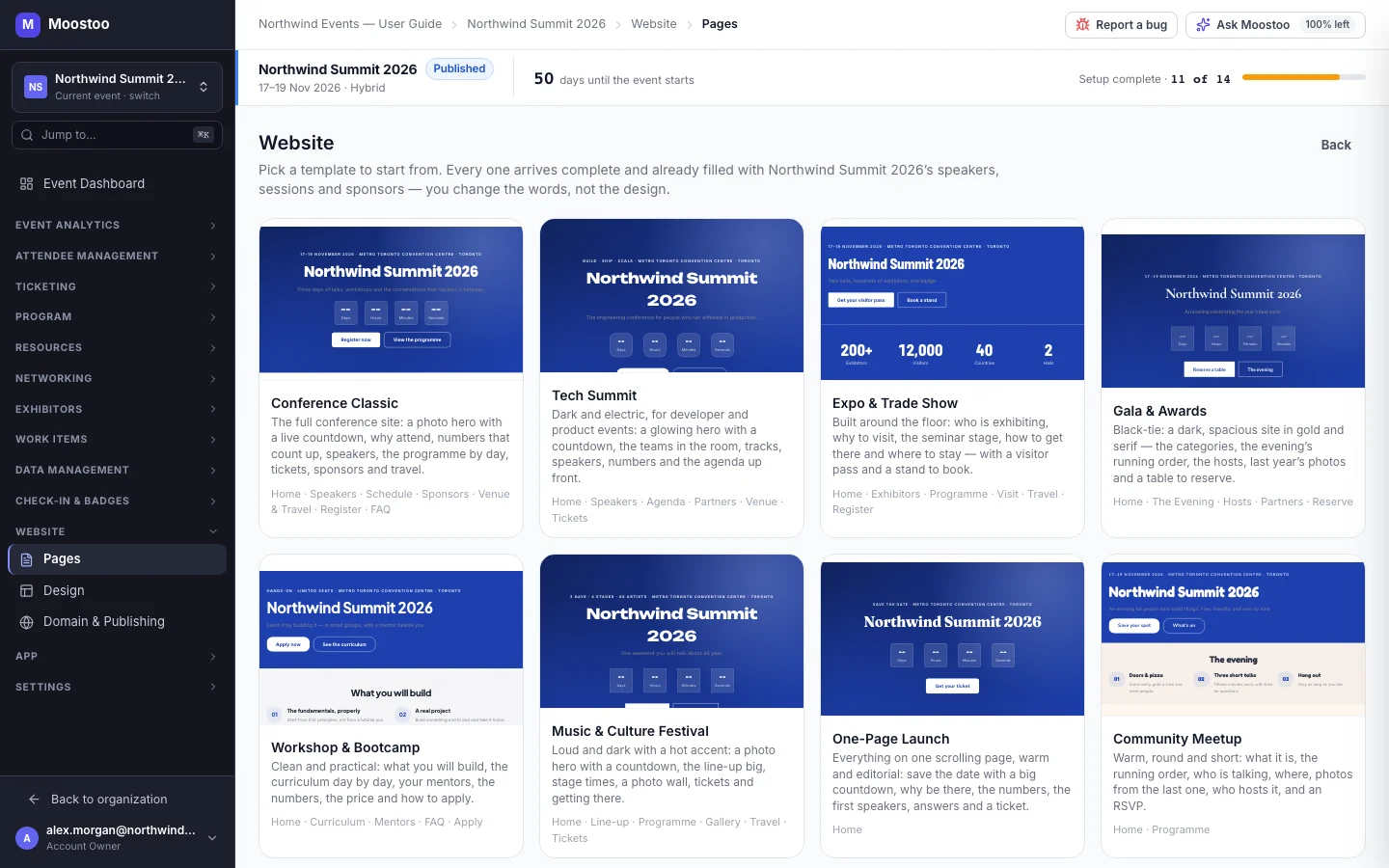
An event with no website opens Website → Pages on the template gallery. Each card previews the template with your event's name, dates, speakers and sponsor logos. Click a card to open a full-screen preview in which the links work, so you can walk through every page the template creates before deciding.
| Template | Best for | Look |
|---|---|---|
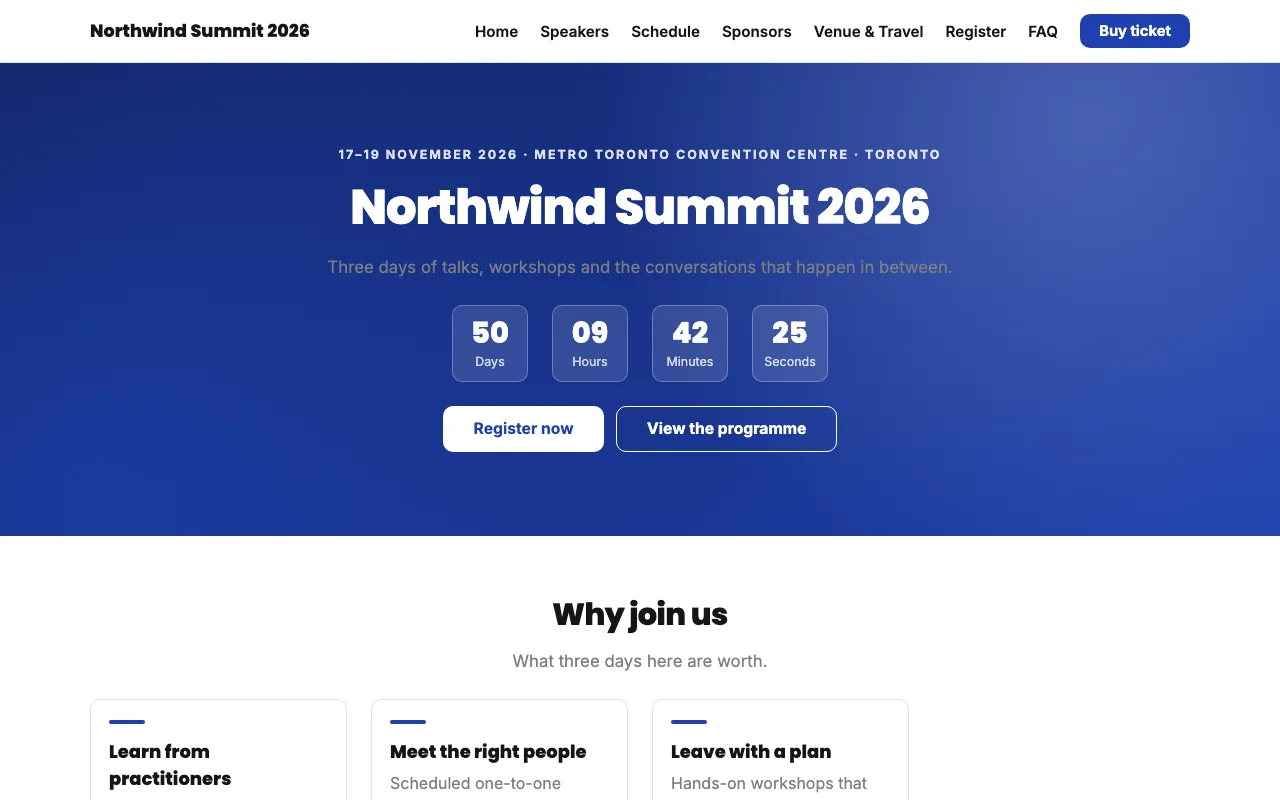
| Conference Classic | The full conference site: countdown, why attend, numbers, speakers, programme, tickets, sponsors, travel | Indigo, photo hero with a live countdown |
| Tech Summit | Developer and product events | Dark with cyan accents |
| Expo & Trade Show | Events built around the floor: exhibitors, seminar stage, visitor pass | Teal, floor-first |
| Gala & Awards | Black-tie evenings: categories, running order, hosts, table reservations | Dark, gold and serif, spacious |
| Workshop & Bootcamp | Curriculum-led training: what you will build, mentors, price, how to apply | Clean and green |
| Music & Culture Festival | Line-ups, stage times, photo walls | Dark with a hot accent, rounded |
| One-Page Launch | Everything on one scrolling page: save the date, countdown, first speakers, a ticket | Warm and editorial |
| Community Meetup | Short, friendly meetups with an RSVP | Warm and round |
- A template sets the whole site: the pages, their sections, the theme (colours, fonts, corners, spacing, motion), and the header and footer layouts — including a header button such as Buy ticket or Reserve that points at the template's own ticket page.
- Buttons nobody pointed anywhere go to registration. A call-to-action without a chosen target leads to your event's registration in the attendee app.
- Some sections arrive empty on purpose. Testimonials, gallery images and logo strips need material only you have. They show a hint in the builder and stay hidden on the live site until you fill them.
- Every page starts as a draft. Nothing is visible to the public until you publish.
Step by step
Open Website → Pages. With no site yet, the gallery opens; with a site, click Start from a template.
Click a template card to open its full-screen preview, and use its links to look through every page.
Click Use this template.
Moostoo creates every page of the template in draft and applies its theme, header and footer, then returns you to the Pages list.
Open each page in the section builder, replace the example words with yours and fill the sections left empty for you.
Adjust colours and fonts on Design if you want the site closer to your brand, then publish the pages.
Starting again replaces everything
Choosing a template for a site that already has pages asks first: This replaces all N pages and cannot be undone. Confirming with Replace everything deletes every existing page, published ones included, and your design settings are replaced by the template's.
What attendees see
On the event website
Once published, visitors see the template's design with your content. Sections that need material only you can provide stay hidden until you fill them, so a half-finished template never shows empty boxes.
Tips
- Pick the template whose structure fits your event; colours and fonts are easy to change later, the page structure less so.
- A template's theme is only a starting point — changing it on Design changes every page at once.
- Adding a single page later? Add page lets you start from any page layout of your template, without replacing the rest of the site.