
Profile form
An attendee's profile is what other attendees read in the directory and what AI matchmaking matches on. A good profile form asks for exactly what makes people findable at your event — what they offer, what they seek, the two or three questions that matter to your audience — and nothing that wastes their time. The profile form builder lets you decide the fields, their order and pages, which are required or read-only, and which attendee types see which fields.
How it works
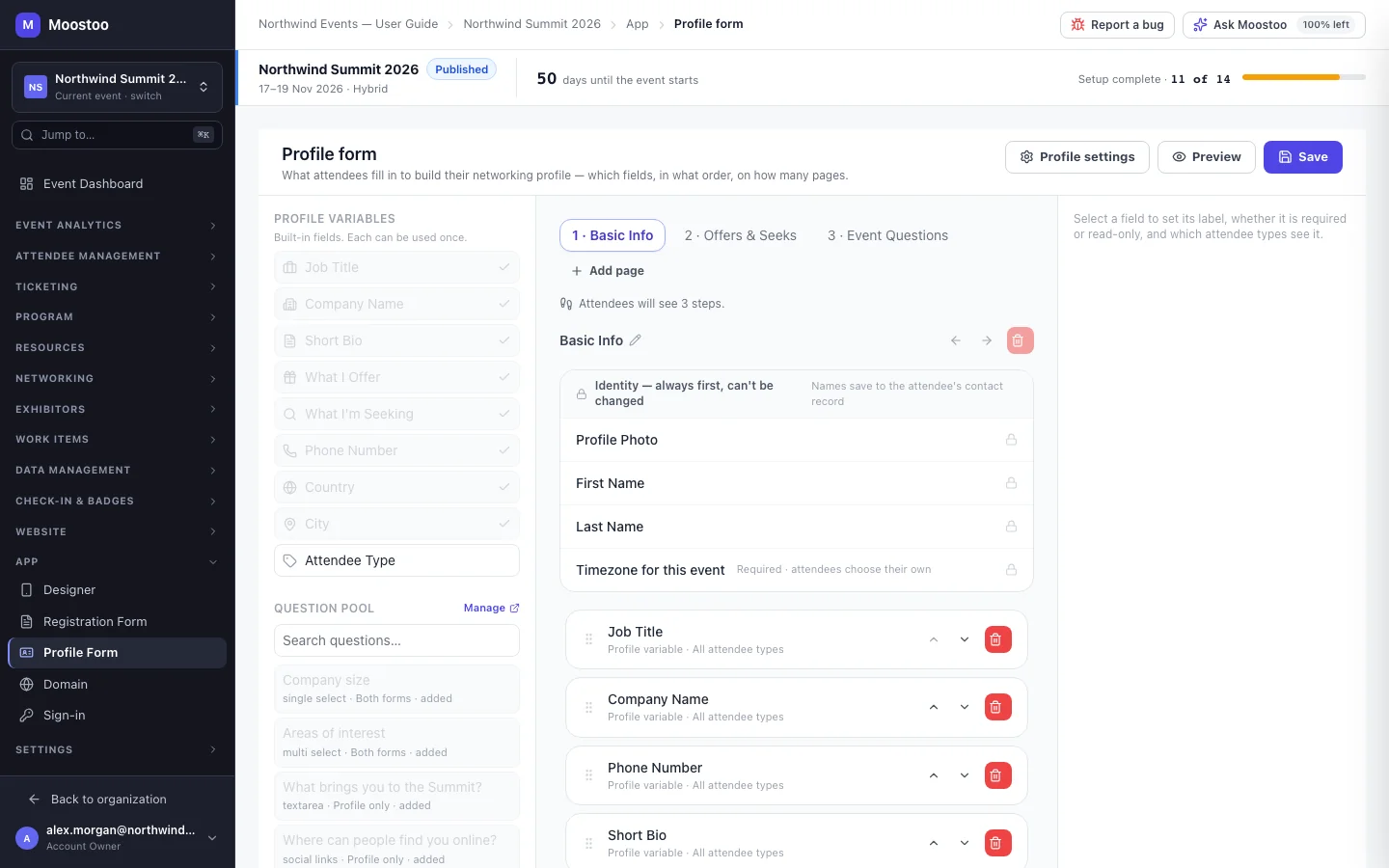
Open App → Profile Form. Until you save, the builder opens on the default form Moostoo would use, with a banner saying This is a starting point, not a saved form — no event starts on an empty canvas. The palette on the left has three sections; the canvas in the middle is your form, page by page; the right panel configures the selected field.
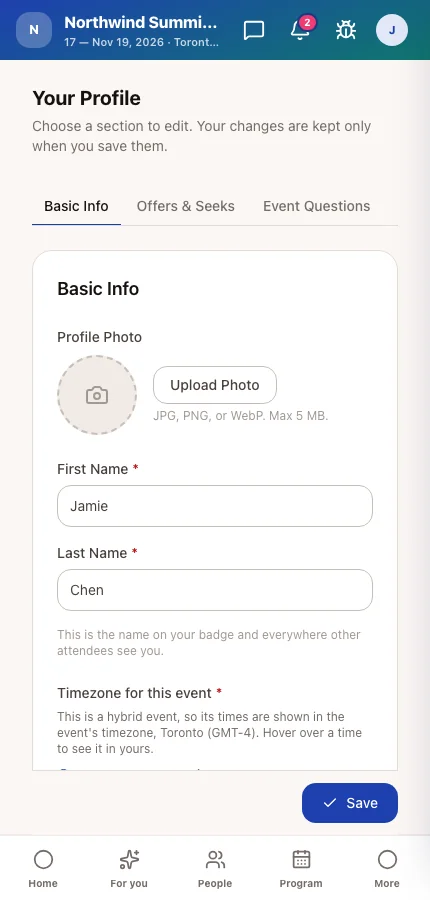
Identity block Profile Photo, First Name, Last Name and Timezone for this event — always first on page 1, always there, and not configurable. Attendees choose their own timezone; names still update their contact record.
Profile Variables Nine built-in fields, each usable once: Job Title, Company, Short Bio, Offers, Seeks, Phone, Country, City and Attendee Type. A placed one is greyed out in the palette.
Question Pool Every question from the question pool scoped to Profile only or Both. New question creates one without leaving the builder.
Display Elements Headings and paragraphs, for explaining a page.
Pages Your pages are the attendee's step-by-step wizard. A one-page form shows no stepper at all. The completeness summary appears under the last page's fields.
| Setting | What it does |
|---|---|
| Label, Placeholder, Help text | What the attendee reads. |
| Required | The attendee cannot move on without answering. |
| Read-only | The attendee sees the stored value but cannot change it — Moostoo refuses a change on the server, not just in the screen. Cannot be combined with Required. |
| Visible to | All attendee types or Specific attendee types. Fields for other types are removed before the form reaches the attendee, and a page left empty disappears. |
| Display as | For choice fields: a dropdown, radio buttons or checkboxes, as fits a single or multiple answer. |
- The form follows the attendee type chosen on the page. If the Attendee Type field is on the form and the attendee changes it, the form switches to that type's fields straight away, before they save. Admin-defined types are never offered there, and an attendee who holds one sees it locked — only you can change it.
- Answers merge. Saving a profile never wipes an answer given at registration to a question the profile does not show.
- Profile completeness is scored the same way whatever you place. Moostoo warns — it never re-weights — when a scored field such as Short Bio or Offers is left off the form, because attendees then cannot reach 100%.
- Saving also warns if the form asks only for a name and photo, or if it asks for neither Offers nor Seeks — then nobody at the event can be recommended to anyone else.
Profile settings and the Networking Summary
Profile settings in the builder's header holds three event-wide choices:
Profile lock deadline After this moment attendees can no longer change their profile. A date in the past locks profiles as soon as you save.
Allow “Improve with AI” on profile text Offers attendees clearer wording for Offers and Seeks, and ends their profile with an AI-drafted Networking Summary: four short sections — about me and my company, what I offer, what I'm looking for, topics and sessions I'm interested in — that the attendee edits, can ask to revise, and confirms. Once confirmed, it is what matchmaking uses for that person. Off, attendees are matched on their profile answers.
Fill in companies from work email Recognises a company from the domain of an attendee's work address and uses what is known about it for matching, and to show a company name and logo where the attendee typed none.
You can read each attendee's confirmed summary on the Profile tab of their panel in the attendee directory, marked out of date if they changed their profile since. You cannot edit it: it is the attendee's own statement, and it is never exported.
Step by step
Design the profile form
Open App → Profile Form.
Drag the profile variables you want — at least Offers or Seeks — onto page 1 below the identity block.
Drag in the pool questions that matter for networking, or click New question to create one.
Click a field to set its label, help text, Required or Read-only, and Visible to.
To split the form, click Add page, rename it, and drag fields onto it. Reorder pages with their arrows.
Click Preview and pick a type under Previewing as to see exactly what, say, an Investor is asked.
Click Save. Read any Heads up warnings about completeness or matchmaking.
Open Profile settings to set a lock deadline and switch the AI options on or off, then Save settings.
What attendees see
In the attendee app
Attendees fill in the profile as a wizard with one step per page, ending with the Networking Summary when it is switched on. Once they have finished it, the profile opens as an editor with a tab per page and a Save button; Cancel appears as soon as they change something.
Tips
- Two or three pages are plenty. Every extra page is a place where people stop.
- Make a field read-only for data you imported and want kept exactly — a company name from a sponsor contract, say.
- Use Visible to for type-specific questions — "Investment stage" for Investors only — instead of asking everyone and filtering later.
- A pool question narrowed to Registration only disappears from this form on its next save; answers already collected stay on the attendee.