
Media Library
The same sponsor logo, venue photo and speaker headshot turn up on the website, the app, emails and badges of every event you run. The Media Library stores each file once for the whole organization, in folders and with tags, and every image field in Moostoo opens the same picker onto it — so nobody uploads the same logo twenty times, and you can always see where a file is used before you change or remove it.
How it works
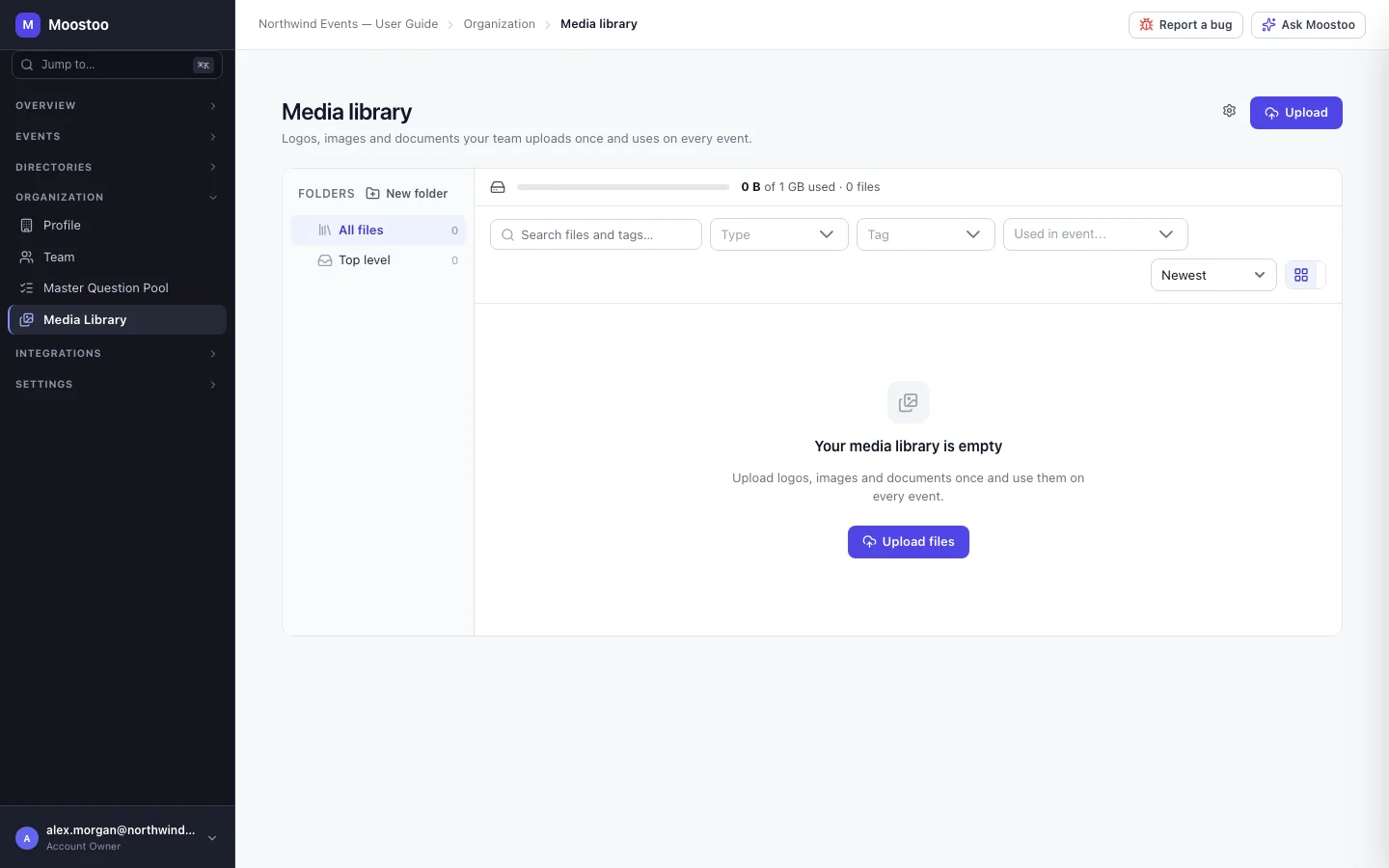
Open Organization → Media Library in the organization sidebar. Folders (and sub-folders) are on the left, the files on the right as a grid or a list, with search across names and tags, filters by Type, Tag and Used in event, and sorting. A storage bar shows how much of your space is used; it turns amber at 90% and red when the library is full.
File types Moostoo accepts a closed set of groups: Images (PNG, JPG, WebP, AVIF, GIF, SVG), PDF, Office documents, Text & CSV and Fonts. By default only Images and PDF are allowed; an Account Owner or Super User can tick more in the library's settings. Video, web pages, scripts, programs and archives are never accepted. Unticking a group only stops new uploads — nothing already uploaded is hidden.
Custom formats A format that is not in the list (for example .dwg floor plans) can be added in settings with its extension and file type. A custom format is always downloaded, never opened in the browser, and is never offered to image fields.
Limits Each file has a maximum size and the whole library has a total space — by default 100 MB per file and 1 GB in total. The limits are set by Moostoo, shown read-only in the settings; if you need more, ask Moostoo to raise them.
Where it's used Each file's detail panel lists every event logo, cover, website section, email, badge, booth page, hotel photo and other place that shows it. The Used in event filter finds everything one event uses.
Deleting keeps things working Deleting a file removes it from the library and from every picker — but anything already using it keeps showing it. A sent email or a published page never breaks because someone tidied the library. A folder can be deleted only when it holds no files and no sub-folders.
| Role | Browse and pick | Upload, edit tags and alt text | Rename, move, delete, edit images | Replace original, settings |
|---|---|---|---|---|
| Account Owner, Super User | Yes | Yes | Yes | Yes |
| User | Yes | Yes | Save edits as a new file only | No |
| Volunteer, Partner, anyone added for one event only | Yes | No | No | No |
The image editor
Edit image on a PNG, JPG, WebP or AVIF file opens a full-screen editor with Crop (free or a fixed ratio), Rotate & flip, Resize (keeping the ratio or not) and Adjust (brightness, contrast, saturation, straighten). Everything happens in your browser. When you are done you choose:
- Save as new file — the edited image is added to the library as a new file; the original stays exactly as it was and so does everything using it.
- Replace original (Account Owner and Super User) — the file keeps its address, so every page, email and badge using it shows the edited image within about 5 minutes. It must stay in the same format, the editor first shows where the file is used, and it cannot be undone.
The Media Picker
Every image field in Moostoo — event logo, cover and banners, organization logo, the website builder, the email editor, badge images and backgrounds, meeting room frames, booth pages you edit as organizer, hotel photos, registration form images and rich text — opens the same Media Picker. Its Library tab searches the library; its Upload tab adds a new file to it; some fields also accept a pasted address with Use URL. A field that needs a particular shape (a banner, a badge background) asks you to crop the image to that shape, and a crop is saved as a new library file. Whatever you choose, the field stores the file's address, which is why deleting a file never blanks a page.
Step by step
Open Organization → Media Library and choose (or create) a folder on the left.
Use New sub-folder to group files by brand, event or sponsor.
Click Upload or drag files onto the files area.
An upload tray shows each file's progress. A file that is too large, of a type your organization does not allow, or would not fit in the remaining space stays in the tray with its reason — the other files carry on.
Click a file to open its details: give it a clear Name, Alt text (read aloud to people using screen readers) and Tags, then Save.
To change an image, click Edit image, make your edits and choose Save as new file or Replace original.
Before deleting, check Where it's used in the detail panel, then click Delete.
Account Owners and Super Users: click the settings (gear) button to choose which file types your team may upload, add custom formats, and see your limits.
What attendees see
On the event website
Attendees never see the library itself — they see its files where you placed them: the event logo and cover in the app, website sections, emails, badges and booth pages. The alt text you write is what screen readers announce.
Tips
- Replace a sponsor's logo everywhere at once with Replace original — but check Where it's used first; it cannot be undone.
- SVG files are cleaned on upload, and an SVG that is not a valid image is refused.
- Phone photos in HEIC format are not accepted — most browsers cannot display them. Export them as JPG first.
- Platform migrations copy the old platform's images into folders named Migrated from <platform> — see Platform migration.
- Deleting a file does not free the address from pages that use it, so you cannot "unpublish" an image by deleting it — replace it in those places instead.