
Experience rules
Networking only works when the right people can reach each other — and the wrong ones cannot. Experience rules let you say, for example, that investors can see startup founders but founders cannot cold-message investors, that sponsors see only name and company until someone connects, or that general attendees cannot book meetings with speakers. Moostoo enforces these rules on the server for every directory view, chat and meeting request, so they hold whatever screen an attendee uses.
How it works
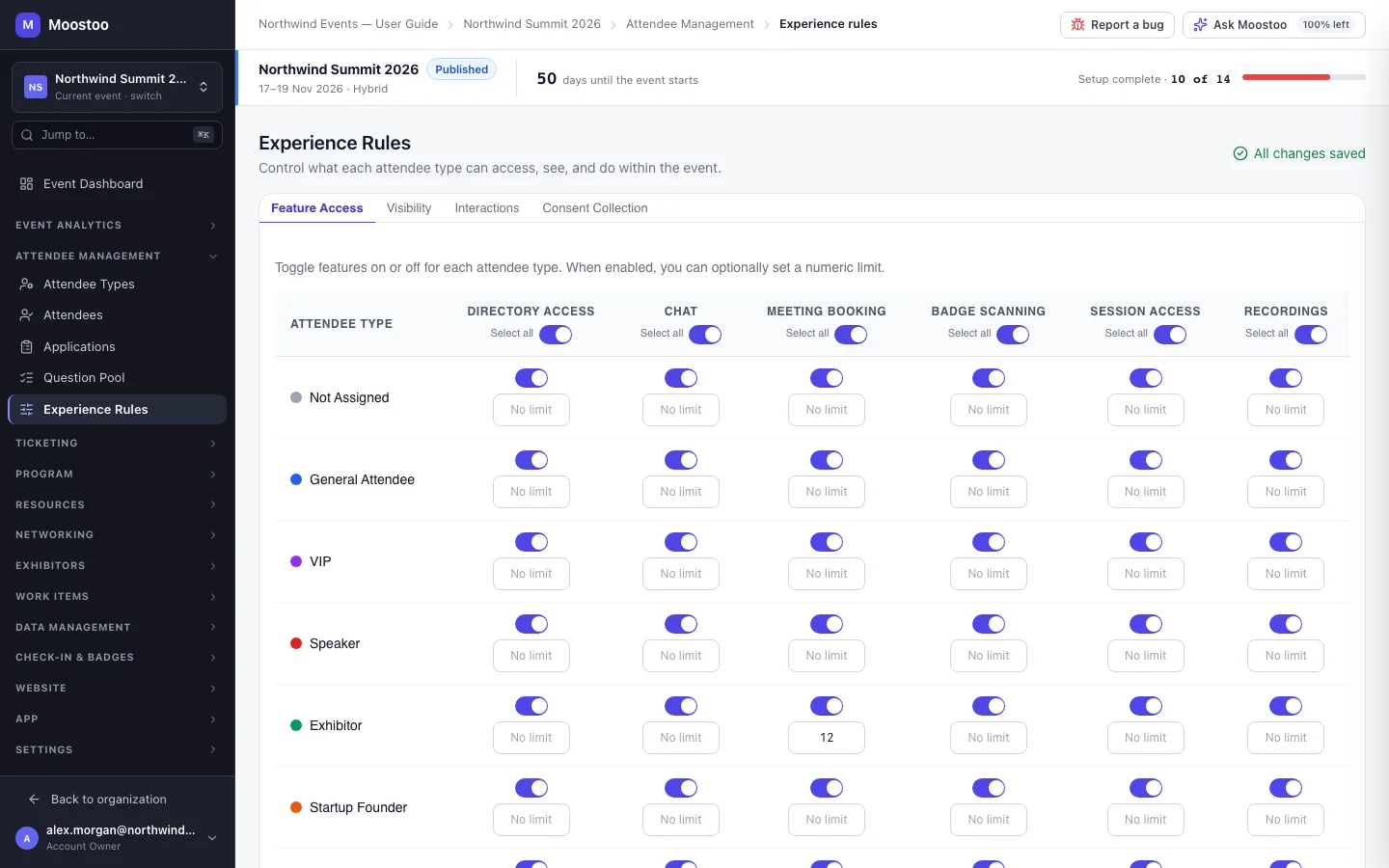
Open Attendee Management → Experience Rules. The screen has four tabs. Every grid lists your attendee types plus a Not Assigned row: the fallback rules for anyone who has no type. Changes save automatically a moment after you make them; the indicator at the top right shows Saving…, and offers a retry if a save fails.
| Tab | What it controls |
|---|---|
| Feature Access | Per type, whether each feature is on — Directory Access, Chat, Meeting Booking, Badge Scanning, Session Access, Recordings — with an optional numeric limit (for example, at most 5 meetings). |
| Visibility | Per pair of types, whether the row type can see the column type in the attendee directory and in recommendations. Each direction is independent. |
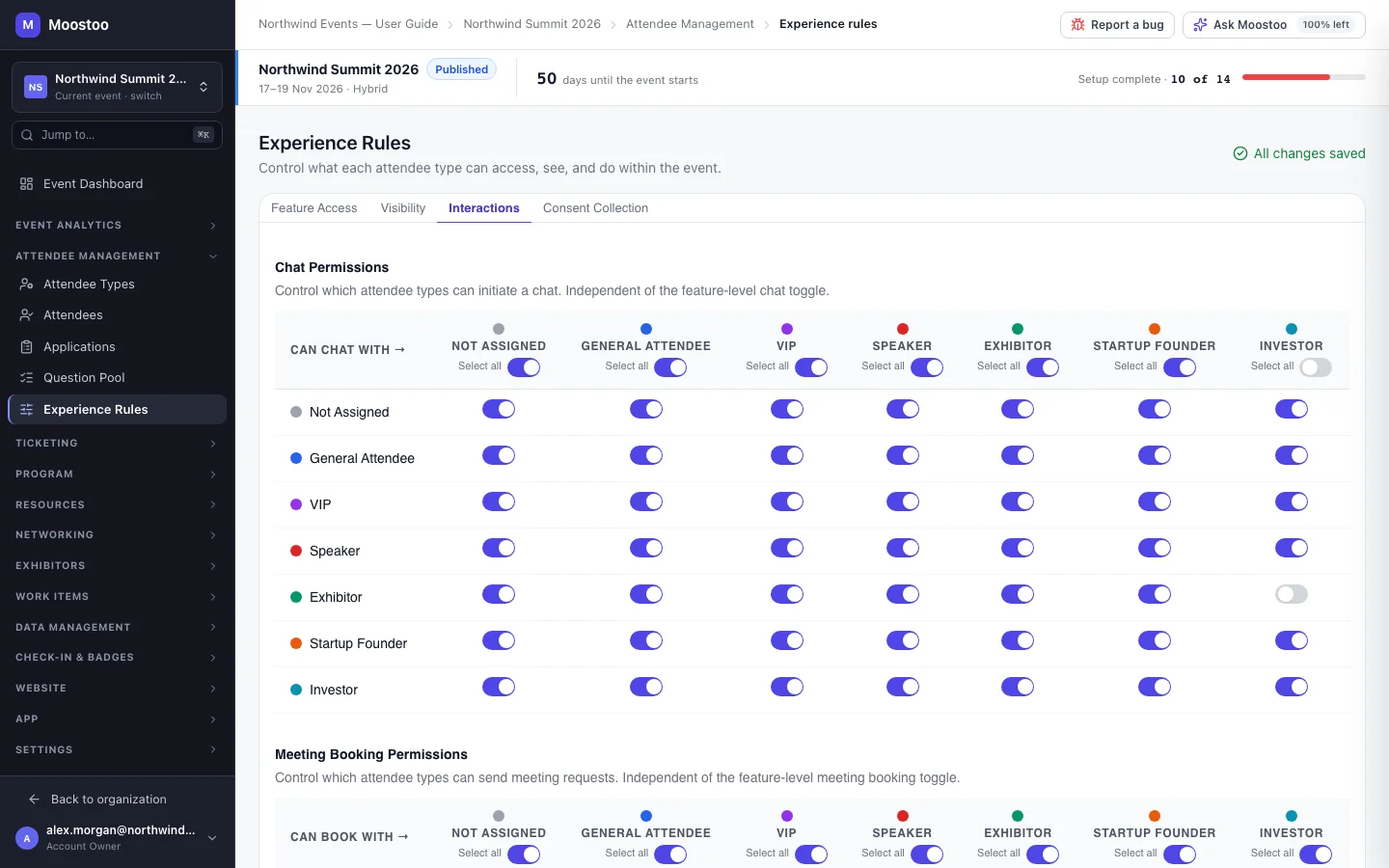
| Interactions | Chat Permissions (who may start a chat with whom), Meeting Booking Permissions (who may send a meeting request to whom) and Contact Sharing (what one type shares with another: Full Details, Name + Company, Name Only or Nothing). |
| Consent Collection | A list of consent statements, each with its wording, a Required switch and an optional document link and version, in the order you set with Move up and Move down. They are stored with the event (and copied with Legal documents & consent questions when you clone it), but no attendee form shows them yet. |
- A feature switch and a pair rule must both allow an action. Chat on in Feature Access enables chat for a type; the Chat Permissions grid then decides who they may chat with. A pair allowed while the feature is off gets an orange marker explaining it has no effect.
- Asymmetry is allowed and flagged. If VIP can see Startup Founder but not the other way round, the Visibility tab says so. A type nobody can see gets a warning that it will be invisible to everyone.
- Each column has a Select all switch on Feature Access and on the three pair grids. It is on when every row allows it; turning it on switches every row on, and turning Chat or Meeting Booking off for every type asks first.
- Contact Sharing never widens what someone may see; it chooses how much of a visible person's profile is shown. At Nothing, the card offers chat only.
- Team and service chat is not governed here. Your event team, including service providers, can always message attendees, and attendees can always reach the organization. These rules cover attendee-to-attendee contact only.
- Attendees' own blocks and meeting-request preferences can only narrow what you allow, never widen it — and they apply silently.
Step by step
Set up networking rules
Open Attendee Management → Experience Rules.
On Feature Access, switch features off for the types that should not have them and set limits where you want a cap.
Switching off Chat or Meeting Booking for a type asks you to confirm, because it stops people who are already networking.
On Visibility, switch off the pairs that should not see each other. Read any warning about asymmetric or invisible types.
On Interactions, set who may start chats and who may send meeting requests, then choose what each type shares with each other type under Contact Sharing.
Check the Not Assigned row last — it is what an attendee without a type gets.
Optionally, on Consent Collection, click Add Consent Question to record the consent wording you use.
Attendees are not asked these questions yet; today the only consent they give is the privacy line on the join screen — see Privacy & legal.
What attendees see
In the attendee app
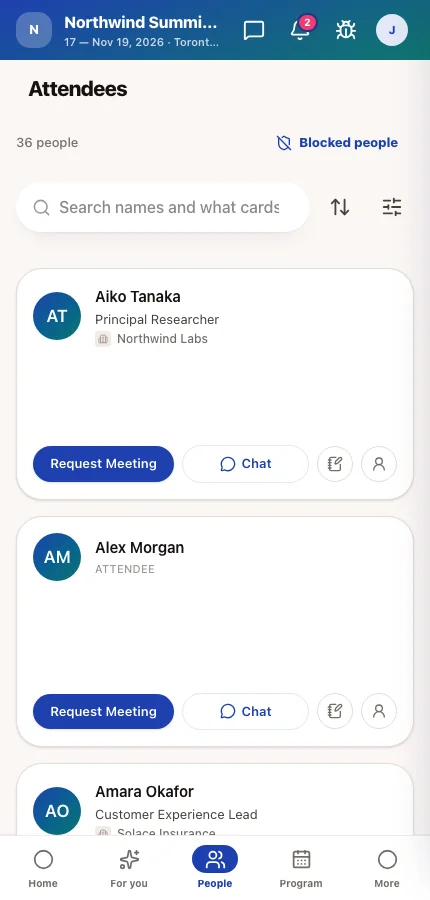
The attendee directory, recommendations and profile cards follow these rules: people see only the types they may see, with the details that type shares with them, and the Chat and Request Meeting buttons appear only where the rules allow. An attendee whose type has no Directory Access sees a message instead of the list.
Tips
- Start permissive, then close specific pairs. A new attendee type starts with everything allowed and full details shared.
- Meeting Booking here decides who may ask. Whether a slot exists at all also depends on the meeting sessions being open to both people's types.
- The pre-launch checklist warns while no rules are set — every type then falls back to the defaults.
- Experience rules can be copied when you clone an event; the option is unticked by default because a new edition's rules usually deserve a fresh look.