
The profile
Networking runs on profiles. They decide who is recommended to whom, what attendee cards show, and what an invitation tells the other person. The profile is also the first thing attendees meet after signing in, so its length decides how many people finish it.
The wizard opens first
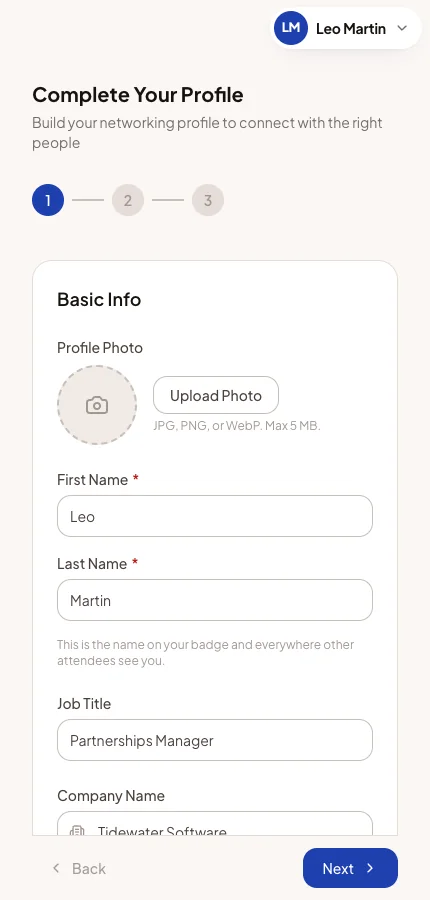
Until an attendee finishes their profile at your event, every event screen opens the profile wizard instead. The event's menu is hidden. Only the account menu remains, so they can still change language or sign out.
The wizard is finished by its last button. From then on, the event opens normally.
Good to know
- Staff scanners, meeting waiting rooms, calls and meeting check-in are never held back by the wizard.
- The wizard stops appearing once your profile lock deadline has passed, or the event has ended.
- A team member viewing the app as an attendee is never sent to it.
- Each event has its own profile, so the wizard appears once per event.
Step by step through your pages
Each step is a page of the profile form you designed. Attendees see only the fields meant for their attendee type. Next saves the page and moves on.
The last page shows a Profile completeness summary of what is still empty. Its button is Submit Profile, or Next when the networking summary follows.
- Page 1 always starts with the profile photo, first name and last name.
- A read-only field shows its value with Set by the organizer. The attendee cannot change it.
- With Improve with AI on, the Offers and Seeks fields have an Improve with AI button. It suggests clearer wording, which the attendee can accept or ignore.
- If your form asks for offers and seeks and both are left empty, the app warns that matching will be harder.
- If the attendee picks a different attendee type, the pages switch to that type's fields.
Filled in from earlier events
Someone who finished a profile at an earlier Moostoo event finds this one partly filled in. That can include their job title, company, bio, offers and seeks, location, phone, matching answers and photo. A note at the top asks them to check it.
Nothing is saved until they move past each page. So you only receive what the person has seen.
Three settings on page 1
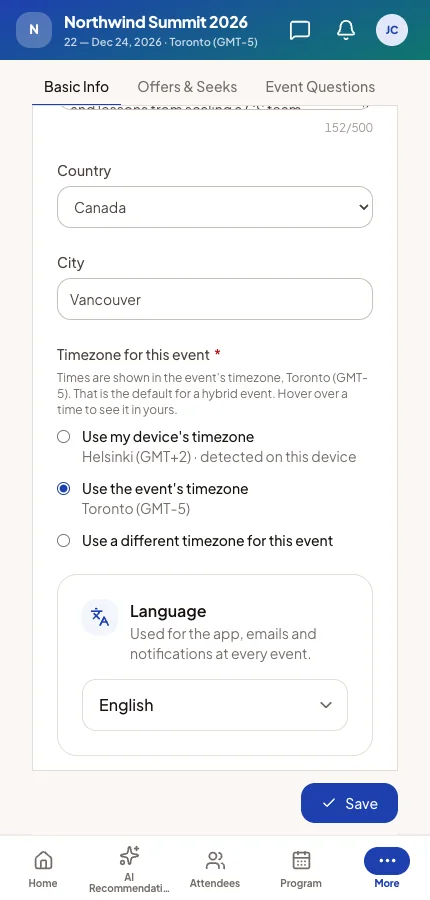
Below your fields on page 1 are three settings. They are not part of your form and cannot be removed.
Timezone for this event Which clock the app shows this event's times on: the event's, the device's or another one. See Timezone.
Language The language of the app, emails and notifications. It applies to every event, not only yours.
Show my profile to other attendees The attendee's own visibility switch. It saves as soon as it is changed.
An invisible profile
An attendee who turns visibility off disappears from the attendee list and from recommendations. Nobody can start a new chat or meeting request with them. In return, they cannot browse attendees or start chats themselves until they are visible again.
Existing chats and meetings are kept. You can also hide someone yourself. If they make themselves visible again, you cannot hide them a second time. See Profile visibility.
The networking summary
When Improve with AI is on in the profile form's settings, the wizard ends with a Networking summary step. The AI writes a summary from the profile in four parts:
- About me and my company.
- What I offer.
- What I'm looking for.
- Topics and sessions I'm interested in.
The attendee can edit any part, or use Revise to say what to change. Complete profile confirms it and finishes the wizard.
- Once confirmed, matchmaking reads the summary instead of the individual answers. Only the attendee and your team can read it.
- If they change their profile later, they are offered Regenerate. The old summary is used until they confirm a new one.
- If the AI is unavailable, Complete profile still finishes the wizard. They are then matched on their answers.
After the wizard: an editor
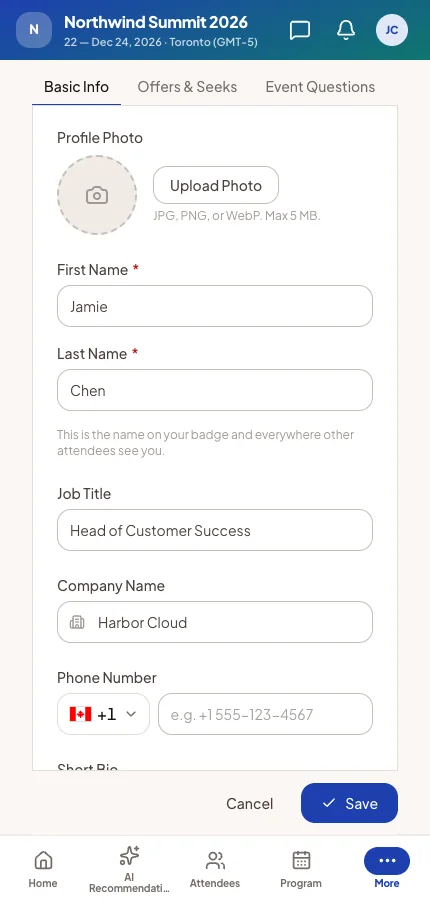
Once the wizard is finished, Profile opens the same pages as tabs, in any order. Save keeps the changes. Cancel appears once something has changed and puts the profile back.
- Finish profile on Home lists what is still empty. Each item opens the profile at that field.
- After your profile lock deadline, the profile can no longer be edited. Only the language and visibility can change.
- Outside an event, My profile shows the account and links to each event's profile.
How the profile appears to others
Other attendees see the profile as a card in the Attendees list, and as a panel when they open it. What they see is the directory card you design. The sharing rules in Experience rules can show less.
The attendee's own card is marked You. On it, an empty field shows — not added yet so they know what is missing.
What you control
| What | Where |
|---|---|
| Pages, fields, questions and read-only fields | Profile form |
| The profile lock deadline and Improve with AI | Profile form settings |
| What other attendees see | Directory card |
| How much each attendee type shares | Experience rules |
| Hiding a profile | Profile visibility |
| How profiles become recommendations | AI matchmaking |
Common questions
An attendee says the app keeps sending them back to their profile.
They have not pressed the wizard's last button yet: Submit Profile, or Complete profile on the summary step.
Can we let people skip the profile?
Not entirely. But you decide how much it asks. A short form with nothing required is finished in seconds.
Why does a new attendee's profile already show a company and a photo?
They came from the person's earlier Moostoo events. The attendee checked them before anything reached you.
Can we read or correct an attendee's networking summary?
You can read it on the attendee's Profile tab in the attendee directory. You cannot edit it. It is the attendee's own statement.