
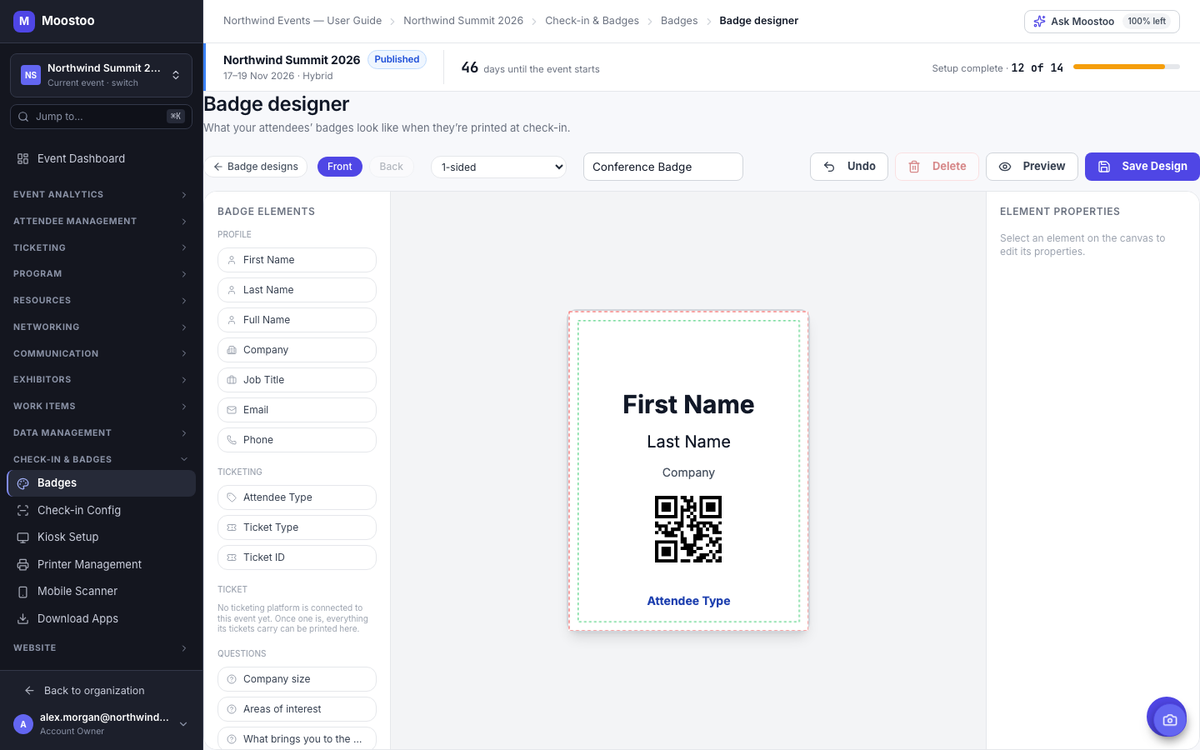
One-sided, two-sided, or a fold-over that reads from both sides.
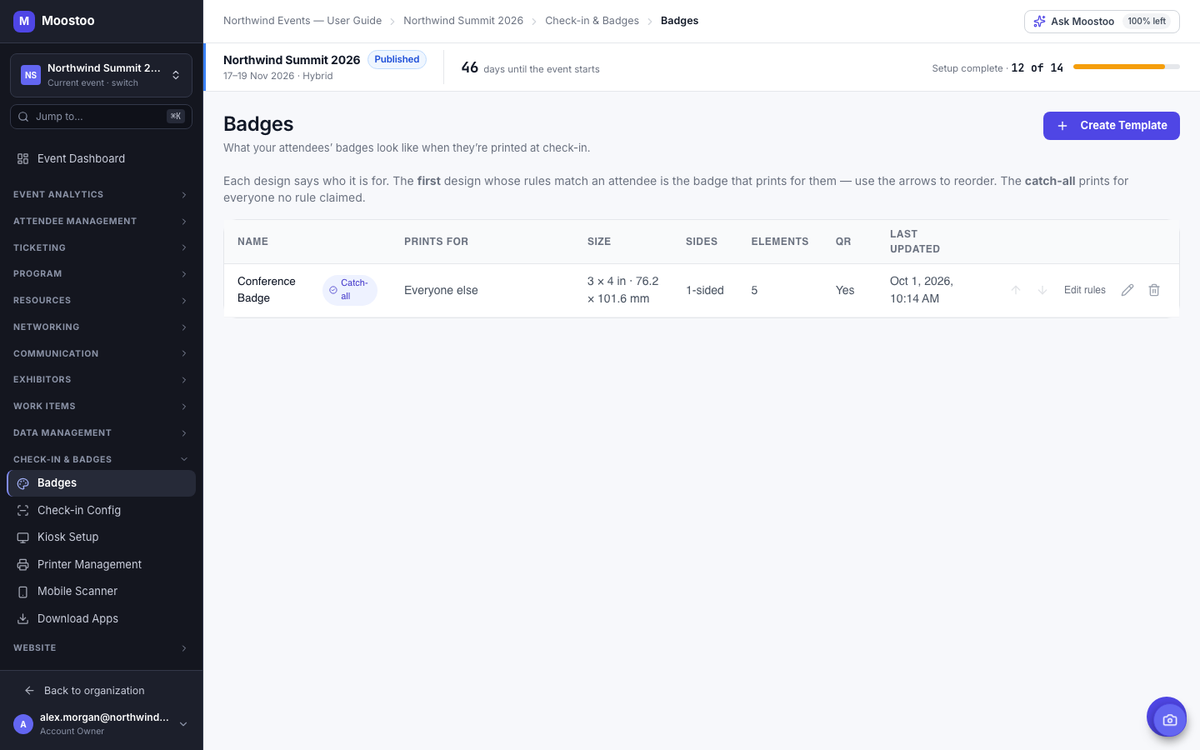
The first design whose rules match prints automatically.
A badge that can't print says why, instead of waiting forever.
Canada or the EU, with attendee data kept in that region.
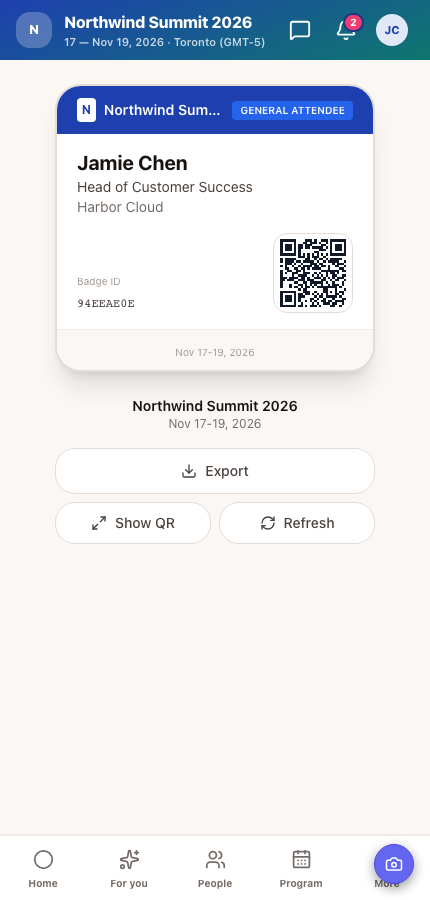
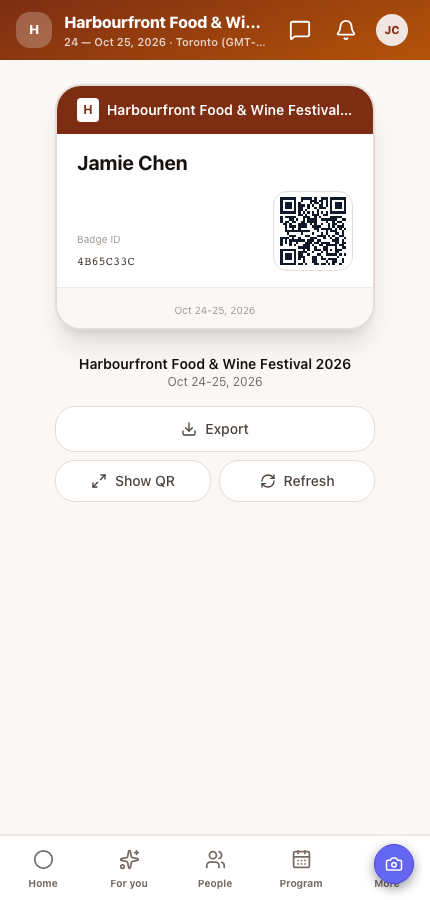
A badge has one job: say who someone is at a glance, from across a coffee break. In the badge designer you pick the stock your printer takes (ID cards, event badges, thermal labels or a custom size), then place names, company, job title, attendee type, any answer from your registration questions, your logo and the QR code. Everything fills in from each attendee's own record when the badge prints.
Keep as many designs as your event needs: speaker, VIP, exhibitor, press, attendee. Each design has simple rules, like “attendee type is VIP” or “company contains Brightline”, and the first design whose rules match an attendee is the one that prints. One design is the catch-all for everyone the rules didn't claim, so no attendee ever reaches a printer with nothing to print.
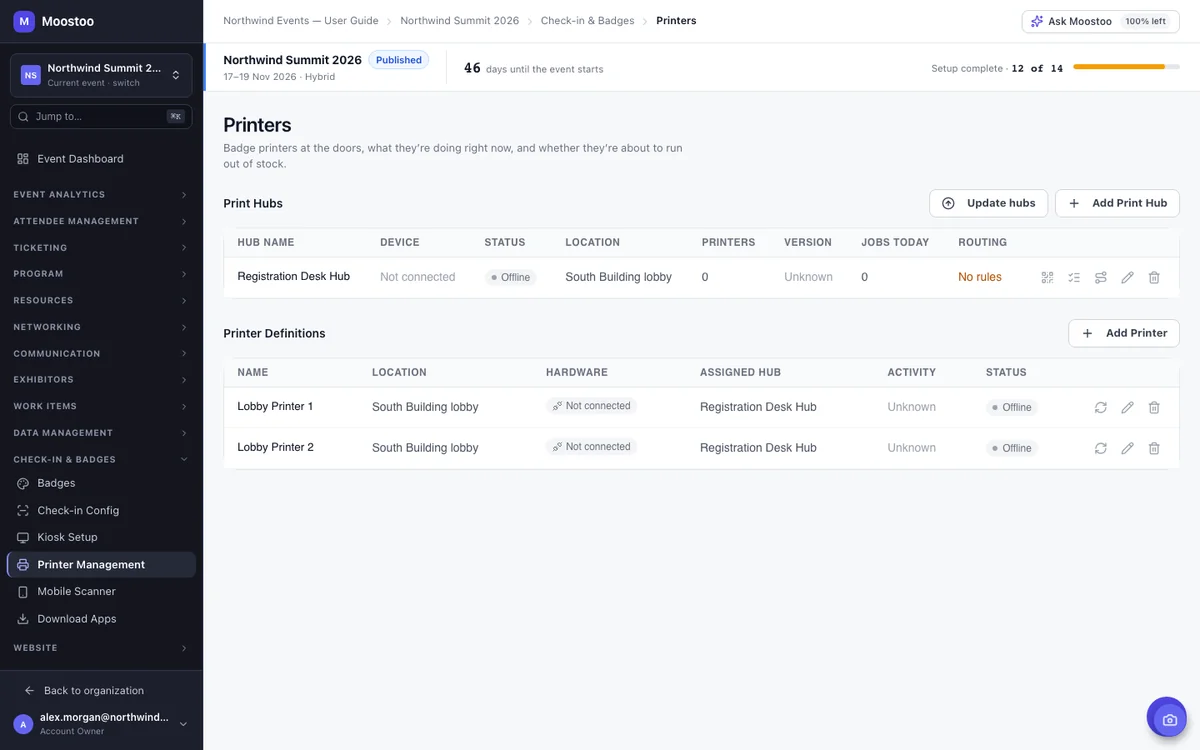
Every badge prints through a print hub: a laptop or tablet running the Print Queue Manager app with the badge printers attached. You name your hubs and printers in advance, then connect the hardware at the venue by scanning a QR code. On the day, you can see what each printer is doing, pause one that's out of stock, and retry, reprint or cancel a single badge without walking to the desk.
At a busy door you want badges spread across every printer, VIP badges coming out at the VIP desk, and nothing stuck in a queue nobody is watching. Routing rules handle it: VIP badges to the VIP desk, speakers to whichever of two printers has the shorter queue, everyone else shared across the front desk. When a printer runs out of stock, staff forward its work to the printer next to it.
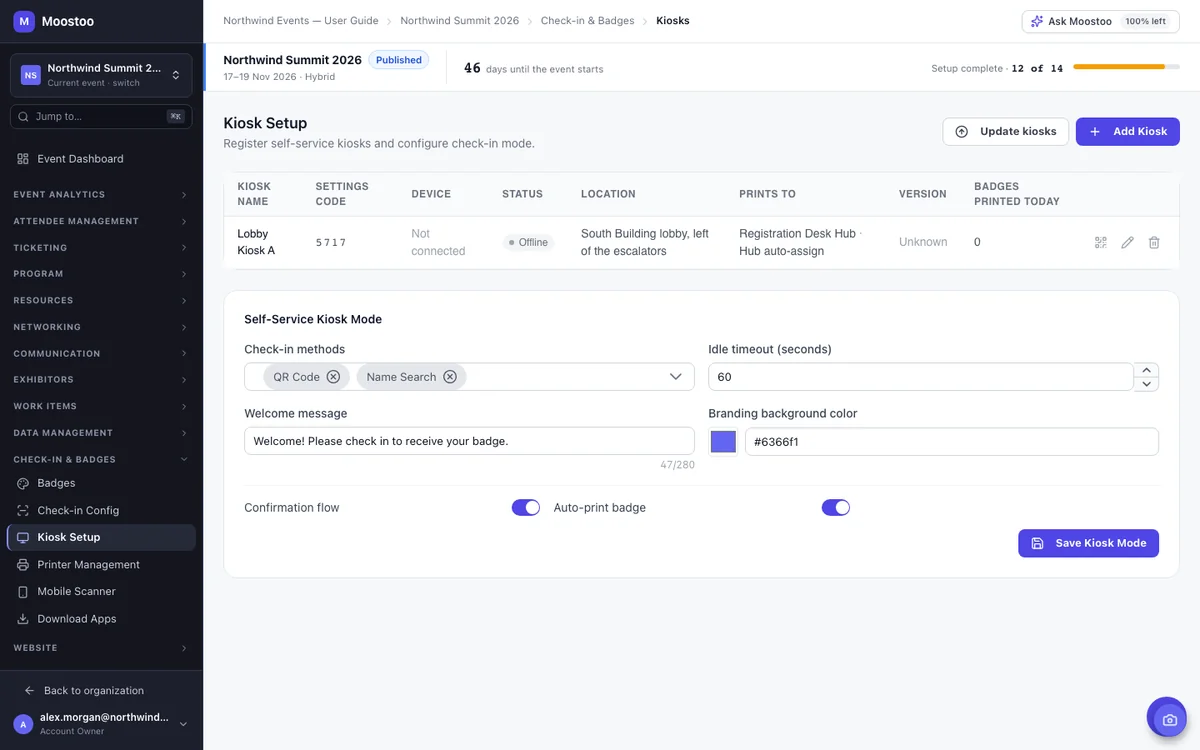
Check-in and badge printing happen together. When a staff scanner checks someone in, the badge prints on the desk printer with one tap, or by itself with auto-print. At a self-service kiosk, the attendee confirms the badge about to print and is told where to pick it up. Prefer less paper? Send the badge to the attendee's phone instead, where its QR code scans at every door.
When an attendee says they never got a badge, a sponsor asks how many the VIP desk printed, or a printer ran through a roll by lunchtime, the badge printing report answers from the record. Every print writes one line: when, for whom, from which scanner, kiosk or desk, on which printer and whether it came out. Export it as your audit.
For a small event with a fixed guest list, pre-printed badges can be the simpler choice, and that's fine. For conference badge printing at any real scale, onsite printing pays off once registrations keep coming in until the last day, details change, or a share of registrants won't show up.
| Situation | Pre-Printed Badges | Onsite Printing |
|---|---|---|
| Late registrations | Handwritten or printed later | Printed like everyone else's |
| No-shows | Badges printed and thrown away | Nothing printed for people who don't come |
| Name or job title changes | Reprint, or live with the old one | The badge prints from the current record |
| Finding a badge at the desk | Alphabetized boxes and a search | Scan, and the badge comes out |
| Equipment at the venue | None | A laptop or tablet and badge printers at each desk |
Moostoo is the software. You use the badge printers you own or rent, connected to a laptop or tablet at each desk. See the kiosk and print hub apps →
The badge designer and onsite printing come with every plan, including Moostoo Tickets.
Ticketing and the door: the badge designer, print hubs and routing, staff scanners and self-service kiosks, digital badges and the badge printing report. Sell with Moostoo, or check in and badge tickets from Eventbrite, Swoogo, Tito or Lu.ma.
Everything in Moostoo Tickets, plus session check-in, the full event app, AI matchmaking and exhibitors. Badges show the same attendee types and details your whole event runs on.
Compare the plans, see how event check-in works at the door, or how registration fills in the details.
Every attendee has exactly one code, and every badge, scanner and kiosk uses it. Tickets from Eventbrite, Swoogo, Tito or Lu.ma keep their own code, and if another badging company printed codes before, you can set those as the attendee's QR code so they still scan.
Pick Canada (Montréal) or the EU (Frankfurt) when you set up your organization. Attendee records, badges, check-ins and the print log stay in that region, backups included. That's one clear answer for your legal team.
Five steps. The first three happen in the office, the last two at the venue.
Pick your badge stock, lay out the fields and QR code, and make one design the catch-all.
Give speakers, VIPs or exhibitors their own design with a simple rule.
Add a print hub for each desk and the printers attached to it, then set routing rules.
Install the Print Queue Manager, connect it by scanning a QR code, match the printers and print a test badge.
Start each hub's queue and check attendees in. Badges come out as people arrive.
Onsite badge printing means printing each attendee's name badge at the venue when they check in, instead of printing all badges in advance. In Moostoo the badge prints from the attendee's current record, at the desk or kiosk where they checked in, using the design your rules pick for them.
Badges print through a print hub. A laptop hub prints to any printer installed on that laptop, and a tablet hub prints to network label printers. Send a test badge from the hub before the event: thermal printers don't print color or italics.
No. Moostoo is the software. Use the badge printers you own or rent, connected to a laptop or tablet at each desk.
Yes. Keep a separate design for each group and add a rule, like attendee type is VIP. The first design whose rules match prints, and a catch-all design covers everyone else.
Yes. Self-service kiosks let attendees scan their QR code or search their name, confirm the badge about to print and pick it up at the printer the kiosk names.
Pause that printer and its badges wait, or have staff forward its work to another printer. With routing rules that name several printers, new badges go to the ready printer with the shortest queue.
Yes. Send the badge to the attendee's phone. Its QR code is the same one the printed badge carries and scans at every door.
Yes. The badge designer and onsite printing come with every plan, including Moostoo Tickets, the edition built for ticket sales and the door.
Last updated October 2026. Product details are taken from the Moostoo Admin Guide.