
Connect a ticketing platform
If you already sell on another platform, you should not have to choose between it and Moostoo. Connecting it brings every ticket holder in as an attendee — with the right attendee type, their answers and the badge code they were given — so the app, networking, badges and check-in all work, while buyers keep buying where they always have. After the first import, live sync keeps the two in step.
How it works
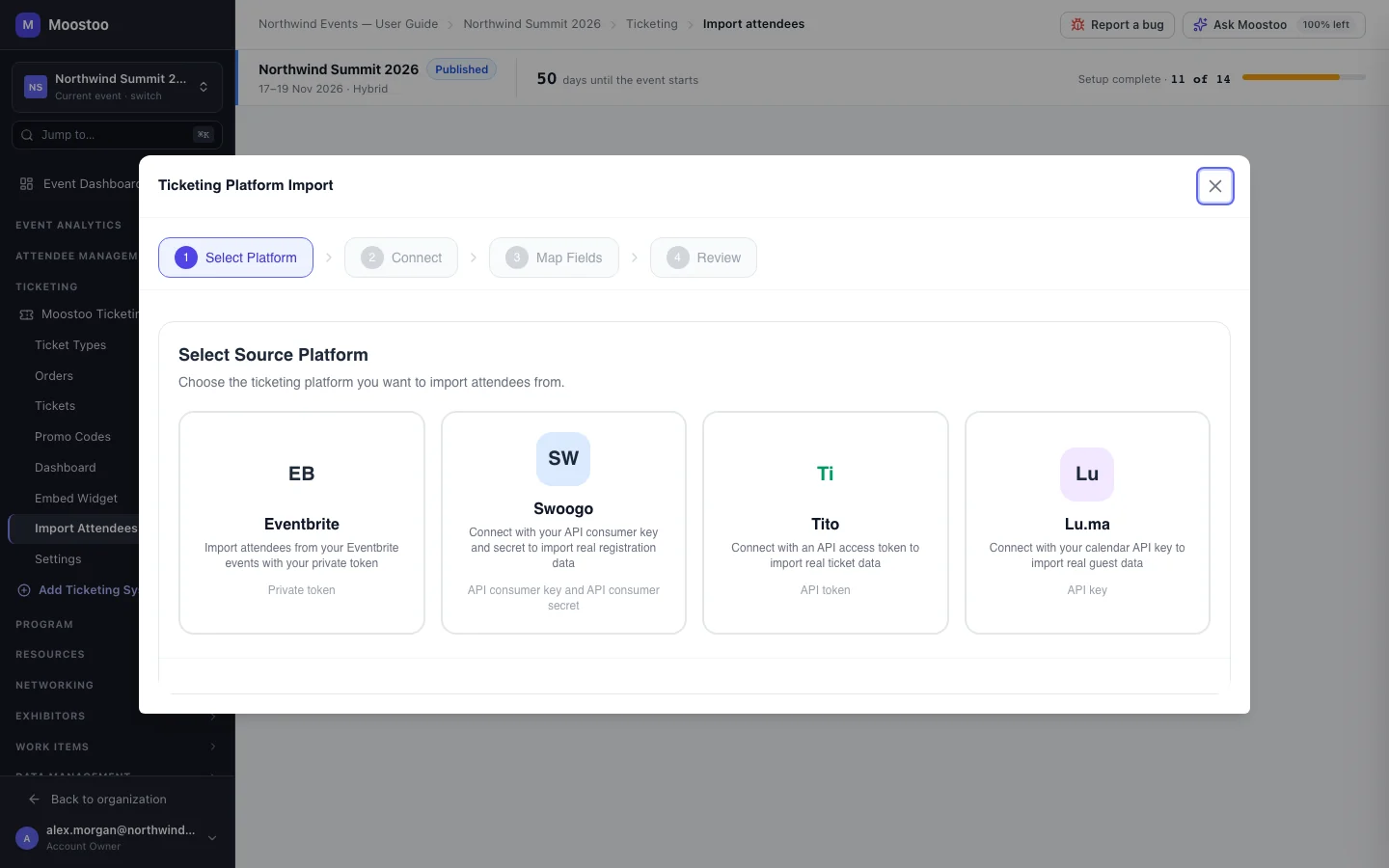
The import wizard's steps are Select Platform, Connect (your credential, then the external event), Map Fields and Review. Choosing a platform card on the setup screen skips the first step; the Import Attendees item of a Moostoo Ticketing system opens the same wizard on it. The connection is read-only — Moostoo reads registrations and never creates, edits or deletes anything in your provider account. Everything you need to find each credential is written under its field in the wizard.
| Platform | Credential | Worth knowing |
|---|---|---|
| Eventbrite | Your private token (Account Settings → Developer Links → API Keys). If you have no API key yet, the wizard walks you through Eventbrite's Request a new key form, with values to copy. | Cancelled and refunded tickets are not imported. Eventbrite's barcode is kept as the badge code when it differs from the attendee ID. |
| Swoogo | An API consumer key and consumer secret (My Profile → API Credentials). | The Registration ID becomes the ticket ID and is what scans. |
| Tito | An API token only (generated at id.tito.io). No account or event slug to type — Moostoo lists the events of every account the token reaches, grouped by account. | Only complete tickets become attendees; incomplete, unassigned and void tickets are recorded as skipped with the reason. |
| Lu.ma | An API key from your calendar dashboard. The calendar needs Luma Plus — without it Lu.ma refuses even a valid key. | Only approved guests become attendees; the others are recorded as skipped. Lu.ma's check-in QR code is kept as the badge code. |
The external event is the gate
Once connected, you choose which of the platform's events this ticketing system syncs from (the list is searchable). Registration types, fields and answer options all belong to that one event, so nothing can be mapped or imported until it is chosen. Changing it later clears every saved mapping — you are warned first.
- People are matched on ticket ID first, email second, so re-importing updates the same person rather than creating a second one, even if their email changed on the platform.
- An import never rewrites an attendee's email — it is how they sign in. A person who has already signed in to the app is protected: an import only updates their ticket and badge details.
- Answers merge. Imported answers are added to what the attendee already gave; nothing they answered in Moostoo is wiped.
- A ticket whose type or attendee type is not mapped is not imported, and the history says why.
- The review step shows what will scan at the door for a sample of tickets, and warns when many tickets share one email — a sign the platform recorded only the buyer, not each attendee.
Step by step
Open Ticketing → Add Ticketing System and click the platform's card.
The wizard opens over the setup screen on its Connect step.
Paste the credential(s), following the instructions under each field, and click Connect.
If the platform refuses, its own reason is shown.
Choose the external event this system should sync from and click Continue to mapping.
Map registration types to attendee types, fields to profile fields or questions, and answer options to your options — see Mapping console — then Save mappings.
On Review, check the counts, the ticket-type mappings and the Scans as preview, then choose Preserve Original Ticket ID and Preserve Original QR Code, and Skip Duplicates or Update Existing.
Click Start Import. The wizard closes and you land on Import History, where the run's progress and results appear.
Leaving the wizard on the mapping step discards the mappings you have not saved — they save together with Save mappings. Credentials and the chosen event are kept.
What attendees see
In the attendee app
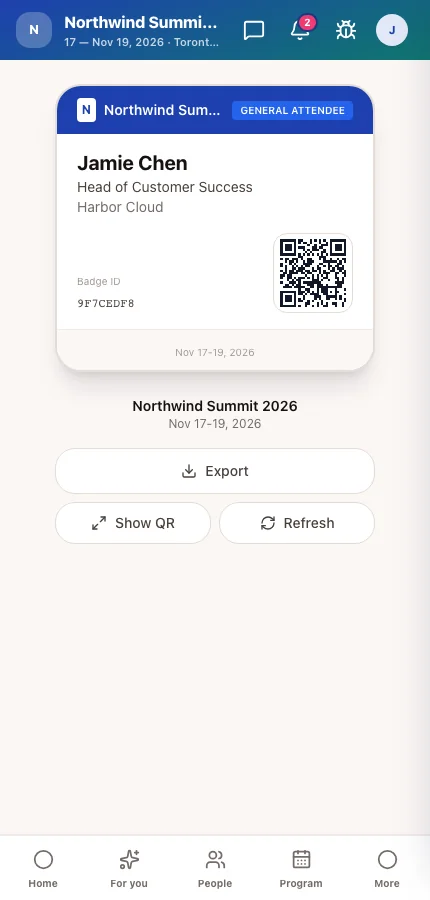
Imported ticket holders become attendees of the event with the attendee type you mapped. They sign in with the email they bought with, and their badge carries the code their platform issued, so their existing ticket scans at the door.
Tips
- Create your attendee types before you map — or create them from the mapping console as you go.
- Use the Import Filter on Import History to leave out tickets you do not want, such as staff or test registrations.
- Disconnecting (Settings → Connection) removes the credential and stops live sync but keeps everyone already imported.
- To bring people in from a spreadsheet rather than a platform, use the attendee import — see Import & export attendees.