
Booth pages
A booth page is the exhibitor's shop window inside your event: who they are, their team, their products, their brochures and a button to book a meeting. Exhibitors usually write it themselves from the attendee app, but you can write or fix it for them — for a sponsor who sent their copy by email, or a page that needs correcting before the doors open. Both of you edit the same page, so there is never a second version to reconcile.
How it works
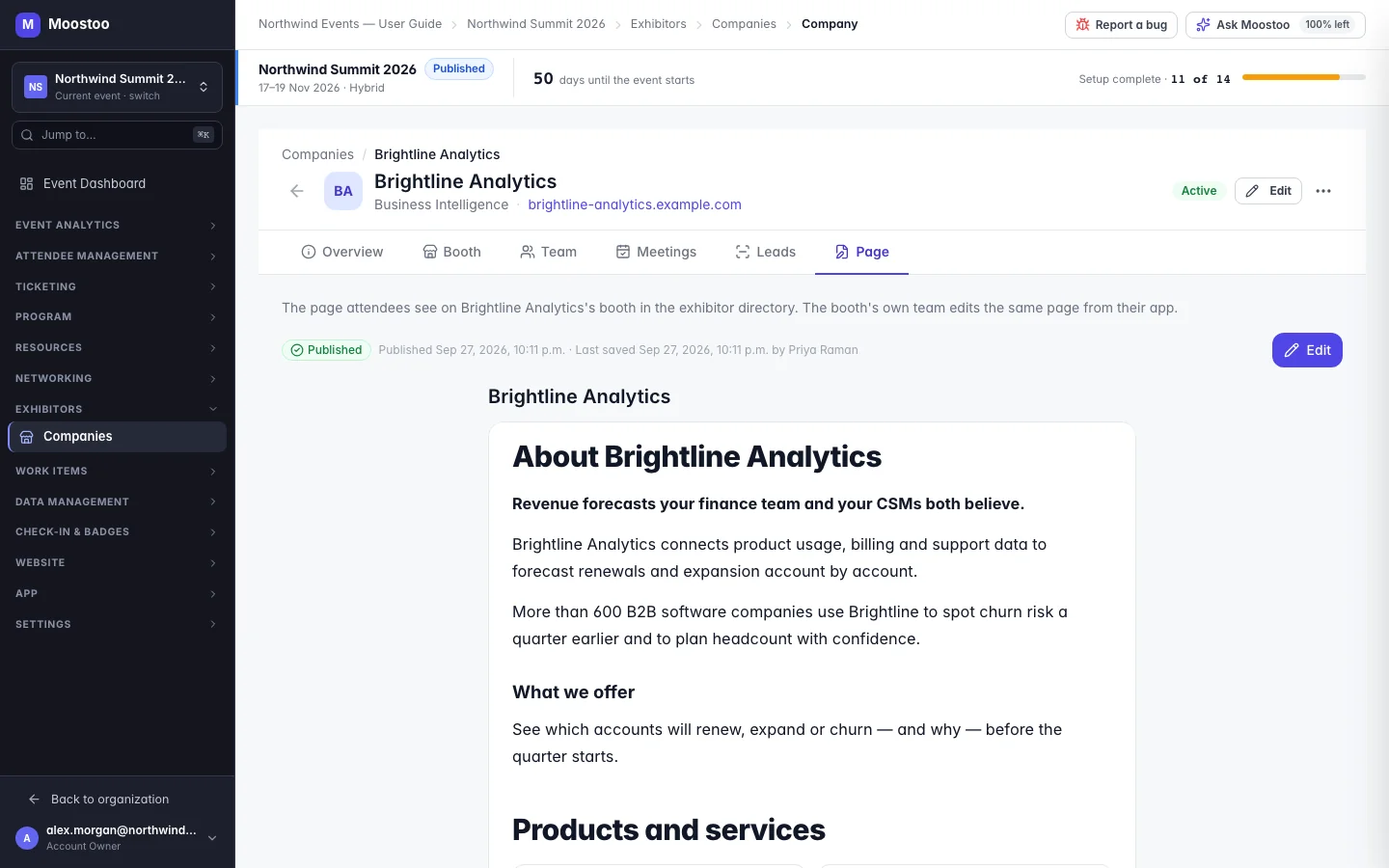
Open a company from Exhibitors → Companies and choose its Page tab. It opens on the page as attendees see it, with its publishing state. Edit opens the editor full screen. The booth's own team edits the same page from My Booth → Booth Page in the attendee app.
Draft and Published Save draft keeps your work without changing what attendees see. Publish makes the current draft the page attendees read. The badge reads Draft (never published), Unpublished changes (the draft differs from what is live) or Published.
Simple mode One formatted text area — headings, bold and italic, lists, links, images and embedded media. Paste a YouTube, Vimeo, Loom, Wistia, Canva, SlideShare, Microsoft Office, OneDrive or Google Drive, Slides, Docs, Sheets or Forms link (or its embed code) and it becomes a player. Other embed code is not accepted, and the editor names the services it supports.
Advanced mode The same page built from sections: Rich Text, Image, Image Gallery, Video, Team Members, Products, Downloadable Resources, Contact & CTA and Social Links. Drag sections from the catalog on the left, arrange them on the page, and set each one in the Options panel on the right.
- Simple and Advanced are two ways into one page. Moving to Advanced converts nothing. Moving back to Simple lists every section it will remove before removing it; your written text is kept.
- No custom HTML, no colours, no fonts. A booth page always wears the app's own look, so every booth reads cleanly on a phone and nothing an exhibitor pastes can run on an attendee's screen.
- Team Members shows the booth's own people — everyone, or the ones picked in your order — taken from the booth team, so it stays current when the team changes.
- Two people editing at once is caught. If someone saved the page after you opened it, Moostoo tells you who and asks before overwriting their changes.
- New exhibitors may already have a page. When a company with a website is added to the event, Moostoo can write and publish a first page from its company database — see Event companies. Edit it like any other.
Step by step
Write or correct a booth page as the organizer
Open Exhibitors → Companies, click the company and open the Page tab. (The … menu's Edit booth page goes to the same place.)
Click Edit. Choose Simple for a text page or Advanced to build it from sections.
Write the page. In Advanced mode, drag sections from Sections onto the page and fill each one in Options; images come from your Media Library — PNG, JPG, GIF or WebP up to 5 MB, never SVG.
Check it at Phone, Tablet and Desktop widths, or click Preview to see it exactly as attendees will.
Click Save draft to keep working later, or Publish to make it live.
How exhibitors edit their own page
A booth representative opens the attendee app, goes to My Booth and chooses Booth Page (or Edit Page on the booth dashboard).
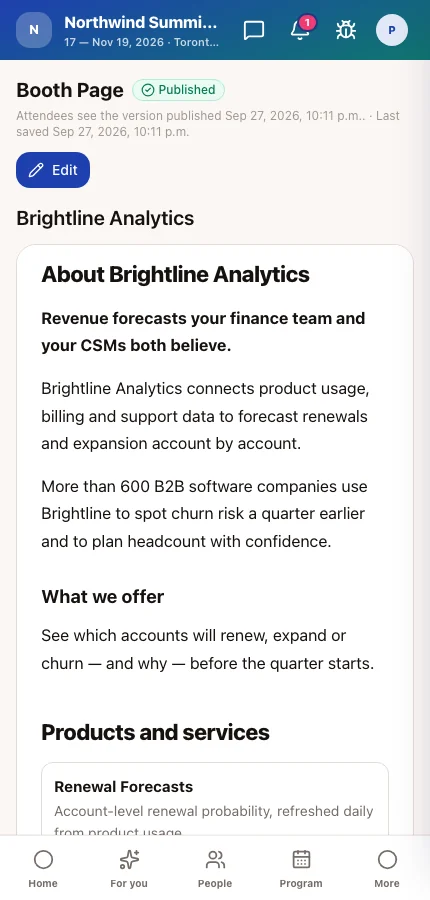
They use the same Simple and Advanced editor, uploading images from their own device (PNG, JPG, GIF or WebP up to 5 MB).
Their Publish makes the page live exactly as yours does. You see their changes on the Page tab the next time you open it.
What attendees see
In the attendee app
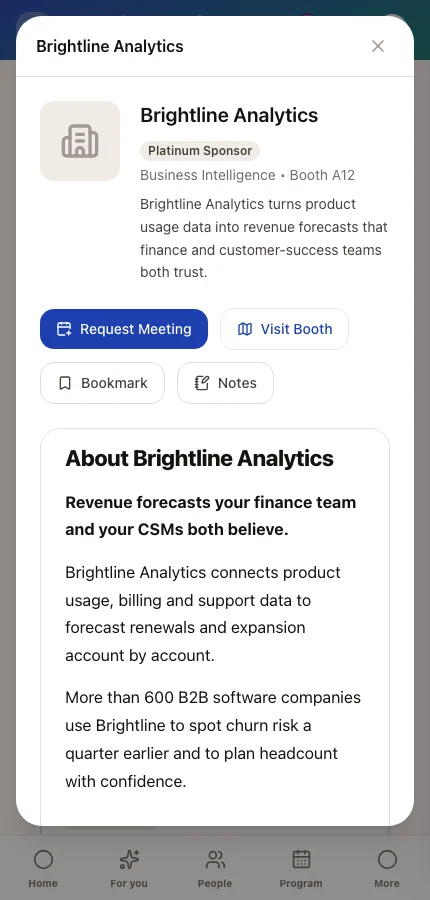
Attendees open an exhibitor from the Exhibitors page and read its published page in the exhibitor details, next to Visit Booth and — where the booth takes meetings — Request Meeting. A page that has never been published shows nothing; later drafts stay invisible until they are published.
Tips
- Tell exhibitors the page exists. It is the first thing an attendee opens after tapping their logo, and an empty page reads as a no-show.
- Use Contact & CTA with Request a meeting on booths that run booth meeting sessions — it takes attendees straight to the booking.
- Downloadable Resources is the right place for brochures and datasheets; a link in the text is easy to miss on a phone.
- If a representative says their changes are not showing, check the badge: Unpublished changes means they saved a draft but did not publish.