
Hotel room blocks & requests
When you contract a block of rooms, you owe the hotel a rooming list and you carry the risk of rooms nobody takes. A room block in Moostoo turns that spreadsheet into live data: attendees request rooms at registration, in the app or from their order; Moostoo refuses a night the moment it is full; you confirm requests, watch pickup against your attrition clause and download the rooming list the hotel asks for. Money never passes through Moostoo — guests pay the hotel directly.
How it works
A room block belongs to a hotel deal (see Travel & accommodation). In the deal's Room block grid there is one row per room type — the deal's main rate plus each of its More rates — and one column per valid night; each cell is the number of rooms you contracted. Leave the grid empty and the deal simply lists information, as before.
Request An attendee's ask for a room type from a check-in date to a check-out date, optionally with the name of someone they share with. It holds those rooms for every night of the stay. An attendee has at most one live request per event.
Requested / Confirmed / Cancelled A new request arrives as Requested and waits for you — unless automatic confirmation is on, in which case it arrives Confirmed. Requested and confirmed requests both count against the block.
Full night When every contracted room of a type is taken on a night, any request covering that night is refused, naming the full night. Two people racing for the last room: one gets it, the other is told the night is full. The same rule binds you when you add a reservation by hand.
Change window Attendees may change or cancel their own request until the deal's Book by date — or its last night when there is none. After that they are told to contact you. You can always edit or cancel.
Attrition clause The percentage of the block you promised the hotel to fill. Optional; the Pickup view warns when pickup is below it.
- Where attendees can request: the Travel screen of the app, the registration form when you place its Hotel request field, and the purchaser's order page for the tickets they manage.
- Who can request: only attendees of an attendee type the deal is offered to, and only while the deal is live.
- A block cannot shrink below what is taken. Reducing a cell under the rooms already requested is refused, and a room type holding live requests cannot be removed.
- A deal with live requests cannot be deleted. Cancel its requests first.
- Emails: each request, confirmation, change and cancellation sends the matching email from the Accommodation category of Automated emails, which you can edit or switch off.
Step by step
Set up a room block
Open Resources → Travel & Accommodation and open a hotel deal (or add one with its valid nights).
Under Room block, fill Room type name for the nightly rate (it reads Standard room when left blank).
Further room types come from the deal's More rates, so add those first if the hotel contracted several.
Enter the rooms per night in each cell — Fill row copies a number across a row — and optionally the Attrition clause (%).
Click Save hotel. The Rooms column now shows how many room-nights are taken out of those contracted.
Manage requests
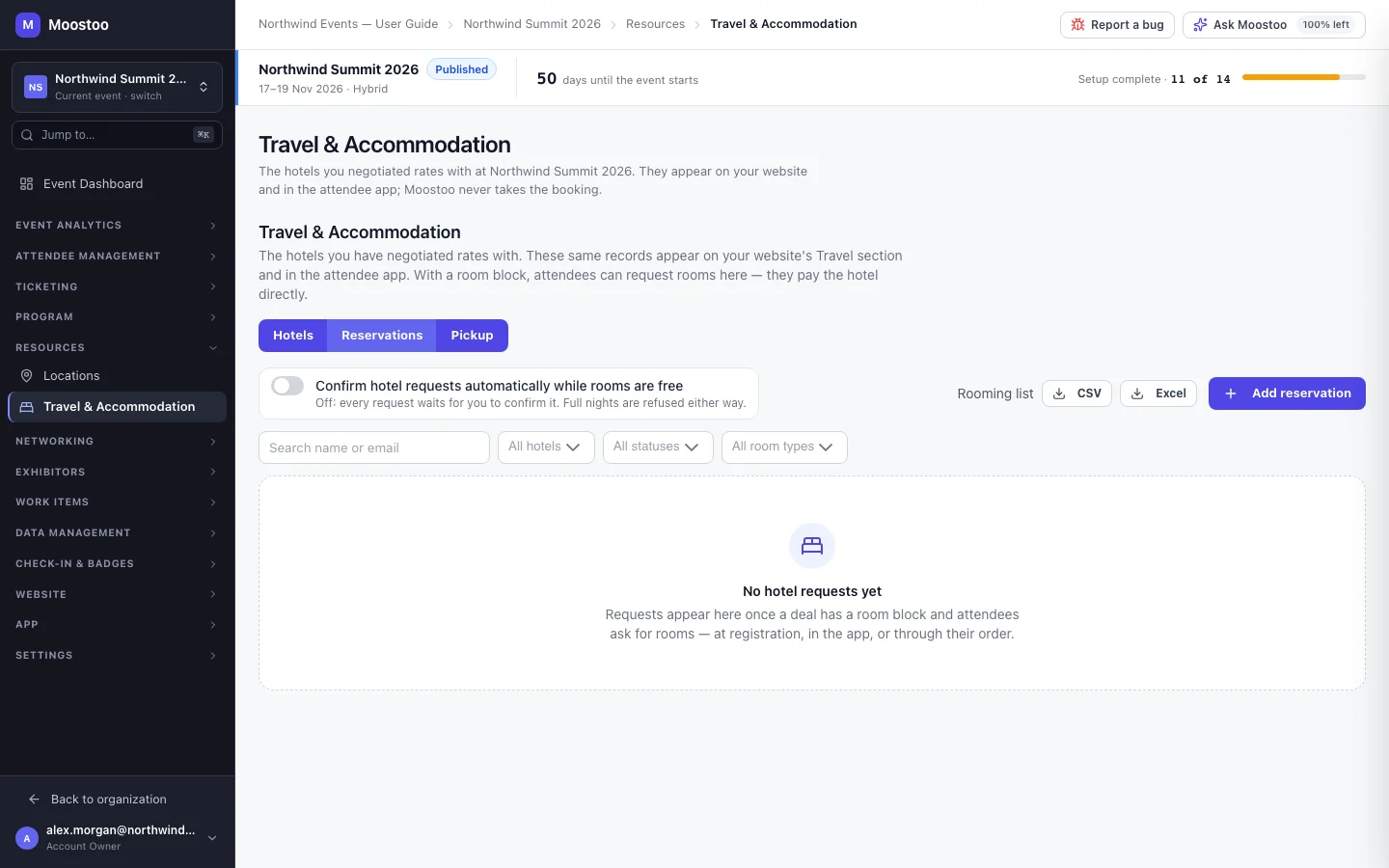
Switch to Reservations. Decide whether to turn on Confirm hotel requests automatically while rooms are free.
Off: every request waits for you. On: a request that fits is confirmed straight away. Full nights are refused either way.
Search by name or email, or filter by hotel, status or room type.
Use Confirm, Edit (hotel, room type, dates, sharing with, the hotel's confirmation number) or Cancel on each row.
Click Add reservation for someone who phoned or emailed, pick the attendee and fill the same form.
Switch to Pickup to see, for each hotel, rooms taken against rooms contracted per room type and night, the overall percentage, and a warning when you are below the attrition clause.
Download the Rooming list as CSV or Excel to send to the hotel — from each hotel's card on Pickup, or at the top of Reservations (pick the hotel first when several have a block).
One row per requested or confirmed stay: guest first and last name, email, attendee type, room type, check-in, check-out, nights, sharing with, status, confirmation number and when it was requested. Cancelled stays are left out.
What attendees see
In the attendee app
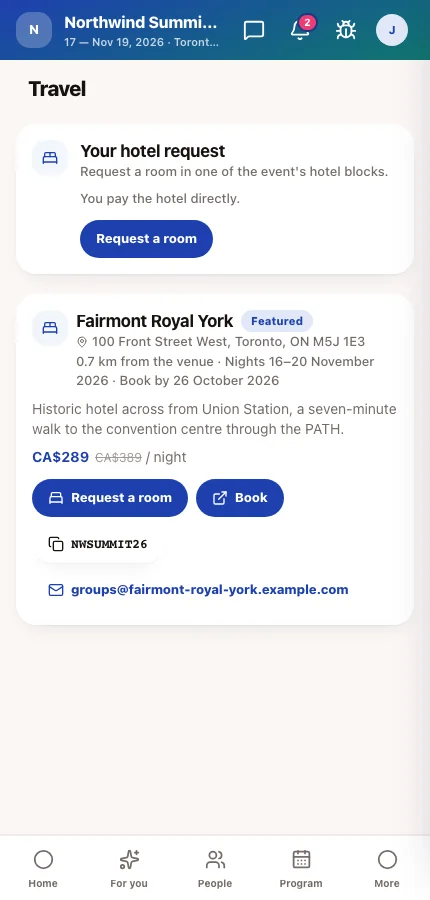
On Travel, a deal with a block that is open to the attendee shows Request a room. They pick the room type and dates and see You pay the hotel directly. Their request then appears at the top of Travel with its status and confirmation number, with Change and cancel options until the change window closes.
In attendee emails
Attendees receive Hotel request received, Hotel reservation confirmed, Hotel reservation changed and Hotel reservation cancelled emails as their request moves along — each can be edited or switched off.
Tips
- Keep automatic confirmation off if the hotel must approve each name; turn it on when the block is simply first come, first served.
- Record the hotel's confirmation number on each reservation — attendees see it in the app, which saves you a round of emails.
- Check Pickup well before the Book by date: that is the moment to push the hotel with an announcement, while you can still release rooms without penalty.
- To offer the request at registration, place the Hotel request field on your registration form. It is shown only when a live deal with a block is open to the registrant's attendee type.