
Organization team
Your organization team is the list of people allowed into your Moostoo account at all. An invitation is how they get in; their organization role decides whether they see every event (Account Owners and Super Users) or only the events you put them on. Removing someone here is the one action that takes them out of everything at once.
How it works
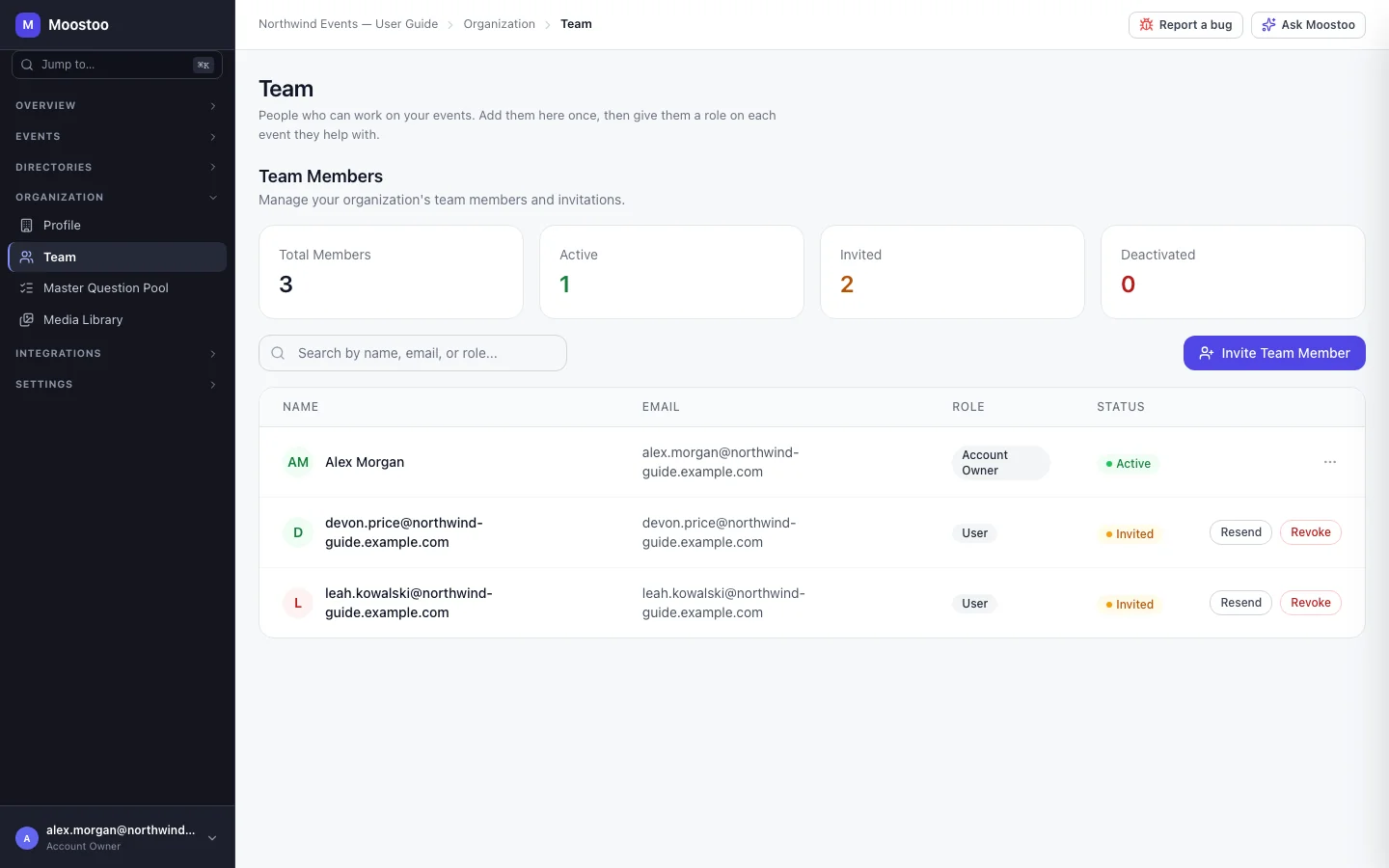
Organization → Team lists every member — name, email, role and status — with counts of total, active, invited and deactivated members, and your pending invitations. Search by name, email or role. Click a member to open their details, where their role can be changed and their access removed. To see which events someone works on, open each event's Event team — the member details do not list them yet.
An email address is the invitation Search your contacts by name or email. If nobody matches, you can type the address directly or create a contact. The invitee does not need to be a contact, and usually is not.
Who may invite whom Account Owners may invite Super Users, Users, Volunteers and Partners, and may change or remove anyone but themselves. Super Users may invite Users and Volunteers, and may change or remove Users, Volunteers and Partners — never an Account Owner or another Super User. Account Owner is never offered in an invitation; an Account Owner can make an existing member one by changing their role.
Accepting The email links to an invitation screen. Someone without an account creates one there with a name and password — no confirmation code, because the link already proved the address. Only the invited address can accept; the screen says so before anyone clicks.
Event-only members People added to a single event's team without ticking Also add them to the organization team are not listed here. They are seated on that event only — see Event team.
| Action | What happens | Reversible? |
|---|---|---|
| Change Role | Pick the new role in the member details; it changes at once. The last Account Owner cannot be demoted. | Yes |
| Deactivate Member | Takes away their role in the organization while keeping their membership. The list does not yet show them as Deactivated and Reactivate Member is not offered afterwards — give them a role again with Change Role, or use Remove from organization if they are leaving. | By changing their role back |
| Remove from organization | They lose access to the organization and every event; they are taken off every event team, with their permissions, and off those events' attendee lists; pending invitations to them are revoked. Their Moostoo account itself is not deleted. | Only by inviting them again |
| Resend / Revoke | For a pending invitation: resend mails a fresh link (the old one stops working); revoke cancels it. | — |
Step by step
Open Organization → Team and click Invite Team Member.
In Who are you inviting?, search your contacts, or type their email address if nobody matches.
Choose a role, and add a personal message if you like.
Click Send Invitation.
They appear as Invited until they accept. If the email fails to arrive, use Resend on their row — resending is the retry.
Once they accept, add them to the events they will work on from each event's Event team, unless they are a Super User — Super Users are on every event automatically.
What attendees see
Inviting someone to your team sends nothing to attendees. Removing a member does reach them indirectly: the member leaves the attendee list of every event they worked on, so attendees can no longer find or message them there.
Tips
- You cannot change or remove your own membership — ask another Account Owner.
- Removing a member is refused while they are the only Admin of an event; make someone else an Admin there first.
- For a volunteer helping at one event, skip this screen: add them on that event's team and leave Also add them to the organization team unticked.
- Users, Volunteers and Partners cannot open this screen; they see "Access Denied".
Ask Moostoo
Ask Moostoo invites people to the event you have open, and can add them to the organization team in the same step.
Add jordan.lee@northwind.com to this event's team as a member and to our organization team.