
Billing and subscription
Your plan sets how much your organization can do — events, attendees, storage and emails. This screen shows how close you are to each limit before you hit it, and is the one place to change plan, keep a card on file and download invoices for your finance team. It is kept to Account Owners because it commits the organization's money.
How it works
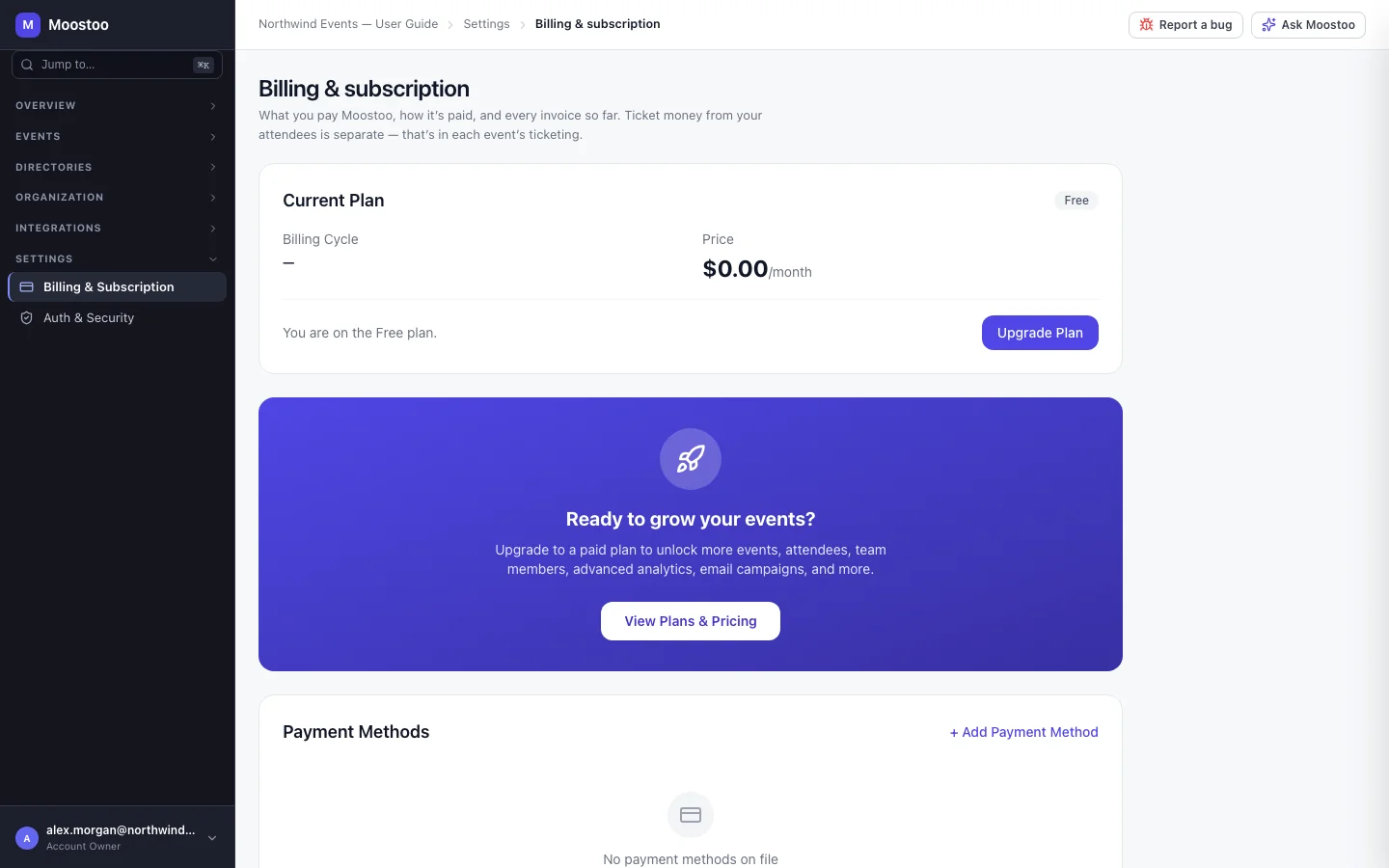
Settings → Billing & Subscription is in everyone's sidebar, but only Account Owners can use it; anyone else who opens it sees "Only Account Owners can view billing & subscription settings." It holds six sections.
Current Plan Your plan, billing cycle and price, and when it renews — or, after cancelling, the date it ends. Change Plan (or Upgrade Plan on the Free plan), Cancel Subscription and, while a cancellation is pending, Reactivate.
Payment Methods The cards on file and which one is the default; make another card the default or remove one, and Add Payment Method. Card details are handled by Stripe and never reach Moostoo's servers.
Invoices Every invoice with its date, amount and status, each downloadable as a PDF.
Tax Information Your tax ID type and value, printed on invoices.
Usage & Limits Events, attendees, storage and emails against your plan's limits. A bar turns amber with Approaching limit at 80%.
Payment failed banner Shown when a renewal could not be charged, so you can update the card before access is affected.
- Changing plan shows the proration first. Before you confirm a switch, Moostoo previews the prorated charge or credit for the rest of the cycle.
- Cancelling keeps you on your plan until the end of the period. Nothing is cut off on the day you cancel, and you can reactivate until then.
- On the Free plan, a banner offers View Plans & Pricing.
This is Moostoo's bill to you. What your attendees pay for tickets is set up in Ticketing setup and recorded in Orders — the two never mix.
Step by step
Change plan
Open Settings → Billing & Subscription and click Change Plan (or Upgrade Plan).
Pick a plan and a billing cycle.
The Prorated billing note explains how the switch is charged.
Review the preview and click Confirm Change.
Add a card
Under Payment Methods, click Add Payment Method.
Enter the card, tick Set as default payment method if it should be charged from now on, and click Add Card.
In this release the dialog offers a choice of Stripe test cards rather than a live card field, so no real card can be added here yet.
What attendees see
Attendees are not affected by anything on this screen. Reaching a plan limit is the only indirect effect — which is why the usage bars warn you at 80%.
Tips
- Add your tax ID before the next renewal so the invoice carries it — invoices are not reissued.
- Keep a second card on file for large events, so one declined renewal does not interrupt you.
- Ask a colleague to become an Account Owner if billing should not depend on one person.