
Printers and print hubs
Every badge that prints on site — from a kiosk, a staff scanner or the Print badge action on an attendee — goes through a print hub: a laptop or tablet running the Print Queue Manager app with the printers attached. This screen is where you decide which hubs exist, which printers each one drives and what those printers are called, so a badge always has somewhere real to go. It is also your remote control on the day: you can see what each hub and printer is doing, stop a queue, pause a printer that is out of stock, and retry, reprint or cancel a single badge without walking to the machine.
How it works
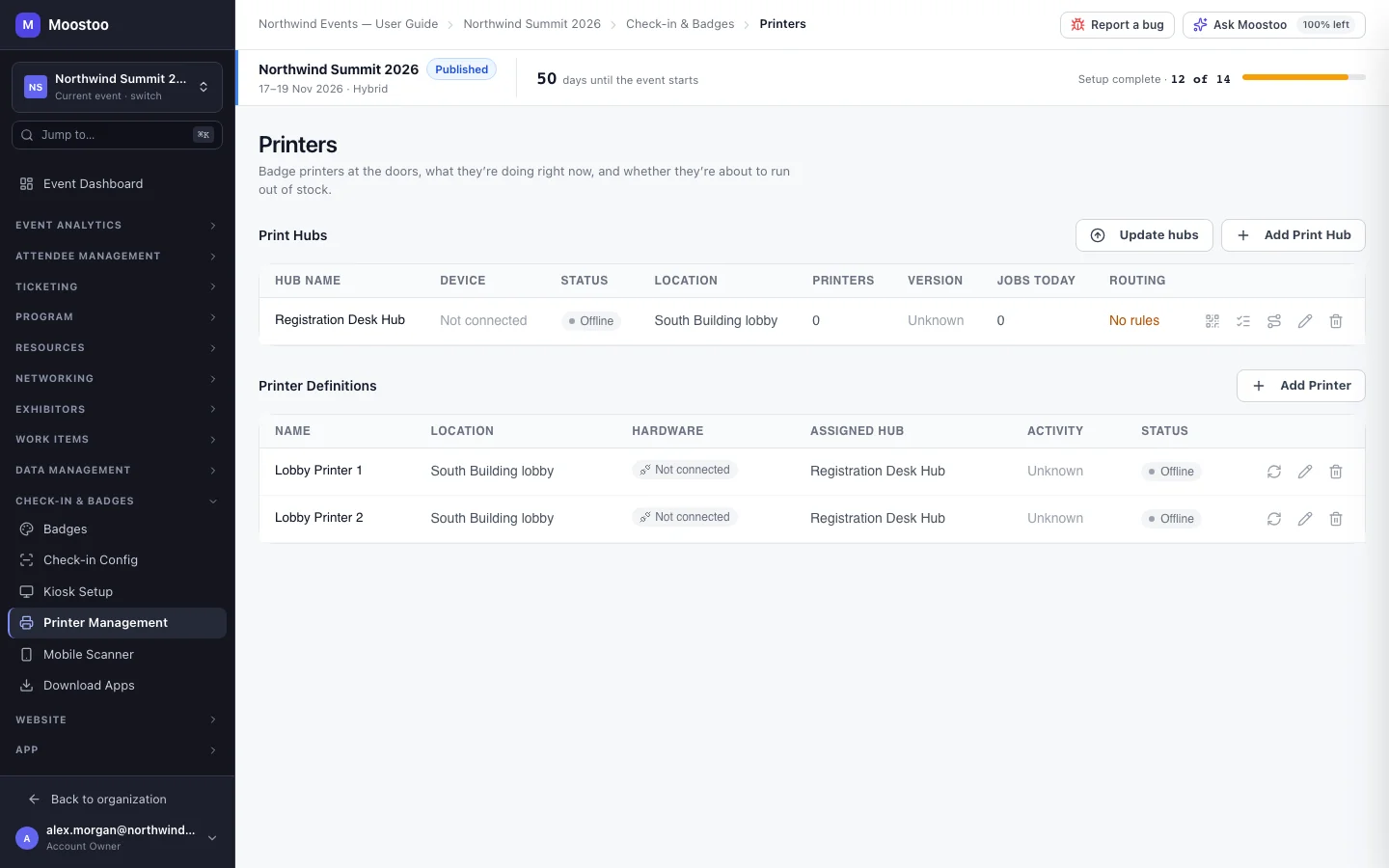
Open Check-in & Badges → Printer Management (the page itself is titled Printers). The screen has two tables: Print Hubs at the top (with each hub's Printers count and Jobs Today) and Printer Definitions below (name, Location, assigned hub, hardware, activity and status). You define both here, in the office; the hardware joins them later, at the venue. Use Edit on a row to rename or move a hub or printer, and Delete to remove it. In a Ticketing & Check-in Console event this screen stays locked — Choose where your attendee data comes from first — until the event has an attendee data source.
Print hub A record for one computer or tablet that will run the Print Queue Manager app (install it from Download apps). A hub has a name and a location. It only becomes real hardware when you connect a device to it by scanning the QR code the app shows.
Printer A name and a physical place — Front Desk Left, Registration Desk 1 — assigned to one hub. You do not type a model, an IP address or a connection type: the staff member at the hub matches each of your printer names to a device that machine can see.
Assigned hub The hub that drives a printer. Only that hub sees the printer and only it can bind hardware to it. A printer left Not assigned is invisible to every hub and can never print.
Stopped queue / paused printer Two remote controls. Stop queue halts everything the hub dispatches; pausing a printer stops just that one (to change a ribbon or clear a jam) while its badges wait. Both are saved on the server, so the staff at the hub and you in the office are flipping the same switch — a pause set in either place shows in both.
Reading the tables
| Column | Means | What to do |
|---|---|---|
| Hub Device: Connected / Not connected | Whether a machine is currently acting as this hub. | Not connected: click Connect by QR on the row and scan the code on the hub's screen. |
| Hub Status plus a Stopped tag | Online/offline is whether the hub is reporting in; Stopped means someone stopped its queue on purpose. | An offline hub needs the machine started; a stopped one needs Resume queue. |
| Hub Routing: No rules / no catch-all | How the hub places badges sent to it without a named printer. | Set rules — see Print routing. |
| Hub Version | The app version the machine is running; last known when it has stopped reporting. | See Device updates. |
| Printer Hardware: Connected / Hub offline / Not connected | Whether a real device has been matched to this printer name, and whether the hub holding it is still reporting. | Hub offline: restart the hub machine. Not connected: bind the printer in the hub app's Printer Setup. |
| Printer Activity and Status | Activity is what the hub says the device is doing right now (ready, printing, paused, error); Unknown means no hub has spoken for it yet. Status reads Online, Offline, Testing or Error. | On an error, look at the hub machine. Retry and Test connection in the admin only re-check the stored connection details on the server — they do not reach the printer — so a real test print is sent from the hub app's Printer Setup. |
The hub app runs in the background
The Print Queue Manager keeps printing at full speed when it is not the front window — staff can use a browser on the same laptop while badges come out — and while its queue is started it keeps the computer from going to sleep, even with the screen off. It does not start printing by itself: each time the app is opened, staff match the printers and click Start Print Queue; until then its Print Queue tab reads Queue not started. On the hub itself, staff use four tabs: Printer Setup (bind each printer, choose its output format, send a test print, then Start Print Queue), Print Queue (live jobs, Pause Queue / Resume Queue, pause a single printer), Manual Print and Settings (connection, the routing rules you set, preferences).
Step by step
Set up hubs and printers before the event
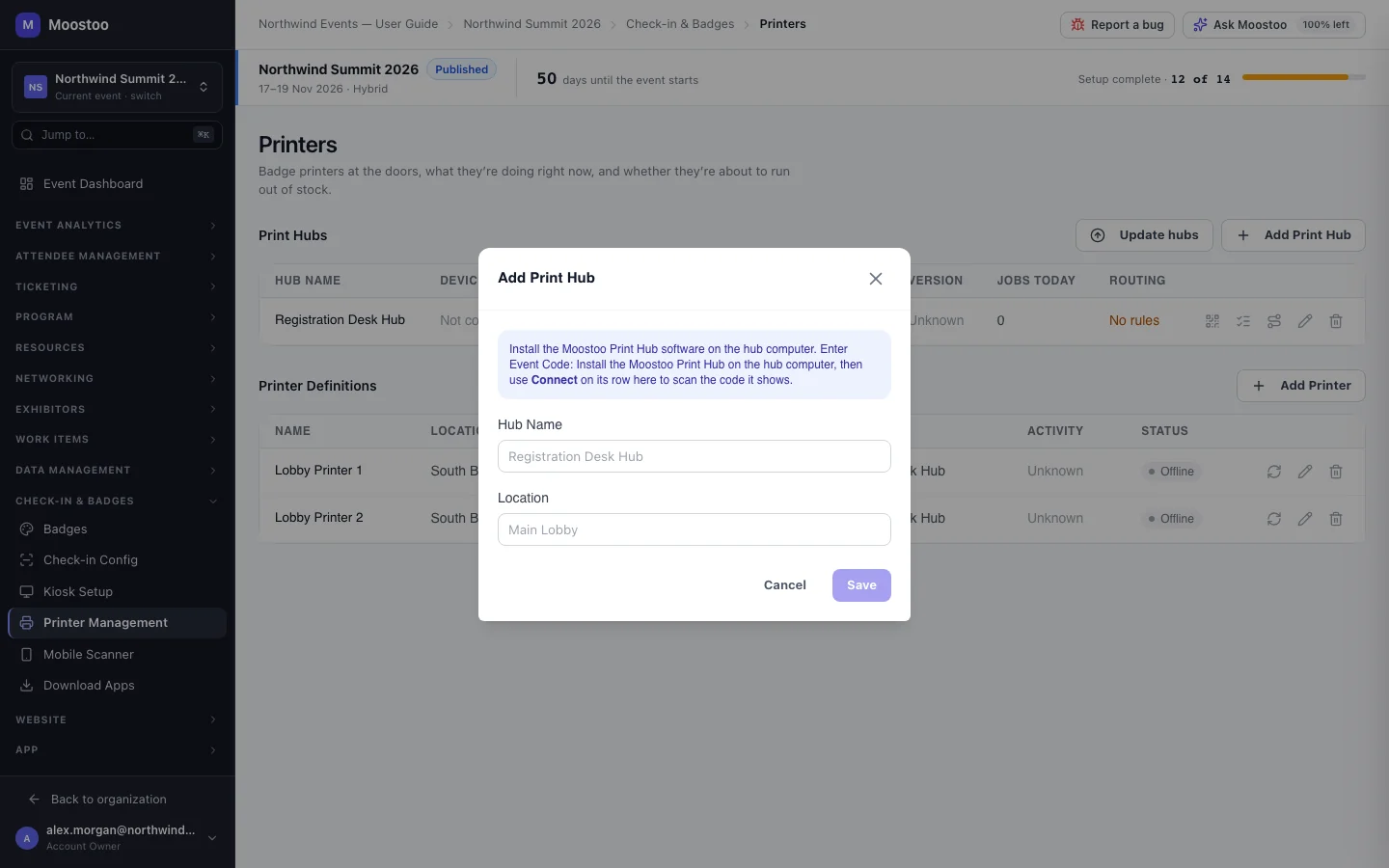
Open Check-in & Badges → Printer Management and click Add Print Hub. Give it a Hub Name (for example Registration Desk Hub) and a Location, then Save.
Create one hub per machine that will have printers attached — typically one per registration desk.
Click Add Printer for each physical printer. Enter a Printer Name and Physical Location, and choose the Print Hub it is attached to.
The physical location matters to attendees: a kiosk tells people to pick up their badge at the printer's location (falling back to the hub's).
At the venue, install the Print Queue Manager on each hub machine from Download apps and open it. It shows a QR code.
Back in Printer Management, click Connect by QR on that hub's row and scan the code with your phone or laptop camera — or type the 8-character code shown on the device — then click Connect.
The device is now that hub. Nothing needs typing into the machine; no password or event code exists to copy.
On the hub, open Printer Setup, match each of your printer names to a device the machine lists, send a test print, then click Start Print Queue.
The Hardware column in Printer Management turns to Connected for each printer that has been matched. Start the queue again whenever the app is restarted — nothing prints until it is started.
If any badges will be sent to a hub without naming a printer — kiosks on Hub auto-assign — set that hub's routing rules. See Print routing.
Control a hub on the day
Click Print queue on a hub's row. The window shows how many badges are waiting, each printer with its pause button and printed count, and the recent jobs.
To stop everything at that hub, click Stop queue; click Resume queue to restart. Waiting badges print in order once it resumes. (On the hub machine the same switch is labelled Pause Queue / Resume Queue.)
To take one printer out of service, click its pause button. Its badges wait; nothing is silently sent elsewhere unless staff at the hub forward its work.
Act on a single badge: Retry a failed one, Reprint a printed one, or Cancel one that is still queued.
Cancel is only offered while the badge is queued — once a hub has taken it, it is already on the printer.
Disconnect vs. delete
Disconnect device forgets the machine acting as a hub — it returns to its pairing QR, and whatever device you connect next may be a different laptop. The hub record, its printers and its rules stay. Delete removes the hub record itself.
What attendees see
Attendees never see this screen, but they feel it at the door. A badge only prints where a connected hub has a matched printer; the printer's Physical Location is what a kiosk names when it says where to pick the badge up; and a stopped queue or paused printer means badges wait rather than print. Check-in itself is recorded even when a badge cannot print, so nobody has to scan twice.
Tips
- Name printers by where they physically stand (Hall B Left), not by model — the name is what staff, kiosks and reports show.
- Check the Hardware column the morning of the event: every printer should read Connected. Hub offline almost always means a laptop went to sleep or was closed. After restarting a hub, remember Start Print Queue.
- Use Stop queue rather than switching the hub machine off: an offline hub looks like a fault, while a stopped queue says someone did it on purpose.
- Pausing a printer holds its badges. If you want them to come out somewhere else, ask the staff at that hub to forward the printer's work — see Print routing.
- Hubs and printers are copied when you clone an event, but the machines are not: every cloned hub must be connected again.
Ask Moostoo
Create a print hub called Registration Desk Hub in the Main Lobby.
Add a printer called Front Desk Left at Registration Desk 1 on the Registration Desk Hub.
The hub can be left out when the event has only one.