
My Booth: the exhibitor’s area
Your exhibitors run their booth from the attendee app, not the admin app. Knowing what My Booth offers helps you brief exhibitors and set up each booth so its tools are useful on the day. It also helps you answer the questions exhibitors ask at the stand.
Who gets My Booth
Everyone on a company's booth team gets a My Booth group in the app's menu, named after the company. You add them on the company's Team tab. See Booth teams.
The group has six screens: Dashboard, Booth Page, Leads, Meetings, Team and Analytics. Team members are ordinary attendees too, so the rest of the app works for them as usual.
Manage access Everything Use allows, plus changing the team, the company profile and the booth page.
Use access Sees the team's meetings and leads, books meetings and scans leads. Screens that change things show a short note instead of controls.
New requests are counted
When an attendee asks the booth for a meeting, every team member is notified. The Meetings item shows how many requests are new. The count is per person and clears when that person opens Meetings.
Dashboard
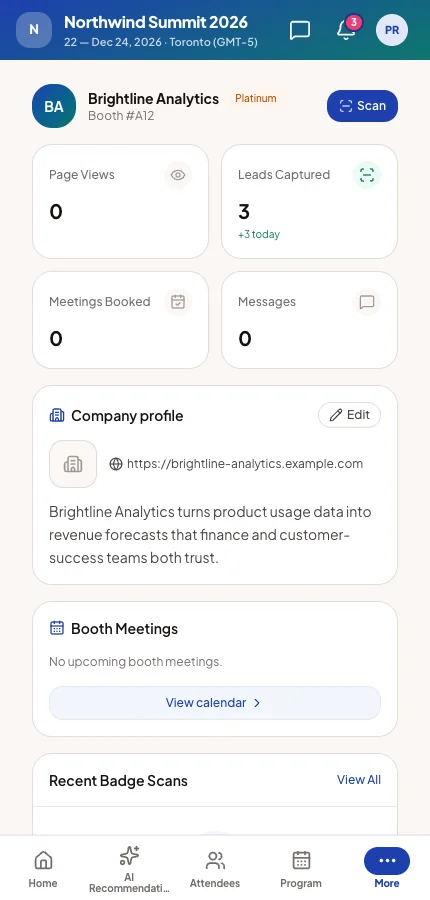
The dashboard shows the booth, a Scan button and four counts: page views, leads, meetings booked and messages. Below are cards for the company profile, booth meetings, quick actions, recent scans and upcoming meetings.
The Company profile card holds the booth's logo, website, social links and description for this event. Manage members change it with Edit. It starts from your company directory, but changes here affect only this event's booth. You can edit the same text on the company's Overview tab.
Booth Page
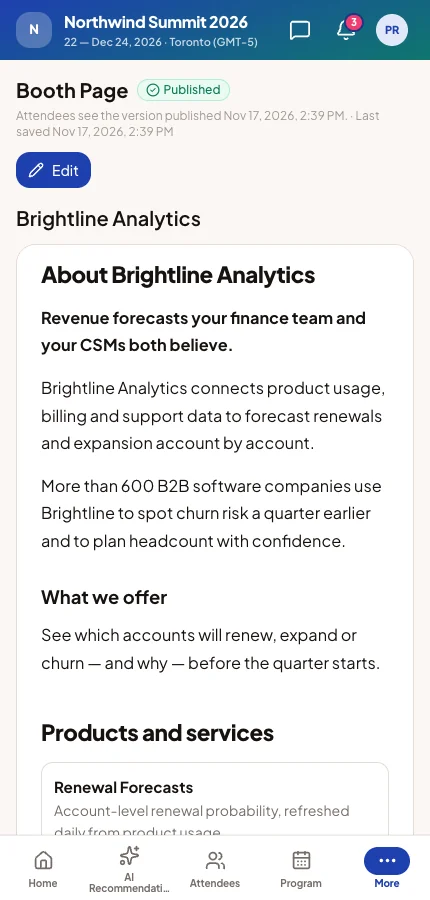
Booth Page shows the page as attendees see it, with its state: draft, unpublished changes or published. Edit opens the editor full screen in one of two modes:
- Simple: one column of formatted text, with images and embedded videos or presentations.
- Advanced: the same builder as your website, with nine section types and a phone, tablet and desktop preview. Custom HTML is not allowed.
Save draft keeps work private. Publish makes it live. Going back from Advanced to Simple lists the sections it will remove first. If someone else saved the page meanwhile, the editor says who before replacing their changes.
Leads
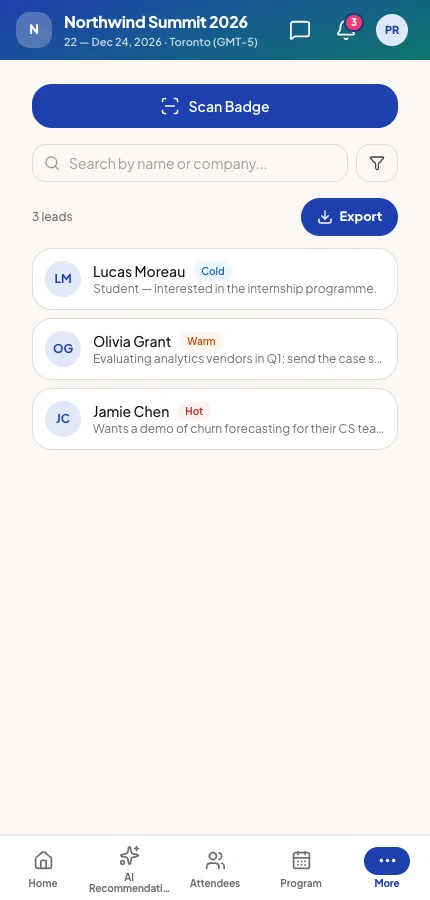
Scan Badge opens the camera and reads attendee badges. After a scan, the member grades the lead, picks a follow-up and adds notes or tags.
- A badge a colleague already scanned is flagged as a duplicate.
- A badge from another event is refused.
- When a badge will not scan, the member can search by name or email.
Export leads downloads the booth's leads as CSV or Excel. The file includes every member's scans, narrowed by any filters on the list.
Meetings
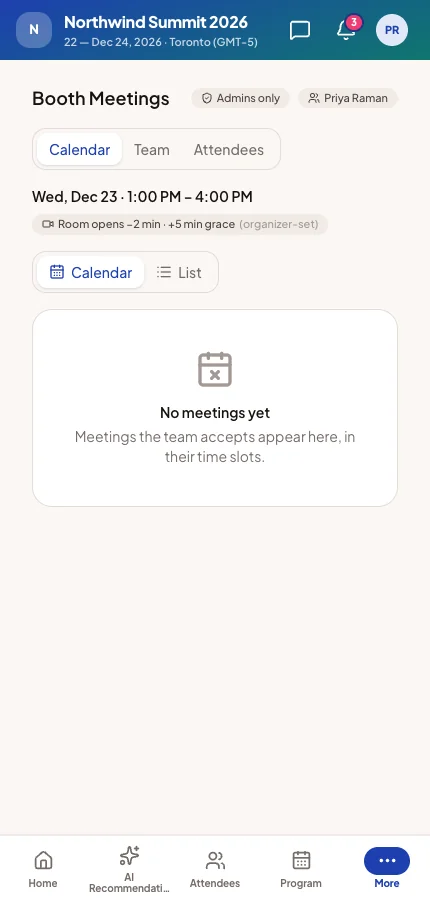
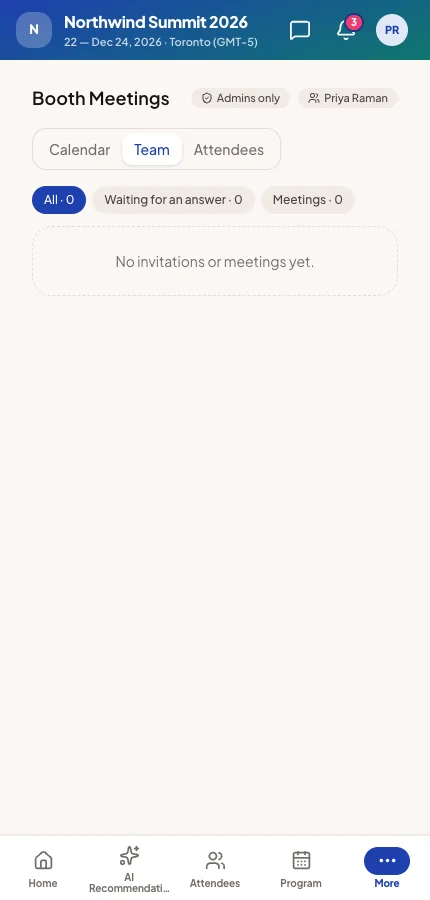
Meetings lists the booth's meeting sessions at the top. The booth cannot change them. You define them on the company's Meetings tab. See Booth meeting sessions.
| Tab | What it holds |
|---|---|
| Calendar | The team's confirmed meetings, by day or as a list. Each opens its details and actions. |
| Team | Invitations attendees sent to the booth or a team member. Members Accept or Decline them here. |
| Attendees | Invitations team members sent to attendees. The sender can edit or cancel one until it is answered. |
Answering a request
Any team member may accept a request. Whoever accepts hosts the meeting. They pick a slot if needed, then a rep and a table.
A rep who cannot hold the meeting is greyed out with the reason. For example, they have not registered, have not signed in yet, or are busy. A Manage member may hand a meeting to a colleague.
Changing a meeting
A meeting's details offer Join as guest, Add guest, Reassign, Reschedule request and Cancel Meeting. Who may use them follows the company's Who can manage requests setting:
- Admins only: Manage members change any meeting. Others change only meetings they host.
- All members: anyone on the team can change any meeting.
Team
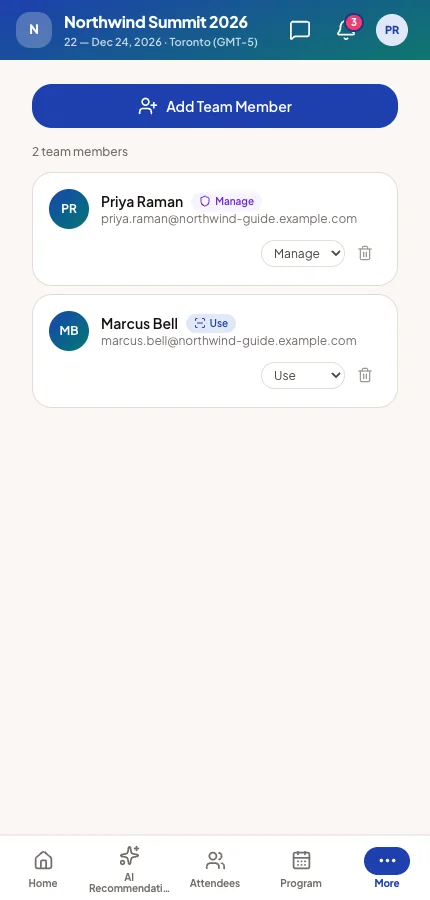
Team lists every member with their access and activity. Manage members use Add Member to add registered attendees, and can change access or remove people. The team always keeps at least one Manage member.
Analytics
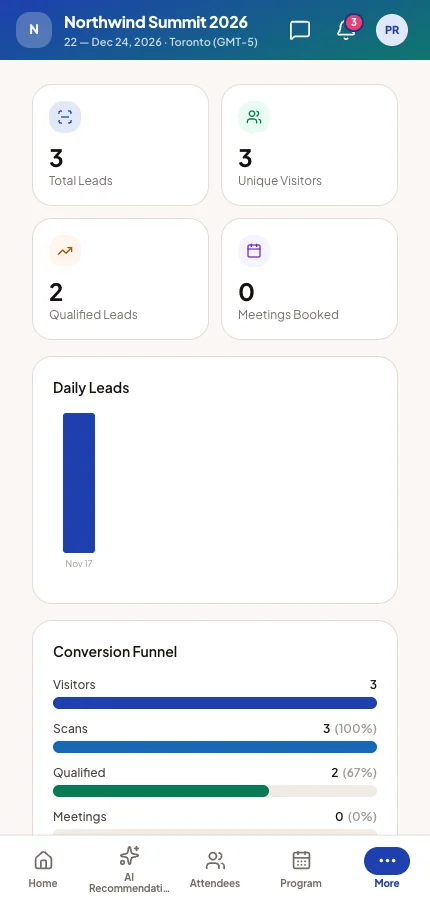
Analytics shows leads, visitors, qualified leads and meetings booked, with charts by day, hour and team member. Each can be exported as CSV or Excel. You see the same numbers on the company's screens in the admin app.
What to tell your exhibitors
- Register and sign in before the event. A member who has not cannot be given meetings.
- Give two people Manage access, so changes are still possible when one is busy.
- Answer requests from Meetings → Team.
- Export leads at the end of each day with the filters cleared, so the file holds every scan.
Set it up in the admin app