
CRM sync and connectors
Your sales and marketing teams live in their CRM and their own tools, not in Moostoo. CRM Sync connects your organization's HubSpot or Salesforce account once, so every event's registrants, companies and activity flow into it without anyone exporting spreadsheets. Connectors are set per event and push what happens there — a registration, a check-in, a lead scanned at a booth — to the tools your team already watches: a Mailchimp audience, a Slack channel, a live spreadsheet, a Zapier or Make automation, your analytics.
How it works
CRM Sync (organization-wide)
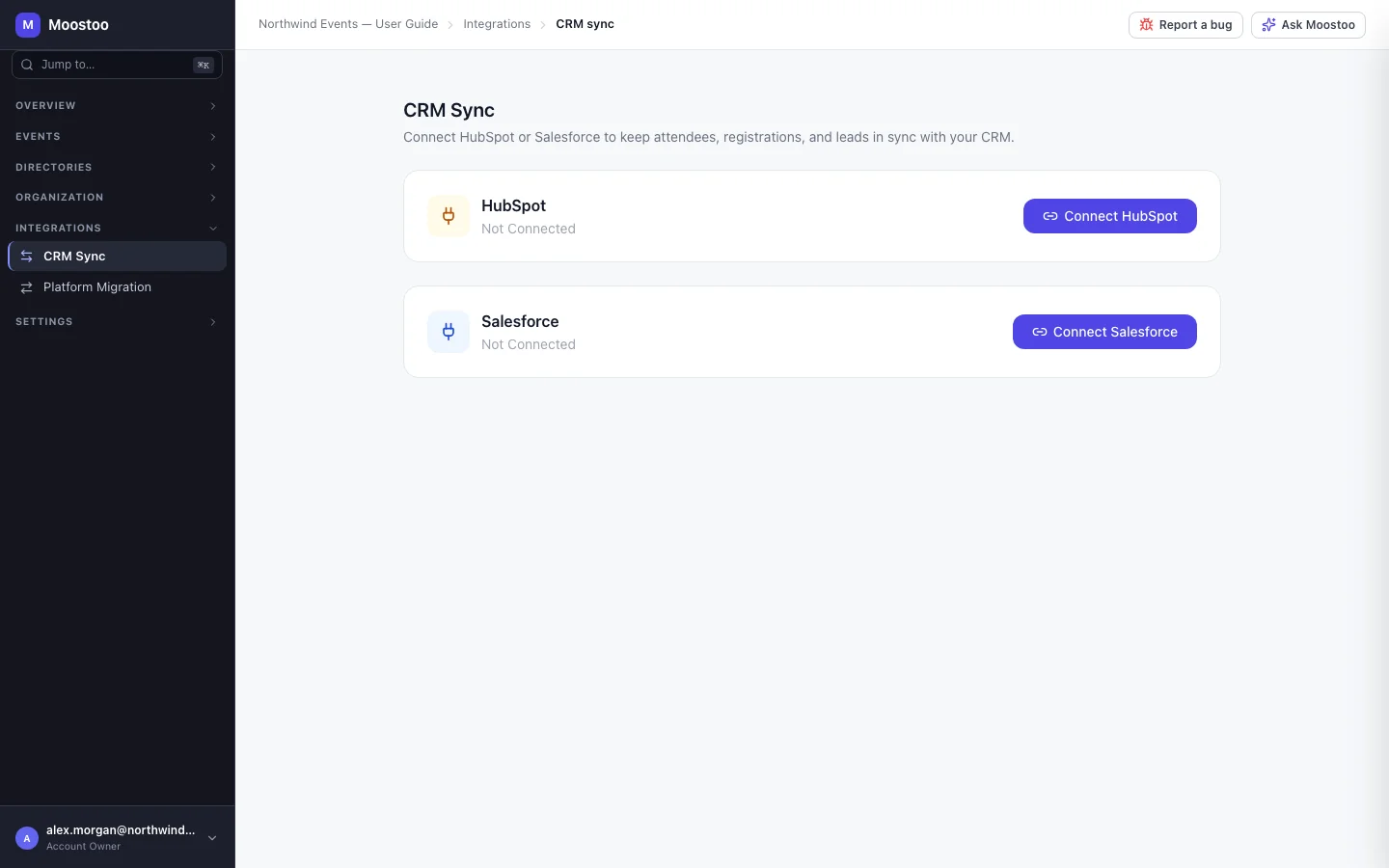
Open Integrations → CRM Sync in the organization sidebar. It lists HubSpot and Salesforce, each with its status: Not Connected, Connected to your account, Reconnection Required (the CRM stopped accepting Moostoo's access and you need to connect again) or Error with the last error. You sign in to the CRM itself when you connect; Moostoo never sees your CRM password.
| CRM | Section | What it carries |
|---|---|---|
| HubSpot | Contacts | Attendees, matched on email. |
| HubSpot | Companies | Company records. |
| HubSpot | Timeline | Activity on each contact's timeline — registration, check-in, session attendance, meeting completion. |
| Salesforce | Contacts | Attendees, matched on email. |
| Salesforce | Campaigns | One campaign per event, with attendees as campaign members. |
| Salesforce | Leads | Exhibitor lead captures, created as leads linked to the event's campaign. |
Direction Per section: Moostoo → CRM, CRM → Moostoo or Bidirectional.
Field mapping Which Moostoo field (Email, First Name, Last Name, Company, Job Title, Phone) fills which CRM field. Standard pairs are filled in for you; Add mapping adds one, including your own custom CRM properties.
Conflict What happens when a value changed on both sides since the last sync: CRM Wins, Moostoo Wins, Most Recent Wins or Manual Review. With Manual Review, each conflict is listed with both values and you pick the one to keep.
Sync frequency Real-time, Every 15 minutes, Hourly, Daily or Manual Only. Run Full Sync Now runs one immediately and shows its progress: Scanned, Created and Updated on each side, and Conflicts.
Email is the match key A person is the same person on both sides when their email matches. A record without an email cannot be synced and is skipped with a note in the Sync Log.
Connectors (per event)
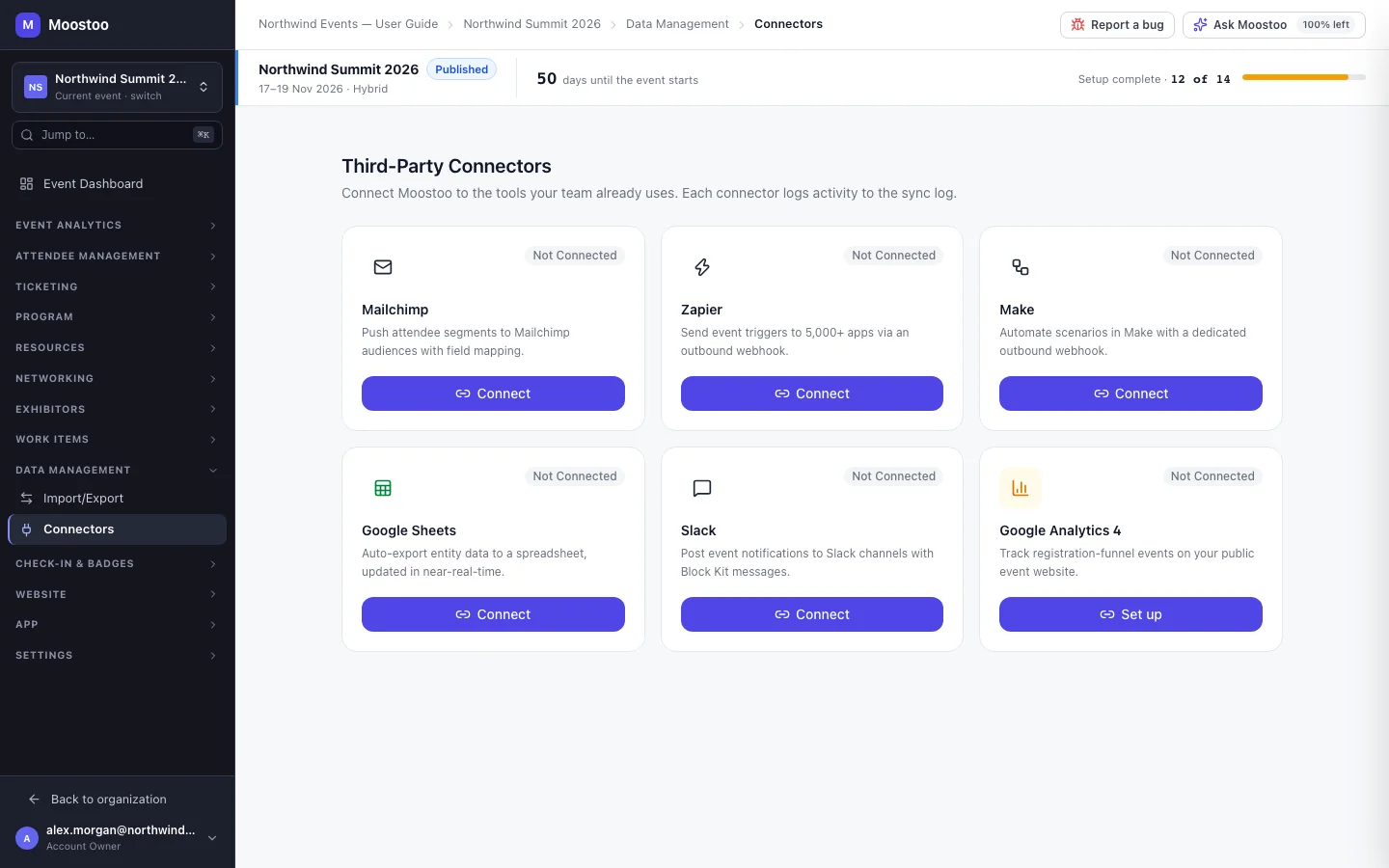
Open Data Management → Connectors in the event's sidebar. Third-Party Connectors shows a card per tool with its status. Each connector is set up for this event only, so a sponsor's Slack channel or a campaign's Mailchimp audience never receives another event's data.
| Connector | How you connect | What it does |
|---|---|---|
| Mailchimp | Sign in to Mailchimp | Sync Rules push a group of attendees to a Mailchimp audience, matched by email. Sync Now runs a rule and reports Added, Updated, Skipped and Errors. |
| Zapier | A webhook address Moostoo generates | Copy the Webhook URL into a Zapier webhook trigger and switch on the Trigger Event Types you want: Attendee, Meeting, Session, Company & Lead, Payment. A test trigger sends a sample so you can map fields in Zapier. |
| Make | A webhook address Moostoo generates | The same as Zapier, with its own address for a Make scenario. |
| Google Sheets | Sign in to Google | Export Rules write an entity's rows to a new or existing spreadsheet and keep it updated as records change. |
| Slack | Sign in to Slack | Notification Rules post to a channel when something happens — a registration, check-in, payment, session rating, completed meeting, captured lead — with a message you can word yourself. |
| Google Analytics 4 | Enter your Measurement ID (G-XXXXXXXXXX) and API secret | Sends registration-funnel events to your GA4 property. There is nothing to sign in to — click Set up. |
Everything a CRM sync or a connector sends is recorded on the event's Sync Log in the Import/Export Hub, with its status. A failed webhook delivery or CRM sync can be retried from there.
Step by step
Connect your CRM
Open Integrations → CRM Sync and click Connect HubSpot or Connect Salesforce.
You are taken to the CRM to sign in and grant access, then brought back.
Click Configure Sync on the connected card.
For each section set the direction, check the field mapping and choose how conflicts are resolved.
Choose a Sync frequency and click Save.
Click Run Full Sync Now for the first sync and watch its progress. You can cancel it while it runs.
Set up a connector for an event
Open the event's Data Management → Connectors.
Click Connect on the tool's card (or Set up for Google Analytics 4) and complete its sign-in.
Click Configure and add what the connector should do — a sync rule, an export rule, a notification rule, or the trigger types for a webhook.
Zapier and Make: copy the Webhook URL into your automation and send a test trigger before switching on real events.
Use Disconnect on the card when the event no longer needs the tool.
What attendees see
Attendees see nothing in the app or on the website. What changes is what happens outside Moostoo: people you sync to Mailchimp receive whatever your Mailchimp campaigns send, and a CRM sync puts their contact details and activity in front of your sales team. Make sure your privacy notice says that registrant data is shared with these tools.
Tips
- CRM Sync is set once for the organization and applies to every event; connectors are per event — set them up again on a new event (a clone does not copy connections).
- Start a CRM sync as Moostoo → CRM until you trust the mapping. Bidirectional sync can write CRM values back into your attendee records.
- Choose Manual Review for conflicts during a data clean-up; switch to a rule afterwards so conflicts do not pile up.
- Reconnection Required usually means the access was revoked or expired in the CRM — connect again from the same card.
- Account Owners, Super Users and Users can manage CRM sync and connectors; other roles see a message saying so.
- Disconnecting stops everything the connector was doing for the event straight away — there is no confirmation.