
In a video meeting
On the day, questions about online meetings are practical. Where is the Join button? Why can't I join yet? How do I blur my background? This page walks through the attendee's side so you can answer them. What you configure is in Video meeting rooms.
Finding the way in
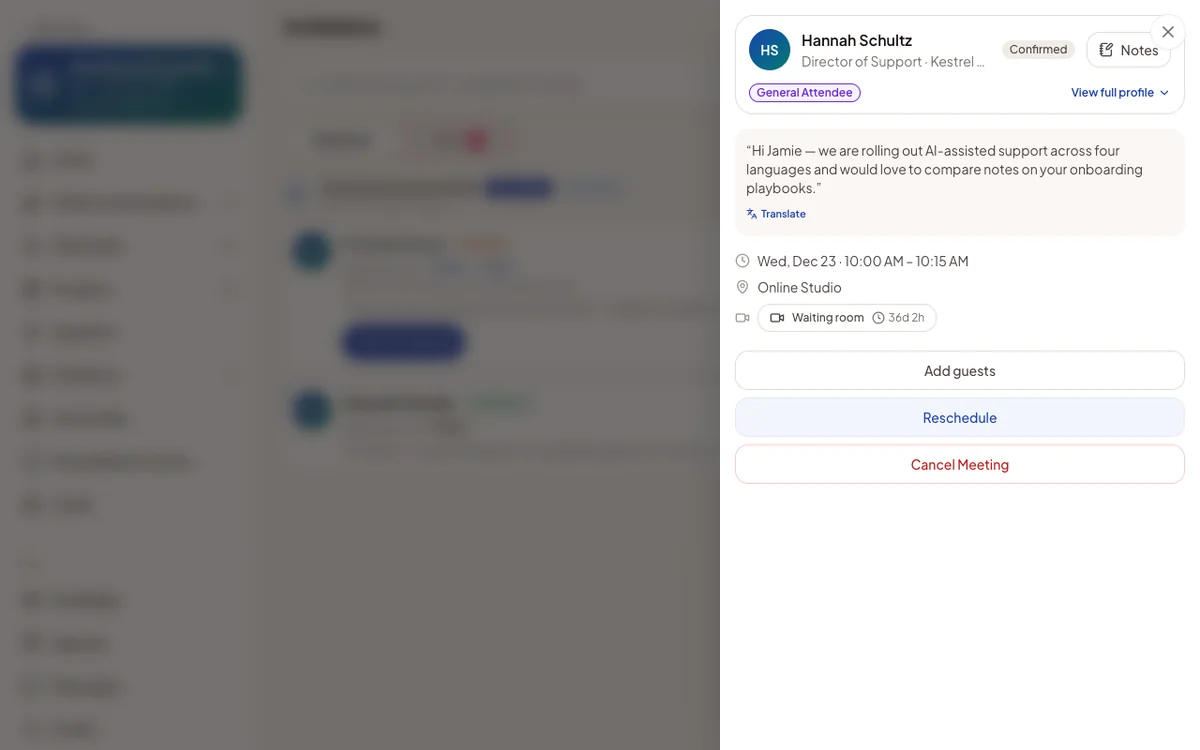
A confirmed online meeting shows a video line on its details, the agenda, the person's directory card and Home. The line changes over time:
- Waiting room, with a countdown, until shortly before the start.
- Join Meeting, from five minutes before the start, or earlier if the room opens earlier.
- Room closed, once the room has closed.
Good to know
- Every Join leads to the waiting room first. Nobody drops straight into a call.
- On a computer, a meeting opens in its own browser tab. Pressing Join again brings that tab forward instead of starting a second call. On a phone, it opens in place.
- Leaving a call returns to Online meetings, a list of upcoming online meetings and streamed sessions. It is not in the menu.
The waiting room
The waiting room is open at any time, even days before the meeting. Attendees see their camera inside your meeting frame, if you set one. They can switch the microphone and camera, check the sound level and choose devices.
The waiting room's Join button is what stays locked. Before the room opens, it reads Join opens in … and unlocks by itself at the time set in meeting room timing. Not yet goes back to Online meetings.
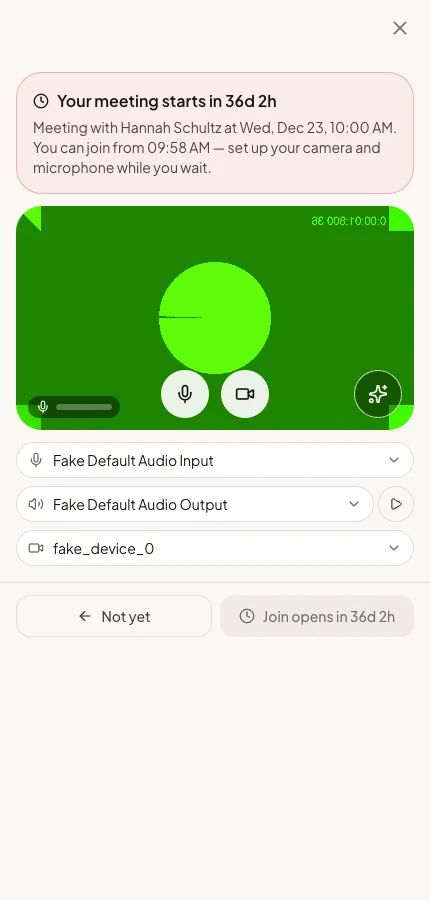
Camera or microphone blocked The waiting room says what is blocked and how to unblock it in that browser. The attendee can still join with audio only, or without either.
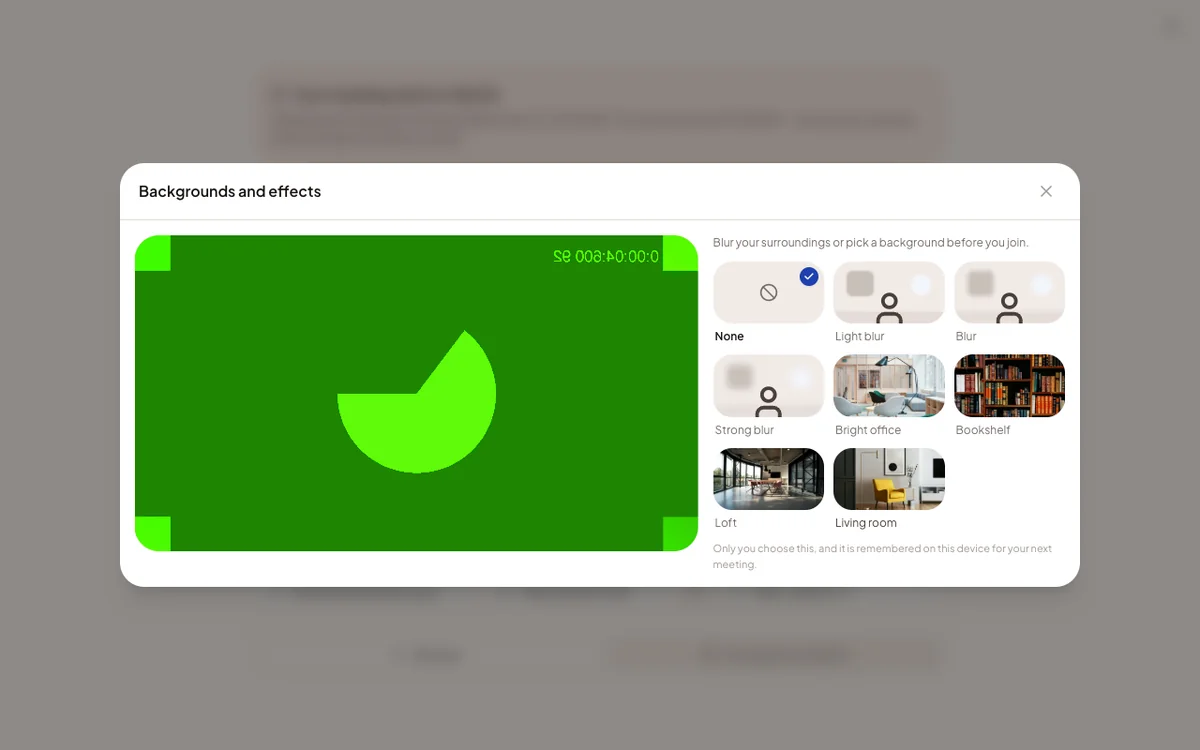
Backgrounds and effects The round button on the preview offers blur levels, built-in background photos and any backgrounds you added. The choice is remembered on that device. Only the attendee can choose it.
Browser without effects Blur and backgrounds need a recent Chrome, Edge or Safari on a laptop. Elsewhere the meeting works without them.
In the room
The room opens with everyone on equal tiles. Anyone with their camera off shows a photo or initials. The top bar counts down to the start, then to the end, then to when the room closes.
| Control | What it does |
|---|---|
| Microphone and camera | Turn each on or off. The small arrow beside each opens the device list. |
| Pin | Shows one person or a shared screen large in the centre. Pinning yourself works too. |
| People | Who is in the meeting, and who has not joined yet. Clicking someone opens their profile beside the call. |
| Chat | Messages to the people in the room. They are not kept after the call. Files are shared in Messages instead. |
| Share your screen | Computer only. Each shared screen becomes its own tile. |
| Minimize | Shrinks the call to a small window inside the app. |
| Float over other apps | In Chrome and Edge, keeps the call in a small window above other applications. |
| Leave call | Asks for confirmation first, so nobody leaves by accident. |
- After leaving, the attendee can rejoin from Online meetings while the room is open.
- When the room closes, the call ends for everyone at once, and cameras and microphones are released.
- A team member who joins to help is labelled Admin.
- In the Moostoo phone app, the call needs the app on screen. Switching apps or locking the phone ends it.
The first question on a support call
Ask which screen they are on. If it shows Join opens in, the attendee is early, not stuck. If it says the room has closed, the meeting is over and a new one is needed.
In-person meetings: checking in
An in-person meeting has no video room. If its meeting session allows self check-in, each person sees Check in on the meeting from five minutes before the start. The meeting reminder email and push offer it too.
Your team can also check people in on All meetings. The meeting then shows Checked in at and the time.
After the meeting
Once an online meeting ends, its details show who joined and for how long. You see the same record on All meetings.