
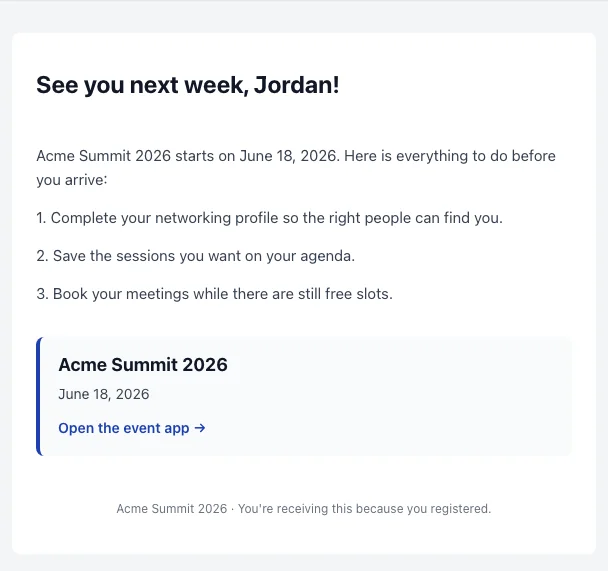
Registration, meetings, booths, hotels and badges.
Test subject lines or designs, and the winner goes out.
Your whole team sees every answer, grouped by person.
Canada or the EU, with your emails kept in that region.
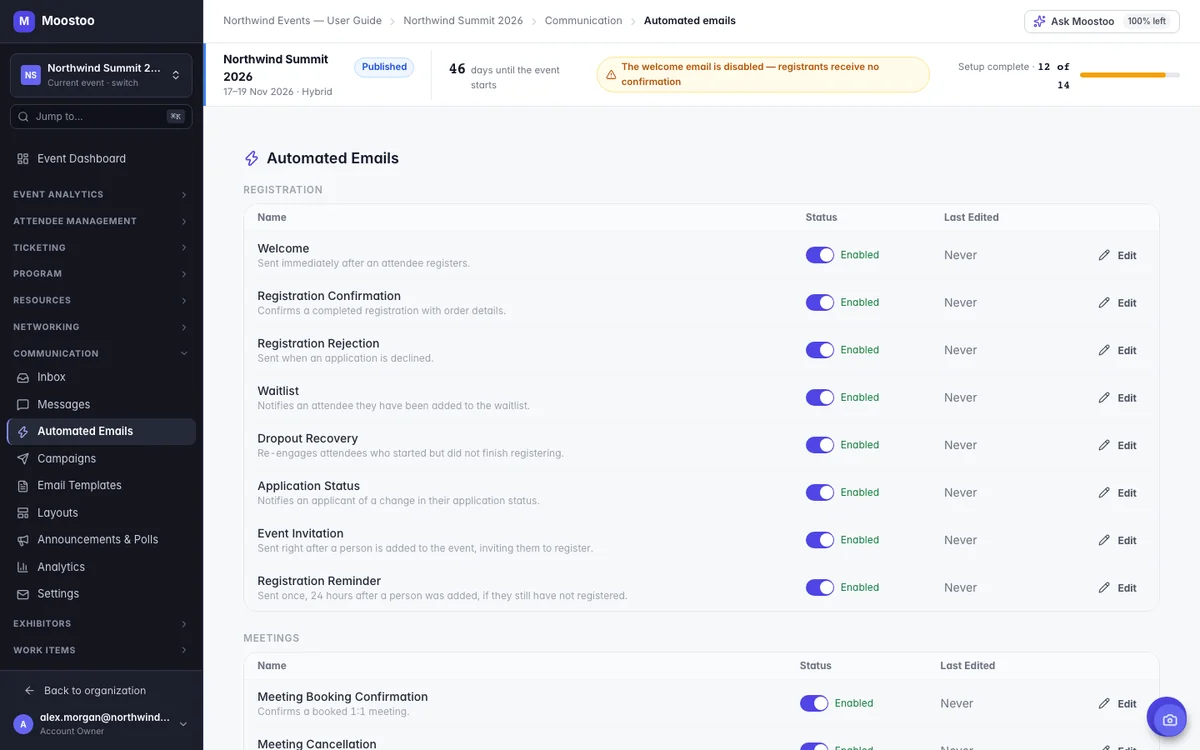
You add a guest and they get an event invitation email. Someone registers, gets approved, accepts a meeting or has their hotel room confirmed, and the email they need is already on its way. Moostoo sends these for you, timed to what each person just did. Every one starts from a ready-made design, so it works on day one, and you can rewrite any of them in your own voice for this event.
The early-bird deadline, the keynote reveal, the last call for workshops, the thank-you with the slides. Campaigns are what you decide to say, and you decide who hears it. Combine conditions like attendee type, ticket type, session, check-in status, a registration answer or whether someone opened your last email, and watch the recipient count update as you build.
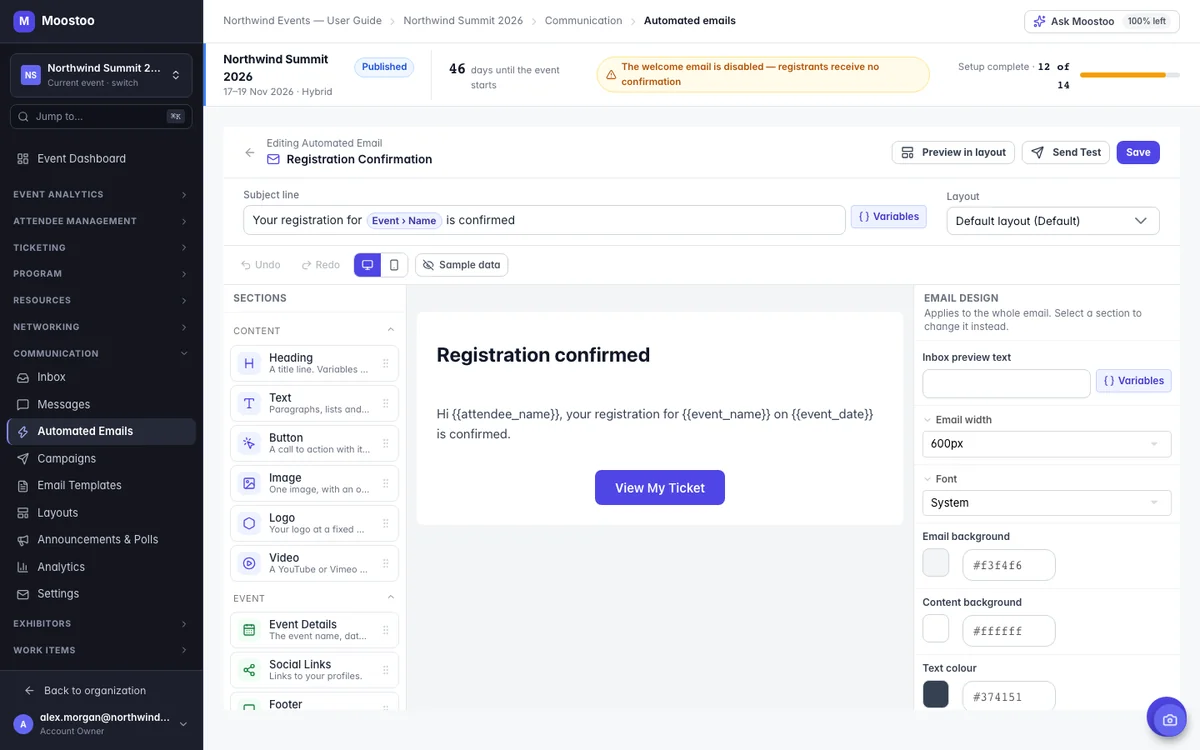
Emails are famously fussy: what looks great on a laptop can fall apart on a phone. The email editor builds every email from sections that hold up in real inboxes, and columns stack on their own on small screens. Drop in each attendee's name, company or meeting time, switch on sample data to read it the way they will, and send yourself a test.
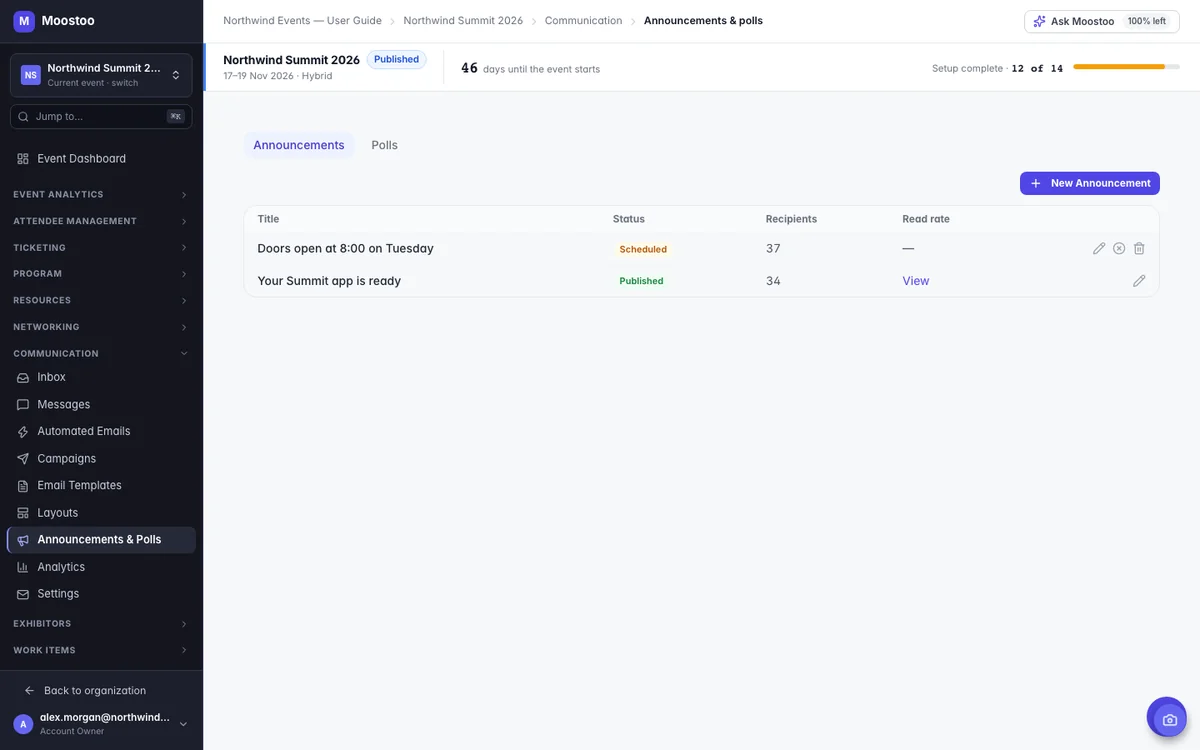
During the event, email is too slow. A keynote moves rooms, lunch is served early, tomorrow's workshop needs a show of hands. Announcements appear in the attendee app's home screen and as a push notification on attendees' phones, and polls collect answers in minutes. Aim either one at just the people concerned, so the VIP dinner change doesn't reach everyone else.
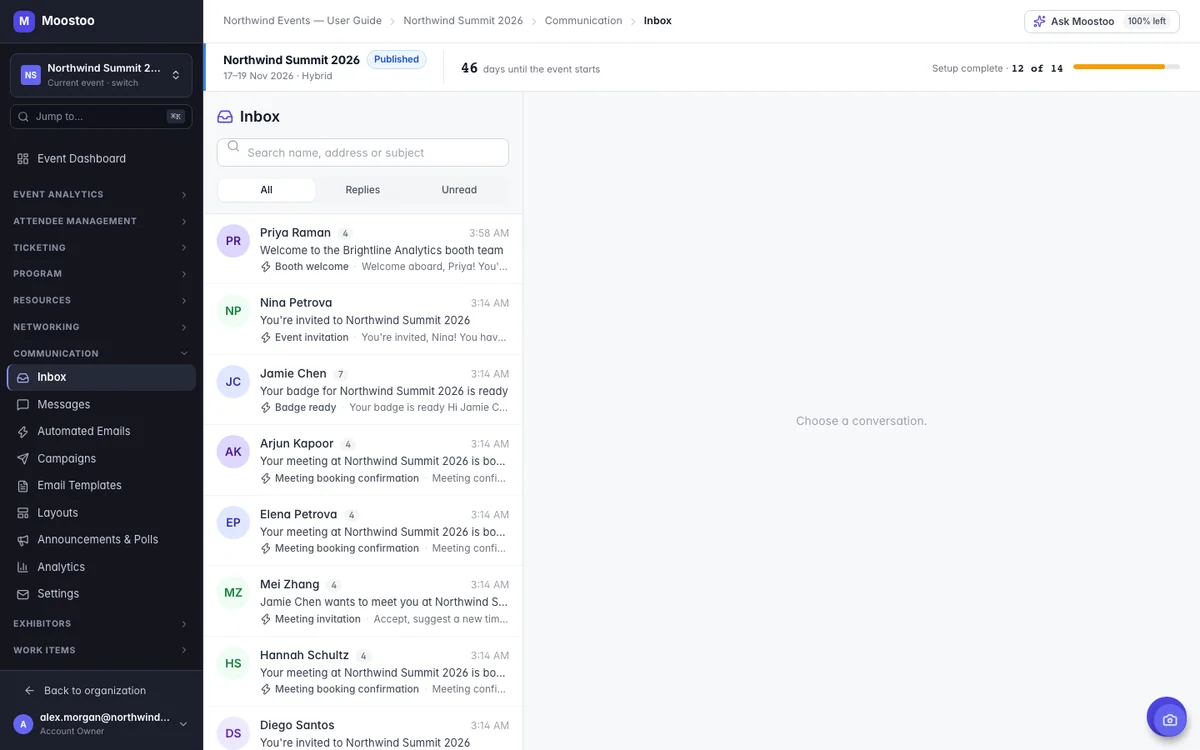
People answer event emails with real questions: parking, a changed flight, “can I bring a colleague?” In Moostoo those replies land in the event's own inbox, next to everything that person was ever sent, so anyone on your team can pick it up. Replies go out from the event's address and show who answered, so nobody answers twice.
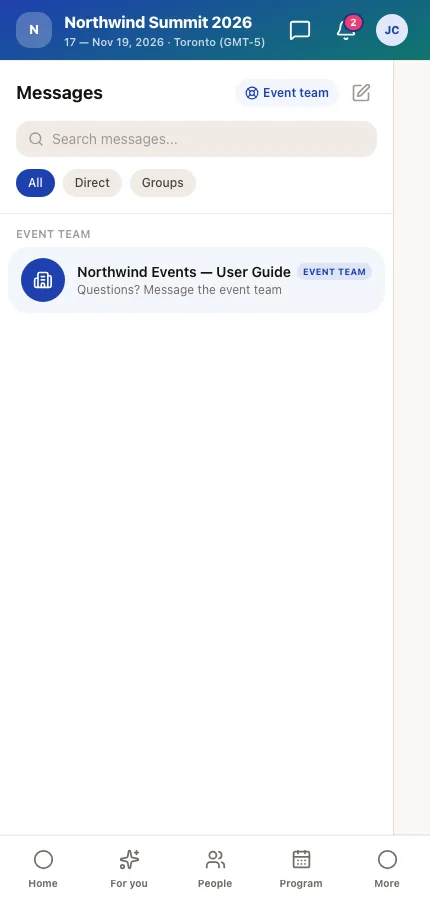
Where is the cloakroom? Can I change my ticket? Is the workshop full? Attendees ask in the app, in a conversation with your team that's pinned at the top of their messages. Your team answers together under your organization's name, so nobody needs to know who's on shift, and a chat button on every admin screen means you can reply without leaving what you're doing.
Use email for anything people need to keep or act on later, and announcements for what matters right now, in the room. Keep your marketing platform for audiences beyond the event, and let Moostoo handle everything that depends on who registered, what they booked and whether they've arrived.
| The Message | Best Channel | Why |
|---|---|---|
| A registration confirmation or meeting invite | Automated email | Sent the moment it happens, to the right person |
| An early-bird deadline or speaker reveal | Email campaign | Segmented, scheduled and A/B tested |
| A room change during the event | Announcement with push notification | Lands on attendees' phones in seconds |
| A quick show of hands | Poll | Anonymous answers, results in minutes |
| An attendee's question | Messages or the shared inbox | Your whole team sees it and can answer |
| Your newsletter to a wider audience | Your marketing platform | Sync attendees to Mailchimp with the Moostoo connector |
Already using Mailchimp, HubSpot or Salesforce? Moostoo's connectors and CRM sync keep them up to date with who registered and what they did at the event. See the CRM sync and connectors →
Email, campaigns and announcements come with every plan. The full platform adds in-app chat and the emails that go with networking, booths and hotels.
Automated registration emails, campaigns with segments, scheduling and A/B tests, templates and layouts, announcements and polls, the shared inbox and email analytics. Everything a ticketing and door operation needs to keep attendees informed.
Everything in Moostoo Tickets, plus in-app messages and group chats, meeting, booth and hotel emails, and Ask Moostoo to write emails for you from a flyer or a PDF.
Compare the plans, see how registration triggers your first emails, or build a matching event website.
On the full platform, a sandbox event lets you try every invitation, meeting request, announcement and campaign on a realistic event. Anything that would email or push an attendee is captured instead of sent, so you can train a new colleague or practice the run of show without a single real inbox noticing.
Pick Canada (Montréal) or the EU (Frankfurt) when you set up your organization. The emails you send, the messages your attendees write and the AI that helps you write them all stay in that region, backups included. That's one clear answer for your legal team.
Five steps. Most of them happen once, and then your emails take care of themselves.
Add an address on your own domain, click the confirmation link, and choose whether replies go to the event inbox or a mailbox of your own.
Add your banner, logo and footer once. Every email the event sends will be framed by it.
Switch on the emails you want, rewrite them in your voice and send yourself a test.
Build your segments, write the emails and schedule them around your key dates.
Post announcements and polls as plans change, and answer questions from the inbox and Messages.
Event email marketing is the set of emails an organizer sends to fill an event and keep attendees informed: invitations, confirmations, reminders, announcements and follow-ups. In Moostoo it includes automated emails triggered by what each person does, campaigns sent to segments you choose, and in-app announcements for news that can't wait for an inbox.
Yes. Add an address on your organization's domain, such as events@yourcompany.com, and confirm it from the link Moostoo sends. Every event can then send from it. Free mail addresses like Gmail or Outlook are refused, because mail sent in their name by another service tends to land in spam.
Yes. A campaign can go to everyone or to a segment built from attendee type, ticket type, session registration, check-in status, a registration answer, registration date and whether someone opened or clicked an earlier campaign. The recipient count updates as you build.
Yes. Test up to three subject lines or designs, choose what share of recipients gets each one and whether opens or clicks decide the winner. After the time you set, between 1 and 168 hours, Moostoo sends the winning version to everyone who hasn't received the email yet.
Through announcements. They appear on the home screen of the attendee app and arrive as push notifications on the phones of attendees who allow them. You can target everyone or only the people concerned, publish right away or schedule them.
By default, to the event's shared inbox in Moostoo, where your team sees each person's replies next to everything they were sent and can answer from the event's address. You can also send replies to a mailbox of your own instead.
Yes. The Mailchimp connector pushes the attendees you choose to a Mailchimp audience, so your newsletters reach them there, while Moostoo handles the emails that depend on registrations, meetings and check-in.
Yes. Every campaign carries an unsubscribe link, and anyone who uses it is left out of every later campaign of that event. Meeting emails have their own one-click unsubscribe too.
Last updated October 2026. Product details are taken from the Moostoo Admin Guide.