
Tickets & assignment
Orders tell you who paid; tickets tell you who is coming. When a company buys ten passes, each one has to be given to a named person before it can admit anyone. This screen lets you follow that through, step in when a purchaser needs help, and fix a ticket at the door — for example when a colleague is sent in someone else's place.
How it works
Ticket One seat, with its own code — the code in its QR. A bundle of five is five tickets.
Assigned / Unassigned An assigned ticket names its holder, who becomes an attendee of the event with the ticket's attendee type. An unassigned ticket admits nobody, so a forwarded confirmation email is not a way in.
Reassign Gives the ticket to someone else. The ticket keeps its code, but the code now belongs to the new holder: the previous holder's copy no longer admits anyone, and the scanner shows the new holder's record.
Changes allowed until The deadline after which the purchaser can no longer assign, reassign or edit details — the ticket type's own deadline if it has one, otherwise the event's. It never binds you. The ticket drawer shows it, or No deadline; the admin app has no field for setting one in this release. Without a deadline, the purchaser can make changes until the event ends.
- The first ticket usually goes to the buyer. Someone who registers through the registration form holds the first ticket of their own order; a purchaser who says they are attending gets the first ticket at checkout. The rest wait to be named.
- Check-in freezes a ticket for the purchaser. Once a ticket has been scanned in, the purchaser can no longer change it. You still can — somebody has to be able to fix a mis-scan.
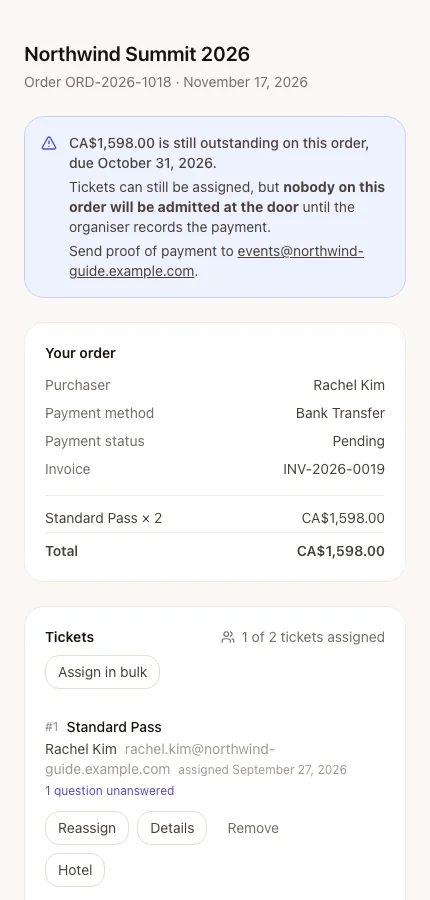
- Payment still applies. A ticket from an order with money outstanding is refused at the door whoever holds it — see Record a payment.
Step by step
Find and assign a ticket
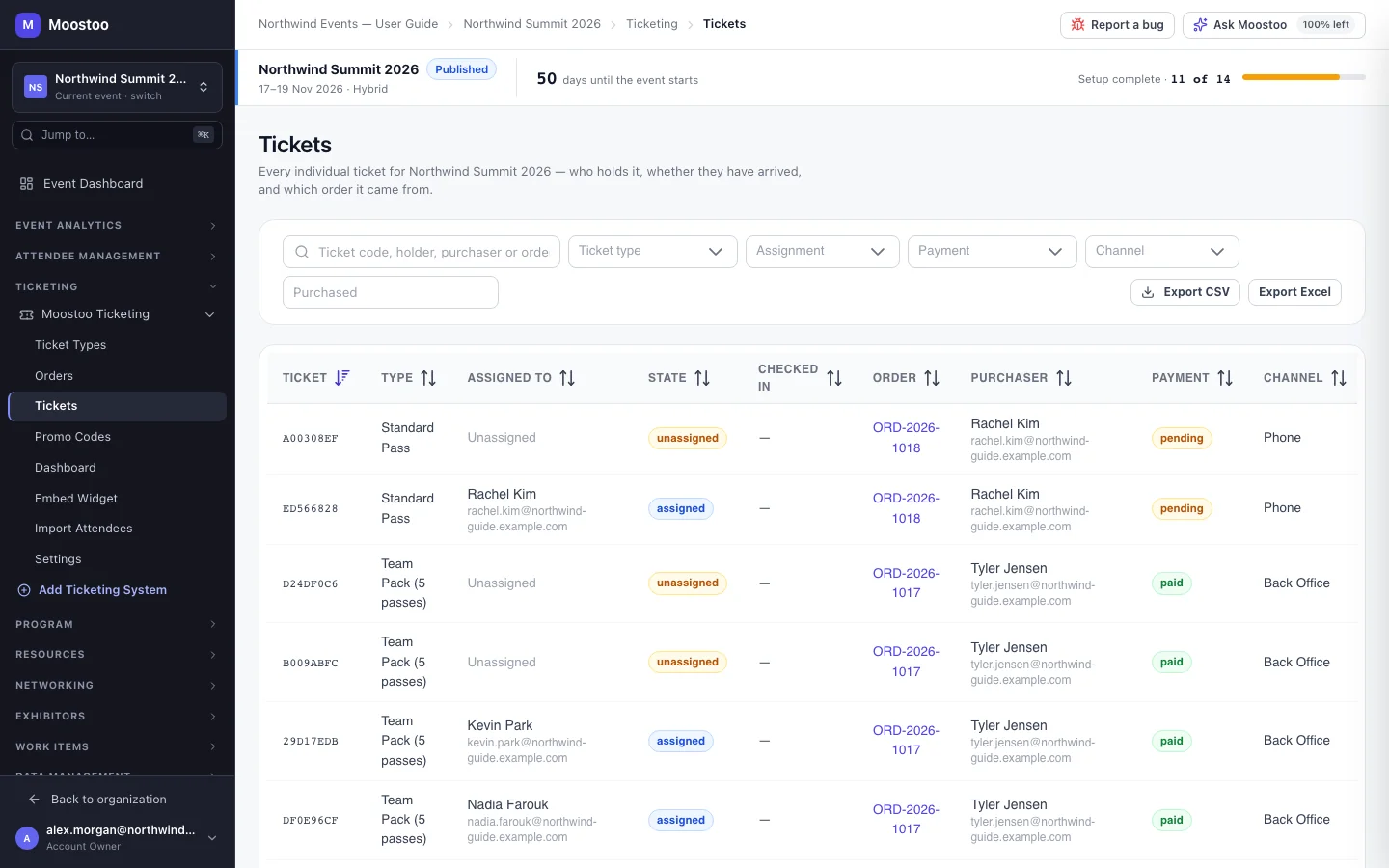
Open Ticketing → (your Moostoo system) → Tickets.
Search by ticket code, holder, purchaser or order number, or filter by ticket type, assignment, payment, channel or purchase date.
Click a ticket to open its drawer: code, type, price paid, state, check-in time, order, payment, purchaser and deadline.
Click Assign (or Reassign), enter first name, last name and email, and Save.
Clear removes the holder and leaves the ticket unassigned.
To let the purchaser do it themselves, click Send the purchaser their link, or Copy their link to share it another way.
The History at the bottom of the drawer records every assignment change and who made it.
Export CSV and Export Excel download the tickets matching your current filters — useful for a list of unassigned passes to chase before the event.
What attendees see
In the attendee app
Purchasers see every ticket on their order in the purchaser console, with who holds each one, and can assign, reassign or remove holders themselves until changes close — or until that ticket has been checked in, when it shows as used. Whoever a ticket is assigned to is emailed their ticket and its reference; when a ticket is reassigned, the previous holder is told their copy no longer admits them.
Tips
- An unassigned ticket has no attendee behind it: no badge, no app access, no agenda. Chase unassigned passes a week or two before the event.
- Reassigning does not reissue anything, so there is nothing to resend to the venue — the old holder's code simply stops working.
- Open the order from a ticket (and a ticket from its order) — neither screen is a dead end.