
Travel & accommodation
Most events negotiate hotel rates, and most of those rates end up in a paragraph on a web page that goes stale the day they expire. Here each hotel is a record: its distance from the venue, the negotiated rate against the normal one, the nights it covers and how to claim it. The same record feeds the website's Travel & Accommodation section and the attendee app's Travel screen, disappears on its own when the deal ends, and is copied — dates moved along — when you clone the event for next year.
How it works
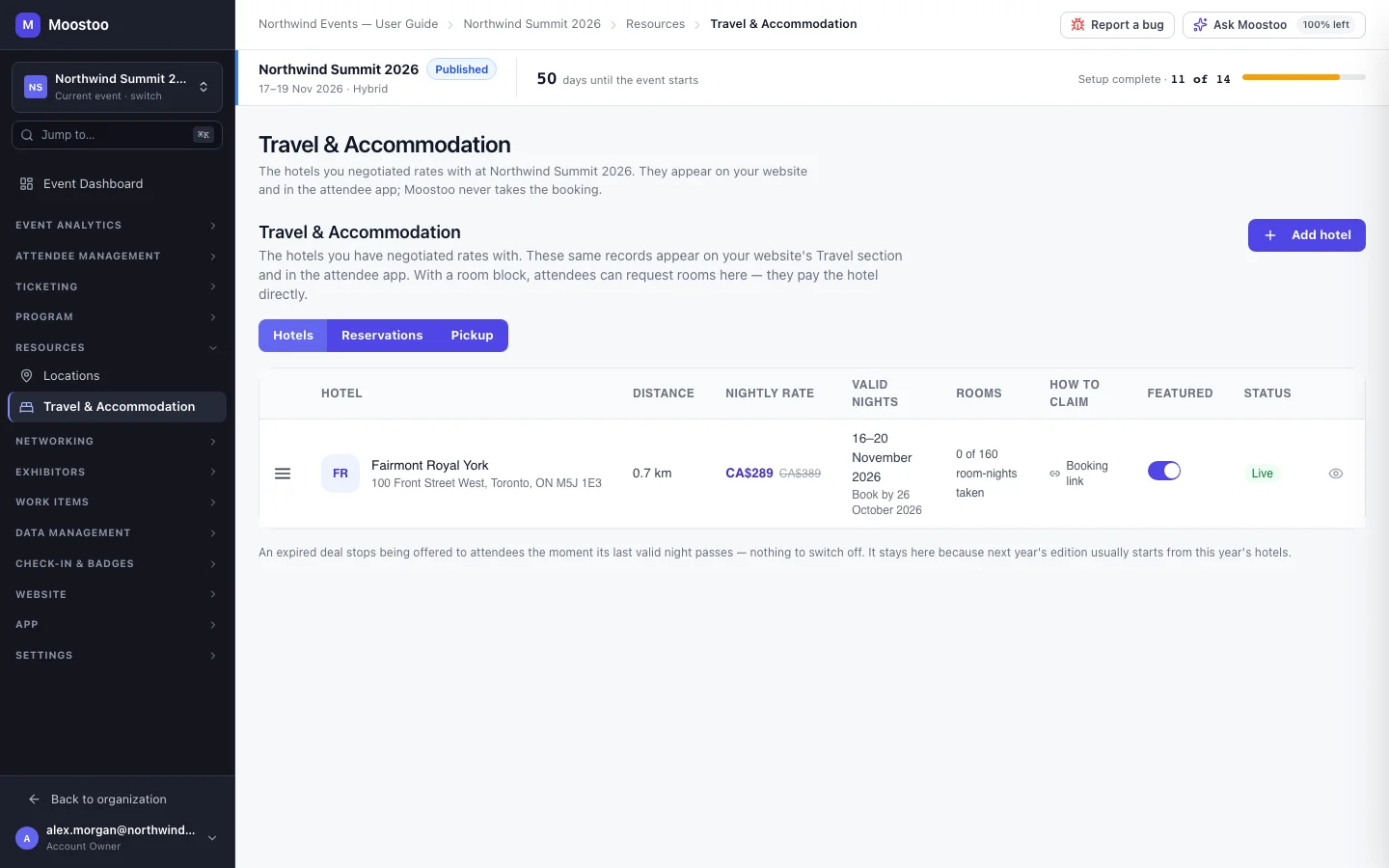
Open Resources → Travel & Accommodation. The Hotels view lists every deal in your own order — the order attendees see — with its distance, nightly rate, valid nights, how to claim it, whether it is featured and its status. Editing needs the Can Edit Event Settings permission; without it the page is read-only.
Moostoo takes no payment
A deal points attendees to the hotel: a booking link, a discount code, an email address or a phone number. Guests always pay the hotel directly — Moostoo never charges for a room and earns no commission. If you contracted a room block, attendees can also request rooms through Moostoo — see Hotel room blocks.
| Status | When | Offered to attendees? |
|---|---|---|
| Live | Shown, not yet past its last night or booking cut-off | Yes |
| Booking closed | The Book by date has passed while nights are still ahead | No |
| Expired | The last valid night has passed (on the event's clock) | No |
| Hidden | You switched Show to attendees off | No — kept on your list |
How attendees claim it At least one of Booking link, Discount code, Contact email or Contact phone is required — a deal nobody can act on is refused.
Negotiated and standard rate The nightly rate you negotiated, and optionally the hotel's normal rate so attendees see the saving. More rates adds room types or night-of-week prices in the same currency; a price sort uses the lowest one.
Book by The hotel's cut-off for the block. After that day the deal is no longer offered, even if its nights are still ahead.
Featured Featured hotels lead every attendee-facing list, whatever sort a website section uses.
Who sees it Every attendee type, or Chosen attendee types. A deal limited to attendee types is shown only in the attendee app, to those types — never on the public website, which cannot know who is reading it. Show on the public website can also be switched off to offer a deal to registered attendees only.
Distance Entered in km or miles and stored in metres, so a list mixing both still sorts correctly.
Step by step
Open Resources → Travel & Accommodation and click Add hotel.
Under The hotel, enter the name, a photo from the Media Library, a description, the address and the distance from the venue.
Under The rate, enter the negotiated nightly rate, the standard rate if you want to show the saving, the currency, the Valid nights (first and last night) and optionally Book by.
Add More rates for other room types or weekend prices if the hotel offers them.
Under How attendees claim it, fill in at least one of booking link, discount code, contact email or phone.
Under Display and Who sees it, choose whether to feature the hotel, whether it is shown to attendees, which attendee types see it and whether it appears on the public website.
Click Save hotel. Drag rows in the list to set the order attendees see.
Any problem is shown under the field it concerns, and nothing is saved until it is fixed.
What attendees see
In the attendee app
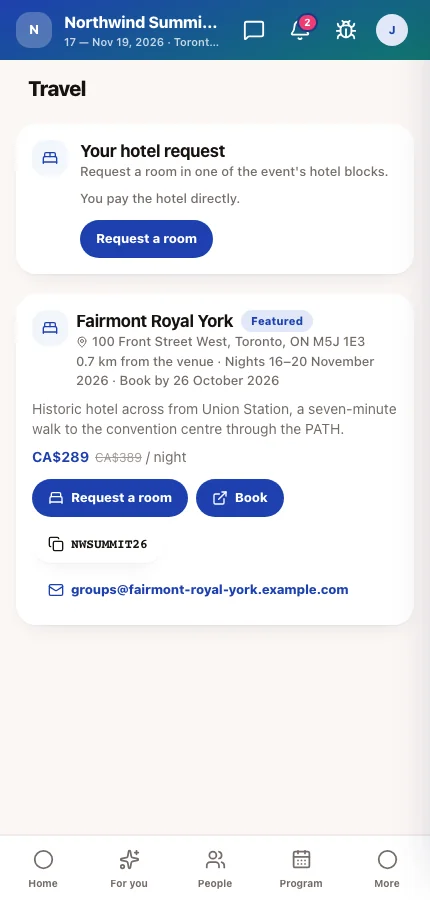
Attendees open Travel in the app and see the live deals open to their attendee type — featured first — each with its distance, rate and the saving, the nights it covers, a Book by date where set, and its claim actions. Book asks before opening the hotel's site; a discount code copies with one tap.
On the event website
Add a Travel & Accommodation section to a website page to list the deals meant for everyone — shown on the website and not limited to attendee types. It can filter (featured only, maximum distance, currency), sort by distance, price, name or your own order, and show cards or a comparison table.
The Travel menu item appears in the attendee app on its own once the event has its first deal; until then there is no empty tab. You can still rename, move or remove it in the App Designer.
Tips
- Hidden is a decision; Expired is a date. Hide a deal while you wait for the hotel to confirm a code, and let expiry take care of itself.
- Set Book by to the hotel's block cut-off so nobody is sent to a rate the hotel will no longer honour.
- Cloning the event copies every deal, expired ones included, with its nights and Book by moved by the same number of days as the event — see Clone an event.
- Use the attendee-type limit for staff or speaker hotels you do not want the public to see.