
Event settings
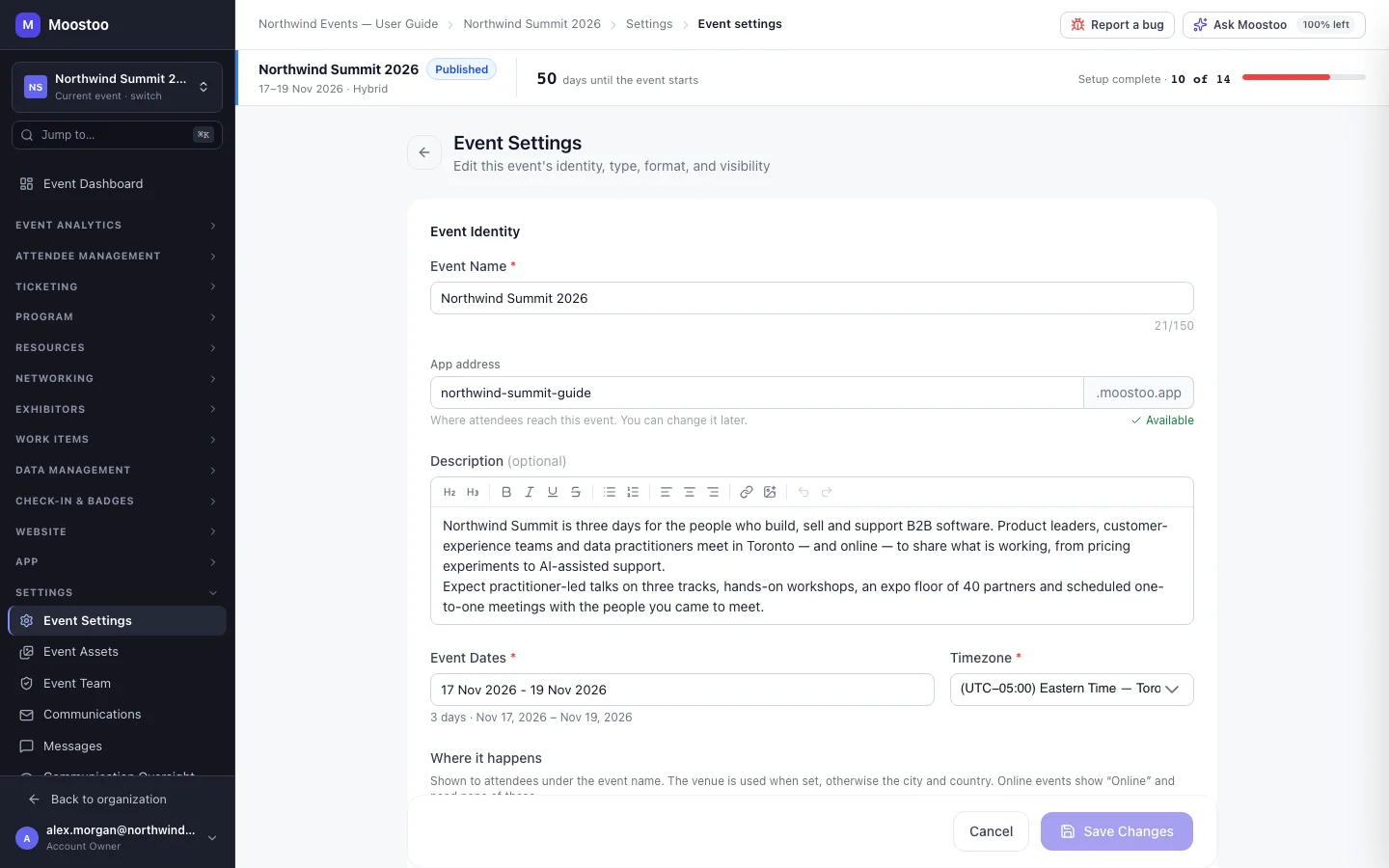
The event you created in the wizard is not frozen. Event Settings is where you correct and complete its identity once it exists: the name attendees see, the description, the days it runs, where it happens, whether it is on-site, online or hybrid, and who may find it. Event Assets holds the images that carry your brand into the attendee app, the website, emails and social cards. Because the format and the dates feed so much of the rest of Moostoo — which check-in and meeting-room settings are offered, which days sessions can go on, what the pre-launch checklist asks for — this is the first screen to revisit when the event's plans change.
How it works
An event's settings are split across two screens in the Settings group of the event sidebar. Both edit the same event and save independently, so saving one never clears what you set on the other.
| Screen | What you edit there |
|---|---|
| Event Settings | Event name, app address, description, event dates, timezone, where it happens (venue, city, country), brand colours (or Inherit from organization), event type, format and visibility. |
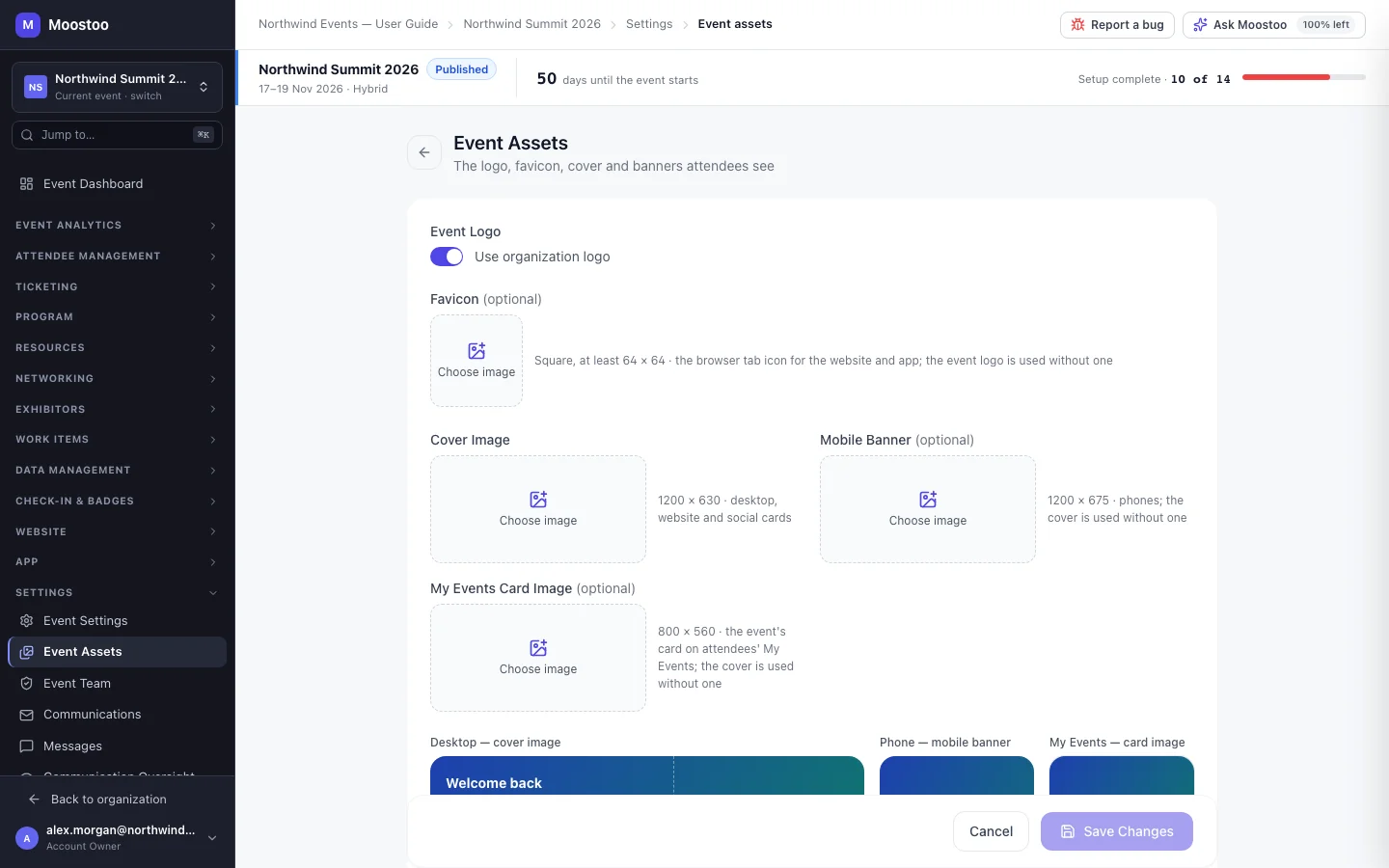
| Event Assets | Event logo (or Use organization logo), favicon, cover image, mobile banner and the My Events card image, with a preview of how the banners look to attendees. |
Event dates Whole days on the event's timezone — the first day starts at 00:00 and the last ends at 23:59 there, whatever your own computer's clock says. There is no time of day: sessions carry their own times. Every session, meeting session and booth session must fall inside these days.
Format On-site (a physical venue), Online (fully virtual) or Hybrid (both). The format decides which features Moostoo offers: on-site and hybrid events get the venue map, badge printing and QR check-in; online and hybrid events get video meeting rooms, so the meeting-room timing and frame settings only appear for them. Online events also show every time on each attendee's own clock — see Timezone.
Visibility Public — anyone can discover the event and register. Invitation Only — registration is gated to invited people or an authorized list.
Event type The kind of event (conference, trade show and so on). It is chosen at creation and mostly shapes the defaults you started from, such as the suggested attendee types.
App address The event's own address, <name> on your Moostoo domain (for example northwind-summit.moostoo.com), where both its public website and its attendee app live. It follows the event name until you edit it yourself; after that it is yours. See App address & sign-in.
- The name is required and limited to 150 characters; the end date cannot be before the start date. Moostoo warns you — but does not stop you — if the event starts in the past.
- Changing the timezone is a correction, not a move. Saving a new timezone opens a confirmation that lists what keeps its written time and what keeps its moment. It has its own page: Timezone.
- Each image crops to its own shape. The cover is 1200 × 630 (the desktop hero, the website and social cards); the mobile banner is 1200 × 675, a 16:9 strip for phones; the My Events card image is 800 × 560. An image of another shape goes through the crop, and Skip crop is only offered when the image already has the right shape.
- Fallbacks are automatic. Without a mobile banner, phones use the cover. Without a card image, My Events uses the cover. Without a favicon, the browser tab shows the event logo.
- Only an Account Owner or Super User can save these settings — being the event's Admin, or holding Can Edit Event Settings, is not enough; others see the screens but their save is refused. Attendee types and the event team are not here — they have their own screens: Attendee types and Event team.
Step by step
Edit the event's identity
In the event sidebar open Settings → Event Settings, or click the event's identity card on the Event dashboard.
Change what you need under Event Identity: the name, the description, the Event Dates range, the Timezone, and Where it happens (venue, city, country).
The date picker offers whole days. If you need a day you cannot pick, the timezone is probably wrong — fix it first.
Under Brand Colors, pick the event's colours or leave Inherit from organization on to follow your organization's brand.
Under Type & Format, confirm the Event Type, the Event Format and the Visibility.
Click Save Changes. You will see Event settings updated.
If you changed the timezone, a confirmation opens first and nothing is saved until you choose Change timezone and save.
Change the logo, favicon, cover or banners
Open Settings → Event Assets.
For each image, upload a file or pick one from the Media library. Crop it to the frame shown.
Tick Use organization logo to show your organization's logo instead of an event logo.
Check the banner preview below the fields: it draws the desktop hero with the cover in its right half, and the phone hero with its 16:9 strip.
Click Save Changes. You will see Event assets updated.
What attendees see
In the attendee app
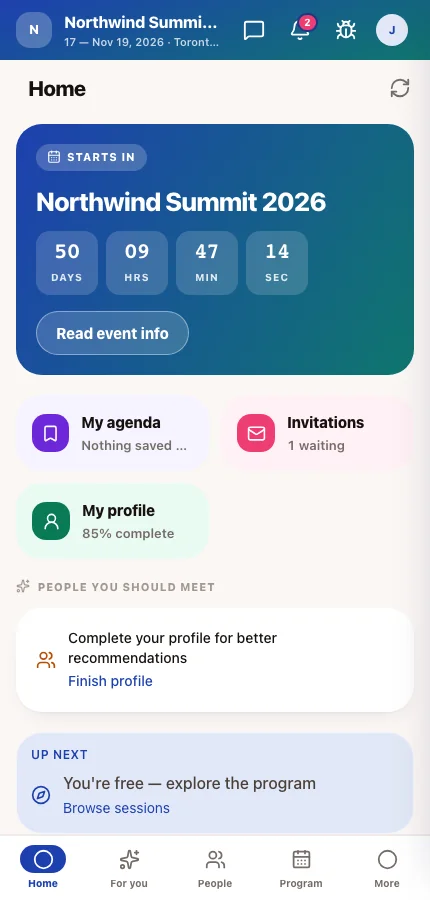
The event's home screen opens with a hero built from these settings: the name, dates, location, the cover (or the mobile banner on a phone) and the brand colours. Read event info opens the description. The event's card on My Events uses the card image, and the browser tab shows the favicon.
On the event website
The public website uses the same name, dates, logo, favicon and cover — the cover is also the image shown when someone shares a link to the site.
Tips
- Switching an event from hybrid to on-site hides the meeting-room settings but deletes nothing; switch back and everything you set is still there.
- Shortening the event's dates does not delete sessions on the dropped days, but you will not be able to edit them onto a day that no longer exists. Move them first.
- Upload images at the sizes shown on Event Assets. A wide image squeezed into the phone strip is where most blurry or badly cropped heroes come from.
- Visibility is not the same as publishing. A Public event still stays closed to attendees until you publish it — see Go live.
Why can't I pick a time for the start and end?
Event dates are whole days. The time of day belongs to each session, meeting session or check-in window.
Can I change the event type after creation?
Yes, under Type & Format. It does not add or remove attendee types you already have.