
Record a payment
Not every buyer pays by card. Corporate buyers pay by transfer, some pay at a desk in cash, some settle an invoice weeks later. Moostoo does not see that money arrive, so you tell it. Until you do, the order stays unpaid — and nobody holding a ticket from an unpaid order is let in. Recording the payment is what opens the door for them.
How it works
Card payments are recorded automatically when Stripe confirms them. Every other method is settled outside Moostoo and recorded here — and that includes every paid ticket chosen on the registration form, which arrives as an Invoice order with payment Pending. Both end up in exactly the same place on the order — the amount received, the reference, the date and who recorded it — so a card order and a transfer read the same on the order list, on reports and on invoices.
- Payments add up. Recording part of the amount makes the order Partially paid; recording the rest later makes it Paid. The amount is pre-filled with what is still outstanding, not the full total.
- The dialog tells you what will happen before you confirm: either the order becomes paid and its tickets will be admitted, or it stays part-paid and they will still be refused.
- The same badge starts working. Nothing is reissued: the QR code the attendee already has is admitted as soon as the payment is recorded.
- Record payment is not offered on an order that is already paid or needs no payment.
- The purchaser is emailed when you record a payment, since it is what lets their tickets in.
- The purchaser can never record their own payment. Their order console only tells them what is owed and where to send proof.
What happens at the door
Entrance check-in, session check-in, kiosks and badge printing all refuse a ticket whose order has money outstanding, and say so — naming the order and the amount. There is deliberately no override at the scanner: letting an unpaid ticket in would leave nothing to reconcile against. Record the payment instead, and scan again. A person added without an order at all (an import, a manual add) is not affected.
Step by step
Open Orders, click Needs attention, and open the order the money is for.
Click Record payment.
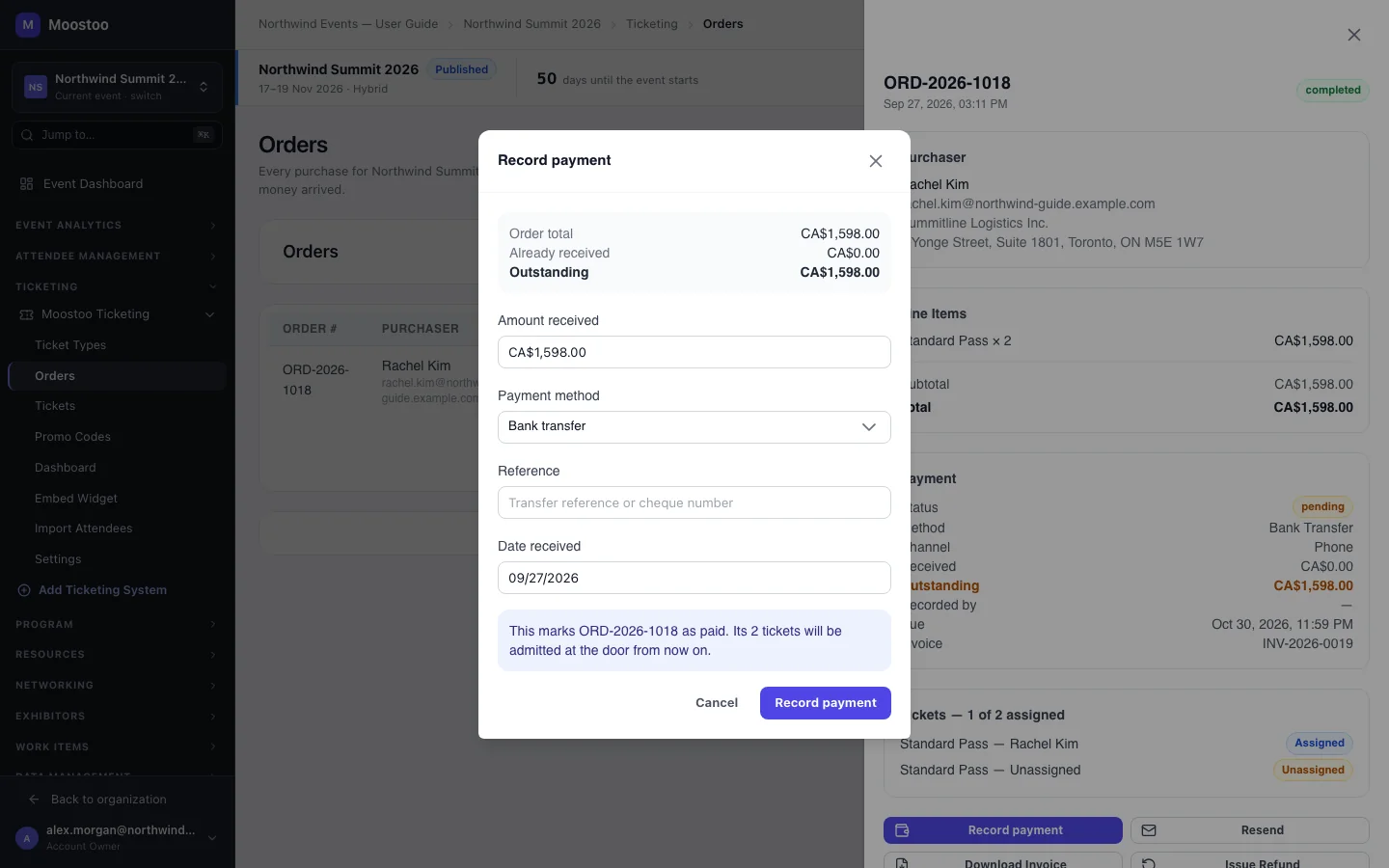
Check the Amount received — it starts at the outstanding balance; change it if only part arrived.
Choose the Payment method, enter the Reference (transfer reference or cheque number) and the Date received.
Read the sentence at the bottom — it says whether the tickets will be admitted — and click Record payment.
What attendees see
In the attendee app
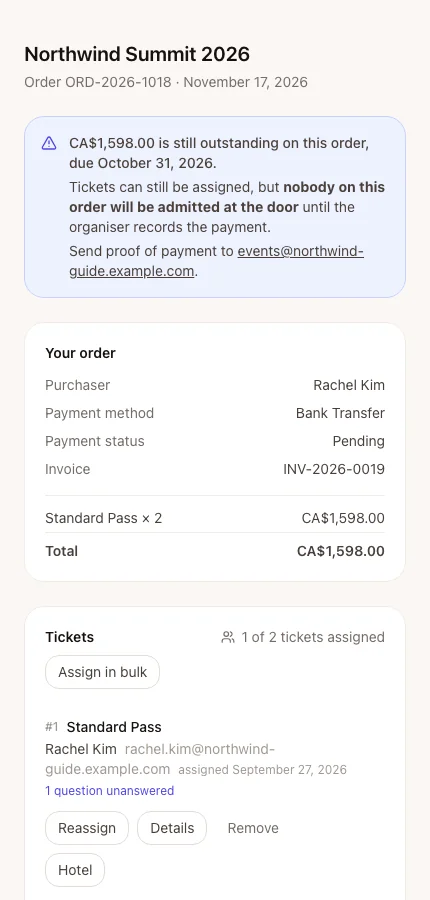
While money is outstanding, the purchaser's order console says how much is owed, that tickets can still be assigned but nobody will be admitted until the payment is recorded, and where to send proof of payment. Once you record it, the purchaser receives an email, the warning disappears and every ticket on the order scans.
Tips
- Record transfers as they arrive rather than on the morning of the event — an unpaid ticket at the door means a queue.
- Always enter the bank reference; it is what lets finance match the order to the statement later.
- For a payment recorded by mistake, a refund is the correction — see Orders.