
Attendee directory
The attendee directory is your roster: every attendee, speaker and exhibitor representative of the event in one list. It is where you answer "is this person coming?", fix a typo before a badge prints, see what someone told you at registration, send a badge, arrange a meeting for them, or act on hundreds of people at once. Everything else in Moostoo — check-in, badges, networking, emails — reads from these same records, so a correction here is a correction everywhere.
How it works
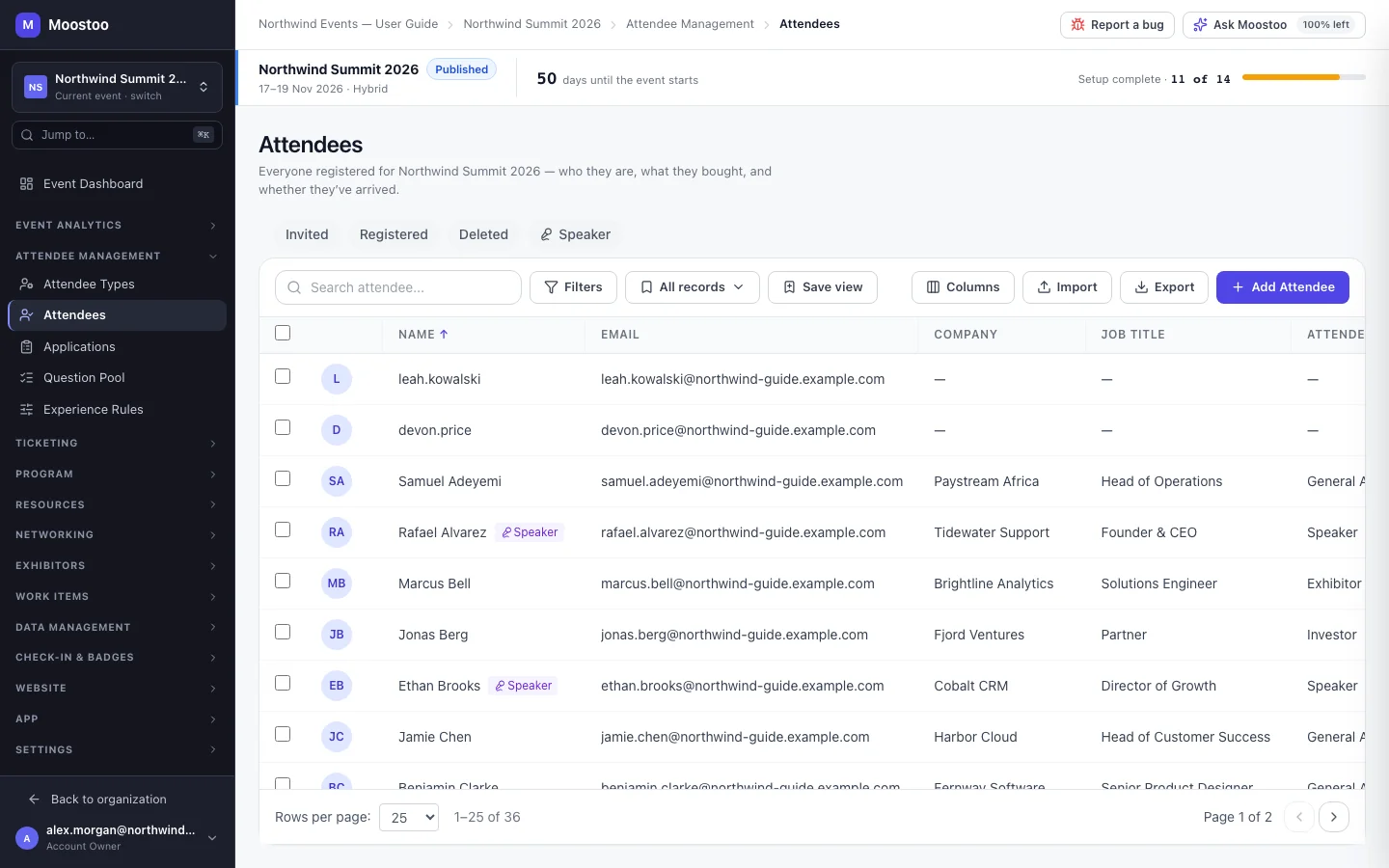
Open Attendee Management → Attendees. In the Ticketing & Check-in Console the same screen is called Ticket Holders. The table shows Name, Email, Company, Job Title, Attendee Type, Ticket Type, Status, Profile %, Check-in and Registration Date. You can search, sort, add filter conditions, show, hide, reorder and resize columns, and save the arrangement as a saved view.
Status Invited — you (or an import) put them on the roster and they have not registered yet. Registered — they completed registration or were approved. Deleted — Moostoo set them aside rather than removing them: for example you declined or waitlisted an application you had approved, removed them from the event team, or a ticketing platform re-issued their ticket to a new email. Hidden from the list and every count unless you filter for them. Checked-in is tracked separately in the Check-in column.
Quick filters The Invited, Registered, Deleted and Speaker chips above the table narrow the list in one click.
Profile % How complete the person's networking profile is. It is a percentage only — it never locks anything.
Company and Job Title What the attendee (or you) wrote for this event, falling back to their company record in your contact directory. One answer, shown the same way in the list, the detail panel and exports.
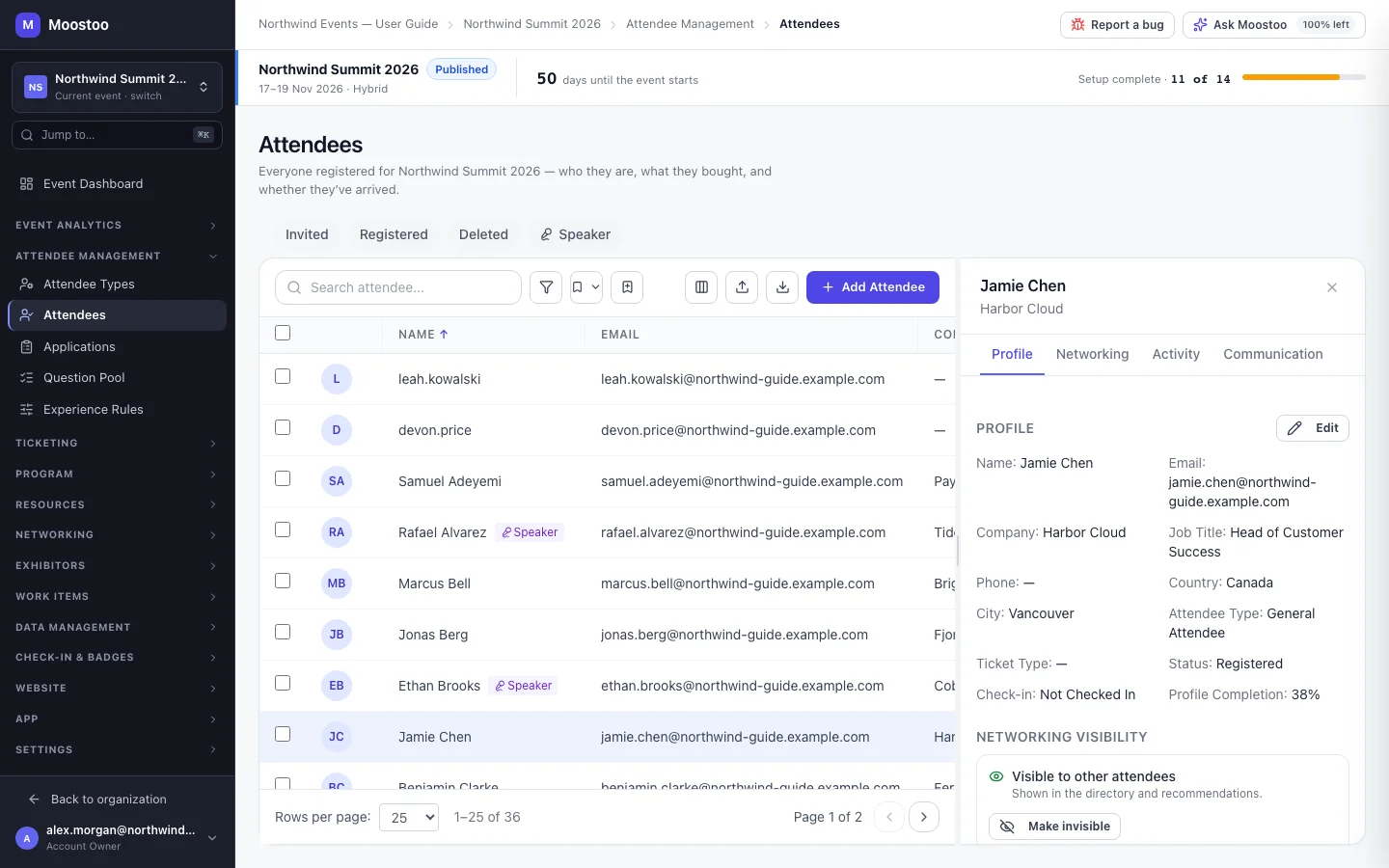
Click a row to open the attendee's panel. It has four tabs.
| Tab | What you find there |
|---|---|
| Profile | Every field, the answers they gave to registration questions and profile questions, the Networking summary they confirmed, Networking visibility, linked companies and sessions, the Ticket & Badge Code they scan with, badge status with Send Digital Badge and Trigger Print, and Arrange Meeting / Send Invitation to set up meetings on their behalf. Edit opens the full edit form. |
| Networking | Their meetings, AI matches, connection requests and contact exchanges. |
| Activity | Badge prints — who printed which badge, where and when — then a timeline of what they did. |
| Communication | Emails sent to them with their delivery status, and Send Email to write one. |
- Nothing stored is hidden. Every answer the person gave is shown on the Profile tab, whether it came from registration, their profile or an import.
- The Networking summary is the attendee's own statement of what they offer and seek. You can read it but not change it, and it is never exported.
- Select rows to use the bulk actions: Change Status, Change Attendee Type, Send Bulk Email, Send Digital Badges, Export Selected and Delete.
Step by step
Find someone and check their record
Open Attendee Management → Attendees and type part of a name, email or company in the search box.
Narrow further with a quick filter chip or add a filter condition, for example Attendee Type is VIP.
Click the person's row to open their panel on the Profile tab.
Read their details and answers; click Edit to correct anything.
Act on many people at once
Filter the list to the people you mean, then tick their rows (or the header box for the whole page).
Choose a bulk action — for example Change Attendee Type — and pick the new value.
Confirm. A summary tells you how many were changed and whether any failed.
What attendees see
Looking at the directory does not affect attendees. The actions you take from it do: a changed attendee type changes what they may do; Send Digital Badge makes their badge available in the app and emails them; Send Email and Send Bulk Email reach their inbox; Make invisible removes them from the attendee directory.
Tips
- Save a view for each list you check often — "VIPs not yet registered", "Speakers without a photo" — and switch between them from the view menu.
- The Delete action removes the person from this event's roster for good — they are not kept under the Deleted filter; their contact record stays in your Contact Directory. Change Status only moves people between Invited and Registered.
- The Speaker Directory is the same people filtered to speakers; a change made in either shows in both.
- For whole-roster work — reassigning types, filling in answers — an export, edit and re-import is often faster: see Import and export attendees.
Ask Moostoo
Who is registered for this event?
Shows the first few names and the total.
How many Speakers have registered?