
Print routing
At a busy door you want badges spread across every printer, VIP badges coming out at the VIP desk, and no badge ever stuck in a queue nobody is watching. Routing rules are how you say that, per hub, from the office — and the hub downloads them by itself. Understanding the order in which Moostoo decides where a badge prints lets you predict exactly where every badge ends up, including when a printer runs out of stock mid-morning.
How it works
Every badge job is aimed either at a specific printer or at a hub. Where it prints is decided by precedence, in this order: In a Ticketing & Check-in Console event this screen stays locked — Choose where your attendee data comes from first — until the event has an attendee data source.
- A forward set by staff at the hub wins over everything. If someone at the desk has forwarded a printer's work to another printer (for example while changing a ribbon), badges for that printer go to the other one.
- A badge that names a printer prints on that printer. A kiosk set to a specific printer, a staff scanner, and the Print badge action all name one. The rules are not consulted. If that printer is busy the badge waits for it — it is never quietly swapped to another printer.
- A badge addressed to the hub is placed by the hub's routing rules. This is what a kiosk set to Hub auto-assign sends. The first rule whose badge type matches decides which printers may take it.
Rule A Badge type (one of your attendee types) and one or more Printers of that hub. Rules are checked top to bottom and the first match wins, so order is priority.
Catch-all A rule for Everything else. It covers any badge type the rules above it did not. A hub can have one — Add catch-all is disabled once it exists; any rule placed below it is never reached, and the dialog greys it out and says so. A hub without a catch-all shows a warning.
Balancing When a rule names several printers, the badge goes to the ready one with the shortest queue; if two are equal, to the one that has printed the fewest badges so far (so stock runs down evenly); if still equal, to the one listed first. A paused, errored or offline printer takes no new work.
Forward Set on the hub machine, not in the admin. Staff choose Forward work to another printer, with either Waiting and new (everything for this printer moves) or New only (badges already waiting still print here; new ones go elsewhere).
| Order | Badge type | Printers |
|---|---|---|
| 1 | VIP | VIP Desk |
| 2 | Speaker | VIP Desk, Front Desk Left |
| 3 | Everything else (catch-all) | Front Desk Left, Front Desk Right |
With these rules a VIP always prints at the VIP desk, a speaker prints at whichever of the two named printers has the shorter queue, and every other attendee is shared between the two front-desk printers.
When a badge cannot be placed
A badge the hub cannot place fails with a named reason instead of waiting for ever — at a door, a badge waiting on a rule that does not exist looks exactly like a broken hub. The reasons are: no rule covers this badge type and there is no catch-all; the matching rule names no printer this hub has connected; the named printer is not on this hub (it was moved after the badge was queued); a forward leads to a printer the hub does not have; or forwards point at each other in a loop. The reason shows in the hub's queue, in the admin Print queue window and in the Badge printing report, and a kiosk tells the attendee their badge could not be printed while still checking them in.
Step by step
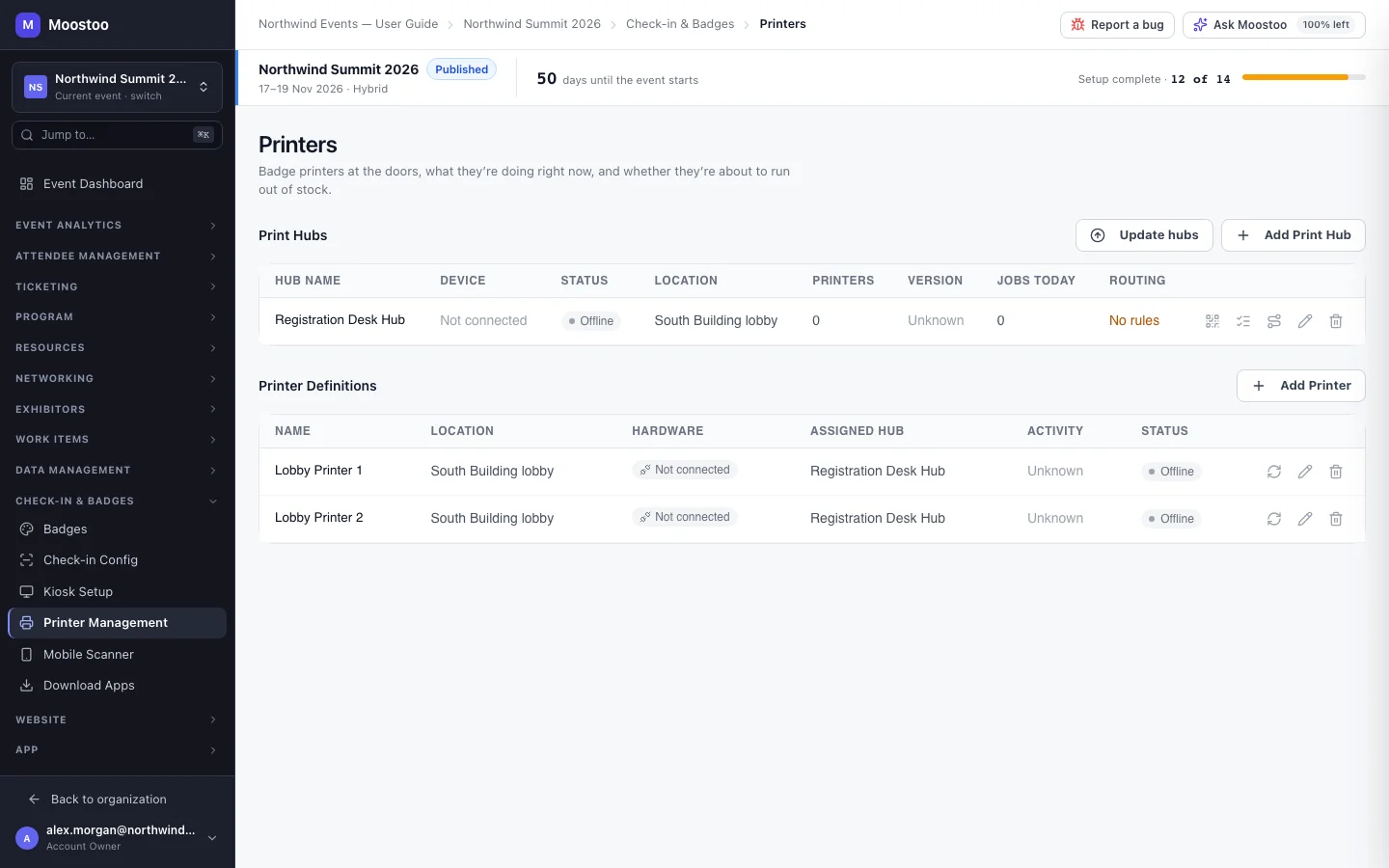
Make sure the hub has printers assigned to it on Check-in & Badges → Printer Management — rules can only name that hub's own printers.
With no printers assigned, Add rule is disabled.
Click the Routing rules icon on the hub's row. The dialog is titled Routing rules — <hub name>.
Click Add rule, choose a Badge type and pick one or more Printers.
Repeat for each type that needs its own printers, then click Add catch-all and pick the printers for everything else.
Use the up and down arrows to put the most specific rules first. A rule below the catch-all shows Never reached.
Click Save rules.
Save rules stays disabled while any rule lacks a badge type or a printer; remove a rule you don't want with its remove button. Connected hubs pick up the change within a minute, with nobody touching the machine. A hub that connects later receives them as it starts.
Rules only apply to badges sent to the hub
If every kiosk names a printer, your rules are never used. Set kiosks to Hub auto-assign (see Kiosks) when you want the hub to share badges across its printers.
What attendees see
Attendees do not see routing, but it decides which printer their badge comes out of — and so where a kiosk tells them to collect it. If a kiosk is set to show the printer name, its final screen names the printer the badge actually went to.
Tips
- Always add a catch-all. Without one, an attendee type you add later — or one you forgot — fails to print at every auto-assign kiosk.
- Name two or more printers on busy rules so one jam does not stop the line: the hub simply balances onto the other.
- To take a printer out for a ribbon change, pause it (in the admin or at the hub). Paused printers take no new work, and a rule naming another printer keeps the line moving. Badges already addressed to the paused printer wait — unless staff forward its work.
- Staff at the hub can see your rules under Settings → Routing Rules but cannot change them. That is deliberate: if a hub could edit them, your screen and the machine could disagree, and the only symptom would be a badge from the wrong printer.
- Forwards are a fact about the machine and stay on the hub. They are not shown on the admin screen — ask the desk if badges are coming out somewhere unexpected.