
Embed widget & sales sources
Many organizers already have a website with an audience. The embed widget sells your Moostoo tickets right there, so buyers never leave your page. Sales sources answer the follow-up question — which newsletter, sponsor or social post actually sold tickets? — by giving each channel its own link and counting visits, orders and revenue per link.
How it works
The embed widget
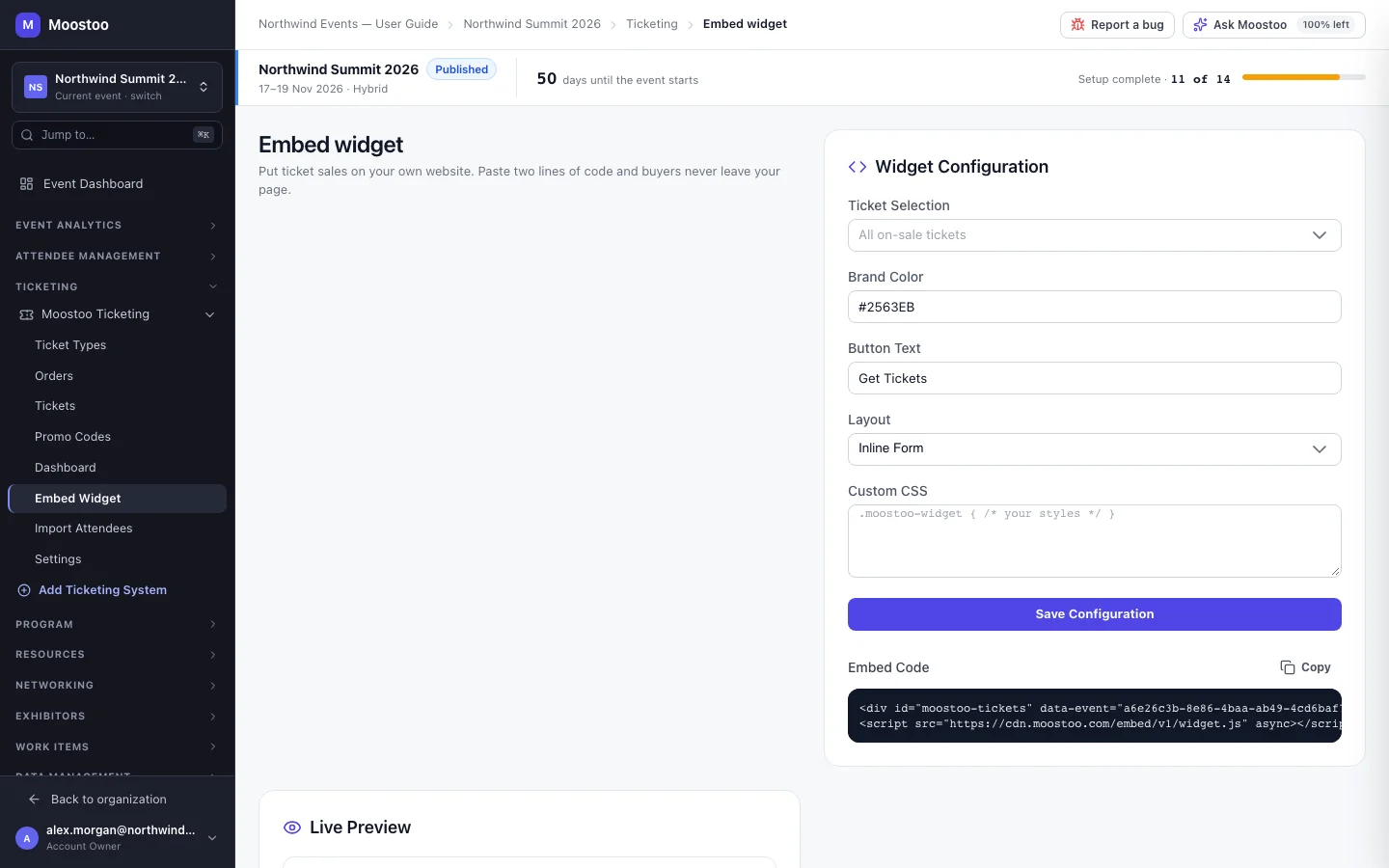
The Embed Widget screen has the Widget Configuration on the left and a Live Preview on the right that shows exactly which tickets the widget will list, with their prices and whether they are sold out.
Ticket Selection The ticket types the widget offers. Leave it empty and it offers every ticket type whose visibility is On Sale.
Brand Color and Button Text The widget's accent colour (a hex code such as #2563EB) and the label of its button (Get Tickets by default).
Layout Inline Form shows the ticket list in the page; Button + Overlay shows a button that opens it over the page.
Custom CSS Optional styles to match your site.
Embed Code Two lines — a placeholder element and a script — to paste into your website where the widget should appear. Copy puts them on your clipboard.
The widget respects everything set on your ticket types — sale windows, capacity, visibility and prices — and test mode. The Ticketing dashboard's Widget tab counts widget page views, orders and conversion by the website domain it ran on.
Not selling yet
In the current release the widget's configuration and live preview are saved, but the script the embed code loads is not yet published, so pasting the code on your site does not sell tickets. Until it is, send buyers to your registration form — its address is under Publish on the registration form.
Sales sources
A sales source (a traffic source on screen) is a named tracking link — brightline-newsletter, linkedin-launch — to your registration form, ending in ?source= and the source's name. Orders placed after arriving through it are meant to carry that source, which shows on the order and adds to the source's visits, orders, revenue and conversion.
- The dashboard's Sources tab lists every source with its figures.
- Sources are created on the Traffic Sources screen. It is not in the sidebar: open it at the address of your ticketing system followed by
/sources. - In the current release the registration form does not yet record the source or count visits, so a source's figures stay at zero for registrations made through the form.
Step by step
Put the widget on your site
Open Ticketing → (your Moostoo system) → Embed Widget.
Choose the tickets to offer, the brand colour, button text and layout, and add custom CSS if you need it. Watch the live preview.
Click Save Configuration.
Click Copy next to Embed Code and paste it into your website's page.
Create a sales source
Open the Traffic Sources screen and click Add Source.
Enter a Source Name such as twitter-launch and click Create.
The tracking link is generated for you.
Copy the Tracking URL and give it to the partner or use it in that campaign.
What attendees see
Attendees never see these configuration screens. Buyers who visit your website see the widget with the tickets and styling you chose; buyers who arrive through a tracking link notice nothing different.
Tips
- Keep the widget's ticket selection short. Hide add-ons you would rather sell on the registration form.
- One source per partner and per campaign. Sources cost nothing, and a shared link makes attribution meaningless.
- For discount-based attribution use promo codes instead — each code counts its own uses.