
Exhibitors and booth meetings
Exhibitors judge an event by the conversations it brings to their booth. Seeing the Exhibitors screen as an attendee does shows what makes a booth easy to meet. It also lets you explain why an attendee did or did not see Request Meeting.
The Exhibitors screen
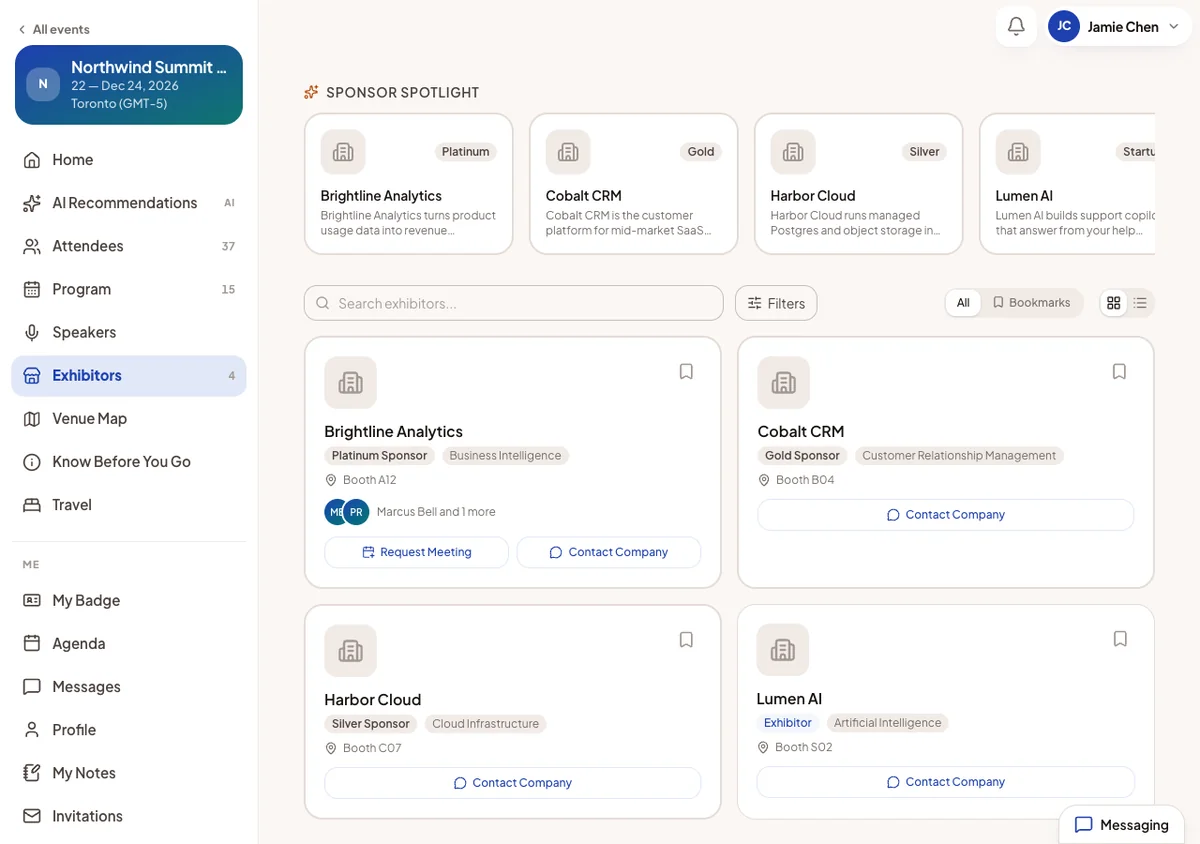
Exhibitors lists every active company of the event as cards. A card shows the logo, name, tier or type, industry, booth and the faces of the team. Sponsors appear in a Sponsor Spotlight at the top. The list keeps loading as the attendee scrolls.
- The Bookmarks tab holds the companies the attendee saved.
- Search finds a company by name or description. Filters narrow by type, sponsorship tier and industry.
- If you arranged the page into groups, such as Startup alley, the All tab shows them in your order. See Exhibitor page groups.
A company's details
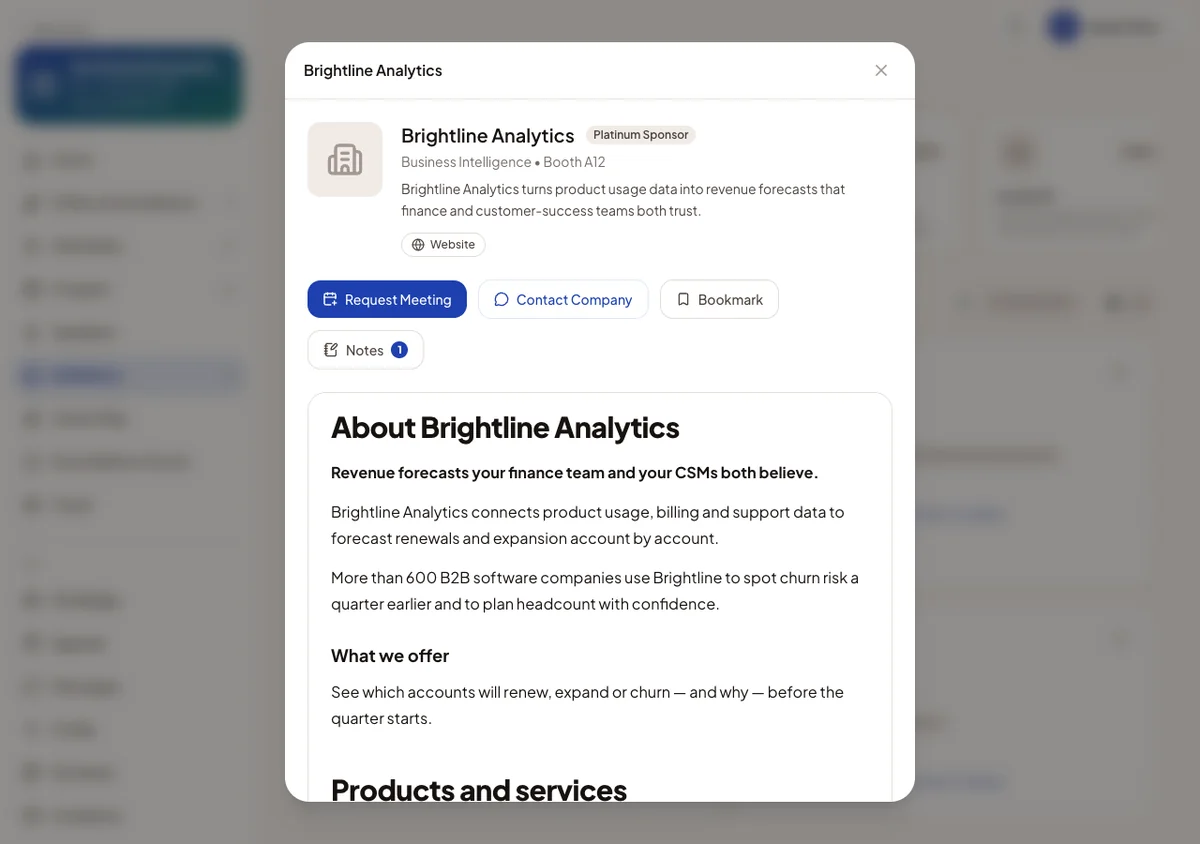
Clicking a card opens the company: description, website and social links, and the actions Request Meeting, Contact Company, Visit Booth and Bookmark. Below are the booth page the exhibitor published, the team, the booth location and any downloads.
Team Members Each person on the booth team. Clicking one opens their profile. Their own Request Meeting appears when the two people could actually meet.
Website and links Each opens in a new tab after the attendee confirms where it leads.
Visit Booth Opens the venue map at the booth. It appears only when the company has a booth and your app has a venue map.
Contact Company
Contact Company appears on every company except the attendee's own. It opens a group chat with the whole booth team, named after the company, so whoever is free can answer. Pressing it again reopens the same group.
It works whether or not the booth takes meeting requests. That makes it the main way to reach a company that does not.
Requesting a booth meeting
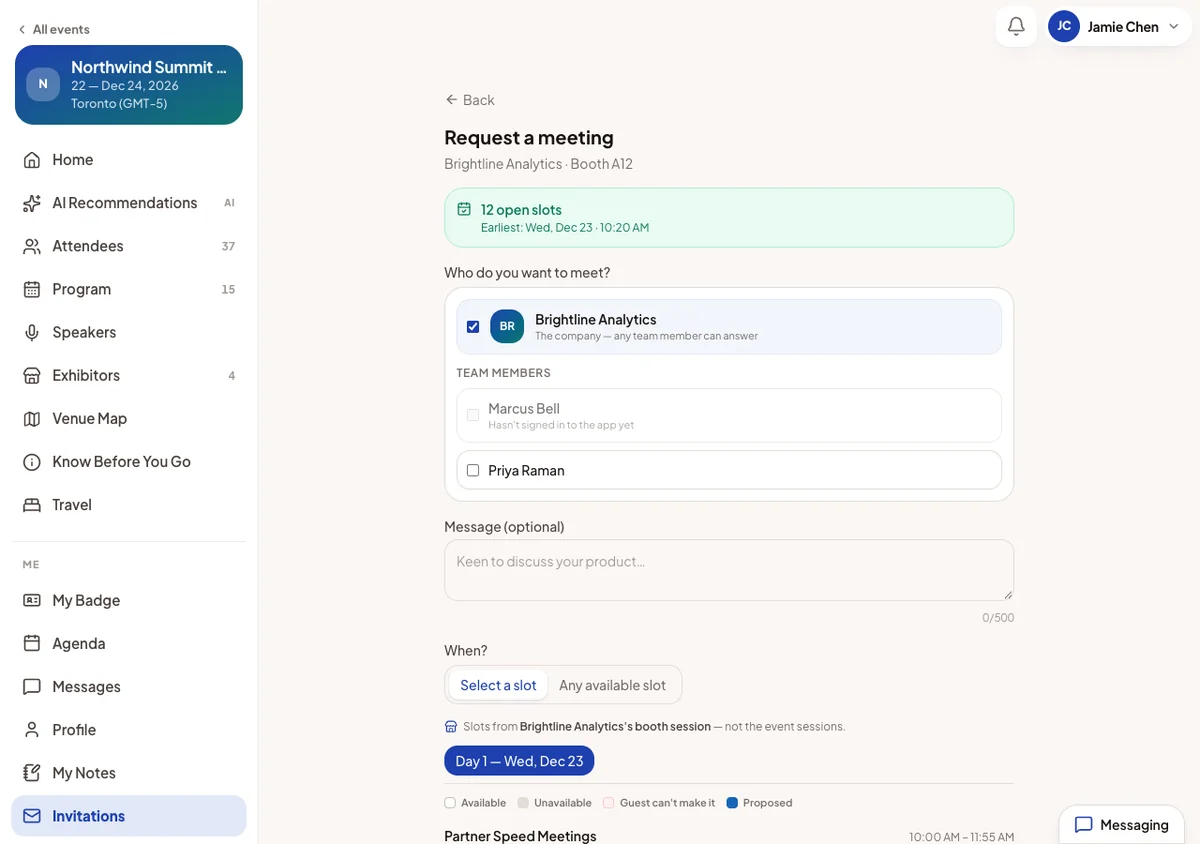
Request Meeting opens a request to that company. The attendee chooses who to meet:
- The company: any team member can answer. Whoever accepts becomes the host.
- Team members: one or more named people. Each gets a separate invitation. Someone who cannot take a meeting yet is greyed out, with the reason.
Then they add an optional message and pick a time: a slot from the grid, or Any available slot. With any slot, the earliest free time is booked when the booth accepts.
The booth's own meeting slots come first. A slot in your general meeting area is offered only when the booth has nothing free at that time. After sending, the booth team is told, and the request appears in the attendee's Invitations.
Why a button is missing
Moostoo never offers a button that leads to a dead end. Check this table when an exhibitor asks why attendees cannot book them.
| What the attendee sees | Why | What fixes it |
|---|---|---|
| No Request Meeting or Contact Company | It is the attendee's own booth. | Nothing. Requests reach them through their booth. |
| No Request Meeting | No meeting session is still to come, or the event has ended. | Add a booth meeting session or an event meeting session. |
| No Request Meeting | The booth has nobody on its team. | Add people on the booth team. |
| Request Meeting greyed out | The attendee has already invited the company and every member, and nobody has answered. | It frees up as soon as someone replies. |
| Meetings aren't open to your attendee type | The booth's session is limited to certain types. | Widen the session's eligible attendee types. |
| No Visit Booth | No booth assigned, or no venue map. | Assign a booth and add the venue map. |
The exhibitor's side
Exhibitors answer requests in My booth → Meetings. See My booth. Company visits, bookmarks and booth meetings all count in your Expo visits report.