
Add-ons
An add-on is something bought together with a ticket, such as a masterclass, a dinner seat, a T-shirt or a gift to your charity. It adds to the order total. It can also change what the ticket gives, for example by opening a session or upgrading the holder's attendee type.
How it works
What an add-on is
Each add-on is a separate line on the order, after the tickets. You can see, refund and cancel each line on its own.
How it is priced
An add-on has a Fixed price, is Free, or lets the Buyer choose the amount. When the buyer chooses, you set a minimum, an optional maximum and up to six suggested amounts.
Add-ons use the event's ticket currency and can have their own tax. Below the price you see what the buyer pays, Moostoo's margin and what you receive.
Per ticket or per order
- Per ticket: the buyer chooses it for each ticket, such as one masterclass per delegate.
- Per order: it is charged once for the whole order, such as a travel offset.
Settings
Required Already selected at checkout and cannot be removed.
Offered with All ticket types, or only some.
Capacity and sale window Optional. When capacity is reached, checkout shows Sold out. With no sale dates, the add-on follows the ticket types.
Status On sale, Paused, Hidden or Inactive. A hidden add-on can only be added by you from the order. An inactive one is offered nowhere.
What an add-on can change
An add-on can have up to four effects:
- Unlock sessions opens invite-only or restricted sessions for its holders.
- Add inclusions adds sessions, networking, expo or recordings access.
- Upgrade attendee type gives the holder a different attendee type. If two add-ons upgrade the same person, the higher rank wins.
- Badge mark prints a short code, such as MC, through the badge designer's Add-on marks variable.
Effects start once the add-on is paid, or at once if it is free. They move with the ticket when it is reassigned, and end if the add-on is refunded or cancelled.
Good to know
- A per-order add-on's effects apply to every ticket in the order.
- If you change a holder's attendee type by hand during an upgrade, your choice is kept after the upgrade ends.
- Buyers can add add-ons from their order page only if Buyers can add add-ons after purchase is on in Payment settings.
- Money received pays the tickets first. An unpaid add-on added later never stops a paid ticket at the door.
Step by step
Create an add-on
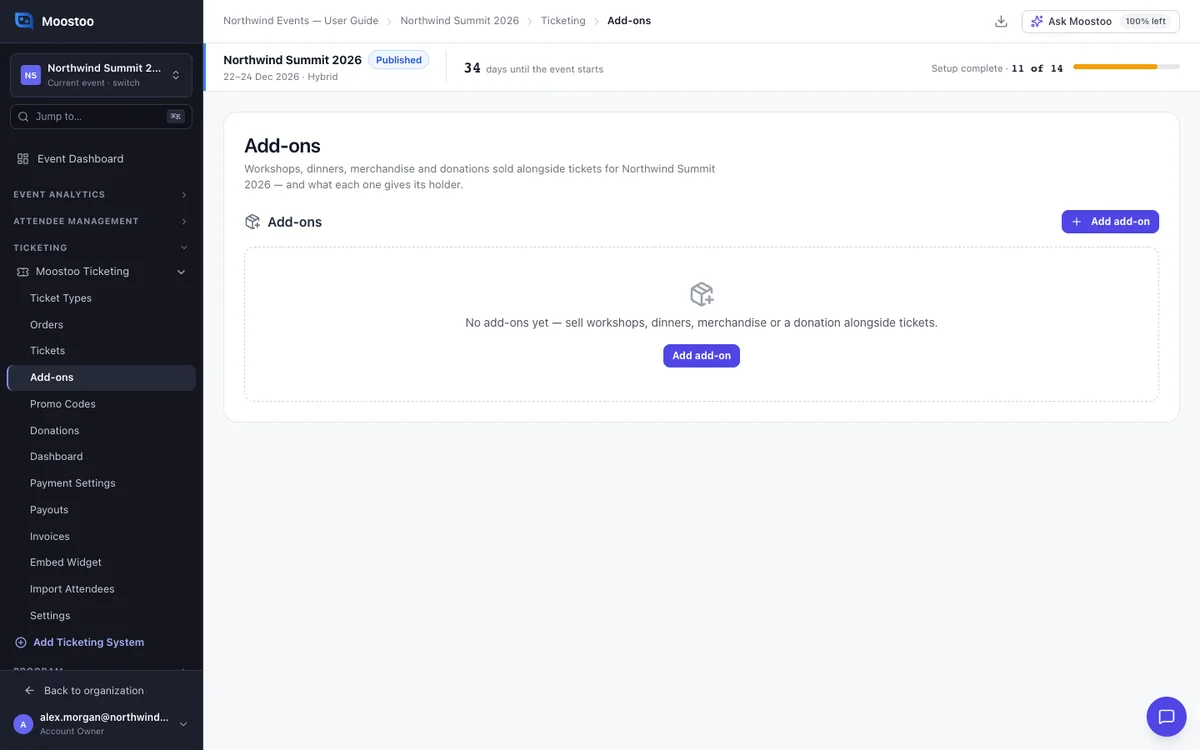
Open Ticketing → Add-ons and click Add add-on.
Give it a name, a description and an image.
Choose its pricing and whether it is charged per ticket or per order.
Set its quantities, capacity and sale window if needed.
Choose which ticket types it is offered with, and add any effects.
Click Create.
Drag the rows to set the order checkout lists them in.
Refund or cancel one line
Open the order from Orders and click Issue refund.
Tick the lines to refund. For a partial refund, type the amount.
The dialog shows what goes back to the card, which effects end and which donation receipts change.
Confirm.
Refunding a ticket also refunds or cancels the add-ons chosen for that ticket.
To remove an add-on that was never paid, click Cancel line instead.
Add an add-on to an existing order
In the order drawer, click Add add-ons.
Hidden add-ons are offered here, and sale dates do not apply.
Choose the add-on, the ticket it is for and how the new amount is paid.
Choosing card emails the buyer their order link so they can pay.
Click Add to order.
What attendees see
In the attendee app
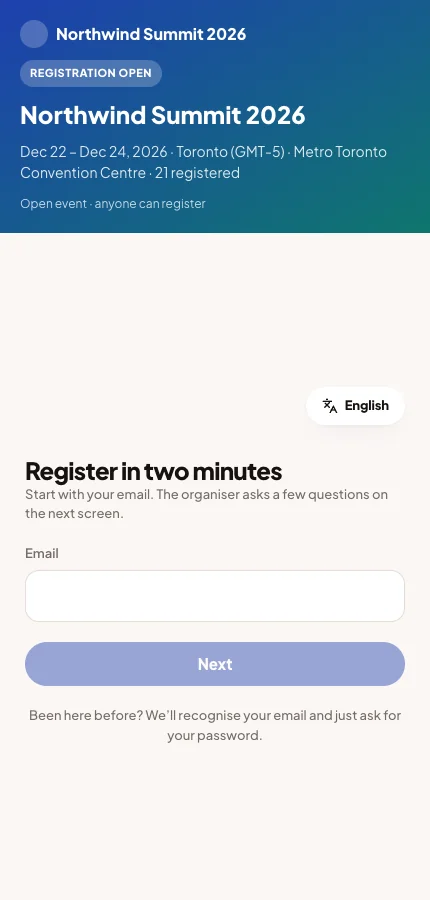
After choosing tickets, buyers see Add to your order. Per-ticket add-ons have a checkbox for each ticket, and donations show amount buttons. The order summary lists every add-on.
Tips
- A promo code can also discount add-ons. Choose them in Also discounts these add-ons on the code.
- An add-on that has sold cannot be deleted. Set it to Inactive instead.
- A new price or tax applies only to new purchases. A change to an effect applies to every holder at once.