
Email settings
The From line is the first thing a person reads, and it decides whether your email is opened, ignored or filtered as spam. Setting it once for the event gives every email — automated, meeting, campaign — the same recognisable sender, and choosing where replies go decides whether your team answers them together in the event's Inbox or in a mailbox of your own.
How it works
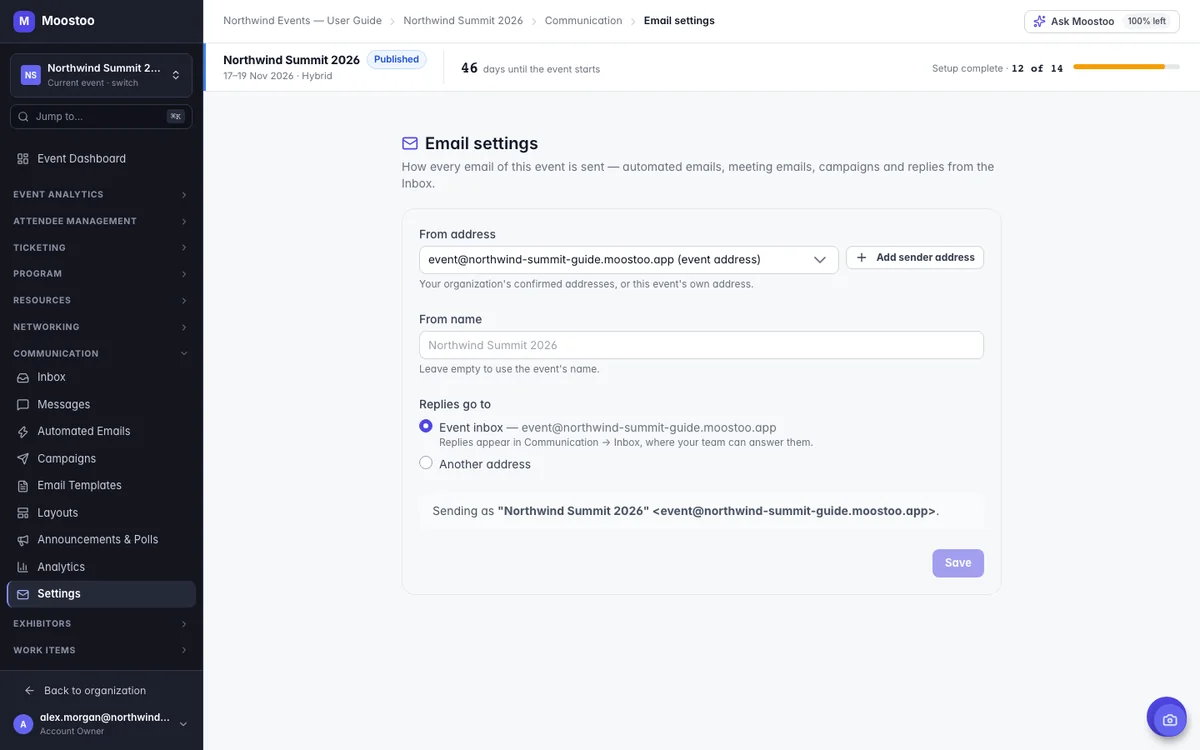
Open Communication → Settings in the event sidebar. The settings apply to every email the event sends.
From address One of your organization's confirmed sender addresses, or the event's own address, event@<event subdomain>.moostoo.com.
From name The name people see beside the address. Leave it empty to use the event's name.
Replies go to Event inbox (the default): replies arrive in Communication → Inbox, where your team can answer them. Another address: replies go to the mailbox you type and do not appear in the Inbox.
Sending as The line at the bottom shows what actually goes out right now — the name and address people will see.
- An address that is not confirmed is not used. If the address you choose is still waiting for confirmation, or has been removed from the organization, the event sends from its own address instead and a warning says so — for example Emails are being sent from event@… because events@acme.com isn't confirmed yet. Nothing is held back while you wait.
- You can add an address from here. Add sender address sends the confirmation email without leaving the event; the address joins your organization's list and every event can use it once confirmed. Event admins can do this too.
- Your organization's addresses are listed under the form, with their status as Amazon SES reports it. Resend verification sends a new confirmation for one that is not confirmed yet, Check status asks SES again, and Delete (or Cancel, while waiting) removes one — the same actions as on Organization → Sender Addresses.
- Changing these settings needs Can send emails on the event.
Step by step
Open Communication → Settings.
Pick the From address: one of your organization's confirmed addresses, or the event's own address.
To use an address that is not on the list yet, click Add sender address, then click the link in the confirmation email that arrives in that mailbox.
Type a From name, or leave it empty to use the event's name.
Choose where Replies go to: Event inbox, or Another address and type it.
Check the Sending as line, then click Save.
What attendees see
In attendee emails
Attendees see the From name and address you chose in their mailbox on every email the event sends, and pressing Reply sends their answer wherever you chose — by default to your event's Inbox.
Tips
- Use an address at your own domain that people recognise, such as events@yourcompany.com — mail from a familiar domain is opened more and filtered less.
- Add and confirm the sender address well before your first invitations go out; until it is confirmed the event sends from its own address.
- Keep replies on Event inbox so your whole team sees them; choose another address only if a mailbox there is watched.