
Messages & group chats
Attendees have questions — where is the cloakroom, can I change my ticket, is the workshop full — and they ask them in the app. Every attendee has a direct line to your team that is always there, and your whole team answers it together under the organization's name, so nobody has to know which colleague is on shift. Around that line, attendees chat with each other and in WhatsApp-style groups within the rules you set.
How it works
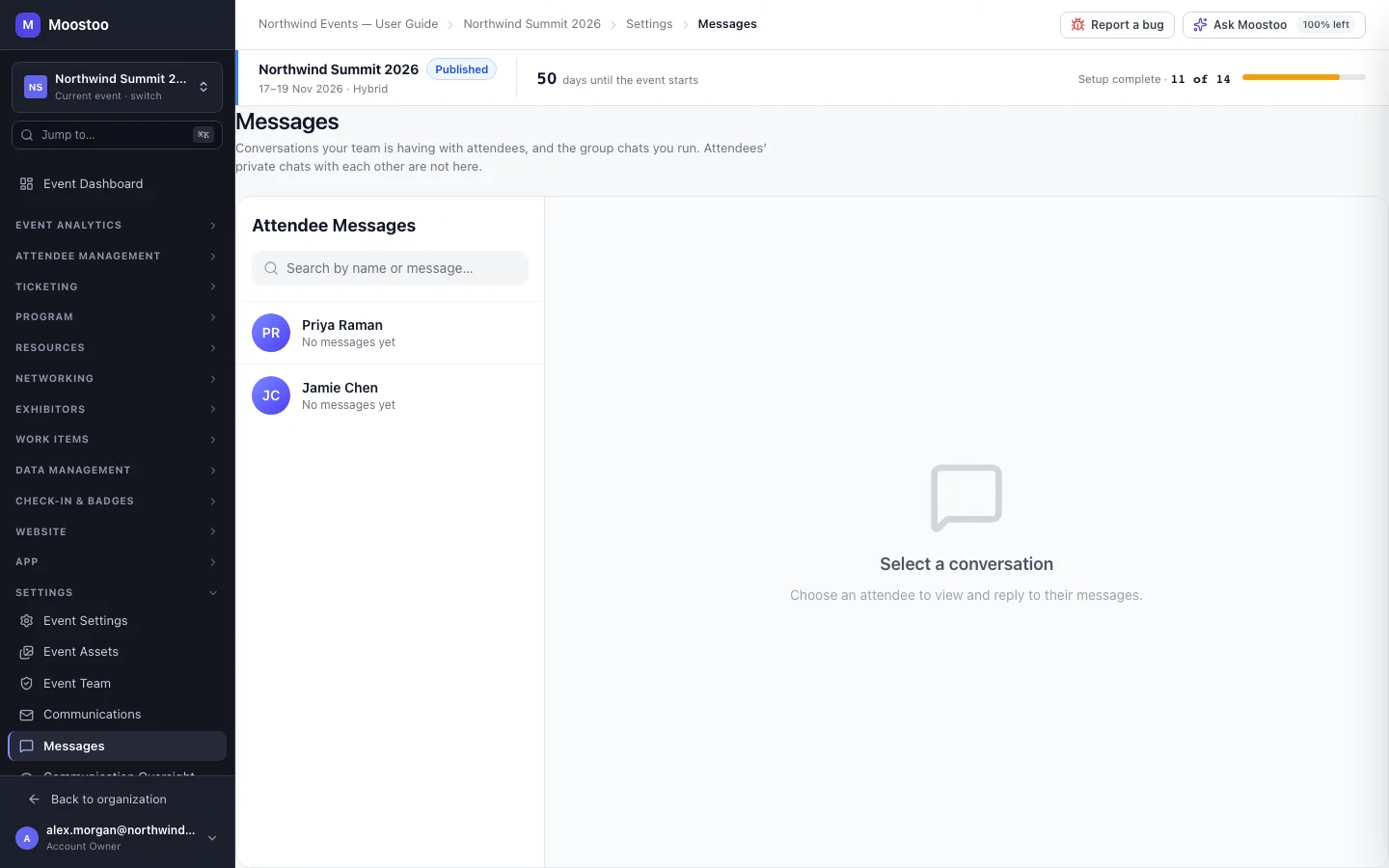
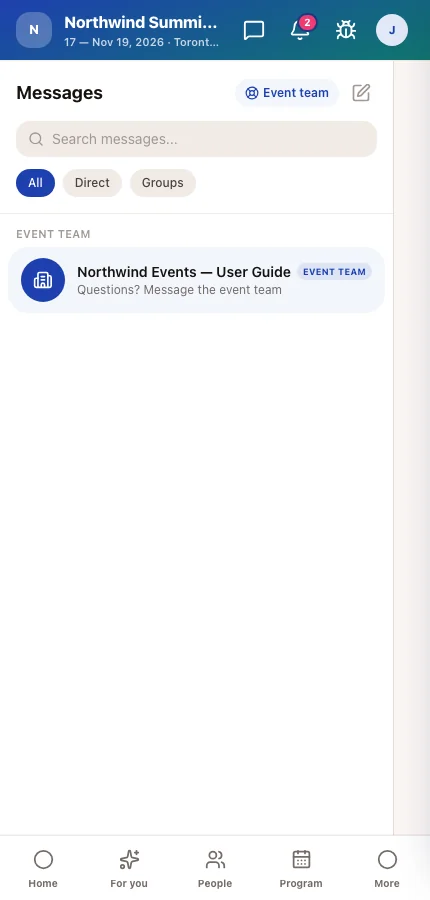
Event team channel One conversation per attendee with your organization, created automatically and pinned at the top of their Messages. You answer it from Settings → Messages in the admin app; your replies appear under the organization's name, whichever team member writes them.
Direct chat A private one-to-one conversation between two attendees. Who may start one is decided by the chat matrix of your Experience rules. These chats are private: they are not shown to organizers anywhere, including Communication oversight.
Group chat A named group with at least two other members, created in the attendee app by an attendee or by a team member taking part in the event. Its creator is always an admin and can make other members admins.
Who can post Everyone — collaborate, or Admins only — announcement: only admins post and everyone else reads.
Who can add members Everyone can add, or Admins only. Only admins change the group's name and these two settings, remove other members and promote or demote admins.
- Your team is not bound by the chat matrix. Team members, including service providers, can message any attendee of the event.
- Attendees can attach files: images, videos, PDFs and common documents (text, CSV, Word, Excel, PowerPoint), up to 100 MB. Images and PDFs show a preview; videos play in place; other documents show as a file row.
- Addresses in a message become links, but nothing opens without asking. Clicking a link or a file first shows Open this link? or Open this file? with the full destination, because it was written by somebody else. Scripts, web pages, programs and archives cannot be attached at all.
- People can block each other. A blocked person's messages are silently dropped, and the block is never revealed to them.
- Reading clears the badge. A conversation that is open and visible marks new messages as read — nobody has to reply just to clear a notification.
Step by step
Answer attendees
Open Settings → Messages. The Attendee Messages list shows every attendee who has written to the event team, newest first.
Use Search by name or message… to find a conversation, and click it to open the thread.
Type your answer in the Reply as the organization… box and click the send button.
The attendee sees it instantly in their app, from your organization's name.
Run a group chat for your attendees
Open the attendee app for the event as a team member and go to Messages.
Start a New Group: give it a name, pick at least two members, and choose Who can post and Who can add members.
For a one-way channel — speakers' logistics, volunteers' shift updates — choose Admins only — announcement.
Open the group's settings later to rename it, change its modes, add or remove members and promote other admins.
What attendees see
In the attendee app
Attendees see the event team pinned at the top of Messages, their direct chats and groups below, and can also reach your team from the app's Contact organiser entry. In an admins-only group they read but cannot post, and a note says so.
Tips
- Agree within the team who watches Messages during each part of the event — attendees expect answers in minutes on event day.
- Reply from the admin app rather than from your personal account in the attendee app, so the answer comes from the organization and the whole team sees it.
- A service request in chat can become a tracked work item — a service provider converts it from the message (in a one-to-one or event team conversation, not in a group chat).
- The organizer's Messages screen does not send attachments; share documents through a custom page, an announcement or an email.