
Sign-in methods and security
Every extra sign-in step you remove is an attendee who reaches your event app instead of giving up at a password prompt; every provider you allow for your team is one more way into your organization. Auth & Security is where you make that trade-off once, separately for your team and for your attendees, and every event follows it unless the event says otherwise.
How it works
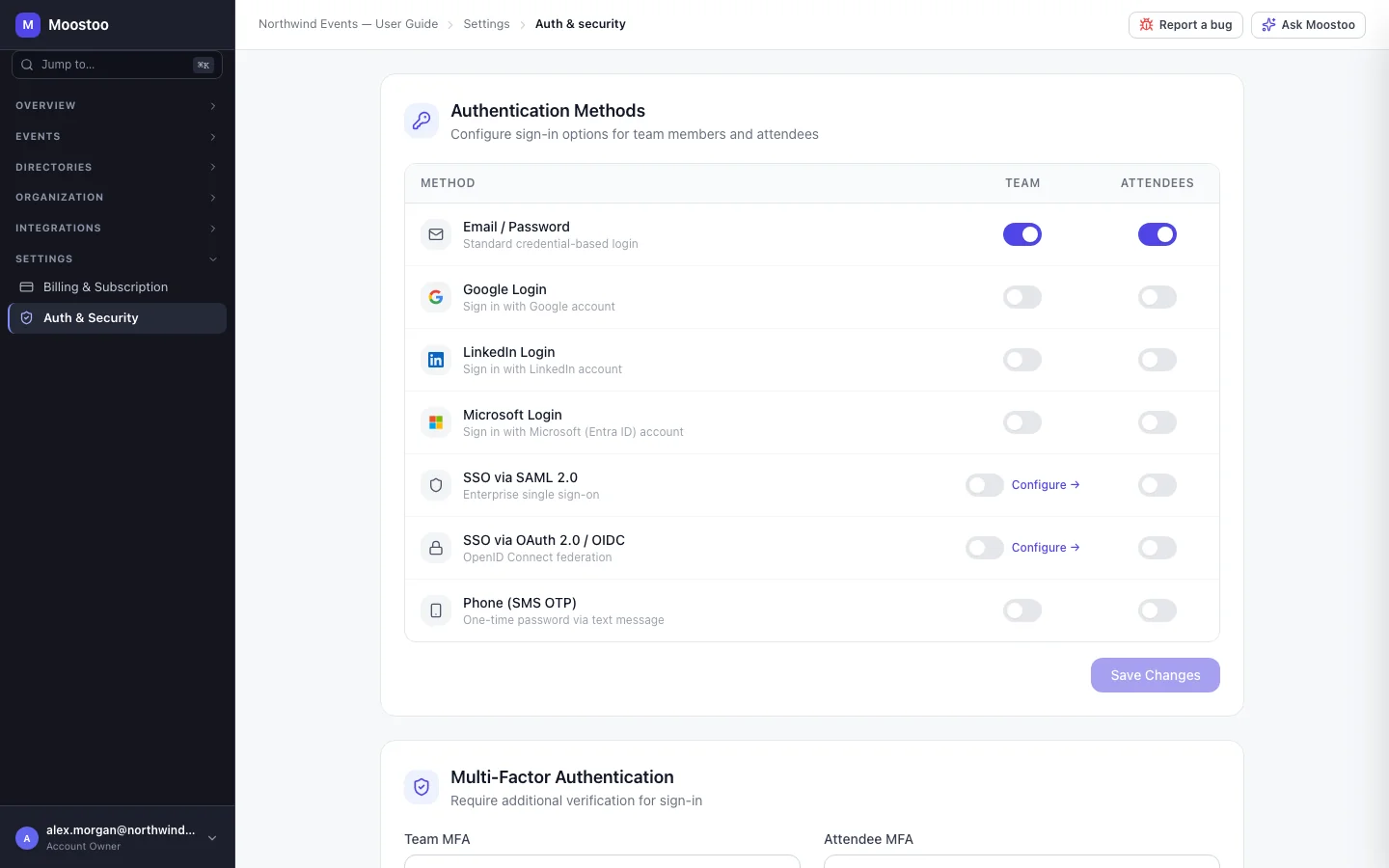
Settings → Auth & Security has four sections, each with its own Save Changes button — a change in one section is not saved by another's. Until anyone saves a change, a note says Using default security settings. Only Account Owners and Super Users can open it.
Authentication Methods A table of sign-in methods with a Team and an Attendees switch for each: Email / Password, Google Login, LinkedIn Login, Microsoft Login, SSO via SAML 2.0, SSO via OAuth 2.0 / OIDC and Phone (SMS OTP).
Multi-Factor Authentication Team MFA and Attendee MFA, each Off, Optional or Required.
Password Policies Minimum length, complexity requirements, expiration and account lockout.
Device Trust Duration How long a device stays trusted before sign-in is asked again: 30, 90 or 365 days, or manual revocation only.
How the provider switches behave
- Email and password is always there. Whatever else you enable, people can sign in with their address and password — including invited team members creating their account.
- Google, LinkedIn and Microsoft buttons appear on the sign-in screens only where you switched them on, and Moostoo re-checks the switch when someone uses one — hiding a button is not the only protection.
- A provider proves who someone is; it registers nobody. Signing in with Google to an invitation-only event still requires an invitation.
- The address is the account. Signing in with Google as
jamie.chen@…reaches the same account as that address's password — Moostoo never creates a second person for the same address. A provider that will not confirm the address is refused. - The Attendees column is the default for every event. An event can choose its own attendee providers — or none — on App → Sign-in, see App address and sign-in. An event that has not chosen follows this screen.
What is enforced today
The Email / Password, Google, LinkedIn and Microsoft switches take effect on the sign-in screens. SAML, OIDC and SMS sign-in, the MFA settings, the password policy and device trust are saved as your organization's policy, but sign-in does not yet apply them — do not rely on them for compliance. Passwords always follow Moostoo's own minimum rules.
Step by step
Open Settings → Auth & Security.
In Authentication Methods, switch each provider on or off in the Team column for your staff and in the Attendees column for your events' attendees.
A provider this Moostoo installation has no credentials for cannot be offered, whatever the switch says.
Click Save Changes under the table, then set the MFA, password and device trust sections to your organization's policy, saving each one.
The SAML 2.0 and OAuth 2.0 / OIDC rows have a Configure → link that opens their configuration panel (identity-provider details and attribute mapping) with Save & Test.
For an event that needs different attendee sign-in, open that event's App → Sign-in and choose its providers there.
What attendees see
In the attendee app
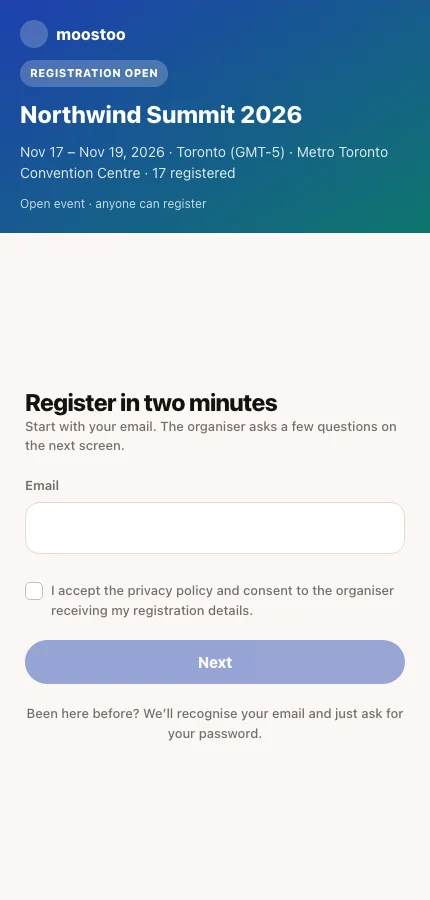
Attendees see the providers you allowed as buttons beside the email field when they sign in to your event's app. Someone who signed in with a provider is never asked for a password they do not have; if they later forget which method they used, Forgot password? still works for their address.
Tips
- LinkedIn is the most useful attendee provider at B2B events: attendees arrive with a verified work address and a profile they recognise.
- Keep the Team column narrower than the Attendees column — your team signs in to your admin data.
- An invited team member is shown the providers your organization allows for its team, even before they have an account.
- A wrong password is always answered "That password is incorrect." — Moostoo deliberately never says whether an address has an account.