
Speaker directory
Good speakers come back. The Speaker directory is your organization's memory of them: what they talk about, where they spoke and how attendees rated them. Their profile is shared, so keeping it current here updates every event that features them.
How it works
One list across all your events
Open Directories → Speaker Directory in the organization menu. It lists every contact who has the Speaker role, across all your events.
The columns help you choose a speaker:
- Expertise — what they talk about.
- Events — how many of your events they took part in.
- Rating — the average rating of their sessions, or Not rated.
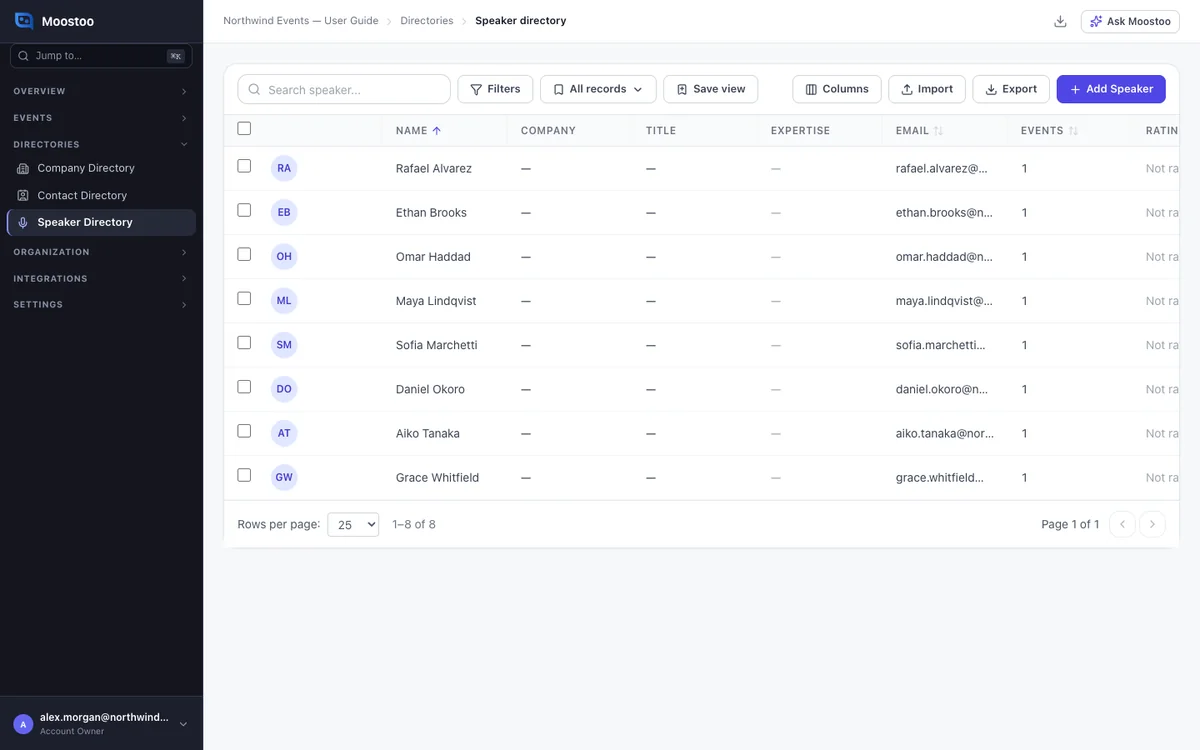
Directory or event roster
The directory is not a programme. Adding someone here does not put them on any event.
Each event has its own roster under Program → Speakers, with session assignments and portal invitations. See Speakers.
A speaker's panel
Click a speaker to open their profile. Two tabs show their history:
- Events — each of your events they took part in, and their role there.
- Speaking History — every session they spoke at, newest first, with its average rating.
Good to know
- Editing a profile here changes it at every event that features the person, and in their speaker portal.
- Add Speaker creates a contact marked as a speaker. It does not add them to an event.
- Import matches rows to your contacts by email. For a match you choose Skip to leave the contact alone, or Merge to fill its blanks from the file.
- Delete removes the person from your whole organization. It is refused while they are on a session of an active event or linked to a team member.
Step by step
Bring back a returning speaker
Open Directories → Speaker Directory.
Search by name or email, or sort by Events to see who has spoken most.
Click the speaker and check Events and Speaking History.
Update the profile if it is out of date, and save.
Open your event's Program → Speakers, click Add Speaker, pick them on From Contacts and click Add to Event.
Then assign their sessions and send the portal invitation, as on Speakers.
What attendees see
In the attendee app
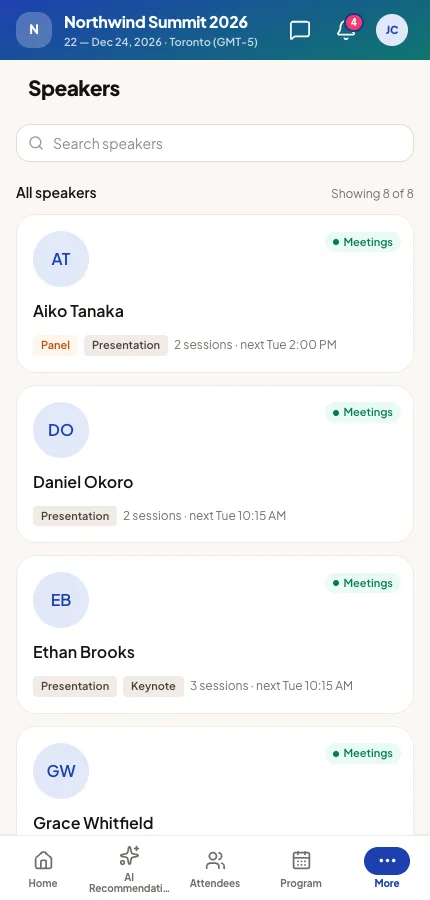
Attendees never see the directory. They see the profile kept here, on session pages, on the Speakers screen and on your website. A profile you correct here is corrected everywhere.
Tips
- Search the directory before creating a new speaker. Reusing the record keeps their history and ratings together.
- Ratings appear once attendees have rated a session the person spoke at.
- The Contact directory shows the same people. Filter it by the Speaker chip.
- To add speakers to one event from a spreadsheet, use the Import/Export Hub.