
Meeting tables and logistics
In an in-person meeting session the tables are the capacity: every confirmed meeting is seated at a free table, and when the tables are full for a slot, nobody else can book it. Setting up tables decides how many meetings your event can host; reservations let you keep a table for a VIP or a headline sponsor so their slot is never taken by someone else; and the logistics screen is where you plan which exhibitor sits in which part of the meeting area.
How it works
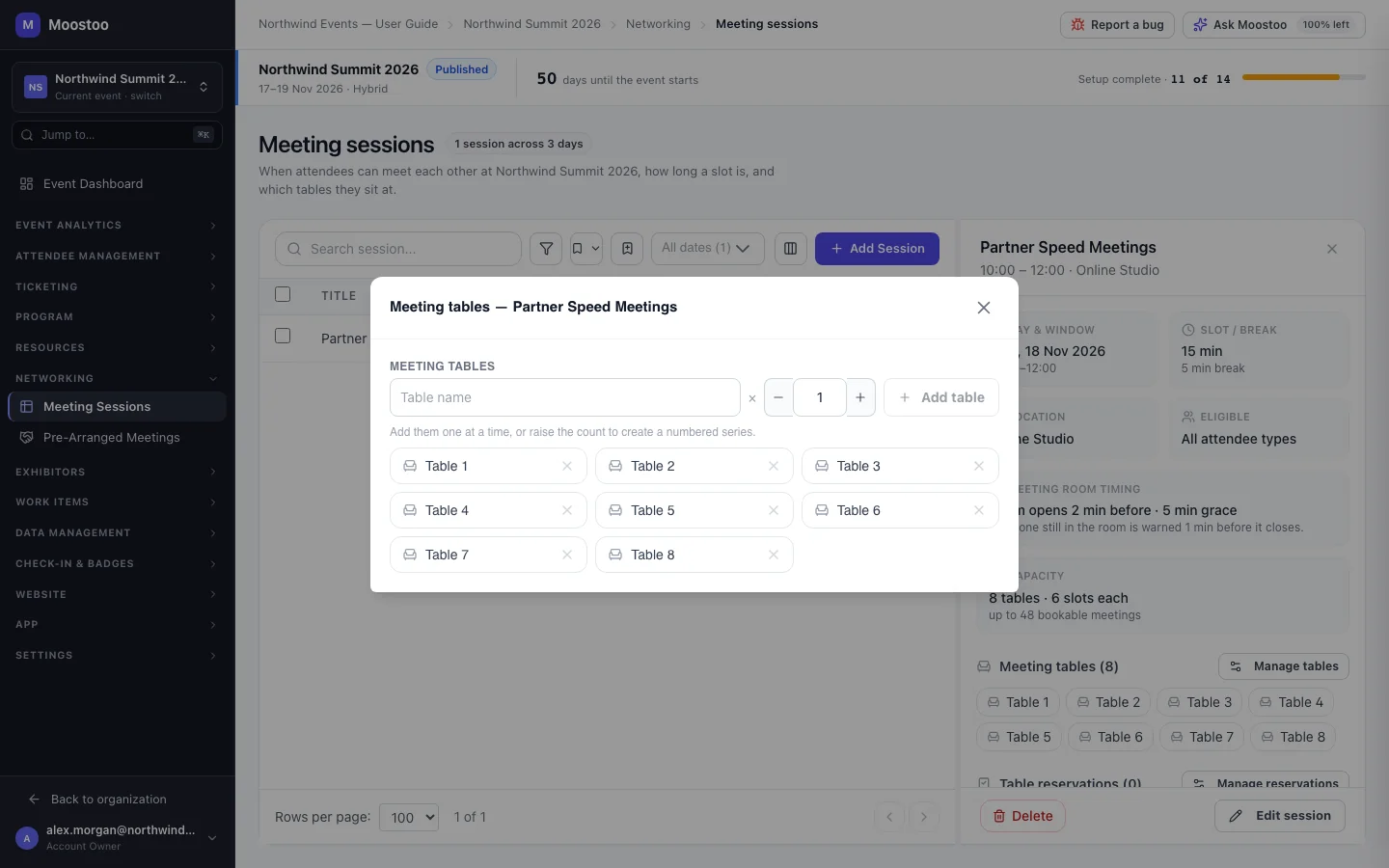
Table One meeting place in a meeting session. It hosts one meeting per slot. Tables belong to one session; a second session needs its own.
Numbered series Type a name and a count greater than one and Moostoo creates Table 1, Table 2 … or, with a name such as Table B-, Table B-1, Table B-2 … — up to 500 at a time. Names already in use are skipped, and tables are always listed in natural order (Table 2 before Table 10).
Table reservation A table held for one or more named attendees, for the whole session or for a span of slots. During that span the table disappears from everyone else's bookable slots; the reserved attendees' meetings are seated at it first, and at a general table only when it is taken.
Company meeting logistics Per meeting session, a list of every exhibiting company with where it meets, the table assigned to it, and whether it is available for meetings in this session.
- No tables, no in-person meetings. A saved in-person session with no tables warns that meetings cannot be booked. Online sessions need no tables: each meeting gets its own video room instead.
- Reservations never overlap on one table. A second reservation covering part of the same span on the same table is refused, naming the clash. To share a table, put several attendees on one reservation.
- A reservation looks forward. Meetings already confirmed at that table in the span are listed as a warning and left where they are; move them yourself if you need to.
- Only named people can be reserved for. Attendee types and companies cannot — pick the individuals.
- Spans follow the slot grid. A span starts and ends on slot boundaries, never mid-meeting.
Step by step
Add tables
Open Networking → Meeting Sessions, click the session, and click Manage tables in its panel.
When you create a session, the same table editor is already part of the form.
Type a name and leave the count at 1 to add one table, or set a count to add a numbered series. The button reads Add table or Add 20 tables, with the resulting names shown beneath it.
To remove a table, click its delete icon and confirm.
Reserve a table
In the session's panel, click Manage reservations, then Reserve Table.
Pick the Table and search the attendees it is Reserved for — one or more people.
Choose the Time scope: Whole session, or Specific span with a Start slot and End slot.
Click Save reservation. Edit or remove it later from the same list; removing it returns the table to everyone for that span.
Plan company logistics
On Networking → Meeting Sessions, click Logistics on the session's row.
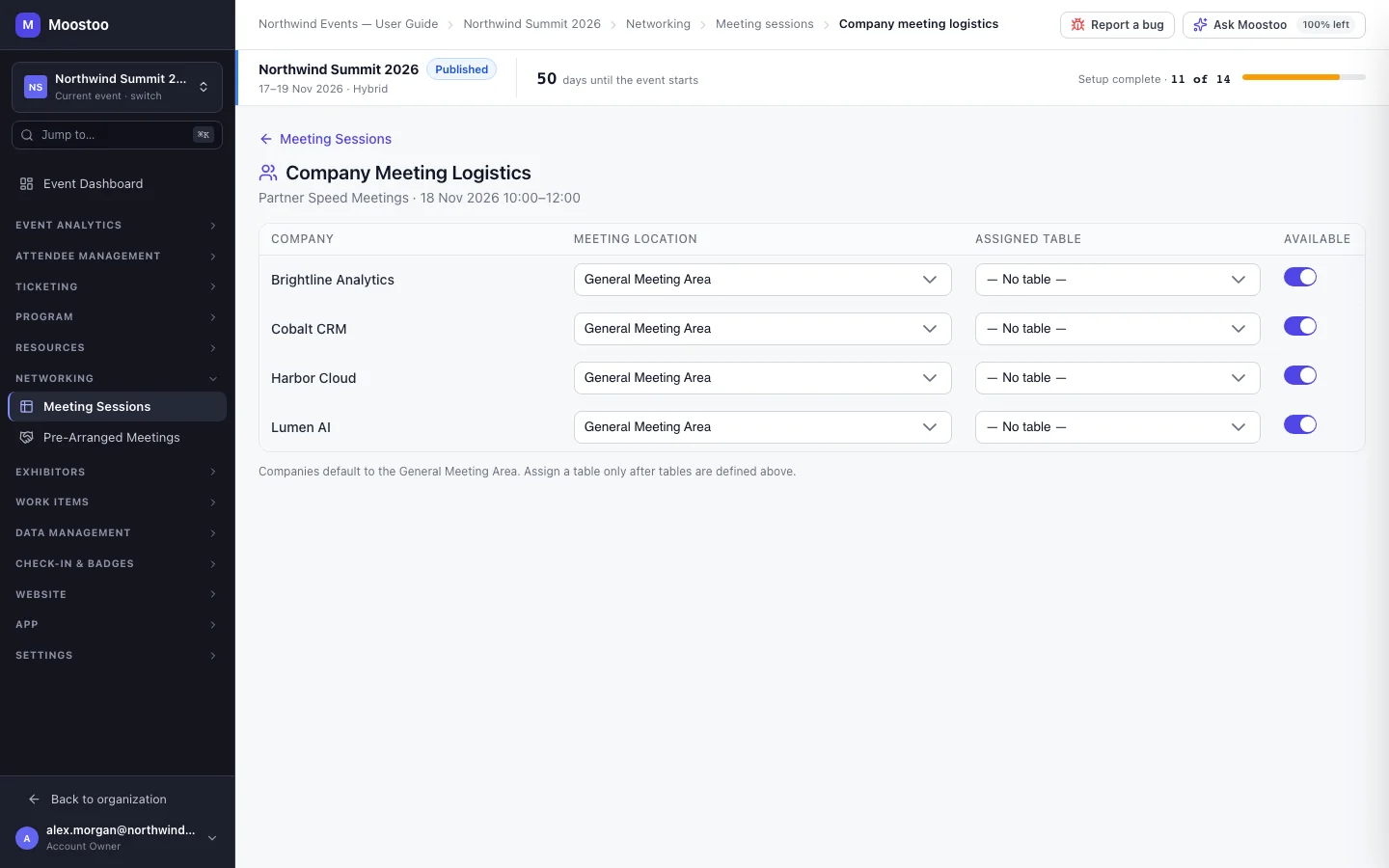
For each company, choose its Assigned Table and switch Available off if it does not take part in this session. Every change is saved as you make it.
Logistics is a plan, not a hold
The assigned table and availability on the logistics screen are recorded for your team; they do not hold that table for the company's meetings. To guarantee a table for a sponsor's representatives, reserve it for those people. The At Booth option on this screen is left over from an earlier design — booth meetings now run in the booth's own booth meeting sessions.
What attendees see
In the attendee app
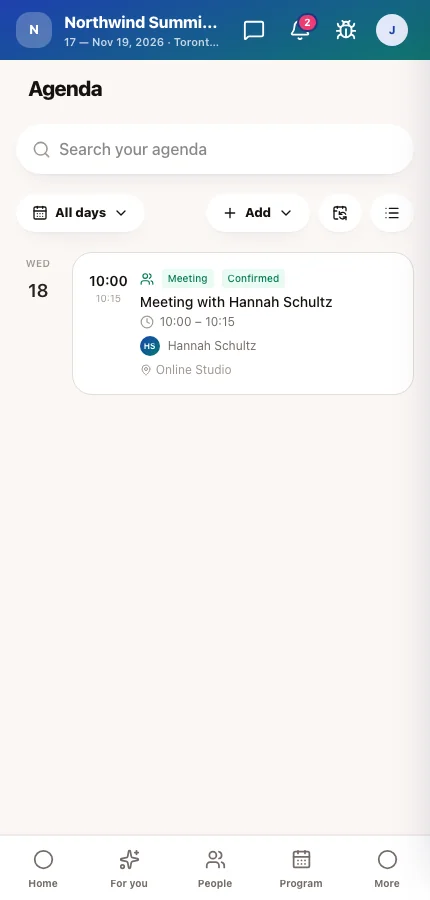
Attendees never pick a table — Moostoo seats each confirmed meeting at a free one and shows the table on the meeting and on both agendas. A slot whose tables are all taken or reserved for others is shown closed; a reserved attendee sees a hint that their reserved table is waiting.
Tips
- Match table names to the physical signs in the room. Attendees walk to the name they read in the app.
- Reserve before you open meeting booking. A reservation added later does not move meetings already confirmed.
- Draw the meeting area on the venue map and link it to the meeting session, so attendees can find it.
- When you clone the event, meeting sessions and their tables can come along; table reservations never do, because they name this event's attendees.
Ask Moostoo
Add 30 tables named Table 1 to Table 30 to Partner Speed Meetings.
Add tables called Brightline Lounge and Cobalt Corner to Investor Office Hours.