
Mapping console
Another platform describes your attendees in its own words: its registration types, its field names, its spelling of every answer. The mapping console translates them into your event's — which attendee type each person gets, which answer lands on which question, which badge code scans. It is done once and used by every import and every live-sync update afterwards, so a careful mapping is what makes the whole integration trustworthy.
How it works
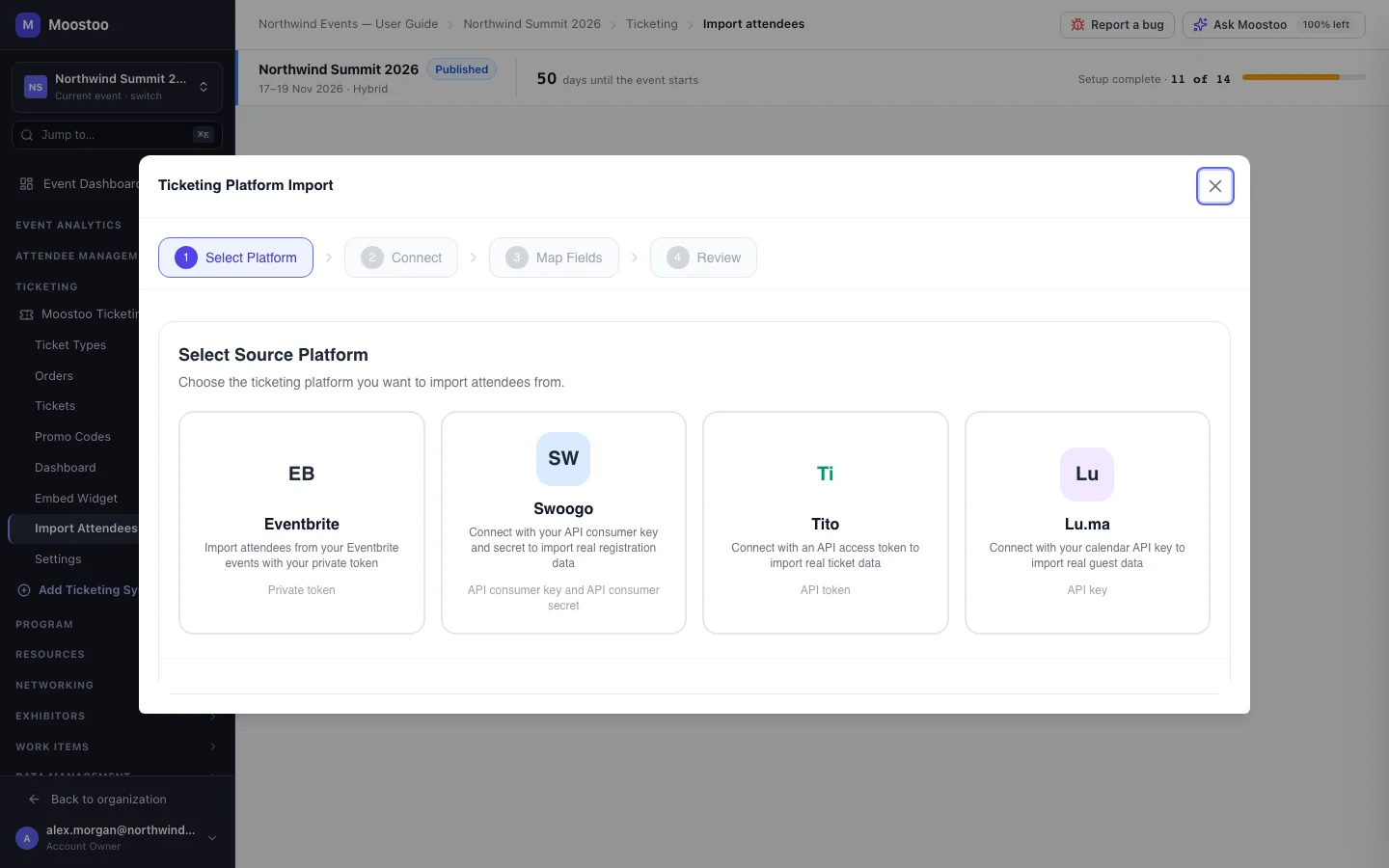
The console is one screen with three levels, all saved together by Save mappings. It is the Map Fields step of the import wizard, and later the Mapping item of an external ticketing system in the sidebar. The left-hand side always uses the platform's own names — Swoogo's Registration ID, Eventbrite's Attendee ID, Tito's Ticket Slug, Lu.ma's Guest ID — and the right-hand side is yours.
1. Attendee types
- Each value of the source becomes a Moostoo attendee type — map it to an existing type or choose + Create a new attendee type.
- Decide the attendee type from is the platform's registration type by default. Where registration types are really price brackets (Early Bird, Standard, Late), pick a single-answer choice question instead, such as I am attending as…. Changing the source discards the rows below, after you confirm.
- An unmapped value is not imported. A ticket with no answer for the chosen question is skipped, and the history names the field. Moostoo never guesses a type, because a type carries permissions and pricing.
- Several platform values may map to the same attendee type. The ticket type recorded on each attendee is still the platform's registration type.
2. Fields
- Each platform field maps to a profile field (name, email, company, job title, phone, bio, offers, seeks, country, city), a badge identifier (External Ticket ID, External Badge / QR Code) or an event question from your Question pool — or to Skip — do not import.
- A row shows Auto when the console suggested it, Manual when you chose it, Skipped, or One value when the target cannot hold what the field sends.
- Several answers into one field: a multiple-choice answer going into a text field or a text question is joined with commas, and the row says so. It cannot fill an email, phone, badge code, attendee type or a single-choice, date or number question — choose a multi-select or text question instead.
- Address fields are split into their parts — Employer Address · City, · Country — so you can map just the parts you need.
3. Answer options
Expand a choice field to map each of the platform's answers to one of your question's options (Map), Create it as a new option, or Ignore it. Options the console filled in itself are marked Auto-assigned — check it until you change them. Matching ignores case, spaces and punctuation — X-Large, X Large and xlarge are the same — but nothing looser: XL is not Extra Large. Map on a row fills in the match when there is one; Auto-assign tries every unfilled row at once. Neither ever overwrites a choice you made.
Step by step
Open the external system's Mapping (or reach Map Fields in the import wizard).
If no external event is chosen yet, the console asks you to Select event first.
Click Auto-map all to accept every confident suggestion.
Under Attendee types, check the source and give every value an attendee type.
Use the filters — All, Unmapped, Auto-suggested, Problems — to work through the fields that still need a decision.
Expand each choice field and map, create or ignore its answers.
Click Save mappings. If something still blocks the save, the bar says what and takes you to it.
At least one registration type must map to an attendee type. Mappings apply to future imports and live-sync updates; people already imported are updated on the next import.
What attendees see
Attendees never see the console, but they live with its decisions: the attendee type they arrive with, the answers on their profile and the code on their badge all come from here.
Tips
- Before saving, open the Problems filter — it lists exactly the rows that would lose data.
- Map the platform's identifier onto External Ticket ID only if you want a different one from the default; by default the platform's own ticket identity is kept and scans.
- Answer counts shown beside a field come from a sample of the platform's registrations, so they are marked in sample.
- Changing the external event clears the mapping — map again after switching events.