
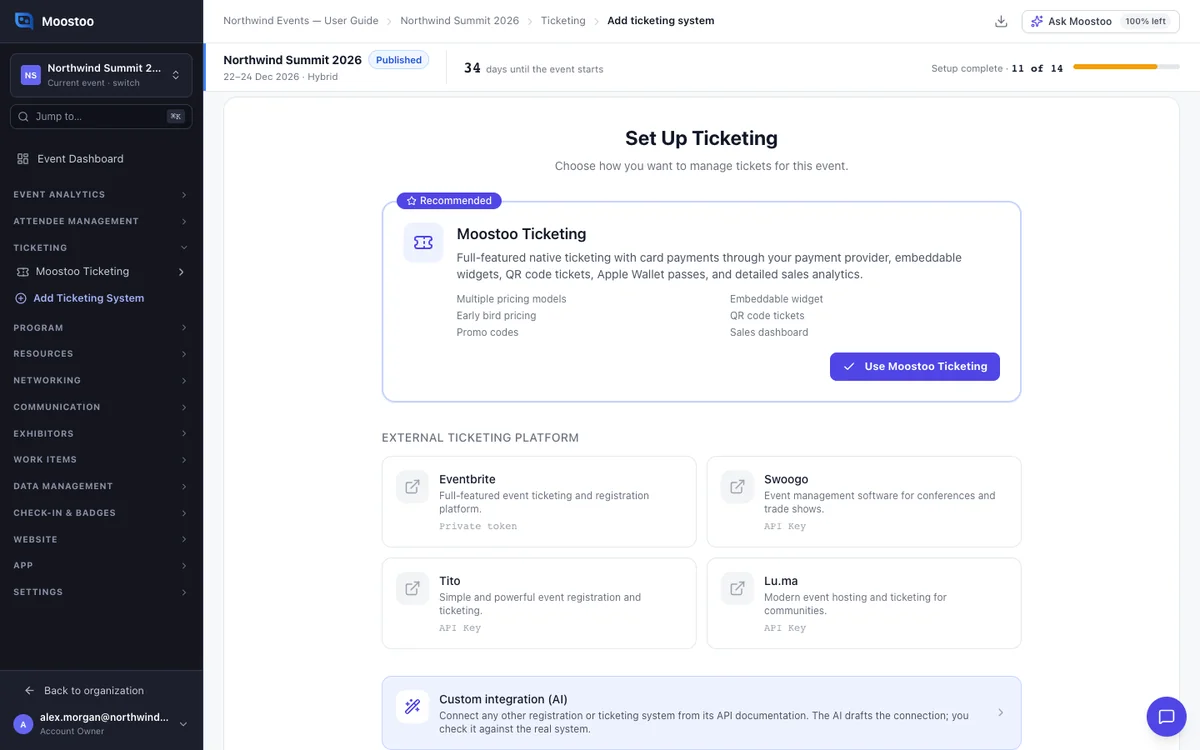
Custom integration (AI)
Your attendees may be in a system Moostoo has no built-in connection for, such as a regional ticketing service or your own registration site. If it has an API, you can connect it yourself. The AI reads its documentation and prepares the connection, and you check each part against the real system. Once saved, it works like a built-in platform, with mapping, import history, live sync and scheduled syncs.
How it works
What the AI does
The AI writes a description of how to read the other system: which addresses to call and where each value sits in a record. It never writes a program.
The AI is used only while you design the connection. Later syncs follow the saved description, with no AI involved.
The six steps
Describe Give the documentation as a link, a file up to 5 MB, or plain instructions. Files can be OpenAPI or Swagger, PDF or text. Nothing you upload is kept after the session.
Authenticate Enter the credential the system asks for, such as an API key, a token, or a username and password. You confirm the exact addresses Moostoo may call with it. Then choose the event to import, if the system has events.
Ticket types & questions Moostoo reads the real ticket types and registration questions, with sample answers.
Attendees The first page of real attendees, read the way the import will read them. It also says whether the system can return only people who changed since the last sync.
Webhook & schedule Optional. Paste Moostoo's webhook address into the other system so changes arrive within seconds. Choose how often to sync automatically, from every 5 minutes to every 24 hours, or Off.
Save Name the integration and save it to your organization.
Fixing a step
If something is wrong at any step, type it into Something wrong? Tell the AI. The AI corrects only that part. A correction can never change the addresses or the sign-in you confirmed.
One design, many events
A saved integration belongs to your organization. Next year's edition, or another event using the same system, picks it from Use a saved integration.
Each event enters its own credentials, event, mappings, schedule and webhook. Credentials are never saved with the integration, and never shown again once entered.
The library
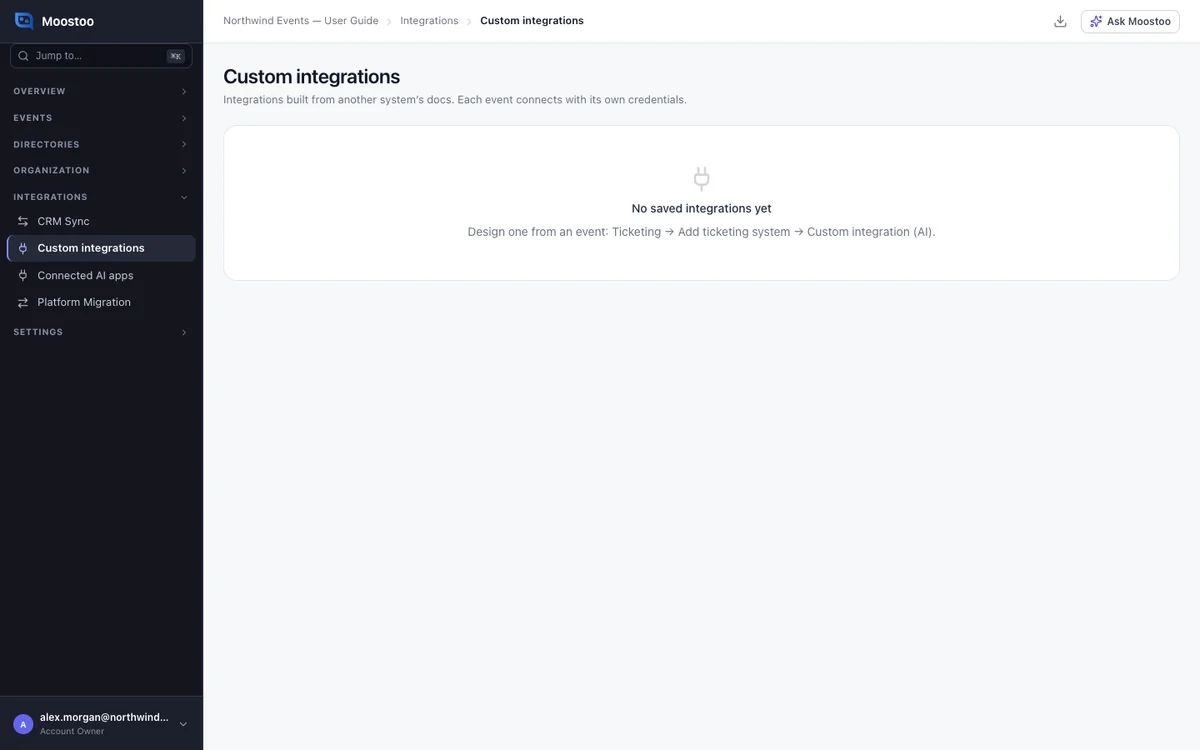
Organization → Integrations → Custom integrations lists every saved integration and the events using it. Account Owners and Super Users can rename and delete them.
An integration still used by an event cannot be deleted. The message names those events, so you know which to disconnect first.
Step by step
Design a new integration
Open Ticketing → Add Ticketing System and click Custom integration (AI).
If your organization already saved one for this system, choose it under Use a saved integration and go to the last step.
Paste a documentation link, upload a file, or describe the system in your own words.
Click Draft integration.
Check the summary of addresses and sign-in, and click Next.
Enter the credential, tick the confirmation naming the addresses, and click Test connection.
Choose the event to import, if asked.
Check the ticket types, the questions and the first page of attendees. Use Something wrong? Tell the AI where a value is wrong.
If you want, copy the webhook address into the other system, test it, and choose a sync schedule.
Name the integration and click Save integration.
Where the AI is not available, the wizard says so. You can still connect an integration your organization already saved.
What attendees see
Attendees never see the integration. People imported through it become attendees exactly as with a built-in platform. Their badge carries the ticket ID the other system gave them.
Tips
- Ticketing → Settings shows the connection: the last and next sync, Sync now and Edit integration.
- Keep the webhook address private. Anyone who has it can send calls to it.
- If the webhook address may have leaked, click Regenerate address on Ticketing → Settings and type regenerate. The old address stops at once, so paste the new one into the other system.
- A full sync skips people whose record did not change. A frequent schedule does not rewrite your attendee list.
- Disconnecting stops syncing. Everyone already imported stays on your attendee list.