
Program, agenda and speakers
What attendees can do with your programme shapes your event. Saving sessions, asking for a seat and blocking meeting time decide how full rooms are and how bookable people stay for meetings. Knowing these screens helps you pick the right access type for each session and answer help-desk questions.
The Program screen
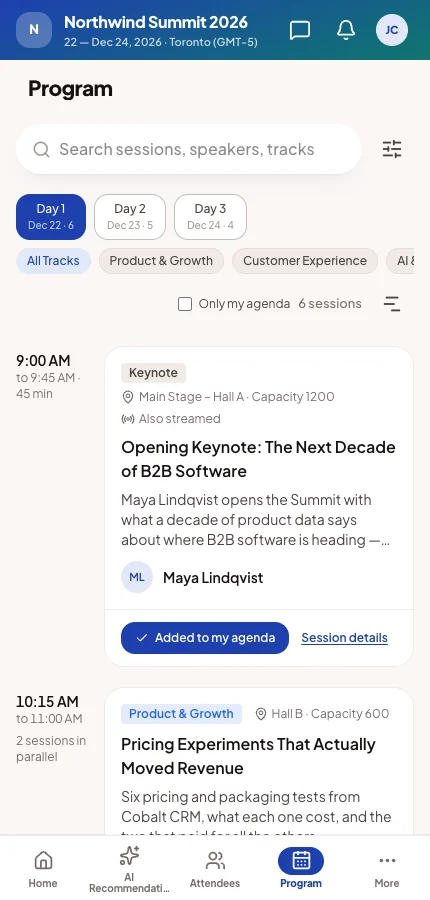
Program lists every programme session the attendee may see, one day at a time. You can rename it in the App Designer. Meeting sessions never appear here. They are booked through meeting requests.
Above the sessions are a search box, Filter sessions, the event's days, the track chips, Only my agenda and a view switch.
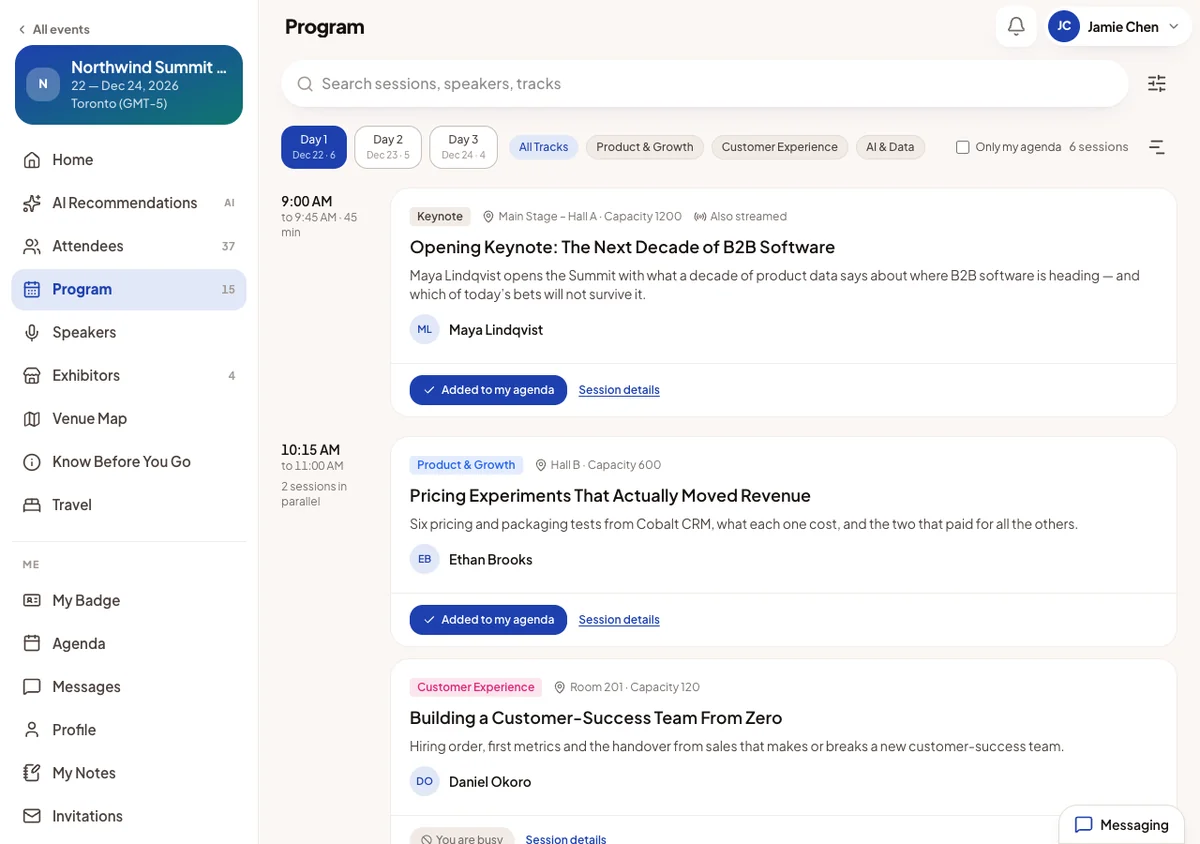
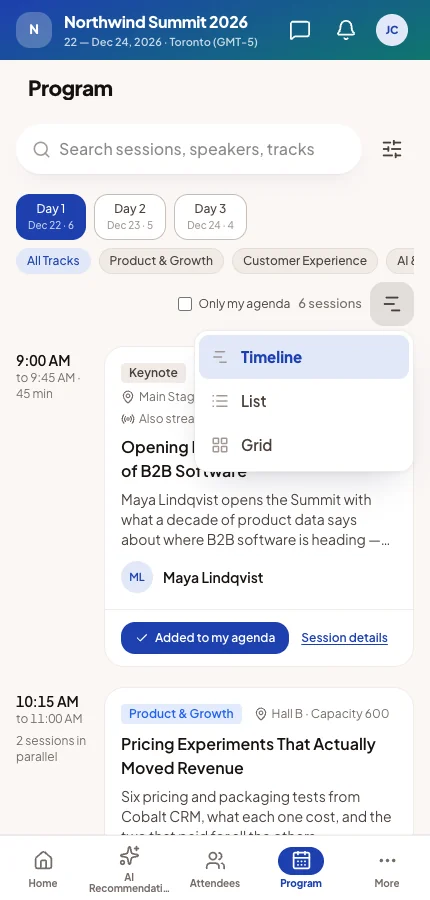
Three views
The screen opens on the Program template you chose in the App Designer. Attendees can switch view for their visit. Their choice never changes your setting.
Timeline (the default) A time column beside full cards with track, room, speakers and the agenda button. When 20 or fewer places remain, the card says how many are left. Breaks show as grey bars.
List Compact rows. Best for a long programme on a phone.
Grid Cards in columns. Best on a large screen.
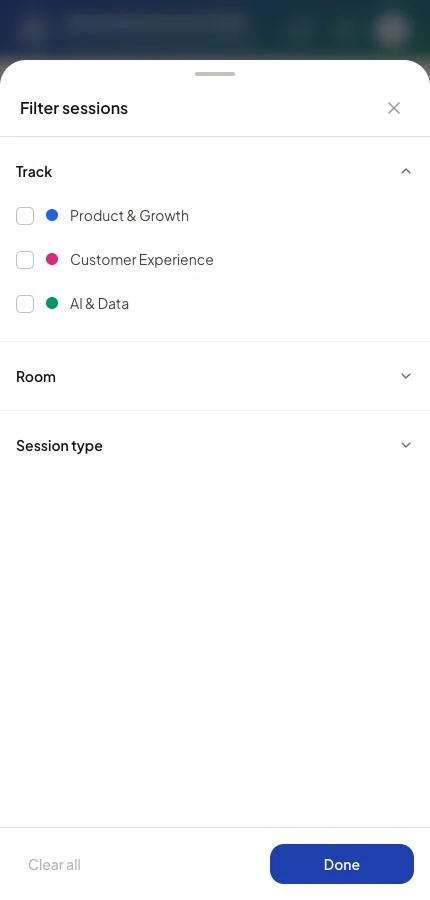
Searching and filtering
Search reads titles, speakers and tracks. Filter sessions narrows by Track, Room and Session type. Each active filter shows as a chip the attendee can remove.
Only my agenda shows only what the attendee has saved. The filter values come from your tracks and session types and locations.
- When there are recommendations, a Recommended sessions strip shows the sessions picked for this attendee.
- Sessions that have ended move to Past sessions at the bottom.
- On a phone during the event, a Now button jumps to what is happening now.
Adding a session to the agenda
The button on a session card depends on the session's access type and on the attendee's agenda.
| The attendee sees | When | What happens |
|---|---|---|
| Add to my agenda | An open session they have not saved. | It is saved at once. If it overlaps something saved, they are warned and can add it anyway. |
| Added to my agenda | Already saved. | Tapping again removes it. |
| Full | The room is at capacity. | Nothing can be added until a place frees up. |
| Send RSVP request | An RSVP session. | You receive a request. The button shows RSVP request sent until you answer. |
| You are busy | Another session holds that time. | Nothing else can be added then. Tapping says which session holds it. |
| Join session | A streamed session, from five minutes before it starts. | Opens the live page. |
| Past session | The session has ended. | Nothing to add. |
Why "You are busy" appears
A session that blocks meeting slots holds the attendee's time once it is saved. An RSVP request for such a session holds the time while it waits for your answer. This stops double-booking. A declined request holds nothing.
- Invite-only sessions are visible only to the people you invited. Nobody else sees any trace of them.
- Restricted by attendee type sessions are hidden from the types you did not tick.
Session details
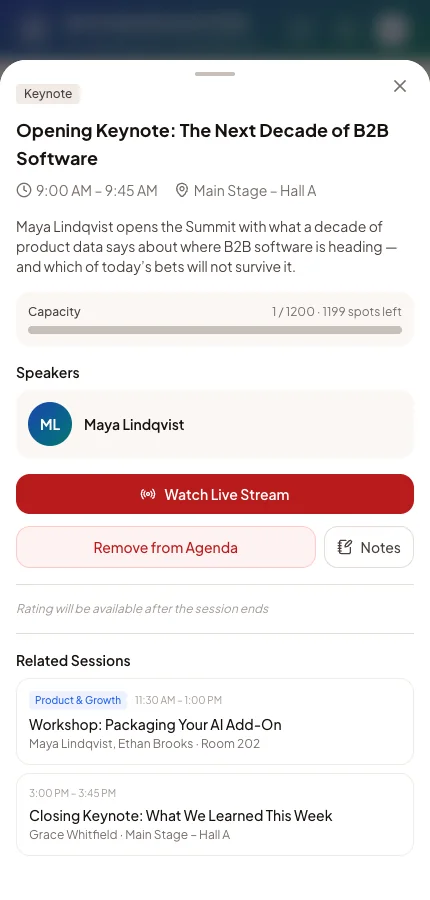
Session details opens a panel with the time, room, description, speakers and related sessions. It has the same agenda button.
After a session ends, an attendee who attended can Rate this Session. Ratings appear in your live analytics and post-event report.
Watching a streamed session
For a streamed session, Join session appears five minutes before the start. It opens the live page with a countdown, then the stream. If the stream cannot load, the attendee can retry.
Time on the live page counts towards attendance when you use browser auto-tracking.
The attendee's agenda
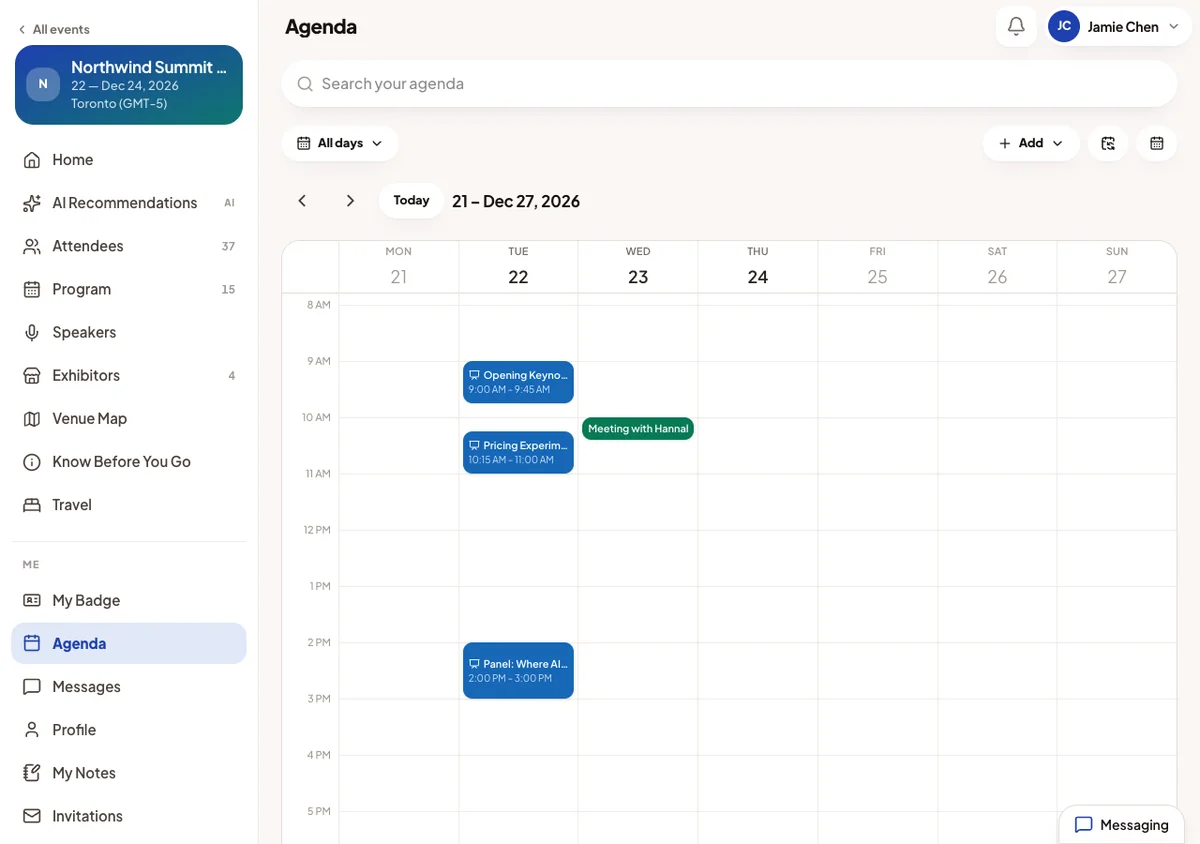
Agenda holds everything the attendee has committed to at one event:
- Saved sessions and sessions they speak at.
- Confirmed meetings, including those they are a guest of.
- Their own off-time.
It opens on the Calendar, a week grid. The view icon switches to List.
The List view groups items by day, with times on the left. Meeting cards offer Manage meeting, and Join Meeting as an online meeting starts. Finished items move to a Past section.
Off-time and meeting slots
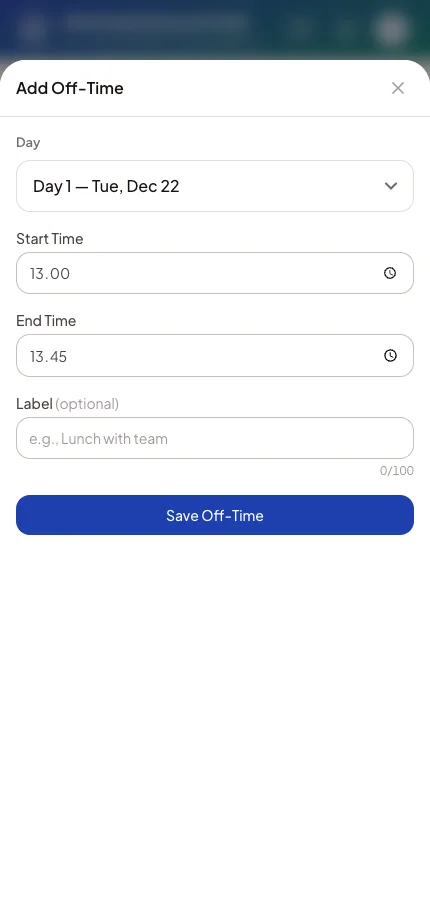
Add → Off-time blocks part of a day, for example Lunch with team. Nobody can book a meeting with the attendee during off-time.
In a saved session's details, Block my meeting slots does the same for that session. A session you set to block meeting slots blocks them for everyone who saves it. A session someone speaks at always blocks theirs.
Their own calendar
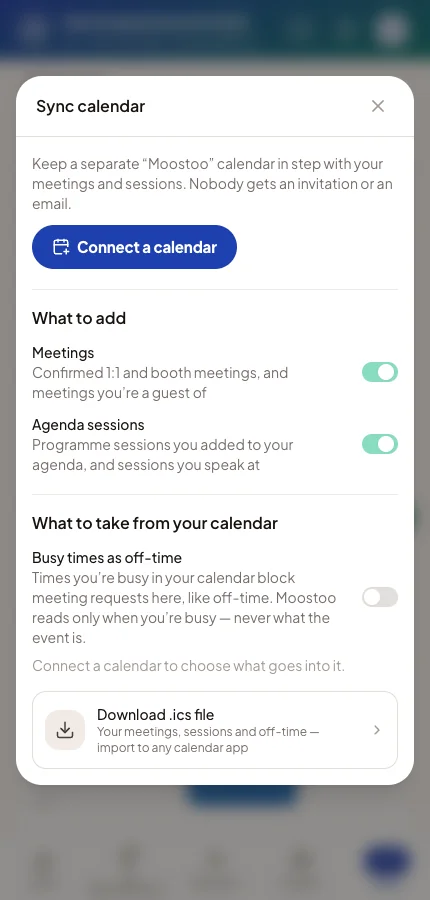
Sync calendar connects one personal calendar: Google Calendar, Microsoft Outlook or Apple iCloud Calendar. Moostoo then keeps a separate Moostoo calendar in it up to date with meetings and agenda sessions. Nobody receives an invitation or an email from it.
Attendees can also turn on Busy times as off-time. Moostoo then reads only when they are busy, never what the appointment is. Those times block meeting requests like any off-time. Download .ics file gives a one-off file for any calendar app.
The Speakers screen
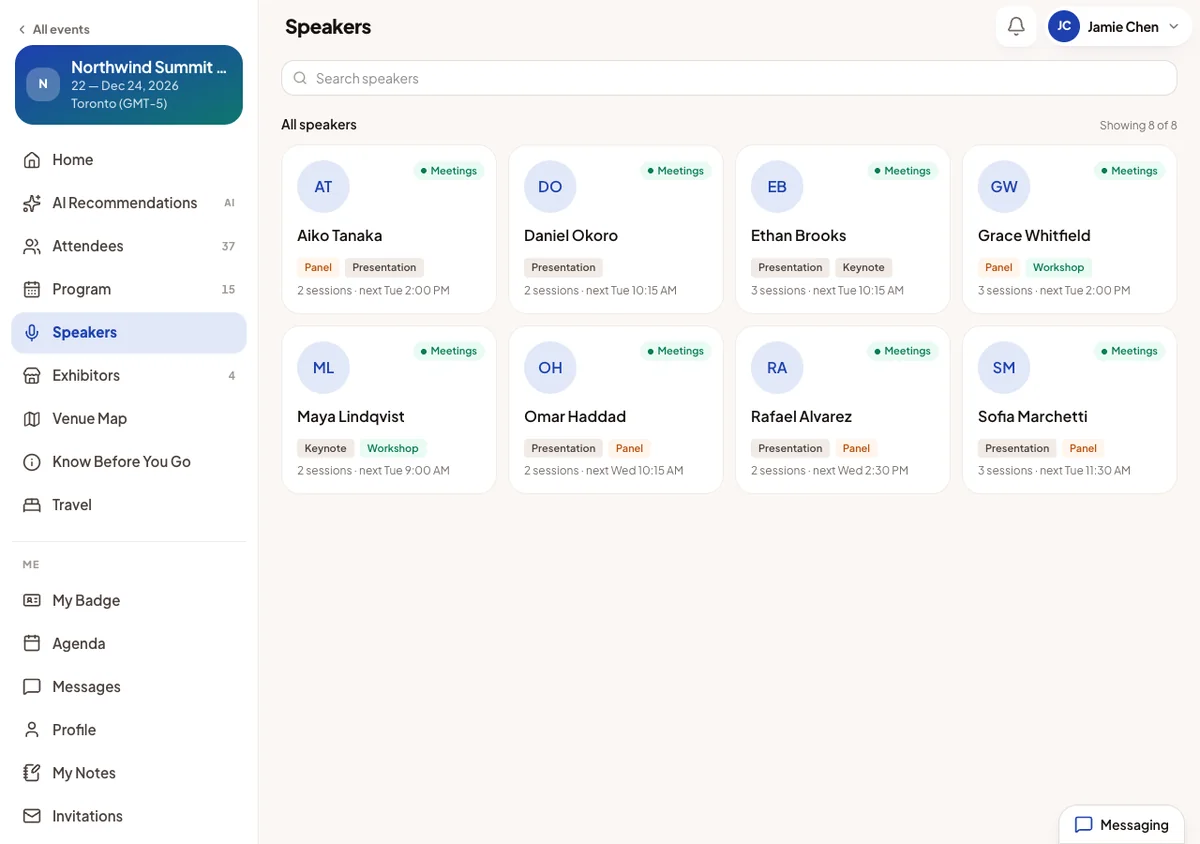
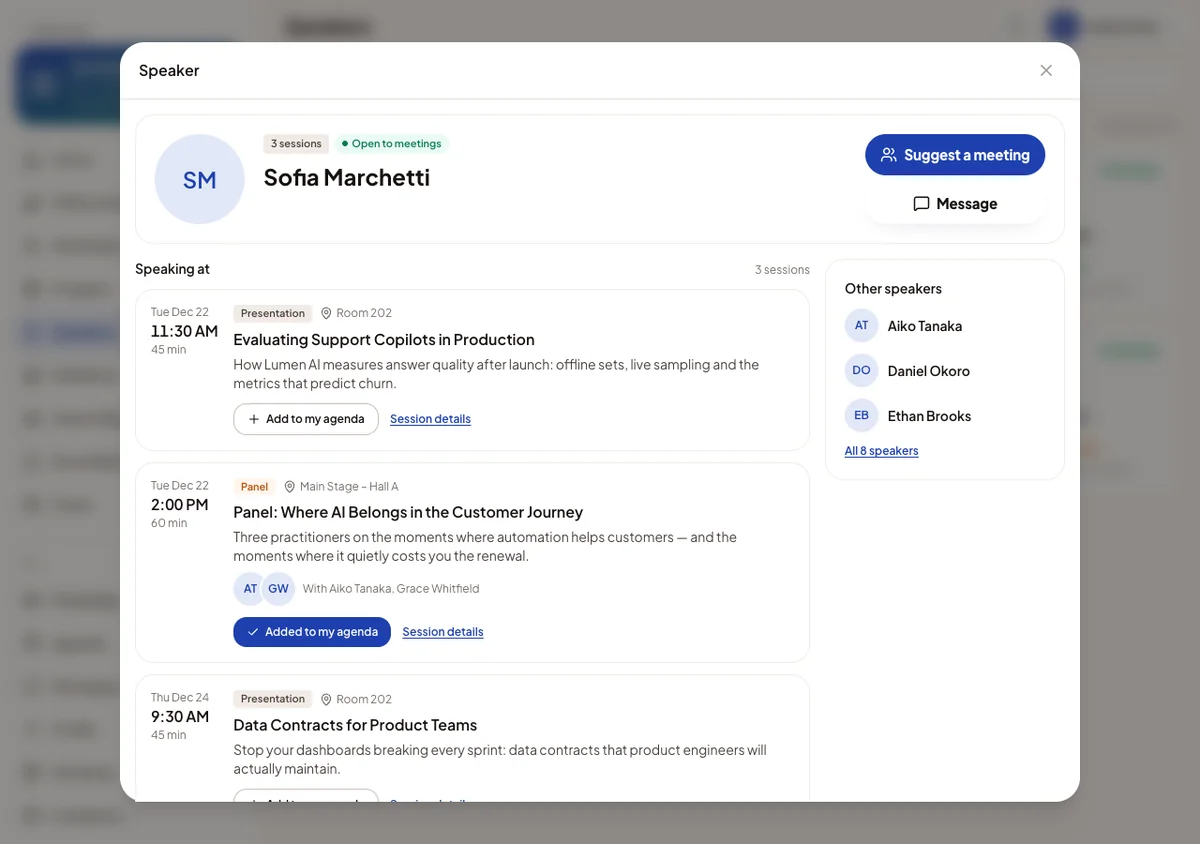
Once a programme session has a speaker, Speakers joins the menu. It lists every speaker with search, their job title and company.
A speaker opens in a dialog with their photo, bio, links and the sessions they speak at. When the speaker is also an attendee, Suggest a meeting and Message appear, under the same rules as the people directory.
In the attendee app
Everything on this page is what attendees see. Their Program follows your template, access types and capacities. Their agenda follows what they saved and accepted.
Questions you may be asked
"A session I was told about isn't on my Program."
It is invite-only, restricted to other attendee types, or a meeting session. Meeting sessions are booked through meeting requests.
"I can't add a session. It says You are busy."
Another session, or an RSVP request still waiting for you, holds that time. Answer the request, or the attendee removes the other session.
"My RSVP request has been waiting for days."
Requests wait on the RSVP tab of Program Attendance. Accepting adds the session to their agenda.
"Times on my agenda look wrong."
Attendees choose which clock they see times on, on page 1 of their profile. Check that first. See Timezone.