
Import and export attendees
Rosters arrive as spreadsheets: a sponsor's guest list, last year's VIPs, a partner's registrations, a corrected file sent back by a colleague. The attendee import turns such a file into attendees — matching people already on the event instead of duplicating them — and the export gives you every column, including answers to your questions, for anyone who works outside Moostoo. An export can be edited and imported straight back.
How it works
Import and Export sit in the toolbar of the attendee directory. The same kind of work can also be done for many entities at once in the Import/Export Hub; this page covers the attendee directory's own import and export.
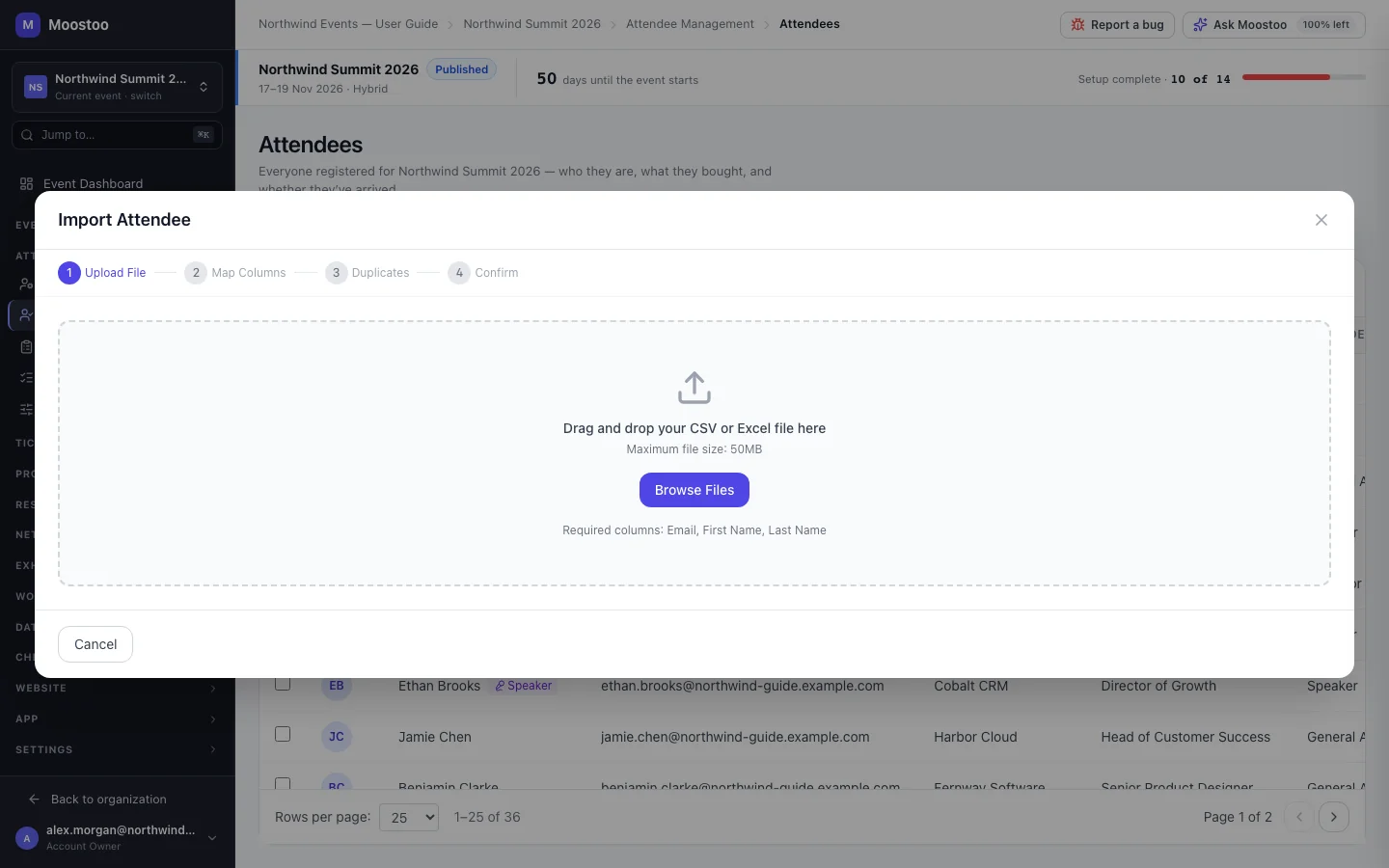
The import wizard's stages
Upload File — a CSV or Excel file up to 50 MB.
Map Columns — each file column is matched to a Moostoo field; columns with recognisable headings are auto-mapped. You can map to Email, First/Last Name, Phone, Company, Job Title, Country, City, Attendee Type, Ticket Type, Ticket ID, QR Code, Short Bio, Offers, Seeks, Notes — and every question in the event's question pool.
Duplicates — choose what happens to people already on the event: Skip leaves them exactly as they are; Update refreshes their details from the file.
Confirm, then Processing and Complete — the summary shows total rows, imported, updated, skipped and errors.
- Who a row is about: the Ticket ID first, the email second. A row with a ticket ID updates the attendee holding that ticket even if their email changed since. A row with neither an email nor a ticket ID is refused. A ticket ID that matches nobody falls back to the email, and a new email creates a new attendee.
- An import never rewrites an attendee's email. Once someone signs up, their email is how they sign in; a different address in the file only identifies, never overwrites. A blank cell never erases a name you already have.
- Attendee Type is matched by name, ignoring case. A name the event does not have must be paired with one of your types on the mapping step before the import can run — a type is never invented from a typo, because a type carries permissions. To add a new type, create it on Attendee types first (or in the Import/Export Hub's wizard, which offers Create).
- Answers are merged, never replaced: a question the file does not mention keeps the answer the attendee gave. A choice not among a question's options can be paired with one; one left unpaired is dropped for that row and reported, and the rest of the row still imports.
- A row identical to what is stored counts as skipped, not updated, so Updated means records that actually changed.
- Rows that fail are listed with the problem. You can correct them in place and import just those rows again.
Export — File Format CSV or Excel (.xlsx).
Export — Columns Every attendee field, the full profile (expertise, social links, photo address, checked-in) and every question in the pool. All are ticked to start with.
Export — Rows All Records, Current Filter or Selected Rows. Only Selected Rows narrows the file today — Current Filter still exports every attendee — so to export a filtered list, tick its rows first. Include Networking Data adds meeting count, connection count and engagement score.
Export — Schedule Offered as One-time, daily or weekly, but the attendee directory does not schedule exports yet: every choice downloads the file once, now. For recurring exports use the Import/Export Hub.
Step by step
Import a guest list
Make sure the attendee types and questions the file refers to exist on the event.
Open Attendees, click Import, then Browse Files and choose the file.
On Map Columns, check each auto-mapped column and map any marked Unmapped that you want to keep.
Where a column shows values Moostoo does not recognise, pair each with one of the event's attendee types or a question's options.
On Duplicates, choose Skip or Update.
Review the summary and click Start Import. When it completes, fix and re-import any failed rows.
Export the roster
To export only some people, filter the directory and tick their rows (or the header box for the whole page). Then click Export.
Choose CSV or Excel, untick columns you do not need, and choose Selected Rows if you ticked people — otherwise All Records.
Click Export. The file downloads in your browser.
What attendees see
In attendee emails
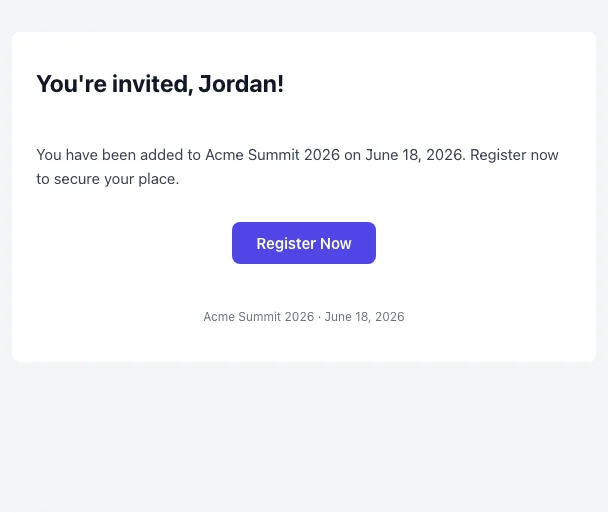
New attendees created by an import start as Invited and receive the Event Invitation email if it is switched on. People who were already on the event are not emailed.
Tips
- Round-trip safely: export, edit the cells you need in the spreadsheet, and import with Update. Unchanged rows are skipped, so the report shows exactly what changed.
- Keep the Ticket ID column when you re-import a file from a ticketing platform — it is what stops a changed email from creating a second entry for the same person.
- Switch the Event Invitation email off before importing people who should not be invited yet, and on again afterwards.
- Exports are logged, because they contain personal data. Share them only with people who need them.
Ask Moostoo
For a handful of people you can skip the spreadsheet entirely.
Invite these three people as General Attendees: Ana Silva ana@lumen.example, Ben Ortiz ben@harbor.example, Chloe Park chloe@cobalt.example.