
Google Sheet imports
Many teams keep the real list in a Google Sheet: the programme, the speaker roster, the exhibitors sales confirmed. A Google Sheet import reads that sheet on a schedule and adds or updates what is on it. Each run uses the same checks as a file import, so a bad row is caught before anything is written.
How it works
One sheet tab, one record type
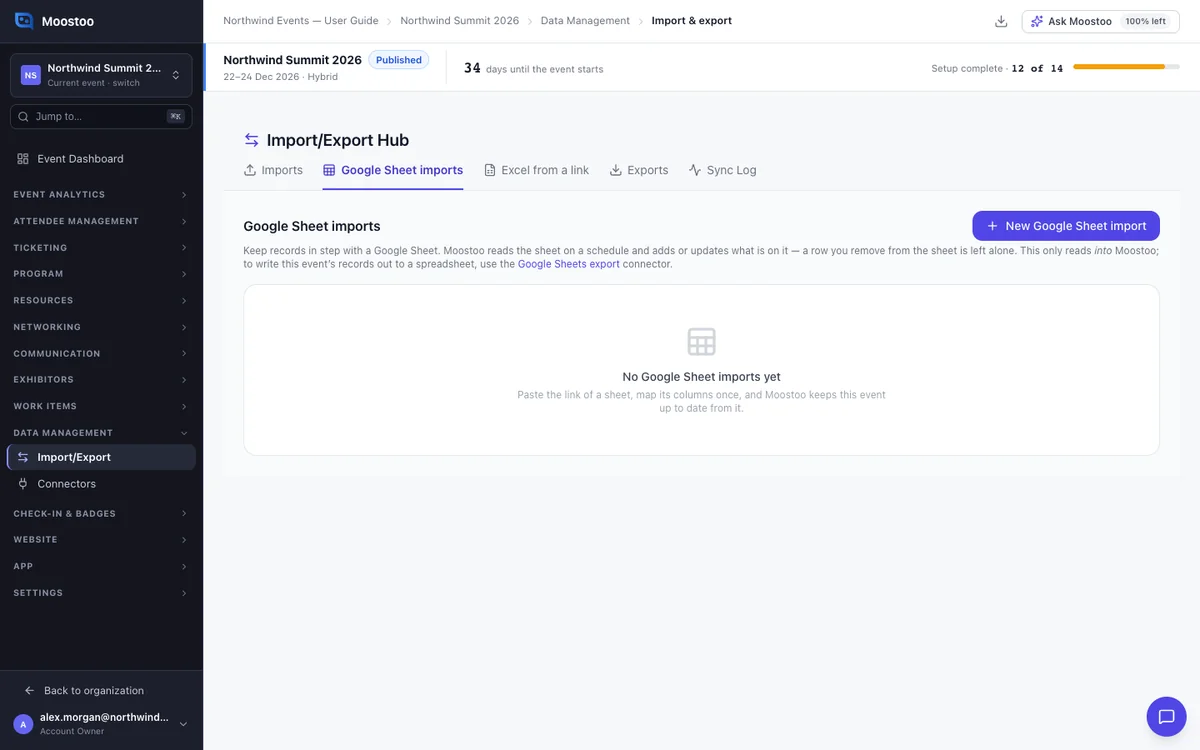
Open Data Management → Import/Export and choose the Google Sheet imports tab. Each import reads one tab of one sheet — the tab in the link you paste. It brings in one record type, with its own column mapping and schedule.
You can set up as many imports as you need, including several that read different tabs of the same spreadsheet. Each one runs on its own schedule, from every 5 minutes to once a day.
This reads a sheet; it never writes one
A Google Sheet import brings rows into Moostoo and never writes to your sheet. To fill a spreadsheet from Moostoo, use the Google Sheets export connector. See CRM sync and connectors.
Giving Moostoo access
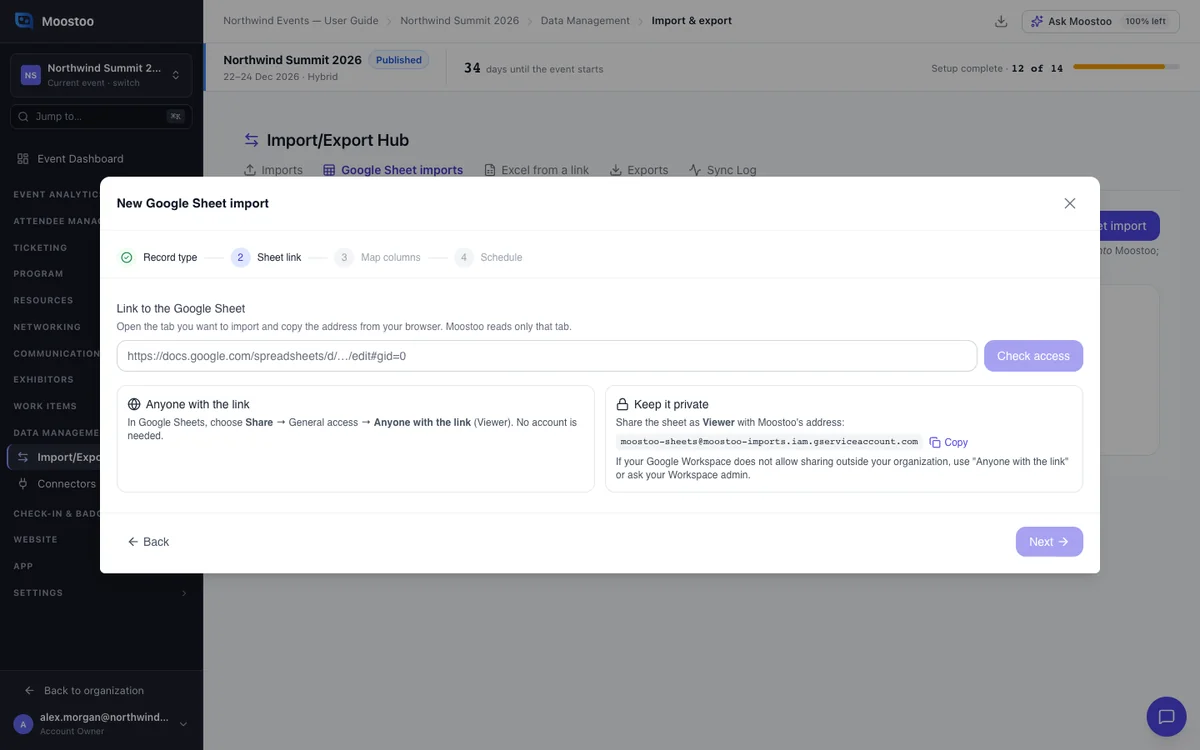
There are two ways. Set the sheet's General access to Anyone with the link as a viewer. Or share it as a Viewer with Moostoo's address, which the wizard shows with a Copy button.
Moostoo reads only the tab in the link you pasted. It never opens other tabs or other sheets, even ones shared with it.
Every run checks the whole sheet
Each row gets the same validation as a file import: required fields, formats, mapped values, dates inside the event and so on.
By default, Only import when every row is valid is on. If any row has a problem, nothing is imported, and the run lists each problem with its row number in Google Sheets. Fix the sheet and the next run imports it.
You can switch that setting off on the wizard's Schedule step, or later on the import's row. Then a bad row is skipped and listed, for example Row 12: …, and every other row is imported.
Special columns
External ID A key of your own for each row, such as S-101. Sessions, locations, attendee types and questions are matched by it, so it is required for them. That is why renaming a session on the sheet updates it instead of adding a second one.
Deleted A true/false column. When true, the record is removed. See the table below for what that means per record type.
Forced A true/false column. When true, every mapped column of that row is written, whatever its write rule. The row is still checked, and a sign-in email is still never changed.
Attendees and speakers are matched by ticket ID, then email. Companies are matched by their domain, from the Domain column or the Website, then by name. For these, an External ID column is optional.
Write rules
Each mapped column has a write rule. It decides what happens when the record already exists:
- Always update — the sheet wins.
- Keep if registered — for attendees and speakers. The sheet updates the value until the person signs in to the app and opens the event. After that it is theirs to edit.
- Don't update — the value is used only when the record is created.
What a Deleted row does
| Record type | What happens |
|---|---|
| Attendees | Removed from every list. Their history is kept. |
| Speakers | Taken off every session of this event, then off the event. Their contact stays in your organization. |
| Companies | Removed from this event only. Your organization's company directory keeps them. |
| Sessions, locations, attendee types, questions | Deleted. A session in a deleted room has no room, and attendees of a deleted type have no type. A question from your organization's shared pool is never deleted. An attendee type a ticket type still sells is not deleted, and the run says so. |
Good to know
- Taking a row off the sheet changes nothing in Moostoo. To remove a record, mark it Deleted.
- During the event's own days, every import runs every minute, whatever schedule you chose. The roster at the door stays current.
- A run never overlaps the next one, or any other import of the same event.
- When several imports of one event are due together, they run in this order: attendee types, questions, attendees, locations, companies, speakers, sessions. So a session finds the room another sheet just added.
- A company row finds the company in your organization, or adds it, and puts it on this event. Booth Location names one of the event's locations.
- A renamed mapped column stops the run before anything is written, and names the missing column. New columns you did not map are ignored and listed.
- If a run cannot import, the import shows Needs attention with the reason and keeps trying. After three such runs in a row, the person who set it up gets one email.
Step by step
Set up a Google Sheet import
On the Google Sheet imports tab, click New Google Sheet import.
Give it a name and choose what the sheet holds.
In Google Sheets, open the tab you want and share it.
Use Anyone with the link, or share as Viewer with Moostoo's address. If your Google Workspace blocks sharing outside your organization, ask your Workspace admin.
Copy the address from your browser's address bar.
Paste the link and click Check access.
Moostoo tells you how many columns and rows it found, or what to change in Google Sheets.
On Map columns, check each column's Moostoo field and its write rule.
Columns are matched for you. A column whose values must match a list opens a value table.
Choose the External ID column, and the Deleted and Forced columns if your sheet has them.
Choose how often to read the sheet and click Save import.
The first run starts within a minute.
Run, pause and check an import
Click Run now to read the sheet straight away.
Click Pause to stop the schedule until you resume it.
Open an import's row to see its run history.
Each run shows what it created, updated, skipped and deleted, and each row it could not import. When a run imported nothing, it says why, and you can download the problem rows.
What attendees see
In the attendee app
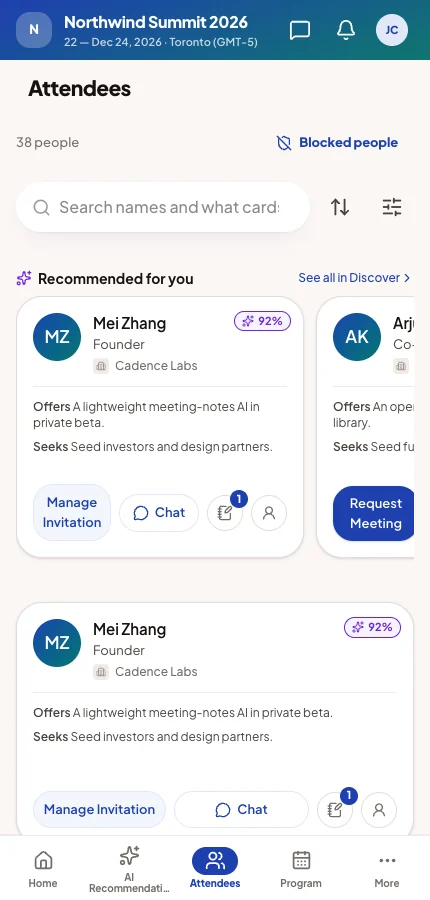
Records from a sheet appear as if you had added them by hand. Attendees can sign in and appear in the People directory, sessions in the Program and companies on the Exhibitors page. A removed attendee no longer appears anywhere.
In attendee emails
A sheet import sends the same automated emails as a file import, such as the Event Invitation to a new attendee if that email is on. Check Automated emails before pointing a large sheet at an event.
Tips
- Give programme rows a stable key, such as S-101, from the start. Then the content team can rename sessions freely.
- Use Don't update for columns people will edit in Moostoo later, and Keep if registered for profile fields attendees fill in.
- To push one correction past the write rules, tick the Forced column on that row, then untick it after the run.
- Keep one header row and don't rename mapped columns. If you must, edit the import's mapping afterwards.