
Organization dashboard and events
The organization dashboard is home when you are not inside an event: the list of everything your organization runs, what state each event is in and how many people are on it. It is also where new events begin. Choosing the right starting point — a blank event, a copy of last year's or a ready-made demo — saves hours of setup.
How it works
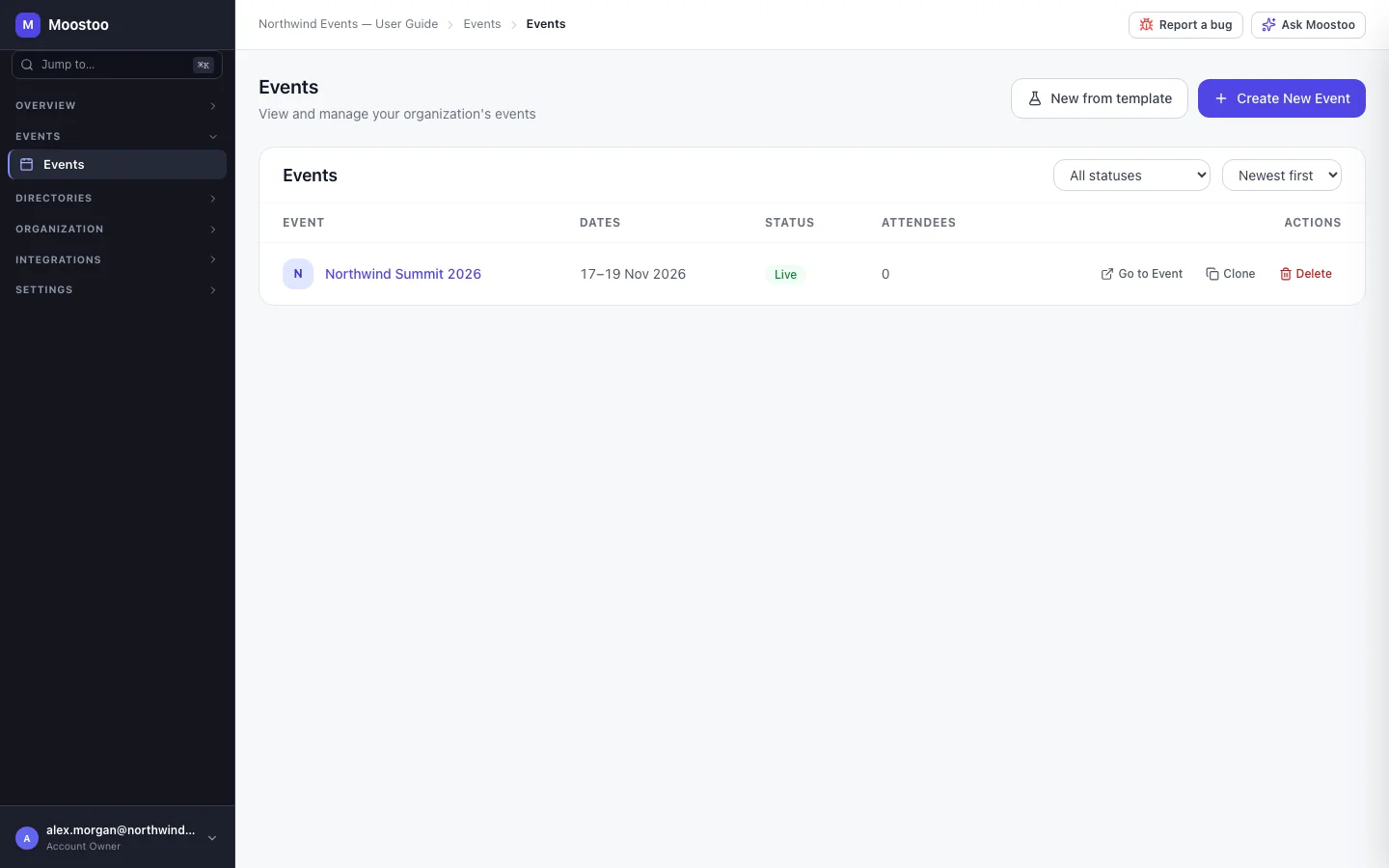
Overview → Dashboard and Events → Events show the same event list; New from template is on the Events screen only. Each row gives the event's name, dates (on the event's own timezone), status and attendee count, and actions to open, clone or delete it. Filter by status and sort by start date, newest or oldest first. In practice an event is Draft until you publish it and Live from then on; Completed appears for ended events brought in by Platform Migration. Sandbox events carry a Sandbox badge so they are never mistaken for real ones.
| Start | Where | Use it when |
|---|---|---|
| Create New Event | Dashboard or Events | A new event with nothing in it. You go through the event wizard. |
| Clone Existing | Create New Event → Clone Existing, or the clone action on an event's row | Next year's edition, or a sister event. You tick what to copy — locations, sessions, attendee types, questions, forms, badges, kiosks and more — and dates move by whole days. Attendees, registrations, orders and check-ins are never copied. See Clone an event. |
| New from template | Events | A fully populated demo with fake attendees, to learn or to demonstrate. See Sandbox events. |
- Only Account Owners and Super Users create, clone and delete events. Create New Event, New from template and Delete are hidden from other roles; Clone is shown to everyone but refused for them.
- Everyone on your organization team sees every event in the list. What they can do inside an event depends on their role and that event's team — see Roles and permissions.
- Deleting an event cannot be undone. A confirmation names the event before anything is removed.
Step by step
Clone last year's event
Open Events and click the clone action on the event to copy.
The Clone “…” dialog asks what to copy. Items that another item depends on are ticked for you — kiosks need a print hub, ticket types need attendee types.
Untick anything you do not want and click Clone event.
The copy is created as a draft named … (Copy), dated one year later, and you are its Admin whether or not the event team was copied. Rename it and adjust its dates in Event settings.
Want to choose the name and dates up front instead? Use Create New Event → Clone Existing: pick the source, choose what to copy, then go through the wizard with everything pre-filled.
Open an event
Click an event's name, or use the event switcher at the top of the sidebar.
The sidebar changes to that event's screens. View all events in the switcher brings you back.
What attendees see
Nothing on this screen reaches attendees. Deleting an event does: its attendee app, website and registration stop working, which is why the deletion asks first.
Tips
- Clone rather than rebuild: a clone copies the configuration you spent weeks on and none of last year's people.
- Keep sandbox events for training and sales demos; they send no email, SMS or push to anyone.
- The attendee count is everyone on the roster except removed attendees — the same number the event's own dashboard shows.
Ask Moostoo
Show me our events.
Create an online webinar series called Customer Success Live starting 3 February 2027.