
Ticketing dashboard
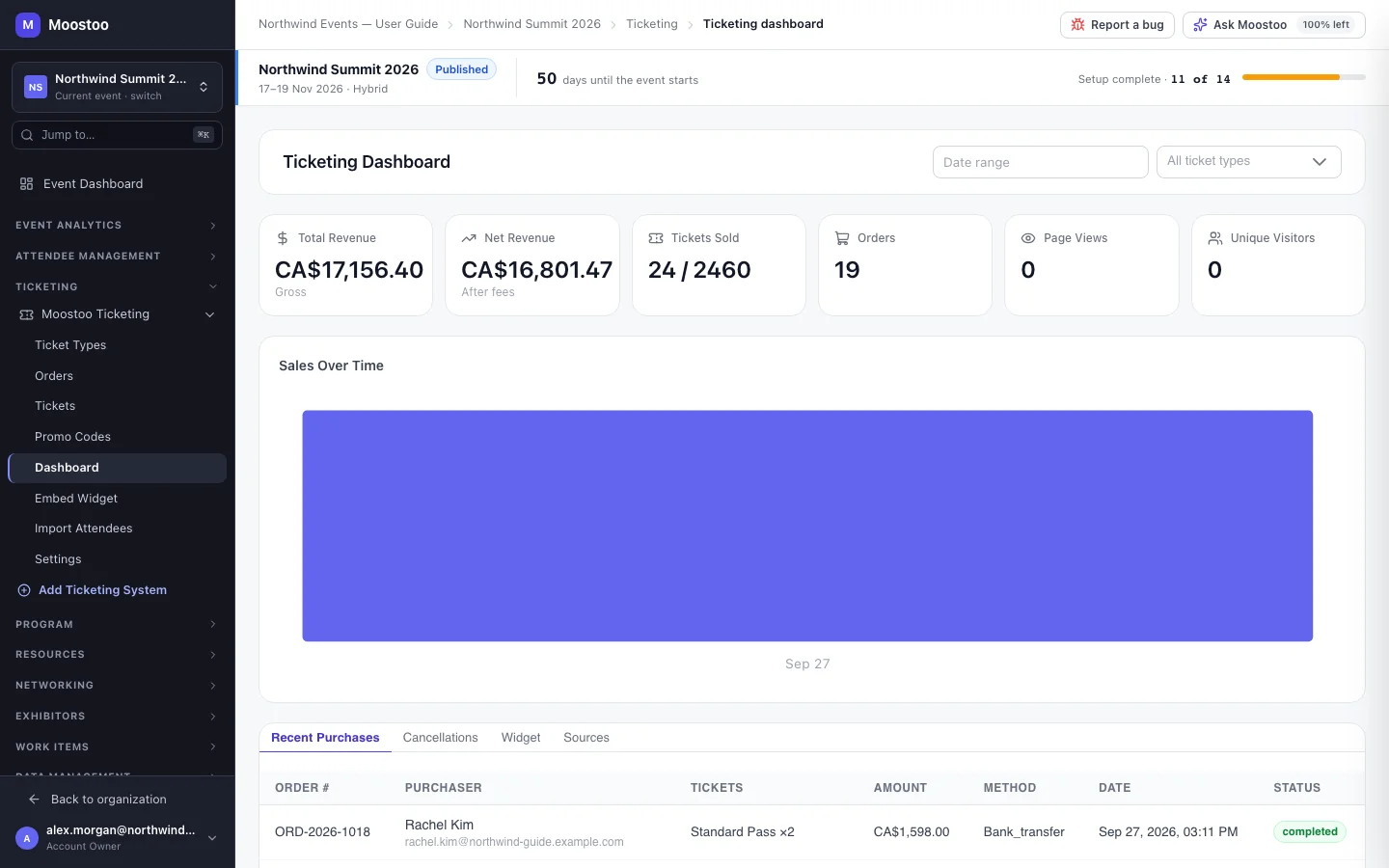
The ticketing dashboard answers the questions you ask every morning during a sale: how much have we sold, is it speeding up or slowing down, what did people just buy, who cancelled, and which channels are working? It is the view to share with a sponsor or a finance lead, and the place to spot a problem — a spike in refunds, a widget nobody converts on — early.
How it works
Total Revenue The gross value of completed and refunded orders, before refunds and fees. It counts what was sold, including orders still waiting for payment — for money actually received, see Collected on Orders.
Net Revenue Total revenue less refunds and an estimate of card-processing fees (2.9% + 30 cents per card order).
Tickets Sold Tickets (seats) on completed and refunded orders, against total capacity where your ticket types have one.
Orders The number of purchases, not counting cancelled ones.
Page Views and Unique Visitors Traffic to your ticket pages and widget. These stay at zero while the embed widget is not live, because nothing else reports views yet.
- Sales Over Time charts revenue across the period you choose.
- Filter everything by date range and by ticket type.
- Recent Purchases lists the newest orders; click one to open its order drawer.
- Cancellations totals cancellations, the amount refunded and the cancellation rate, with each refund's reason.
- Widget shows how the embed widget performs on each website domain and the top referring domains.
- Sources shows visits, orders, revenue and conversion for each traffic source link.
- Test orders are excluded from every figure, so trying the checkout in test mode never inflates your numbers.
The revenue on the Event dashboard and in the Post-event report comes from the same revenue query, so the three screens agree.
Step by step
Open Ticketing → (your Moostoo system) → Dashboard.
Pick a date range and, if you want, a single ticket type.
Read the cards and the chart, then switch between Recent Purchases, Cancellations, Widget and Sources below.
Click any purchase to open the order and act on it.
What attendees see
Attendees are not affected by this screen — it only reports on what they bought.
Tips
- A widget with many views and few orders usually means the wrong tickets are offered, or prices surprise people at checkout.
- Watch the cancellation rate after a programme change or a price step — it is the earliest sign of trouble.
- For who registered rather than what was sold — counts by attendee type, including free and imported attendees — use the attendee list or ask Moostoo.
Ask Moostoo
How many people have registered so far?
How many VIPs have registered?
Name one attendee type to count only that type.
Show me our ticket types with how many of each have sold.