
Pre-arranged meetings
Hosted-buyer programmes, investor days and VIP concierge services live on meetings the organizer sets up: a sponsor hands you a list of the twenty buyers they must see, or a VIP asks you to answer their inbox while they're on stage. Pre-Arranged Meetings lets you do that work yourself, fast, in your own name — the two attendees are the meeting's parties, you are recorded as the one who arranged it, and every rule attendees live by still applies, so you can never double-book a table or override someone's blocks.
How it works
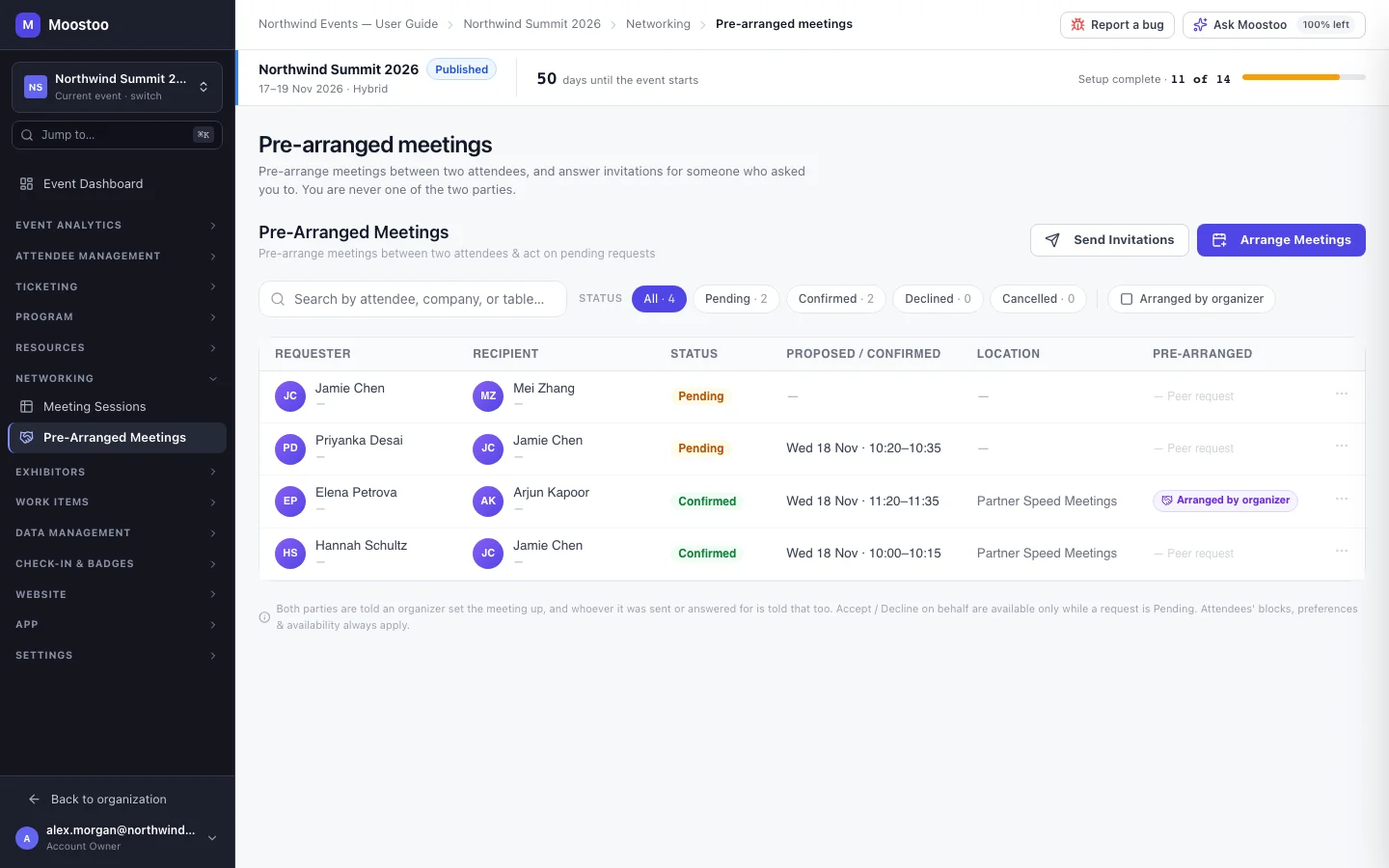
The screen is Networking → Pre-Arranged Meetings. It lists every one-to-one meeting and invitation of the event — requester, recipient, status, proposed or confirmed time, location, and whether an organizer arranged it — with tabs for All, Pending, Confirmed, Declined and Cancelled and a search by attendee, company or table. Requests made to an exhibitor's booth are listed too but are read-only here: the booth answers them. You never impersonate anyone: you stay signed in as yourself throughout.
| Action | What it does | What the recipient must do |
|---|---|---|
| Arrange Meetings | Books a confirmed meeting between attendee A and attendee B at a slot you pick, seated at a free table. | Nothing — it is on both agendas at once. |
| Send Invitations | Sends an invitation framed as coming from A, with an invitation mode and proposed times. | Accept, decline or suggest another time, exactly like any request. |
| Accept on behalf / Decline on behalf | Answers a pending invitation for its recipient, from the row's … menu. Accepting asks you to pick the time — one of the proposed times, or any time both are free when the invitation lets the recipient choose — and Confirm on behalf; a decline can carry a reason. | — |
| Cancel meeting / Withdraw | Cancels a meeting you arranged, or withdraws an invitation you sent, from the list of the window you added it in. Both parties and any guests are told that an event organizer cancelled it. | — |
Invitation mode Let the recipient choose (B picks any time you are both free), Propose preferred slots (your times first, but B may pick another free one) or Propose specific slots (B must pick one of yours).
Guests Colleagues added to the meeting on either side. They never block a time — see Meeting guests.
Can Pre-Arrange Meetings The event permission this screen needs. Account Owners and Super Users have it; you can grant it to event team members with the User role in the event team. Volunteers, partners and service providers can never have it.
Guardrails are never lifted
Everything you arrange goes through the same checks as an attendee's own request: the meeting session must be open to both attendees' types, the experience rules must allow the pair, there must be a free table and both calendars must be free, and meeting limits apply. If someone has blocked the other or turned off meeting requests, the invitation is quietly dropped — and that is never revealed, not even to you.
Step by step
Arrange a list of meetings
Click Arrange Meetings. A large window opens: the form on the left, the meetings you arrange in this sitting on the right.
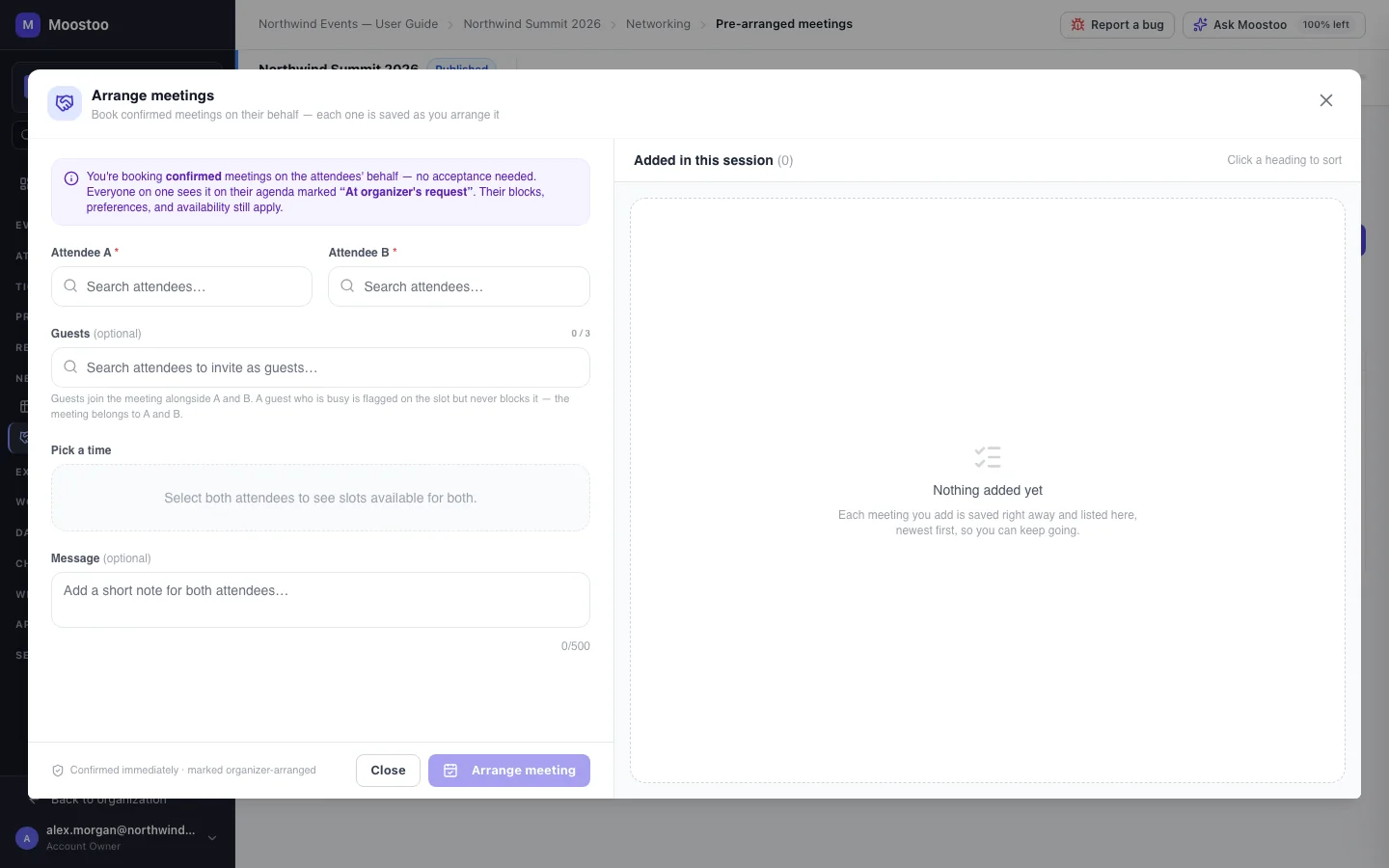
Pick Attendee A and Attendee B, add any Guests, and choose a slot under Pick a time.
Only slots both attendees can actually have are offered; slots already booked for either of them in this sitting are marked.
Add an optional message for both attendees and click Arrange meeting.
The meeting is saved at once. If Moostoo refuses it — a limit reached, a slot just taken — the reason is shown on the form and nothing is added.
Attendee A stays filled in, so the next meeting for the same sponsor or VIP only needs a new B and a time. Clear A to switch to someone else.
Send invitations on someone's behalf
Click Send Invitations and pick the Requester (attendee A) and Recipient (attendee B).
Choose the Invitation mode and, unless B chooses, add the proposed times.
Add guests and a message if needed, then click Send invitation. B receives it as a normal request from A.
Answer for someone
Open the Pending tab and click the … on the invitation's row.
Choose Accept on behalf, pick the time and click Confirm on behalf — or choose Decline on behalf, add an optional reason and confirm.
You can start from an attendee, too: on Attendee Management → Attendees, open a person and use Arrange Meeting or Send Invitation in their Meetings section — they are filled in as attendee A.
What attendees see
In the attendee app
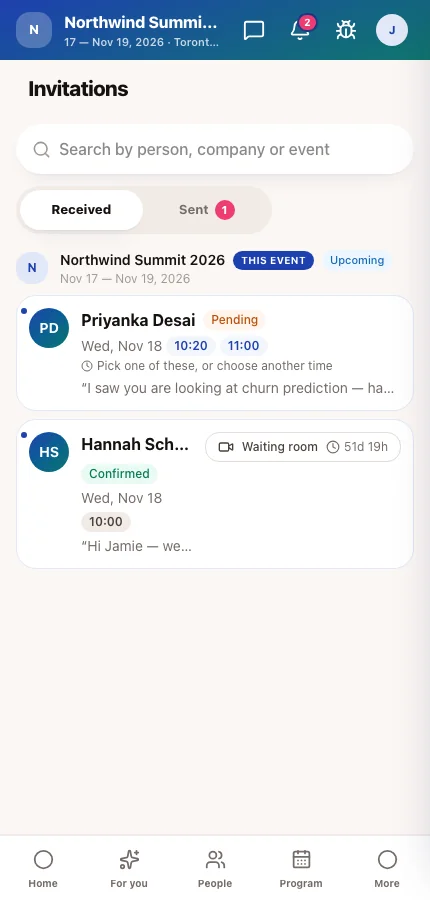
Attendees see what an organizer did, in words written for them — never the organizer's name. The recipient of an invitation you sent reads Invitation sent by organizer; the person it was sent for reads Sent by organizer on your behalf; an answer you gave reads Answered by organizer on your behalf; and once the meeting is settled both see At organizer's request on the invitation and on their agenda.
In attendee emails
Both attendees get the same notifications and emails as for any request, acceptance or cancellation.
Tips
- Prefer Send Invitations when either attendee might not want the meeting — a confirmed meeting they didn't choose is easy to no-show.
- Build a sponsor's list in one sitting: keep them as attendee A and work down their target buyers.
- Reserve tables for key people first on Meeting tables and logistics if their meetings must happen at a particular spot.
- A refusal naming a limit means the attendee already has as many meetings as your rules allow — raise the limit in the experience rules if the programme needs it.
Ask Moostoo
Book a meeting between jamie.chen@example.com and priya.raman@brightline.io on 2026-11-18 at 14:00 in Partner Speed Meetings.
Send an invitation from priya.raman@brightline.io to jamie.chen@example.com and let Jamie choose the time.
Which meetings are still pending?