
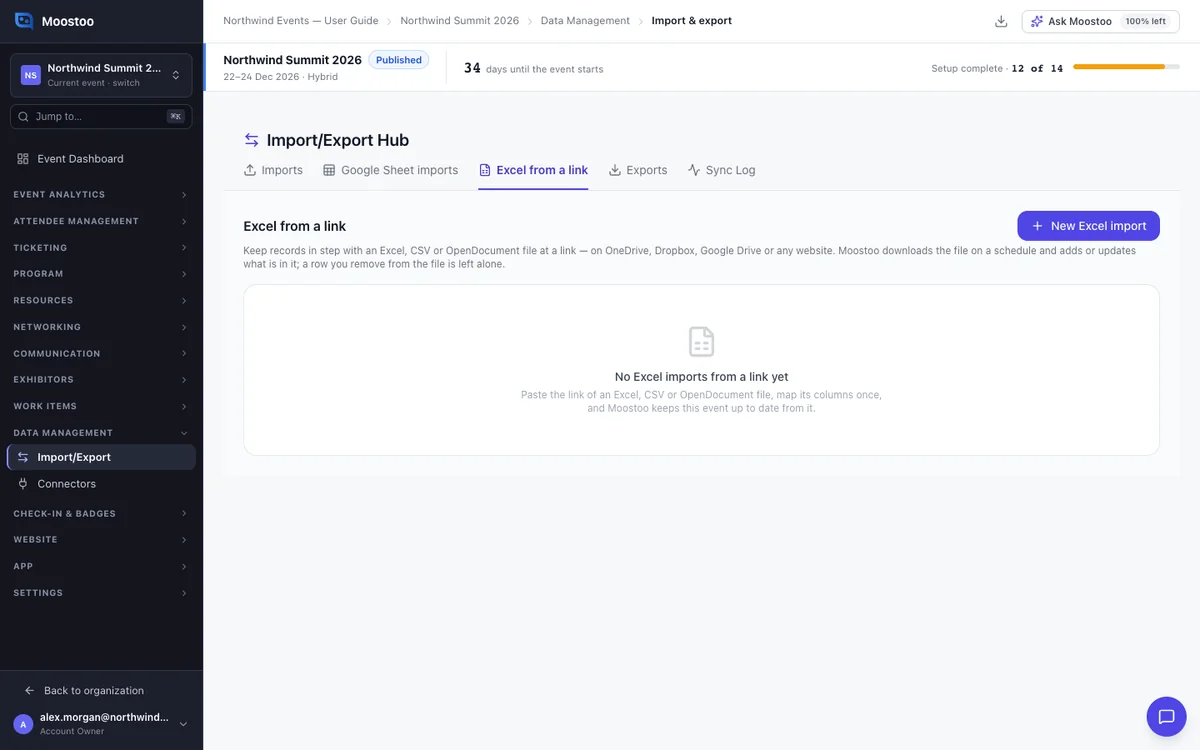
Excel from a link
Not every team keeps its list in Google Sheets. When the real roster is an Excel file on OneDrive, SharePoint or Dropbox, re-uploading it after every change is slow and easy to forget. An Excel from a link import reads the file at its link on a schedule and adds or updates what is in it.
How it works
Works like a Google Sheet import
Open Data Management → Import/Export and choose the Excel from a link tab. Each import reads one worksheet of one file, for one record type, with its own column mapping and schedule.
Everything else works as in a Google Sheet import: how records are matched, the External ID, Deleted and Forced columns, write rules and the run history. That page explains them.
Only import when every row is valid is on by default too. One bad row then stops the whole run until the file is fixed. Switch it off and bad rows are skipped and listed while the other rows import.
Which links work
- An https link to an .xlsx, .xls, .csv or .ods file, up to 50 MB.
- Share links from OneDrive, SharePoint, Dropbox and Google Drive. Paste what the Share button gives you; Moostoo turns it into a download link.
- A file a website publishes for download. Copy its address.
The link must open for anyone with the link. Moostoo cannot sign in to your storage.
Some share links open a page about the file instead of the file itself. Moostoo refuses those and says so. Copy the file's download link instead, or set sharing to anyone with the link and copy it again.
Which worksheet is read
If the workbook has several worksheets, you choose one after Check access. Otherwise the first one is read.
Moostoo remembers the worksheet by its name, so reordering the workbook does not change what is imported. If the worksheet is renamed or removed, the next run imports nothing and names the worksheet it is looking for.
A Google Sheet has its own tab
Paste a Google Sheets link on the Google Sheet imports tab instead. That tab can also read a private sheet shared with Moostoo. Pasting one here tells you so.
Step by step
Set up an Excel from a link import
On the Excel from a link tab, click New Excel import.
Give it a name and choose what the file holds.
In OneDrive, SharePoint, Dropbox or Google Drive, share the file so anyone with the link can view it. Copy the link.
Paste the link and click Check access.
Moostoo tells you how many columns and rows it found, or why it could not read the file. If the workbook has several worksheets, choose one.
On Map columns, check each column's Moostoo field and its write rule.
Choose the External ID column, and the Deleted and Forced columns if your file has them.
Choose how often to read the file and click Save import.
The first run starts within a minute. During the event's own days, every import runs every minute.
Run, pause and check an import
Click Run now to read the file straight away, or Pause to stop the schedule.
Open an import's row to see its run history.
Each run shows what it created, updated, skipped and deleted, and each row it could not import, such as Row 12: …. When a run imported nothing, it says why.
What attendees see
In the attendee app
Records from a linked file appear as if you had added them by hand. Attendees can sign in and appear in the People directory, sessions in the Program and companies on the Exhibitors page.

In attendee emails
A linked-file import sends the same automated emails as a file import, such as the Event Invitation to a new attendee if that email is on. Check Automated emails first.
Tips
- For a one-off import of a linked file, use Or import from a link in the ordinary import wizard. Nothing is scheduled.
- Keep the worksheet's name stable. If you rename it, the import stops until you rename it back or edit the import.
- If the file's host asks visitors to sign in or prove they are human, Moostoo cannot read it. Host the file where a plain download link works.